ADB Shell - Debug Toolbox is a free Android application designed to simplify the process of debugging and profiling Android devices. Developed by Color Box Technology, this tool provides a user-friendly interface for interacting with your device’s system, allowing developers and advanced users to perform various tasks without the need for root access or complex setup procedures. This comprehensive guide explores the capabilities of ADB Shell - Debug Toolbox, its applications, and considerations for its use.
Understanding ADB Shell and its Functionality
The Android Debug Bridge (ADB) is a versatile command-line tool included in the Android SDK (Software Development Kit). It provides a bridge between your computer and your Android device, enabling various operations such as installing and debugging applications, managing files, and inspecting system information. ADB Shell - Debug Toolbox aims to make interacting with ADB more accessible to users who may not be comfortable with command-line interfaces.
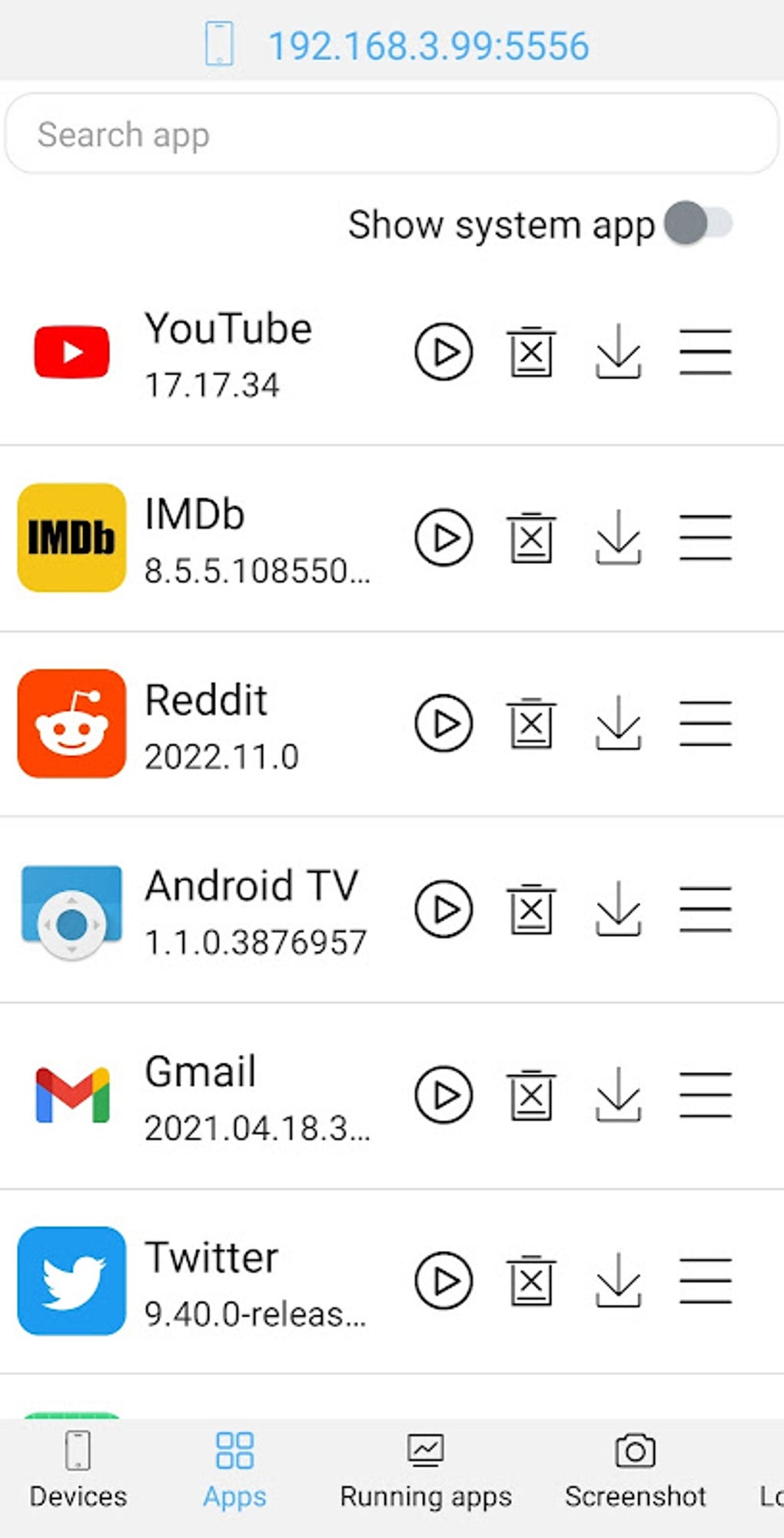
The application acts as a wrapper around ADB, presenting its functionality through an intuitive graphical user interface (GUI). This translates complex ADB commands into simple button clicks or menu selections. This simplification greatly enhances ease of use, making powerful debugging tools accessible to a broader range of users, regardless of their technical expertise.
The core functionality revolves around executing ADB commands, but the app handles the technical details behind the scenes, allowing users to focus on the results. Tasks like inspecting device logs, managing processes, installing APKs, and pushing and pulling files between the device and the computer are all simplified considerably. The GUI also often provides helpful context and error messages, making troubleshooting easier than with the raw ADB command line.
Key Features and Capabilities of ADB Shell - Debug Toolbox
ADB Shell - Debug Toolbox boasts a range of features, making it a powerful tool for both developers and power users. Some key capabilities include:
-
Simplified ADB Command Execution: The app translates complex ADB commands into easy-to-understand actions, making it accessible even to beginners. Users can perform various tasks with minimal knowledge of the underlying ADB commands. This eliminates the learning curve associated with traditional ADB usage.
-
Device Information Retrieval: Obtain detailed information about your Android device, including hardware specifications, software version, battery status, network connection details, and more. This information is crucial for debugging and troubleshooting purposes.
-
Process Management: View currently running processes on your Android device, and manage them with options to terminate or force stop applications. This is useful for identifying resource-intensive processes or dealing with unresponsive apps.
-
Logcat Viewer: Access and filter the Android Logcat, providing insights into system events, application logs, and errors. The ability to filter logs based on specific keywords or tags simplifies the identification of relevant information during debugging.
-
File Management: Transfer files between your computer and your Android device with ease. This allows for easy installation of APK files or the retrieval of important data from the device.
-
Installation of APKs: Install application packages (.apk files) directly onto your Android device through the user-friendly interface. This streamlines the application installation process during development and testing.
-
Shell Access: Gain direct shell access to your Android device, providing complete control over the system (though this should be used cautiously and only with a thorough understanding of the implications). This capability provides the full power of the ADB shell in an easily accessible format.
-
User-Friendly Interface: The app’s intuitive GUI makes it significantly easier to use than the command-line ADB interface. The straightforward design allows users to quickly navigate the various features and perform the required tasks efficiently.
Using ADB Shell - Debug Toolbox: A Step-by-Step Guide
While the exact steps might vary slightly depending on the version of the app, the general process is straightforward:
-
Installation: Download and install the ADB Shell - Debug Toolbox APK from a trusted source (preferably the official app store). Ensure your device has USB debugging enabled in Developer Options (usually found by tapping the “Build Number” several times in the “About Phone” section of your device’s settings).
-
Connection: Connect your Android device to your computer using a USB cable. The app should automatically detect your device. If it doesn’t, make sure USB debugging is enabled and the appropriate drivers are installed on your computer.
-
Navigation: The app’s interface will provide various options categorized by functionality. Navigate through these options to access the specific tools you need.
-
Task Execution: Select the desired task (e.g., viewing logs, installing an APK, pushing a file). Follow the on-screen instructions. The app will typically handle the interaction with ADB in the background.
-
Results: The results of the ADB commands will be displayed within the app’s interface. This allows for convenient monitoring and interpretation of the output.
Security and Ethical Considerations
While ADB Shell - Debug Toolbox simplifies the process of interacting with ADB, it’s crucial to understand the security implications:
-
Potential for Misuse: The tool grants significant control over the Android device. Malicious use could lead to system instability, data loss, or security breaches. Use the tool responsibly and only on devices you own or have explicit permission to access.
-
Unsecured Usage: As noted by the developer, the app is not designed for use in production environments. Its primary purpose is debugging and testing, not for managing or modifying devices in a live, secure environment.
-
Software Permissions: Carefully review the permissions requested by the application before installation. Ensure you understand the implications of granting each permission.
-
Source Verification: Only download the app from reputable sources like the official app store to mitigate the risk of malware.
Always exercise caution and ensure you fully understand the consequences of your actions before using ADB Shell - Debug Toolbox or any similar tools. Improper use can have serious repercussions.
Alternatives to ADB Shell - Debug Toolbox
While ADB Shell - Debug Toolbox offers a convenient GUI, several alternative tools can accomplish similar tasks. These alternatives might offer different features or approaches, catering to specific needs:
-
Command-line ADB: The original and most powerful method. Offers complete control but requires familiarity with ADB commands.
-
Other GUI-based ADB tools: Several other applications provide similar GUI-based ADB functionality. Comparing features and user reviews can help in choosing the best fit.
-
Integrated Development Environments (IDEs): IDEs such as Android Studio often include integrated ADB tools, simplifying debugging within the development workflow.
The choice of tool depends on individual needs and preferences. Users comfortable with command-line interfaces might prefer using ADB directly, while those seeking a simplified graphical approach would benefit from ADB Shell - Debug Toolbox or similar applications.
In conclusion, ADB Shell - Debug Toolbox is a valuable tool for Android developers and advanced users seeking a simplified way to interact with the ADB command-line tool. Its user-friendly interface makes powerful debugging and profiling capabilities accessible to a broader audience. However, users should always prioritize security and ethical considerations when using this or any similar application with system-level access to their Android devices. Remember to use this tool responsibly and only on devices you own or have permission to manage.
File Information
- License: “Free”
- Latest update: “April 21, 2025”
- Platform: “Android”
- OS: “Android 13.0”
- Language: “English”
- Downloads: “4.3K”
- Download Options: “Google Play”