
Adobe Connect is a premium video conferencing and collaboration platform developed by Adobe. It provides a robust and adaptable environment for conducting online meetings, webinars, training sessions, and facilitating e-learning. While its interface might appear somewhat dated compared to newer competitors like Zoom or Microsoft Teams, Adobe Connect compensates with its flexibility, customization options, and a range of powerful features designed for seamless communication and collaboration. This guide delves into the functionalities and capabilities of Adobe Connect, exploring its strengths, weaknesses, and overall suitability for various users and applications.
Understanding Adobe Connect’s Core Functionality
At its heart, Adobe Connect is a powerful tool for facilitating real-time communication and collaboration. Its primary functionalities include:
-
High-Quality Video Conferencing: Adobe Connect supports high-definition video calls, crucial for business meetings and professional presentations. The quality of the video and audio largely depends on the users’ internet connection and hardware.
-
Meeting Organization and Management: The platform simplifies the process of scheduling, managing, and conducting online meetings. Features like participant management, recording capabilities, and customizable layouts enhance the efficiency of virtual gatherings.
-
File Sharing and Collaboration: Facilitating collaborative work is central to Adobe Connect’s design. Users can seamlessly share files, documents, and presentations during meetings, allowing for real-time feedback and joint editing. This feature fosters a dynamic and interactive environment.
-
Webinar and Training Capabilities: Adobe Connect is exceptionally well-suited for hosting webinars and delivering online training sessions. Its customizable layouts and interactive tools like polls, quizzes, and breakout rooms create engaging and effective learning experiences.
-
Customizable Virtual Spaces: Unlike some platforms that offer a limited set of pre-designed meeting rooms, Adobe Connect allows extensive customization. Users can create personalized virtual spaces tailored to the specific needs of their meetings or training sessions. This level of control allows for a highly tailored user experience.
Getting Started with Adobe Connect: Registration and Setup
Accessing the full functionality of Adobe Connect requires a subscription. However, Adobe offers a free 30-day trial, enabling potential users to explore the platform’s capabilities firsthand before committing to a purchase. The registration process is straightforward:
-
Registration: Users provide basic information, including their name, email address, contact details, and company information. This allows Adobe to tailor their onboarding process and provide relevant support. No payment information is required during the trial period.
-
Activation: Upon successful registration, Adobe sends an activation email containing login credentials and the trial expiration date. This email also typically includes a link to helpful onboarding resources and tutorials.
-
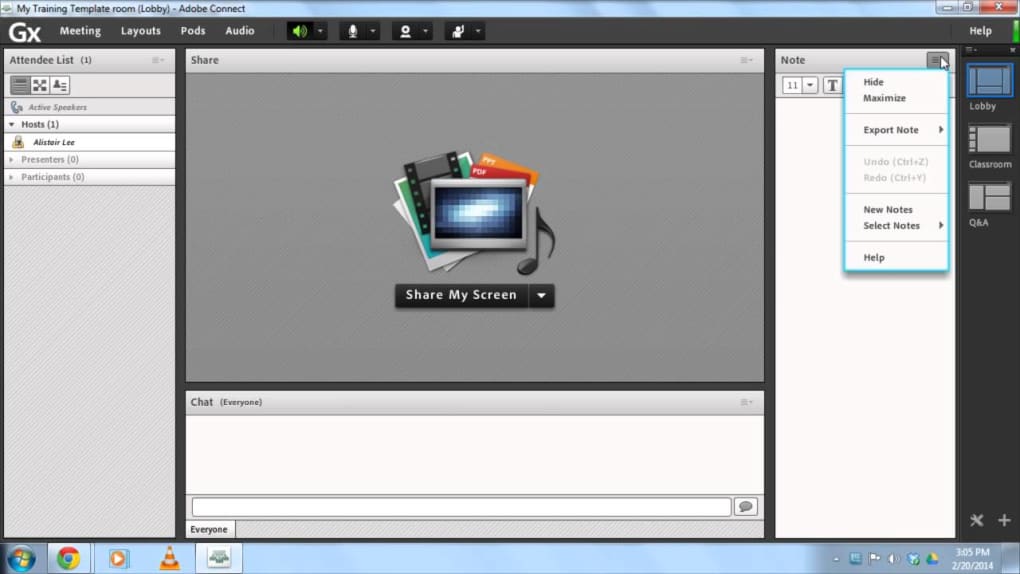
Interface Navigation: While the interface might initially seem somewhat complex with its numerous tabs and options, it is designed for efficient session and account management. The platform organizes meetings into different categories (meetings, seminars, training sessions, etc.), providing a structured approach to managing various types of online events.
Setting Up and Managing Meetings in Adobe Connect
Creating and managing meetings within Adobe Connect is remarkably intuitive, mirroring the ease of use found in comparable platforms like Zoom. The process involves:
-
Meeting Creation: Setting up a new meeting requires providing basic details like the meeting title, date, and time. Adobe Connect allows importing contacts from various sources or manually adding participants by sharing the meeting URL.
-
Customizable Layouts and Pods: Adobe Connect’s core strength lies in its customizable layouts. These layouts are built using “pods,” which are customizable screen elements. Pods can include features such as screen sharing, whiteboards, file sharing, video chat, polls, text chat, and more. Hosts have complete control over which pods are visible and active during a meeting.
-
Participant Management: Hosts have granular control over participant access. They can choose to allow access to registered users only, accepted guests, or anyone with the meeting URL. The ability to require acceptance of guest requests provides added security and control.
-
Multi-Feed Capability: Unlike many competitors, Adobe Connect does not impose limitations on the number of participant video feeds simultaneously displayed. This feature enhances participation and engagement, particularly in larger meetings.
-
Meeting Recording: A valuable feature is the ability to record meetings. Recordings are automatically private to the host unless they choose to share the recording link with participants.
Adobe Connect’s Compatibility and Support
Adobe Connect boasts broad compatibility, ensuring accessibility across a wide range of devices and operating systems. It is compatible with:
- Operating Systems: Windows 7, Windows 8, Windows 10, macOS, Linux, Android, and iOS.
- Web Browsers: Google Chrome, Safari, Mozilla Firefox, and Internet Explorer.
Beyond its technical compatibility, Adobe Connect offers comprehensive support resources, including:
- Tutorials and Guides: Both “Getting Started” guides and “Quick Start” guides are readily available for both hosts and participants. These resources provide a wealth of information for new users to quickly grasp the platform’s functionalities.
- Help Wizard: An in-built help wizard provides instant assistance for troubleshooting issues and navigating the platform’s features.
- User Community: A dedicated user community allows for discussions, feedback exchange, and the sharing of tips and insights. This community is an invaluable resource for experienced and novice users alike.
Adobe Connect: Advantages and Disadvantages
Adobe Connect presents a compelling set of features, but also some limitations. Understanding both the strengths and weaknesses is crucial in determining its suitability for individual needs.
Advantages:
- Extensive Customization: The unparalleled level of customization is a major advantage. Users can tailor the meeting environment to their precise needs, unlike platforms offering limited preset options.
- Powerful Collaboration Tools: The platform is exceptionally well-equipped for collaboration, facilitating seamless file sharing, real-time editing, and efficient communication during meetings.
- Robust Webinar and Training Capabilities: Adobe Connect excels in supporting webinars and online training sessions, offering features specifically designed for engaging and effective online learning.
- Meeting Recording Functionality: The ability to record meetings and easily share these recordings is a significant advantage for retaining meeting content and sharing it with those who were unable to attend.
- Multi-Feed Display: The ability to display numerous participant video feeds simultaneously significantly enhances interaction and engagement, especially in larger group meetings.
Disadvantages:
- Steep Learning Curve: The numerous features and customization options can present a steeper learning curve than some simpler platforms.
- Outdated Interface: The interface may appear outdated compared to some newer, more visually appealing platforms. While functional, it may not appeal to users who prioritize a modern, sleek design.
- Cost: Adobe Connect is a subscription-based service, representing a cost consideration for individuals or organizations on a tight budget.
Conclusion: Is Adobe Connect Right for You?
Adobe Connect offers a mature and feature-rich video conferencing and collaboration platform. Its strength lies in its customization options and powerful features designed for seamless communication and collaboration, particularly well-suited for webinars and training sessions. However, the dated interface and steeper learning curve might deter users seeking a simpler, more visually appealing experience. The free trial allows prospective users to evaluate the platform and determine if its functionality aligns with their specific needs and budget before committing to a subscription. Its robust features and extensive customization options make it a powerful tool for organizations and individuals requiring a highly adaptable and flexible video conferencing solution.
File Information
- License: “Free”
- Version: “2024.11.71”
- Latest update: “January 24, 2025”
- Platform: “Windows”
- OS: “Windows 7”
- Language: “English”
- Downloads: “123.4K”
- Size: “624.42 KB”


