
AirPlay, Apple’s wireless streaming technology, allows you to seamlessly mirror your iPhone, iPad, or Mac screen to a compatible Apple TV, smart TV, or even a computer. This capability opens up a world of possibilities, from presenting slideshows to enjoying larger-than-life gaming experiences. This guide explores the intricacies of AirPlay screen mirroring, covering its functionality, setup process, troubleshooting, and alternative solutions for non-Apple devices.
Understanding AirPlay Screen Mirroring
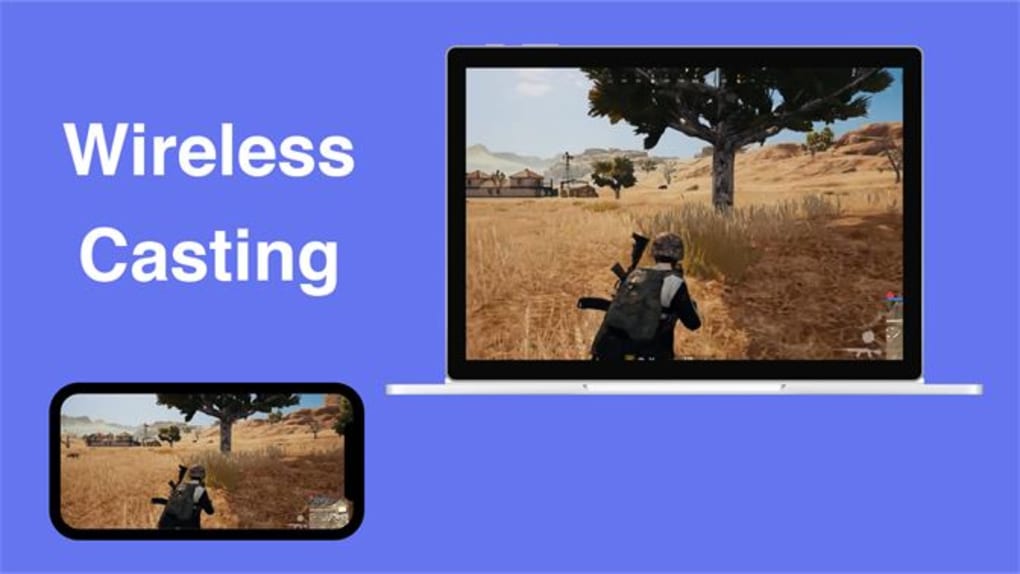
AirPlay screen mirroring extends the functionality of your Apple devices by enabling you to project their displays onto a larger screen. This isn’t just about streaming videos; it allows for a complete mirroring of everything happening on your Apple device’s screen, including apps, games, presentations, and even web browsing. The mirrored display updates in real-time, providing a smooth and responsive experience. This makes AirPlay ideal for presentations, gaming on a larger screen, or simply enjoying photos and videos with friends and family. The benefits extend beyond personal use; it can also be incredibly useful for educational purposes and business presentations.
The core function of AirPlay screen mirroring hinges on establishing a wireless connection between your Apple device (source) and a compatible receiver (destination). This receiver could be an Apple TV, a smart TV with built-in AirPlay 2 support, or even a computer running specific mirroring software. Once connected, the receiver displays everything shown on your Apple device’s screen, providing a mirrored image with minimal latency.
Setting up AirPlay Screen Mirroring on Apple Devices
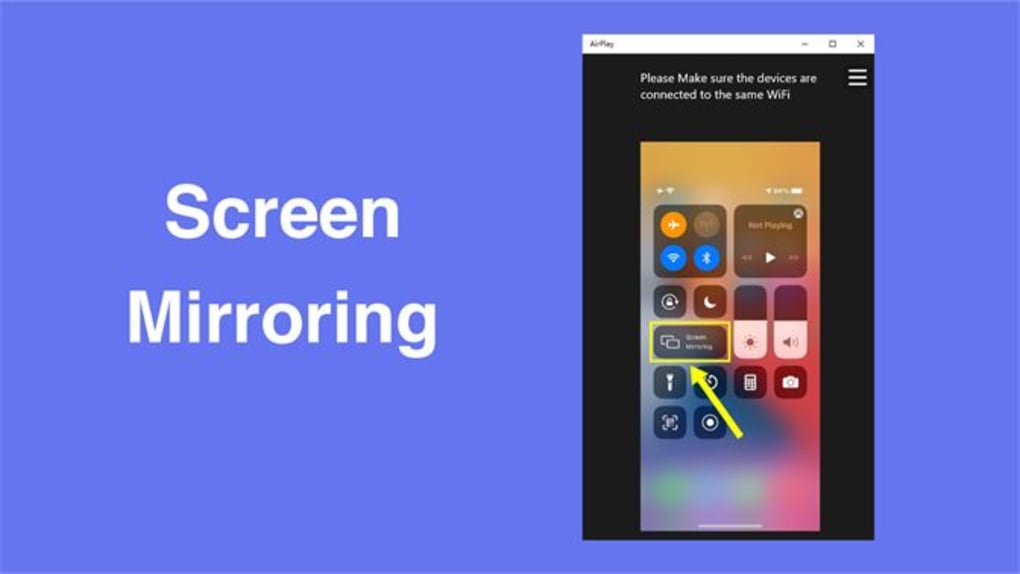
Setting up AirPlay screen mirroring is generally straightforward. However, the specific steps may vary slightly depending on the iOS version and the receiver device.
Mirroring from iPhone/iPad to Apple TV:
-
Ensure Compatibility: Make sure both your iOS device and your Apple TV are on the same Wi-Fi network and have the latest software updates installed. This is crucial for a stable connection.
-
Access Control Center: On iPhone X and later, swipe down from the top-right corner; on iPhone 8 and earlier or iPad, swipe up from the bottom edge.
-
Select AirPlay: Locate the AirPlay icon (it typically looks like a screen with a triangle) in the Control Center. Tap on it.
-
Choose Your Apple TV: A list of available AirPlay devices on your network will appear. Select your Apple TV from the list.
-
Enter AirPlay Code (if prompted): Your Apple TV will display a four-digit code. Enter this code on your iOS device to confirm the connection. This added security step prevents unauthorized mirroring.
-
Mirroring Begins: Once the code is verified, your iPhone or iPad screen will be mirrored onto your Apple TV. A small AirPlay icon will typically appear in your iOS device’s status bar indicating the active mirroring session.
Mirroring from Mac to Apple TV:
-
Ensure Compatibility: Confirm that both your Mac and Apple TV are updated to the latest software and are on the same Wi-Fi network.
-
Open AirPlay Menu: Click the AirPlay icon in the menu bar (it may appear as a screen with a triangle). If you don’t see the icon, you may need to enable it in System Preferences > Displays > AirPlay Receiver.
-
Select Your Apple TV: Choose your Apple TV from the list of available devices.
-
Mirroring Starts: Your Mac’s screen will now mirror to your Apple TV.
Troubleshooting AirPlay Screen Mirroring Issues
While AirPlay generally works seamlessly, occasional issues can arise. Here are some common problems and their solutions:
-
Device Not Found: Ensure both your Apple device and the receiver are connected to the same Wi-Fi network. Restart both devices if necessary. Check for any network connectivity problems.
-
AirPlay Code Mismatch: Double-check that you’re entering the correct AirPlay code displayed on your Apple TV or receiver device.
-
Software Updates: Outdated software can lead to compatibility issues. Update both your Apple device and the receiver to the latest available software versions.
-
Network Congestion: Heavy network traffic can interfere with AirPlay mirroring. Try temporarily disconnecting other devices from your Wi-Fi network to see if that resolves the issue.
-
Firewall or Router Restrictions: Make sure your router’s firewall isn’t blocking AirPlay traffic. You may need to configure your router to allow AirPlay connections. Similarly, check if your computer’s firewall is interfering with the connection.
-
Receiver Device Issues: If you are using a third-party receiver, refer to its user manual for troubleshooting tips.
AirPlay Alternatives for Non-Apple Devices
While AirPlay is exclusive to Apple devices, several alternative technologies offer similar screen mirroring capabilities for non-Apple users. These include:
-
Miracast: A widely used standard that allows you to mirror your Android or Windows device’s screen to a compatible smart TV or other device. Miracast typically uses a direct Wi-Fi connection, minimizing the need for an intermediary device.
-
Chromecast: Google’s Chromecast allows you to stream content from Android and iOS devices, as well as computers, to your TV. It’s particularly known for its compatibility with a wide range of streaming services.
-
Third-party Screen Mirroring Apps: Numerous apps are available for both Android and iOS that provide screen mirroring functionality to different devices. These often require installing a companion app on the receiver device. Be aware that the quality and security of these apps can vary significantly. Always choose reputable and well-reviewed apps.
Conclusion
AirPlay screen mirroring offers a convenient and effective way to extend your Apple device’s display to a larger screen. While generally straightforward, understanding the compatibility requirements and potential troubleshooting steps is crucial for a seamless experience. If you are using a non-Apple device, several alternatives exist to achieve similar results. Remember to always keep your devices updated with the latest software and prioritize your network security for the best mirroring experience.
File Information
- License: “Full”
- Version: “1.0”
- Latest update: “January 31, 2023”
- Platform: “Windows”
- OS: “Windows 10”
- Language: “English”
- Downloads: “51.5K”


