
In an increasingly interconnected world, the ability to print documents, photos, and other digital content effortlessly has become a fundamental expectation. For users of Apple’s ecosystem, AirPrint has emerged as a cornerstone technology, simplifying the printing process by eliminating the need for cumbersome drivers, cables, and complex software installations. Originally designed to offer a straightforward printing solution from iPhones, iPads, and Macs to compatible printers over a Wi-Fi network, AirPrint embodies Apple’s philosophy of intuitive and seamless user experience. This article delves into the intricacies of AirPrint, its functionality, setup, practical applications, and the innovative ways it extends its reach, even to non-native environments like Windows, thanks to dedicated software solutions found on platforms like PhanMemFree.
At its core, AirPrint is a technology that allows Apple devices to discover and print to AirPrint-enabled printers on the same local network without requiring any additional software or drivers. This revolutionary approach significantly streamlined what was once a notoriously frustrating task, transforming it into a simple tap-and-print operation. The underlying magic happens through Apple’s Bonjour networking technology, which enables automatic discovery of services (like printers) on a local network. When an iOS or macOS device attempts to print, it broadcasts a query, and AirPrint-enabled printers respond, making themselves available for selection. This process ensures that users can print from virtually any app that supports printing, from Mail and Safari to Photos and Pages, with consistent results and minimal effort.
Utilities & Tools: The Core of AirPrint Functionality
AirPrint fundamentally functions as a utility, specifically falling under the broader category of “Printer & Fax” tools. Its design prioritizes convenience and accessibility, making it an indispensable utility for millions of Apple users worldwide. Before AirPrint, printing from a mobile device often involved emailing files to a computer, transferring them via cloud services, or using proprietary printer apps that often had limited functionality and compatibility. AirPrint consolidated these disparate methods into a single, unified protocol, directly integrated into the operating system.
The utility of AirPrint extends beyond mere convenience. It ensures a consistent printing experience across various applications and devices. Whether you’re printing a boarding pass from a travel app, a recipe from a web browser, or a financial report from a productivity suite, the “Share” sheet or “Print” option invariably leads to the familiar AirPrint interface. This consistency reduces the learning curve and boosts productivity, as users don’t need to adapt to different printing workflows for each app or printer brand.
Printer & Fax: Expanding Device Compatibility
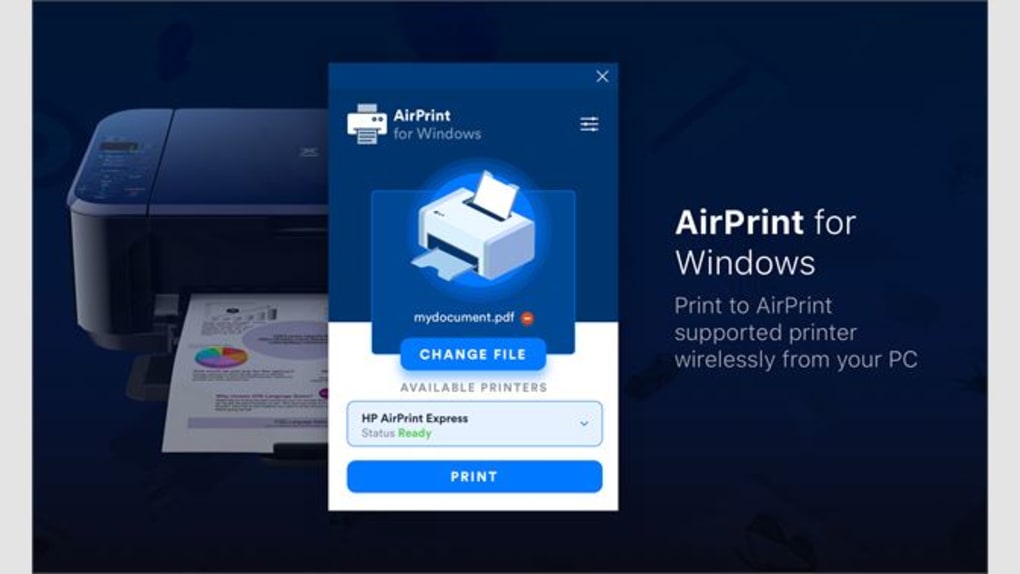
While native AirPrint functionality is restricted to printers that explicitly support the protocol, the demand for this seamless experience has spurred innovation in software development. For users with older, non-AirPrint-compatible printers, or those operating in a mixed environment (e.g., using an iPhone to print to a printer connected to a Windows PC), solutions like “AirPrint for Windows” offered on PhanMemFree.org bridge this gap. These third-party applications essentially act as an AirPrint server, making a standard network or USB-connected printer appear as an AirPrint-compatible device to Apple iPhones or iPads.
Consider “AirPrint for Windows,” version 1.0, developed by Client Software, available for Windows 11 as a paid utility. This specific application exemplifies how the AirPrint experience can be extended. It installs on a Windows machine, monitors connected printers (both local and network-shared), and then advertises them on the local network using the AirPrint protocol. This means that an iPhone or iPad on the same Wi-Fi network can “see” and print to a printer that, by itself, would never support AirPrint. The process, as described, is remarkably straightforward for the end-user: connect the Apple device and the Windows computer (with the printer) to the same wireless network, install the third-party software, and the printer becomes discoverable. This empowers users to leverage their existing hardware investments while still benefiting from the ease of AirPrint. The ability to send faxes via an iPhone using an extension phone also highlights the versatile functionality some of these bridging tools offer, albeit with a caveat about potential call quality impact. This expansion of compatibility through software is a significant factor in AirPrint’s broad appeal, moving it beyond a niche Apple-only feature to a more universally accessible printing method.
Internet & Network: The Wireless Backbone of AirPrint
The very foundation of AirPrint’s magic lies in its reliance on robust internet and network connectivity. Without a stable and correctly configured local area network (LAN), AirPrint simply cannot function. It leverages standard Wi-Fi networks to facilitate communication between the printing device (iPhone, iPad, Mac) and the AirPrint-enabled printer. This section explores the critical role of network infrastructure, the underlying technologies, and important considerations for optimal performance.
AirPrint uses a technology called Bonjour (also known as zero-configuration networking or Zeroconf) for device discovery. Bonjour allows devices to automatically find services (like printers) on a local network without manual configuration or the need for a central server. When you tap “Print” on your Apple device, it sends out a Bonjour query over your Wi-Fi network. AirPrint-enabled printers listen for these queries and respond, advertising their presence and capabilities. This “plug-and-play” network discovery is why you don’t need to manually add an IP address or install drivers for each printer; the network handles the introductions.
For AirPrint to work seamlessly, both your Apple device and the printer (or the Windows PC running AirPrint enabling software) must be connected to the same Wi-Fi network. This usually means they are connected to the same router or access point. If your network is segmented into multiple subnets or uses complex VLAN configurations, AirPrint discovery might be hindered, as Bonjour broadcasts are typically confined to the local subnet. In such cases, IT administrators might need to configure their network to allow Bonjour traffic across segments, often through multicast DNS (mDNS) reflectors or gateways.
The quality of your Wi-Fi signal also directly impacts AirPrint’s performance. A weak signal or an overcrowded Wi-Fi channel can lead to slow print jobs, dropped connections, or even failure to discover printers. Therefore, ensuring a strong, stable Wi-Fi connection for both the sending device and the printer is paramount. Furthermore, if your printer doesn’t have its own Wi-Fi capability, connecting it to a Wi-Fi-enabled computer (as is the case for “AirPrint for Windows”) effectively turns that computer into a wireless print server, extending the network’s reach to the printer.
Security & Privacy Considerations
While the convenience of wireless printing is undeniable, it’s crucial to address the security and privacy implications associated with network printing, especially in environments where sensitive information is handled. When documents are sent wirelessly, they traverse the local network, and securing this pathway is important.
Firstly, ensure your Wi-Fi network itself is secure. Using strong encryption (WPA2 or WPA3) for your wireless network is essential to prevent unauthorized access and eavesdropping on network traffic. An open or weakly secured Wi-Fi network could allow malicious actors to intercept print jobs or gain access to other devices on your network.
Secondly, consider printer security. Many modern printers offer security features like firmware updates, password protection for settings, and even data encryption for print jobs stored on the device. Regularly updating your printer’s firmware is crucial to patch known vulnerabilities. For printers that might store print job data internally, be aware of how that data is handled and whether it’s purged after printing, especially in shared or public environments.
When using third-party software like “AirPrint for Windows” to enable AirPrint for non-native printers, the security of that software is also a key factor. Ensure you download such applications from reputable sources like PhanMemFree.org and that the software itself is regularly updated by the developer. These applications act as an intermediary, processing print jobs and potentially handling data, so their integrity is paramount. The “Security Status” noted for “AirPrint for Windows” on PhanMemFree.org suggests that such platforms vet software for potential threats, providing an additional layer of assurance for users. However, users should always exercise due diligence, especially when installing software that interacts deeply with their network and devices. By prioritizing network security and judiciously selecting trusted software, users can enjoy the convenience of AirPrint without compromising their digital safety.
For Business & Productivity: Streamlining Enterprise Printing
Beyond individual convenience, AirPrint offers substantial benefits for businesses, educational institutions, and other organizational settings where productivity and efficient resource management are key. In a corporate environment, the ability to print instantly from mobile devices or laptops without driver installations can significantly boost workflow efficiency and reduce IT support overhead.
Historically, setting up printing in an office could be a complex endeavor. Each computer required specific printer drivers, and managing these drivers across a fleet of diverse operating systems and printer models was a constant challenge for IT departments. AirPrint, with its driverless approach, simplifies this dramatically. Employees with iPhones, iPads, or MacBooks can connect to the company Wi-Fi network and immediately discover and print to AirPrint-enabled printers, regardless of their manufacturer or model, as long as they are AirPrint-compatible. This “bring your own device” (BYOD) friendly nature of AirPrint allows employees to use their preferred devices while seamlessly integrating into the company’s printing infrastructure.
For businesses that rely heavily on mobile workforces or offer flexible work arrangements, AirPrint is invaluable. Sales teams on the go can print reports directly from their iPads after a meeting, marketing teams can quickly print proofs from their iPhones, and executives can print confidential documents without needing to dock their devices or transfer files to a desktop. This instant access to printing facilities translates into saved time and enhanced responsiveness.
However, implementing AirPrint in a larger business context also brings specific considerations. Scalability and management become important. For environments with many users and a variety of printers, IT departments might need to deploy dedicated AirPrint servers or manage network configurations to ensure reliable discovery and access. Solutions that extend AirPrint functionality, such as “AirPrint for Windows,” can be particularly useful in mixed-OS environments where a business might have a combination of Apple devices and legacy printers connected to Windows servers or workstations. These tools allow the business to leverage existing printer investments while still providing the AirPrint experience to Apple device users, avoiding the need for immediate hardware upgrades.
In terms of productivity, AirPrint integrates directly with common business applications. From Microsoft Office suite apps (Word, Excel, PowerPoint) to industry-specific tools and cloud-based document management systems, if an app supports printing, it likely supports AirPrint on Apple devices. This consistent user interface for printing means less time wasted figuring out how to print and more time focused on core tasks. For organizations, this translates into tangible productivity gains and a more agile, responsive workforce. The ease of printing, coupled with the security measures discussed earlier, makes AirPrint a powerful tool for streamlining business operations and enhancing the overall productivity of a mobile and technologically diverse workforce.
How to Set Up AirPrint on Your iPhone or iPad
Setting up AirPrint on your Apple device is designed to be incredibly simple, often requiring no more than a few taps. The process leverages the seamless integration of AirPrint into iOS and iPadOS. Here’s a detailed guide to ensure a smooth printing experience:
-
Ensure Network Connectivity: The absolute first step is to confirm that both your iPhone or iPad and your AirPrint-enabled printer are connected to the same Wi-Fi network. This is the most common reason for AirPrint not working.
- For your iPhone/iPad: Go to
Settings > Wi-Fiand ensure you’re connected to your desired network. - For your printer: Consult your printer’s manual or display panel. Most Wi-Fi-enabled printers have a setup process to connect them to your wireless network. If your printer does not have built-in Wi-Fi, it might be connected to a computer via USB or Ethernet, and that computer (if running AirPrint bridging software like “AirPrint for Windows”) must be connected to the same Wi-Fi network.
- For your iPhone/iPad: Go to
-
Open the Document or Image You Wish to Print: Navigate to the app containing the content you want to print. This could be Photos, Mail, Safari, Pages, Numbers, Keynote, a third-party document editor, or virtually any app that supports printing.
-
Access the Print Option:
- Look for the Share icon: This is typically a square with an upward arrow (
⬆️). Tap this icon. - Scroll down and tap “Print”: Within the Share Sheet, you’ll usually find the “Print” option towards the bottom. Tap it.
- Alternatively, some apps may have a direct “Print” button within their own menus, often under an ellipsis (
...) orFilemenu if it’s a productivity app.
- Look for the Share icon: This is typically a square with an upward arrow (
-
Select Your Printer:
- In the “Printer Options” screen that appears, tap “Select Printer.”
- Your iPhone or iPad will now search the local network for available AirPrint printers. A list of discovered printers should appear.
- Tap on the name of your desired printer from the list. If your printer doesn’t appear, double-check network connectivity for both devices.
-
Configure Print Options (Optional): After selecting your printer, you’ll see various print options, which may vary slightly depending on the app and printer model. Common options include:
- Copies: Adjust the number of copies you want to print.
- Range: For multi-page documents, you can specify a page range (e.g., pages 1-5).
- Duplex Printing: If your printer supports it, you might have an option for two-sided printing.
- Black & White/Color: Choose your preferred print mode.
-
Tap “Print”: Once you’ve configured your options, tap the “Print” button in the upper right corner. Your document will now be sent wirelessly to the selected printer.
Important Notes and Troubleshooting:
- Printer Firmware: Ensure your AirPrint-enabled printer has the latest firmware installed. Manufacturers often release updates to improve AirPrint compatibility and performance.
- Third-Party Software (for non-AirPrint printers): If your printer isn’t natively AirPrint-compatible, you’ll need a bridging solution like “AirPrint for Windows.” Install this software on a Windows PC that is connected to the printer (via USB or network) and to the same Wi-Fi network as your Apple device. This software will make your non-AirPrint printer discoverable.
- Restart Devices: Sometimes, simply restarting your iPhone/iPad, your printer, and your Wi-Fi router can resolve discovery issues.
- Network Congestion: On busy networks, AirPrint discovery or print job transmission might be slow. Try printing at off-peak times or check for network interference.
- Firewall Settings: If you’re using “AirPrint for Windows” or similar software, ensure your Windows firewall (or any other security software) isn’t blocking the necessary network ports (especially for Bonjour/mDNS traffic, typically UDP port 5353).
By following these steps, most users can enjoy a hassle-free wireless printing experience from their Apple devices, whether to a native AirPrint printer or one enabled through innovative third-party software from trusted sources like PhanMemFree.org.
AirPrint for Windows: Bridging the Ecosystems
While AirPrint is a native Apple technology, the desire for its seamless printing experience extends beyond the boundaries of the Apple ecosystem. Many individuals and businesses operate in mixed environments, possessing iPhones or iPads but relying on Windows PCs and non-AirPrint-compatible printers. This is where solutions like “AirPrint for Windows” become invaluable, acting as a crucial bridge between Apple’s intuitive mobile printing and the broader world of Windows-connected printers.
The “AirPrint for Windows” application, as highlighted on PhanMemFree.org, is a prime example of such a utility. It’s described as a “Paid” software, version 1.0, compatible with Windows 11, developed by Client Software. Its function is to enable a Windows PC to act as an AirPrint server, making any printer connected to it (via USB, local network, or even a shared printer) discoverable and usable by Apple devices via the AirPrint protocol.
How it Works (The Technical Underpinnings):
- Installation on Windows: The software is installed on a Windows computer. This PC must be connected to the printer you wish to make AirPrint-compatible and also connected to the same Wi-Fi network as your Apple devices.
- Protocol Interpretation: AirPrint for Windows includes a component that understands the AirPrint protocol. When an Apple device broadcasts a Bonjour query for printers, this software intercepts it.
- Printer Advertisement: Instead of an AirPrint-enabled printer responding directly, the “AirPrint for Windows” software responds on behalf of the connected printer(s). It advertises them as if they were native AirPrint devices.
- Print Job Translation: When an iPhone or iPad sends a print job to the advertised printer, the “AirPrint for Windows” software receives the AirPrint-formatted data. It then translates this data into a format that the Windows operating system and the specific printer driver can understand, and forwards the job to the printer. This translation is crucial because AirPrint typically expects printers to support formats like PDF, whereas many older or non-AirPrint printers use proprietary page description languages.
Benefits of Using AirPrint for Windows:
- Cost-Effective: It allows users to continue using their existing, non-AirPrint printers, avoiding the expense of purchasing new AirPrint-compatible hardware.
- Enhanced Productivity: Brings the ease and efficiency of AirPrint to a broader range of printing setups, boosting productivity for users of Apple mobile devices.
- Mixed Environment Support: Ideal for homes or small businesses with a combination of Apple devices and Windows computers, creating a more unified printing experience.
- Centralized Control: For multiple printers connected to a single Windows PC, the software can centralize AirPrint access through that one machine.
Considerations and Limitations:
- Windows PC Required: The Windows computer running the software must be powered on and connected to the network for AirPrint functionality to be available.
- Software Dependency: Reliability depends on the stability and updates of the “AirPrint for Windows” software itself. Users should look for software with good reviews and ongoing developer support. The 2.7 rating from 3 users on PhanMemFree.org gives an initial indication, though more reviews would provide a clearer picture.
- Network Performance: The speed and reliability of printing are still tied to the performance of both the Wi-Fi network and the connection between the Windows PC and the printer.
- Feature Parity: While it enables basic printing, advanced printer features (like specific paper trays, specialized finishing options, or detailed print quality controls) might not always be fully exposed or translated through the AirPrint bridging software.
The existence and popularity of “AirPrint for Windows” and similar utilities underscore the strong demand for AirPrint’s user-friendly approach. Platforms like PhanMemFree.org serve a vital role in making such solutions accessible, offering users the means to extend the functionality of their devices and integrate different technological ecosystems more effectively. For the 1.3K downloads last month and 25 last month’s downloads (likely referring to the listed “AirPrint for PC” alternative or a specific period), it’s clear there’s a consistent need for such bridging software, despite its paid nature.
The Broader Impact and Future of Wireless Printing
AirPrint has not only revolutionized personal mobile printing but has also influenced the broader landscape of printing technology. Its success demonstrates a clear user preference for driverless, seamless solutions that integrate effortlessly with mobile devices. This trend has pushed printer manufacturers to universally adopt wireless capabilities and to simplify their own mobile printing apps, often mimicking the intuitive nature of AirPrint.
The future of wireless printing will likely see further advancements in several areas. We can expect even greater integration with cloud services, allowing printing from anywhere with an internet connection, bypassing the need for a local network in some scenarios. Security will remain a paramount concern, with enhanced encryption standards and user authentication becoming more sophisticated to protect sensitive print jobs. Furthermore, as smart home and IoT (Internet of Things) ecosystems mature, printers might become more deeply integrated, responding to voice commands or automated routines. Imagine your grocery list printing automatically when you’re almost out of staples, or your daily news brief appearing on your printer before your morning coffee is brewed.
AirPrint’s legacy is its proof-of-concept for how essential technology can be made utterly simple and unobtrusive. Its initial success with Apple devices laid the groundwork, and the innovation of third-party developers, offering solutions like “AirPrint for Windows” via platforms such as PhanMemFree.org, has extended its reach and utility, ensuring that the convenience of wireless, driverless printing is accessible to a wider audience, irrespective of their specific hardware or operating system allegiances. As technology continues to evolve, the principles of simplicity, connectivity, and intuitive design that define AirPrint will undoubtedly continue to shape how we interact with our digital and physical documents.
File Information
- License: “Full”
- Version: “1.0”
- Latest update: “February 1, 2023”
- Platform: “Windows”
- OS: “Windows 11”
- Language: “English”
- Downloads: “1.3K”


