
For years, Windows users have sought efficient ways to keep essential applications readily visible, preventing them from being buried under a cascade of open windows. The desire for a persistent, “always-on-top” window feature is a common one, particularly for users who multitask frequently or require constant access to specific tools. While Windows 10 and later versions offer some built-in functionalities to achieve this, the process can be cumbersome, and dedicated third-party tools offer a smoother, more streamlined experience. This article explores various methods for keeping windows consistently on top, comparing different approaches and highlighting the advantages of using dedicated software.
Native Windows Methods: A Mouse-Driven Approach
Before diving into dedicated software, it’s important to understand Windows’ built-in capabilities for window management. While not explicitly labeled as “always on top,” a default function allows temporary window prioritization. The method hinges on using the mouse to interact with the window’s title bar. To activate this feature, follow these steps:
- Activate the Window: Click on the window you want to bring to the forefront.
- Access the System Menu: Right-click on the window’s title bar. A context menu will appear.
- Select “Always on Top”: Within the context menu, locate and select the option to make the window stay “always on top.” (Note that the exact wording may vary slightly depending on your version of Windows.)
This method provides a quick, temporary solution. However, its reliance on the mouse is inconvenient for users who prefer keyboard shortcuts or require persistent “always-on-top” functionality without constant mouse intervention. Once you close the system menu, the window returns to normal behavior. The window will only remain on top until another window requires focus.
An alternative, less intuitive approach involves using keyboard shortcuts. Press Alt + Space to open the window’s system menu. From there, navigate to the “Always on Top” option, usually by using the arrow keys and Enter key. Again, this process is less efficient and more cumbersome than dedicated software solutions.
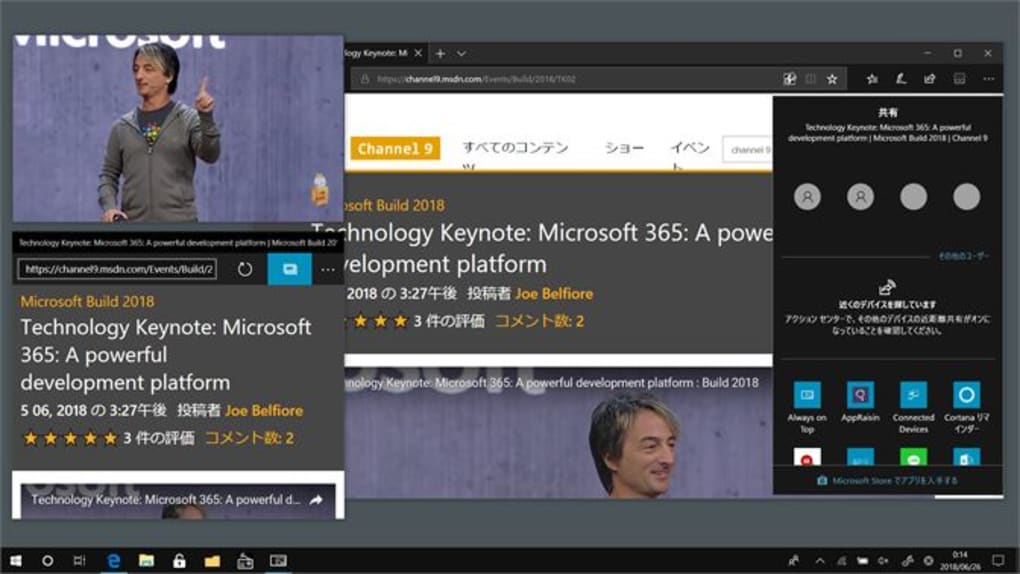
The inadequacy of these native methods is particularly evident when working with multiple applications simultaneously. Constant mouse interaction to maintain the desired window visibility interrupts workflow. This limitation highlights the need for more robust and user-friendly solutions.
Third-Party Tools: Streamlined Window Management
The limitations of native Windows methods have spurred the development of numerous third-party applications specifically designed to manage window positions and prioritize their visibility. These tools generally offer superior functionality, including keyboard shortcuts, automated window pinning, and enhanced customization options.
Always On Top Maker: Simplicity and Ease of Use
One such tool, “Always On Top Maker,” exemplifies the simplicity and effectiveness of dedicated software. This free application provides a straightforward, ready-to-use solution for keeping windows consistently on top. It boasts a clean interface, making it accessible to users of all skill levels. Its core functionality is simple: select a window, and it remains on top of all other windows. Its hotkey functionality allows you to toggle this behavior quickly, providing more control over your window management.
AutoHotkey: Power User’s Choice for Advanced Customization
For users seeking greater control and customization, AutoHotkey stands as a powerful scripting language that allows for highly personalized window management. Unlike simpler applications, AutoHotkey necessitates a degree of technical understanding, involving the creation of scripts to define the desired window behavior. However, its advanced capabilities allow users to create complex automation routines, including dynamically assigning “always on top” status based on various conditions, application launching, and intricate keyboard shortcut configurations.
AutoHotkey’s learning curve may initially present a challenge, but the power and flexibility it offers are unmatched. Its versatility extends beyond simple window management; it can automate various aspects of your Windows experience. This makes it an indispensable tool for advanced users seeking fine-grained control over their system.
The use of AutoHotkey typically involves creating a script file (.ahk) that specifies the desired behavior. For example, a simple script could define a hotkey combination (e.g., Ctrl + Win + T) that toggles the “always on top” status for the currently active window. More complex scripts can handle multiple windows, different application types, and even context-sensitive adjustments to window priority.
While AutoHotkey provides exceptional control, its complexity makes it less suitable for casual users. Simpler solutions like Always On Top Maker offer sufficient functionality without requiring scripting knowledge.
Comparing Approaches: Choosing the Right Tool
The optimal approach to achieving “always-on-top” window behavior depends heavily on individual needs and technical proficiency. For users who prioritize ease of use and require basic functionality, Always On Top Maker or similar user-friendly applications are ideal choices. These tools provide a quick and effective way to maintain the visibility of critical windows without complex setup or scripting.
On the other hand, users requiring granular control over window management and sophisticated automation capabilities will find AutoHotkey an invaluable asset. Its learning curve requires an investment of time and effort, but the resultant customization possibilities greatly outweigh this initial hurdle.
Beyond “Always on Top”: Enhanced Productivity
The quest for “always-on-top” windows frequently stems from a broader need for efficient multitasking and improved productivity. While dedicated software effectively addresses the core issue of persistent window visibility, it’s crucial to consider other productivity enhancements that complement this capability. Techniques such as using virtual desktops, implementing effective window tiling layouts, and leveraging keyboard shortcuts for rapid application switching can significantly amplify the benefits of having critical windows always visible.
Efficient window management extends beyond simply making a window stay on top. The overall goal is seamless workflow, reduced context switching, and improved concentration. Considering these broader aspects of productivity optimization will yield the greatest return on investment, both in terms of time and efficiency.
Conclusion: Tailored Solutions for Every User
The journey towards efficient window management begins with identifying your specific needs and preferences. The built-in Windows functionalities may suffice for infrequent use or casual multitasking. However, for users who require consistent, readily available access to specific applications, dedicated third-party tools provide a far superior user experience. Simple applications like Always On Top Maker offer immediate results with minimal effort. Alternatively, AutoHotkey provides an unparalleled level of control and automation for those who value customization and are willing to invest the time to learn its intricacies. The choice ultimately depends on the balance between desired functionality and technical aptitude. By selecting the appropriate tool, users can significantly enhance their workflow and maximize their productivity within the Windows environment.
File Information
- License: “Trial version”
- Version: “1.4.0”
- Latest update: “January 31, 2023”
- Platform: “Windows”
- OS: “Windows 11”
- Language: “English”
- Downloads: “13.6K”


