Amaze File Manager is a free, open-source file manager application for Android devices developed by Team Amaze. Built with a minimalist design philosophy inspired by Google’s Material Design guidelines, it offers a lightweight and efficient way to manage files on your mobile device. This review will delve into its features, performance, and overall usability, comparing it to other popular file managers on the market.
Features and Functionality: Beyond the Basics
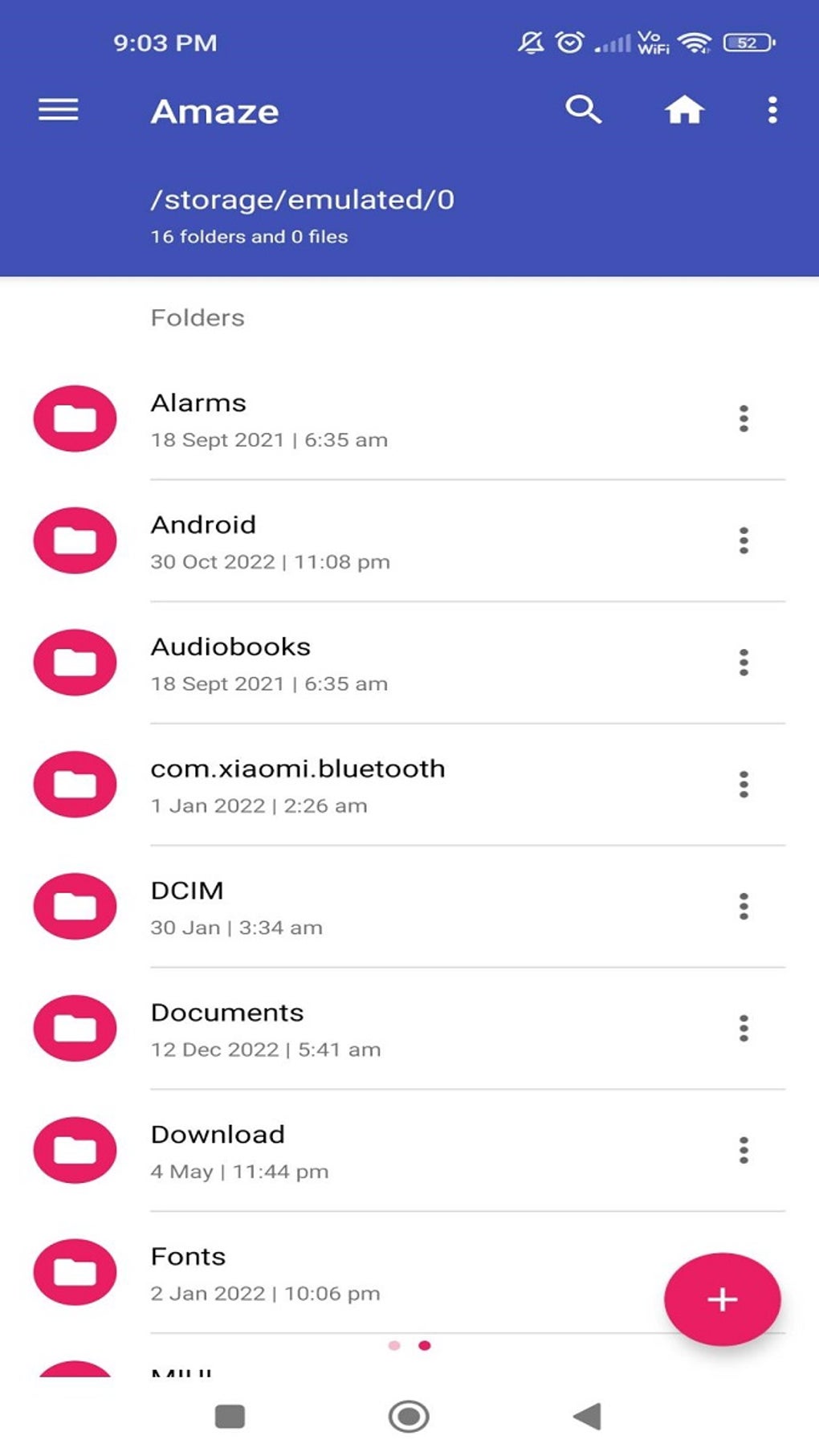
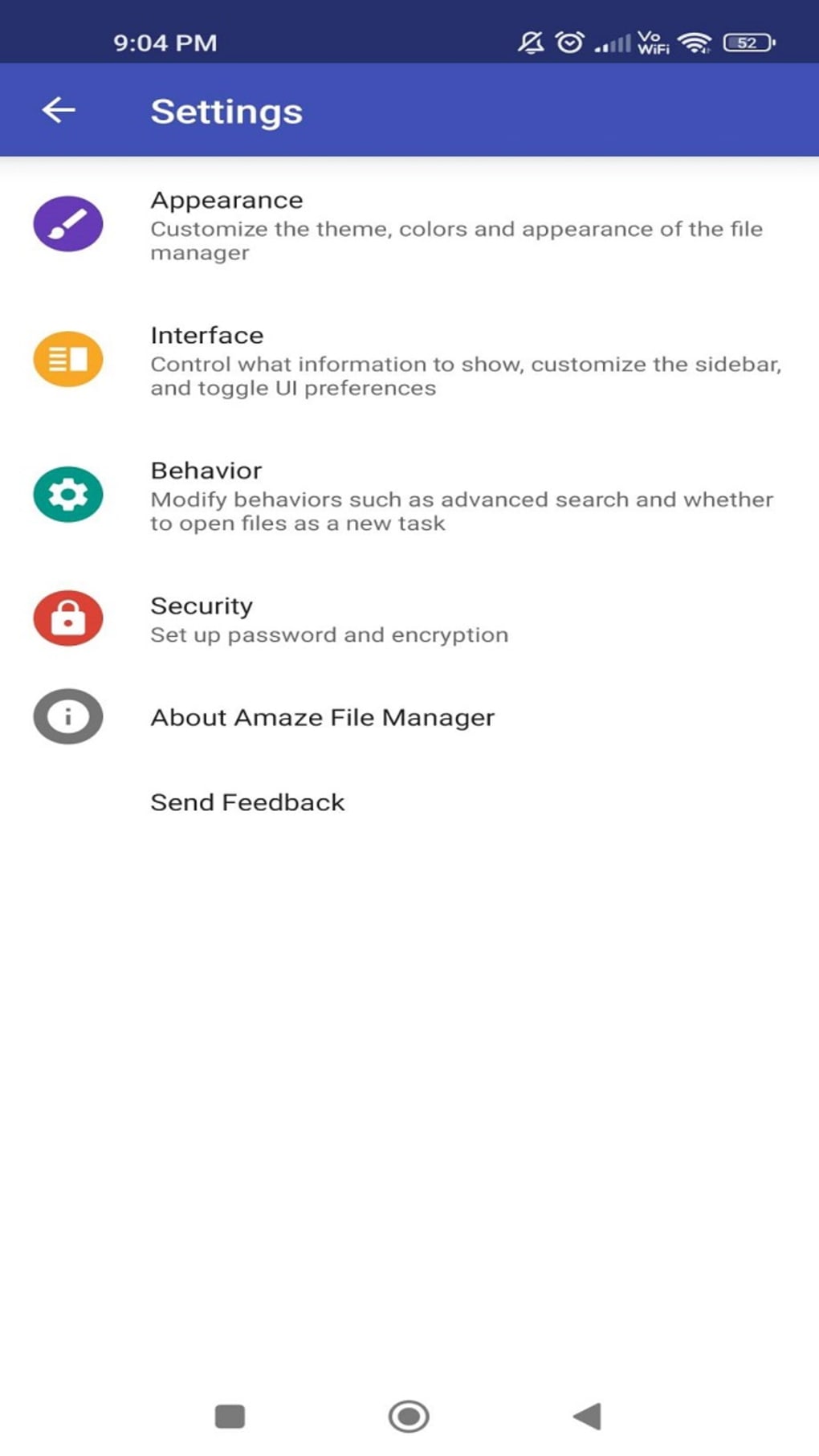
While many basic file managers offer only fundamental file operations, Amaze File Manager distinguishes itself through its robust feature set. Its clean and intuitive user interface (UI) immediately sets a positive tone, providing a customizable experience through various theming options. This ease of use extends to its core functionality, enabling users to effortlessly browse, copy, move, rename, delete, and organize files and folders.
However, Amaze File Manager goes beyond simple file manipulation. It incorporates advanced features typically found only in more complex, often paid, alternatives. This includes:
-
FTP and SMB Server/Client Support: Seamlessly transfer files to and from remote servers using FTP and SMB protocols. This is invaluable for users needing to interact with network storage solutions or transfer files between devices.
-
AES Encryption: Enhance the security of your files with AES encryption, adding an extra layer of protection against unauthorized access. This is particularly useful for sensitive data.
-
Cloud Service Integration: Although specific cloud services aren’t explicitly mentioned, the implication is that it can integrate with various cloud storage platforms, streamlining file management across different locations.
-
Root Explorer (for Rooted Devices): Users with rooted Android devices can leverage the built-in root explorer to access and manage system files. This functionality offers significant control over the device’s operating system, but should be used with caution due to the potential for system instability if misused.
-
Landscape Mode Support: The app fully supports landscape orientation, providing a more comfortable viewing experience for users who prefer this mode.
Performance and User Experience: A Mostly Smooth Ride
Amaze File Manager is designed for speed and efficiency. Navigation is swift and responsive, with minimal lag even when handling large numbers of files or folders. The app’s lightweight nature ensures it doesn’t consume excessive system resources, contributing to its overall smooth performance.
While the vast majority of user experiences are positive, the developers acknowledge occasional random crashes. These appear to be infrequent occurrences, suggesting that the developers are actively working on addressing these stability issues through continuous updates and community feedback. The open-source nature of the application allows community contribution to bug fixes and improvements, suggesting that these problems are likely to be resolved over time.
Open-Source Advantages: Community Driven Development
One of Amaze File Manager’s defining characteristics is its open-source nature. This offers several key advantages:
-
Transparency and Security: The source code is publicly available, enabling users to review the application’s code for security vulnerabilities and ensure there’s no malicious code present. This transparency builds trust and enhances user confidence in the app’s integrity.
-
Community Support: Being open-source fosters a collaborative development environment. Users can contribute to the project, report bugs, suggest improvements, and even directly contribute to the codebase. This continuous community involvement helps ensure the application remains up-to-date, secure, and responsive to user needs.
-
Ad-Free Experience: The open-source nature contributes directly to the app’s ad-free experience. Without reliance on advertising revenue, the developers can focus on providing a clean and uncluttered user interface, free from intrusive advertisements that disrupt the user experience. While users are given the option to donate to support the developers, this is entirely optional.
Installation on Quest 2: A Step-by-Step Guide
Installing Amaze File Manager on a Meta Quest 2 headset requires using a sideloading method due to its unavailability on the official Quest Store. Here’s a breakdown of the process:
-
Download SideQuest: Begin by downloading and installing SideQuest on your PC. Ensure your Quest 2 is connected to your computer via USB cable during this process. SideQuest is a third-party application that allows you to install apps not available through the official store.
-
Download Amaze File Manager APK: Download the Amaze File Manager APK file from a trusted source (the link provided in the original text is a good starting point, but verify the source’s legitimacy to avoid malicious software).
-
Install the APK via SideQuest: Once both SideQuest and the APK are downloaded, navigate through SideQuest’s interface to install the APK onto your Quest 2.
-
Enable Unknown Sources: After the installation, go to the Quest 2’s Home screen, find the “All” icon, locate “Unknown Sources,” and enable it by granting the necessary permissions.
Amaze File Manager in Comparison: A Strong Contender
Amaze File Manager stands up well against other popular file managers like ES File Explorer and Cx File Explorer. While those options may offer a slightly wider range of features or more advanced options for power users, Amaze File Manager provides a compelling alternative by focusing on a streamlined, efficient, and open-source experience. Its clean interface, robust feature set, and commitment to community development make it an attractive option for users prioritizing simplicity, security, and transparency.
Conclusion: A Recommended Choice
Amaze File Manager is a highly recommended file manager for Android devices. Its combination of a user-friendly interface, a comprehensive feature set, and its open-source nature makes it a strong contender in a crowded market. While occasional crashes are noted, the frequency appears low, and the active community development should ensure these issues are addressed. For users seeking a fast, reliable, and transparent file management solution, Amaze File Manager is an excellent choice.
App Specifications
- License: Free (Open-Source)
- Version: 3.10 (as of May 4, 2024)
- Platform: Android OS (Android 13.0 and above)
- Downloads: 193.7K+
- Size: 10.18 MB
- Developer: Team Amaze
Pros:
- Open-source and ad-free
- User-friendly interface
- Feature-packed (FTP/SMB support, AES encryption, potential cloud integration, root explorer)
- Fast and reliable performance (with occasional exceptions)
- Active community support
Cons:
- Occasional random crashes (reported as infrequent)
Download Options:
The APK file can be downloaded from various sources. It is crucial to download from a reputable source to avoid malware. The original article provided a download link but it’s best practice to verify any download source independently before installation. Remember to check user reviews and ratings before installing any application from unknown sources.
File Information
- License: “Free”
- Latest update: “May 4, 2024”
- Platform: “Android”
- OS: “Android 13.0”
- Downloads: “193.2K”
- Size: “10.18 MB”
- Download Options: “APK, Google Play”
- Filename: “com-amaze-filemanager-121-67554333-6b31d045bc689b297ee20a124305f7ed.apk”