
The Android SDK Platform-Tools, specifically the Android Debug Bridge (ADB), is a powerful command-line tool provided by Google that serves as a bridge between your computer and your Android device. This essential tool enables a wide range of interactions with your Android device, from simple tasks like installing apps to complex operations involving system modifications. Whether you’re a developer, an enthusiast tinkering with their device, or a user needing to troubleshoot a problem, ADB offers a versatile and efficient way to interact with your Android ecosystem. This article explores the capabilities of ADB, its uses, and how to leverage its power.
Understanding the Android Debug Bridge (ADB)
ADB, the core component of the Android SDK Platform-Tools, functions as a client-server program. It consists of three components:
-
Client: This is the component you interact with. You run ADB commands from your computer’s terminal or command prompt. These commands are sent to the ADB server.
-
Server: This daemon runs as a background process on your computer. It manages the connection between the client and the device. The server listens for commands from the client and forwards them to the appropriate device.
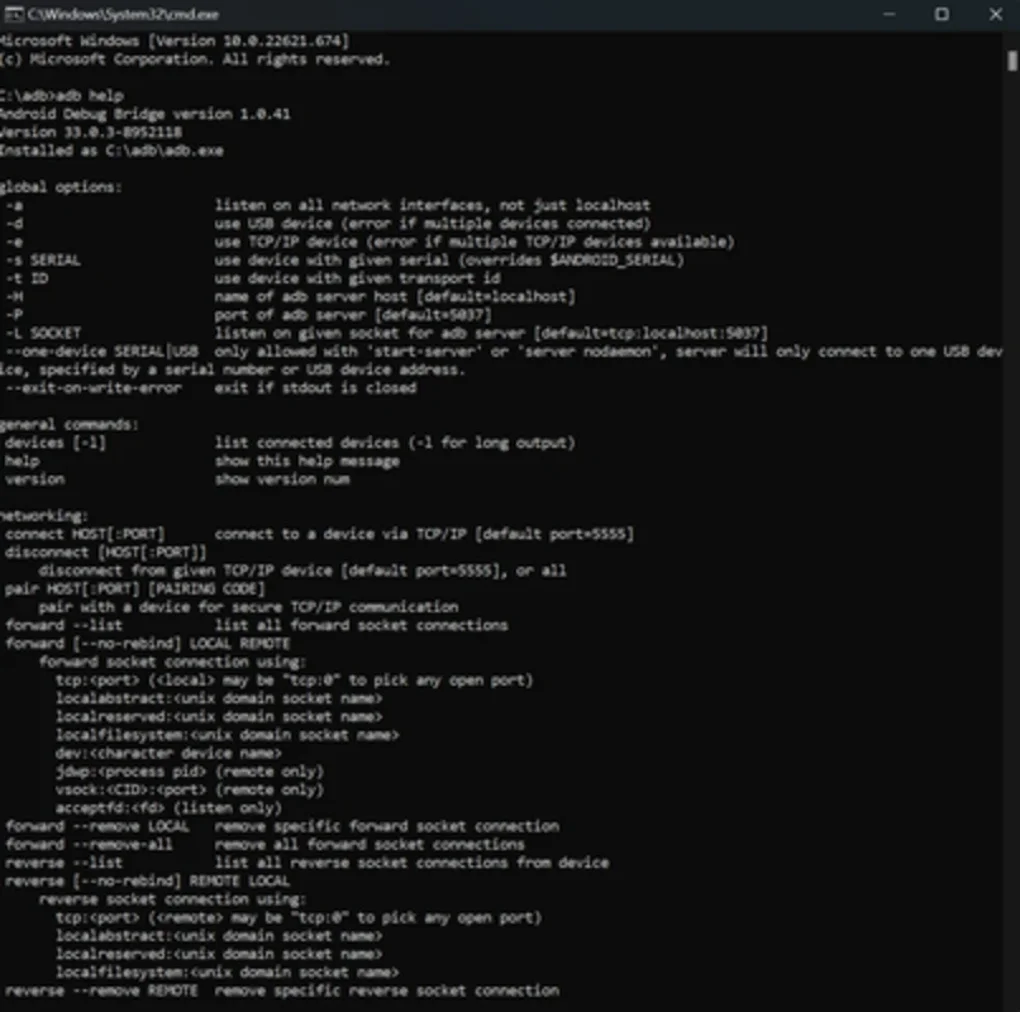
- Daemon (adbd): This is a background process that runs on your Android device. It receives commands from the ADB server and executes them on the device.
This three-part architecture allows for seamless communication between your computer and your Android device, regardless of the operating system of your computer. The communication typically occurs over a USB connection, but ADB also supports network connections, providing flexibility in how you interact with your device.
Key Uses of ADB: Beyond Basic App Installation
While ADB is often associated with installing APK files (Android application packages), its capabilities extend far beyond this basic function. ADB provides a command-line interface for a vast array of operations, empowering users and developers with fine-grained control over their Android devices. Here are some of the key applications:
-
Installing and Uninstalling Applications: ADB simplifies the process of installing and uninstalling applications. Instead of relying on the Google Play Store or other app stores, you can directly install APK files onto your device using the
adb installcommand. This is particularly useful for developers testing their apps or for users installing apps from unofficial sources (though caution is advised when installing apps from outside official app stores). Theadb uninstallcommand provides a corresponding mechanism for removing apps. -
Managing Files: ADB allows you to transfer files between your computer and your Android device. You can push files from your computer to your device using
adb pushand pull files from your device to your computer usingadb pull. This is invaluable for accessing device logs, backing up data, or transferring specific files for debugging or analysis. -
Device Shell Access: ADB provides a shell interface to the Android operating system, allowing you to execute Linux commands directly on your device. This grants significant control, enabling tasks such as inspecting system files, managing processes, and interacting with the device’s filesystem. This level of access requires a deeper understanding of Linux commands and Android’s internal workings.
-
Debugging Applications: For developers, ADB is an indispensable tool for debugging Android applications. It allows for logging, debugging through a network connection, and monitoring app performance. Features such as logcat provide real-time feedback on application activity, helping developers identify and resolve issues.
-
Device Control and Monitoring: ADB extends to controlling and monitoring various aspects of your Android device. You can take screenshots (
adb shell screencap), record device screen activity (adb shell screenrecord), and even reboot your device (adb reboot). These functions are particularly useful for troubleshooting and system maintenance. -
System-Level Operations (Advanced Use): Experienced users and developers can utilize ADB to perform more advanced operations, such as flashing custom ROMs, recovering from bootloops, installing custom recoveries, and performing system-level modifications. It’s crucial to note that performing these actions carries a significant risk of bricking your device if not executed correctly. These operations should only be attempted by users with a thorough understanding of Android’s internal workings and with appropriate backups in place.
-
Network Connectivity: ADB can establish a connection with the device over a Wi-Fi network. Once established, the device doesn’t need to be physically connected to your computer via a USB cable. This is a convenient feature for testing applications remotely or for scenarios where USB access isn’t practical.
Setting Up and Using ADB
The process of setting up ADB involves the following steps:
-
Install the Android SDK Platform-Tools: Download the Android SDK Platform-Tools package from the official Android Developers website. This package contains the necessary ADB executables and other utilities.
-
Configure Device Settings (USB Debugging): On your Android device, enable “USB debugging” within the developer options. The exact steps to access developer options and enable USB debugging vary depending on the Android version and device manufacturer but generally involves repeatedly tapping the “Build number” in the “About Phone” settings until developer options appear.
-
Connect Your Device: Connect your Android device to your computer using a USB cable.
-
Verify Connection: Open your computer’s terminal or command prompt and navigate to the directory where you extracted the Android SDK Platform-Tools. Type the command
adb devicesand press Enter. If the device is properly connected, its serial number will be listed, indicating a successful connection.
Example ADB Commands
The following examples illustrate some common ADB commands:
-
adb devices: Lists all connected Android devices. -
adb install <path_to_apk>: Installs an APK file located at the specified path. -
adb uninstall <package_name>: Uninstalls the application with the given package name. -
adb push <local_path> <remote_path>: Pushes a file from your computer to your device. -
adb pull <remote_path> <local_path>: Pulls a file from your device to your computer. -
adb shell: Opens a shell session on your Android device. -
adb shell logcat: Displays the Android logcat, useful for debugging. -
adb reboot: Reboots your Android device. -
adb reboot recovery: Reboots your Android device into recovery mode. (Advanced users only) -
adb reboot bootloader: Reboots your Android device into the bootloader. (Advanced users only)
Troubleshooting Common ADB Issues
Several issues can occur when using ADB. Common problems include connection issues, authorization problems, and driver issues. Troubleshooting these problems often involves:
-
Checking USB Drivers: Ensure you have the correct USB drivers installed for your device.
-
Rebooting Devices: Sometimes, a simple reboot of your computer and/or Android device resolves connectivity problems.
-
Checking USB Connection: Verify that the USB cable is functioning properly and that the device is properly connected to your computer.
-
Authorization: Your Android device might prompt for authorization to allow ADB to access it. Grant the necessary permissions.
-
Port Conflicts: If the ADB server is already running, close it and restart it to resolve port conflicts.
Conclusion
The Android SDK Platform-Tools, specifically the Android Debug Bridge (ADB), is an indispensable tool for interacting with Android devices. Its versatility extends from basic app management to advanced system-level operations. While powerful, it’s essential to use ADB responsibly and with caution, particularly when performing advanced operations that could potentially damage your device. With proper understanding and careful execution, ADB can significantly enhance your Android experience, whether you are a developer, an enthusiast, or simply a user troubleshooting problems. Understanding its core functionalities and troubleshooting common issues empowers you to fully utilize its vast potential.
File Information
- License: “Free”
- Latest update: “June 12, 2025”
- Platform: “Windows”
- OS: “Windows 11”
- Language: “English”
- Downloads: “6.5K”


