
Android devices have become indispensable tools in our daily lives, storing a vast amount of personal data, applications, and media. Effectively managing this data can be challenging, especially when juggling information across multiple devices. Android Transfer for PC offers a solution, providing a convenient and efficient way to connect your Android smartphone or tablet to your computer, enabling seamless file management, application installation, and data backup. This comprehensive guide explores the features, functionalities, and practical applications of Android Transfer for PC, addressing potential issues and offering helpful tips for optimal performance.
Streamlining Android Device Management
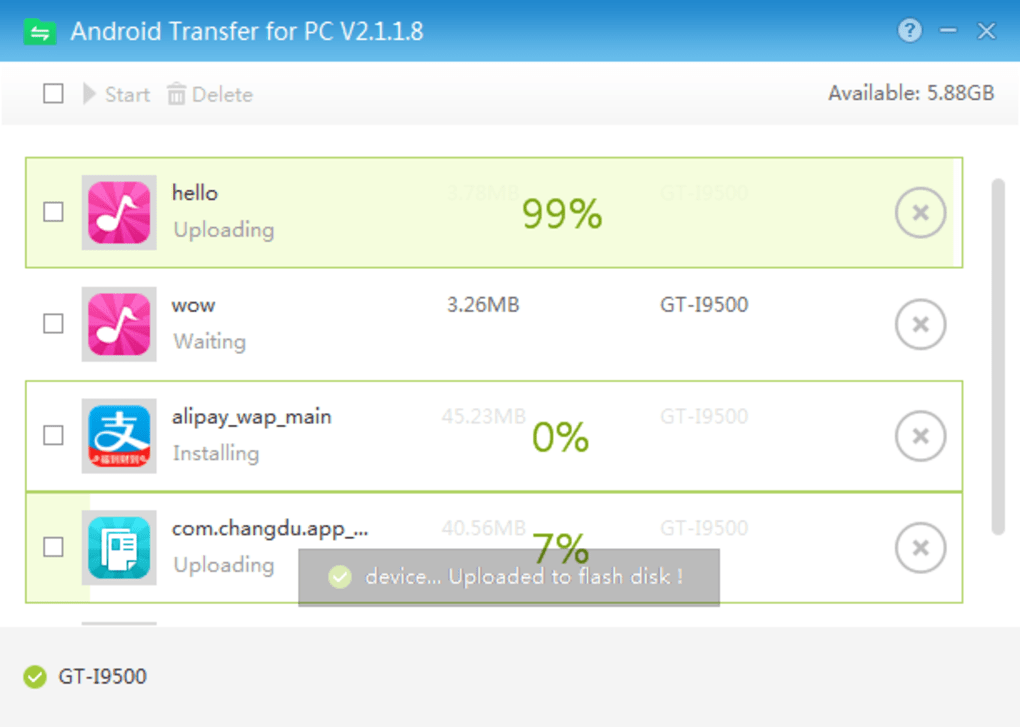
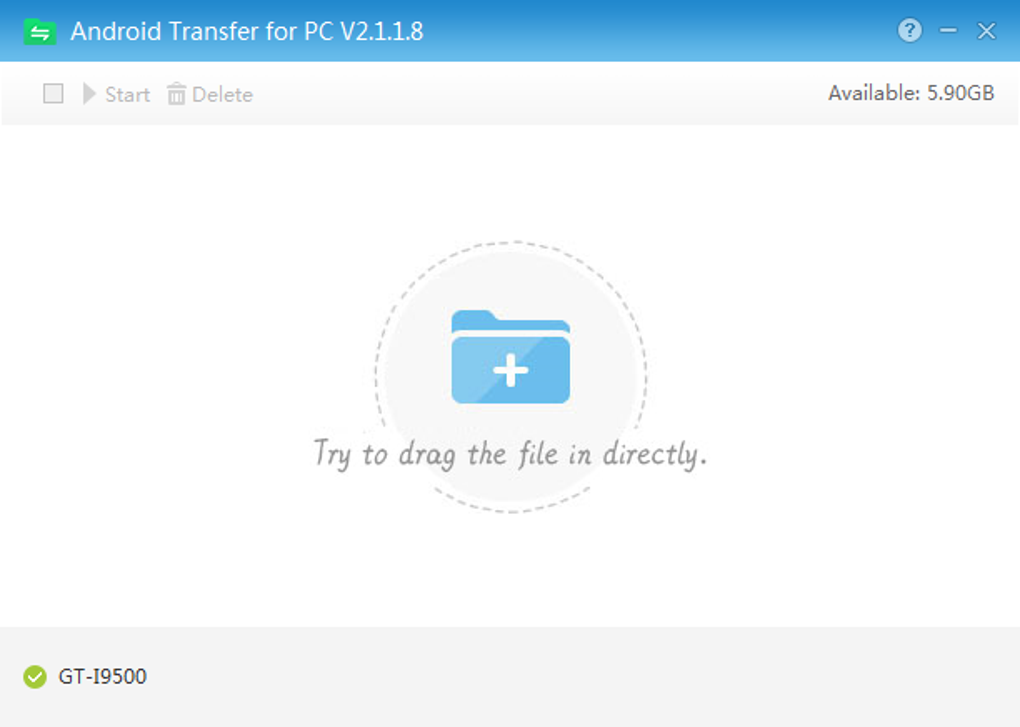
Android Transfer for PC simplifies the often cumbersome task of managing your Android device’s contents directly from your computer. Instead of navigating your phone’s limited interface, you gain a powerful, desktop-based control center to organize and interact with your mobile data. This translates to a significant boost in efficiency, especially when dealing with large volumes of files or performing complex data transfers. The software acts as a bridge between your Android device and your computer, making file transfers as straightforward as drag-and-drop operations. This user-friendly approach caters to both novice and experienced users, eliminating the steep learning curve often associated with complex data management software.
The software’s primary strength lies in its ability to consolidate multiple data management tasks into a single, user-friendly interface. You can effortlessly manage music, applications, photos, videos, and documents all from your computer’s desktop. This centralized control eliminates the need to switch between multiple applications or manually transfer files using cumbersome methods. The time saved alone can be significant, especially for users who frequently transfer files or manage large media libraries on their Android devices. The consistent management across devices ensures data organization and backups are streamlined, preventing the loss of valuable information.
Features and Functionalities: Beyond Simple Transfers
Beyond its core file transfer capabilities, Android Transfer for PC offers several advanced features that significantly enhance its utility. The integrated file manager, for instance, allows users to search, sort, and organize files efficiently. This is particularly useful for users with extensive media collections or numerous applications installed on their Android devices. The ability to locate specific files quickly and easily simplifies the process of finding and retrieving specific data points, thus saving valuable time and effort. The built-in search functionality further streamlines this process, allowing users to locate specific files based on keywords or file types, eliminating the need to manually sift through folders.
Another key advantage of Android Transfer for PC is its compatibility with a wide range of Android devices and file formats. The software seamlessly handles various file types, including images, videos, audio files, documents, and APK installation packages. This broad compatibility ensures that users can manage almost any type of file stored on their Android devices, making it a versatile tool for diverse needs. This eliminates the limitations of proprietary formats or compatibility issues that can arise when using alternative file management tools. Furthermore, the software’s ability to handle APK files simplifies the process of installing applications directly from your computer, streamlining application management and eliminating the need to manually install apps via your phone’s interface.
Furthermore, Android Transfer for PC’s design prioritizes security. The software incorporates robust data encryption protocols to protect sensitive information during transfer. This safeguards user data and ensures the privacy and integrity of personal files. The security measures implemented by the software are crucial for maintaining the confidentiality of sensitive data during the transfer process, offering users peace of mind when managing personal information. This is especially important given the increasing prevalence of cybersecurity threats and the potential for data breaches.
Addressing Potential Issues and Troubleshooting
While generally user-friendly, Android Transfer for PC may occasionally present minor technical challenges. One common issue is the software’s inability to recognize a connected Android device. This problem usually stems from a lack of proper USB debugging authorization on the Android device. The solution typically involves navigating to the Developer Options within your Android device’s settings and enabling USB debugging. This permission allows Android Transfer for PC to access and interact with the device’s file system, enabling the transfer of data. If the issue persists even after enabling USB debugging, restarting both the Android device and the computer often resolves the problem.
Another potential issue relates to connectivity problems. If the software fails to establish a connection with your Android device, double-check the USB cable to ensure it is properly connected to both the device and the computer. Trying a different USB cable or port can also help rule out hardware issues. In some cases, the USB driver for your Android device may need to be updated. Checking your computer’s device manager for any driver conflicts or outdated drivers is advisable. Updating or reinstalling the relevant USB drivers should resolve most connectivity issues.
Furthermore, the software might occasionally display error messages. These errors can provide clues about the underlying problem. Carefully reading the error message and searching online for solutions often yields quick results. Consulting the software’s help section or the developer’s website can also provide valuable troubleshooting information. Community forums or online help communities dedicated to Android Transfer for PC or similar software may offer additional support and solutions from other users who have encountered similar issues.
Comparison with Alternative Solutions
Several alternative solutions exist for managing Android devices from a PC. Popular options include SHAREit, File Transfer, Mobizen, and Wondershare MobileGo. While these alternatives offer similar file transfer functionalities, Android Transfer for PC often stands out due to its user-friendly interface, broad compatibility, and streamlined approach. However, the best solution ultimately depends on individual preferences and specific needs.
SHAREit, for example, prioritizes speed in transferring large files but may lack the advanced organization features of Android Transfer for PC. File Transfer offers a simple and straightforward approach but might be less feature-rich compared to more comprehensive alternatives. Mobizen and Wondershare MobileGo offer more advanced features like remote control and screen mirroring but often come with higher price points or limitations in the free versions.
The choice between Android Transfer for PC and other alternatives often boils down to a trade-off between features, ease of use, and cost. If user-friendliness and comprehensive functionality are paramount, Android Transfer for PC presents a compelling option. However, if specific advanced features are required or budgetary constraints are significant, exploring alternatives like SHAREit or File Transfer could be beneficial. Before committing to any specific software, comparing the features and functionalities of different options is advisable to make an informed decision.
Conclusion: A Valuable Tool for Android Users
Android Transfer for PC provides a practical and user-friendly solution for managing Android devices from your computer. Its ability to seamlessly transfer files, install applications, and organize data across multiple devices makes it a valuable tool for individuals and professionals alike. While minor technical challenges may occasionally arise, troubleshooting is usually straightforward. The software’s intuitive interface and broad compatibility make it an attractive option compared to other file transfer solutions. The integrated security measures further enhance its appeal, providing users with a reliable and secure method for managing their Android devices’ data. Overall, Android Transfer for PC effectively streamlines Android device management, empowering users with a greater level of control and efficiency.
File Information
- License: “Free”
- Latest update: “July 12, 2023”
- Platform: “Windows”
- OS: “Windows 8.1”
- Language: “English”
- Downloads: “3.1M”
- Size: “10.81 MB”


