
AppCleaner is a free, lightweight utility for macOS that simplifies the process of completely uninstalling applications and removing all associated files. Unlike simply dragging an application to the Trash, which often leaves behind leftover files and folders, AppCleaner meticulously identifies and removes these remnants, freeing up valuable disk space and ensuring a clean system. This in-depth review will explore AppCleaner’s features, user interface, safety, and overall effectiveness as a solution for managing applications on your Mac.
Understanding AppCleaner’s Functionality
AppCleaner addresses a common frustration for Mac users: the incomplete removal of applications. When you uninstall an application using the standard drag-and-drop method, numerous associated files often remain scattered throughout your system’s folders, including preference files, support files, cache data, and other remnants. These leftovers not only consume disk space but can also interfere with future installations or updates.
AppCleaner solves this problem by providing a detailed analysis of each application. After selecting an application, AppCleaner scans your system and presents a comprehensive list of all associated files and folders. This transparency allows users to selectively choose which files to delete, offering granular control over the uninstallation process. Alternatively, users can simply select all associated files for complete removal with a single click. This process ensures a thorough cleanup, leaving no unnecessary files behind. The application supports the removal of not only applications themselves but also associated widgets and plugins, providing a more comprehensive cleanup than basic uninstallation methods.
User Interface and Ease of Use
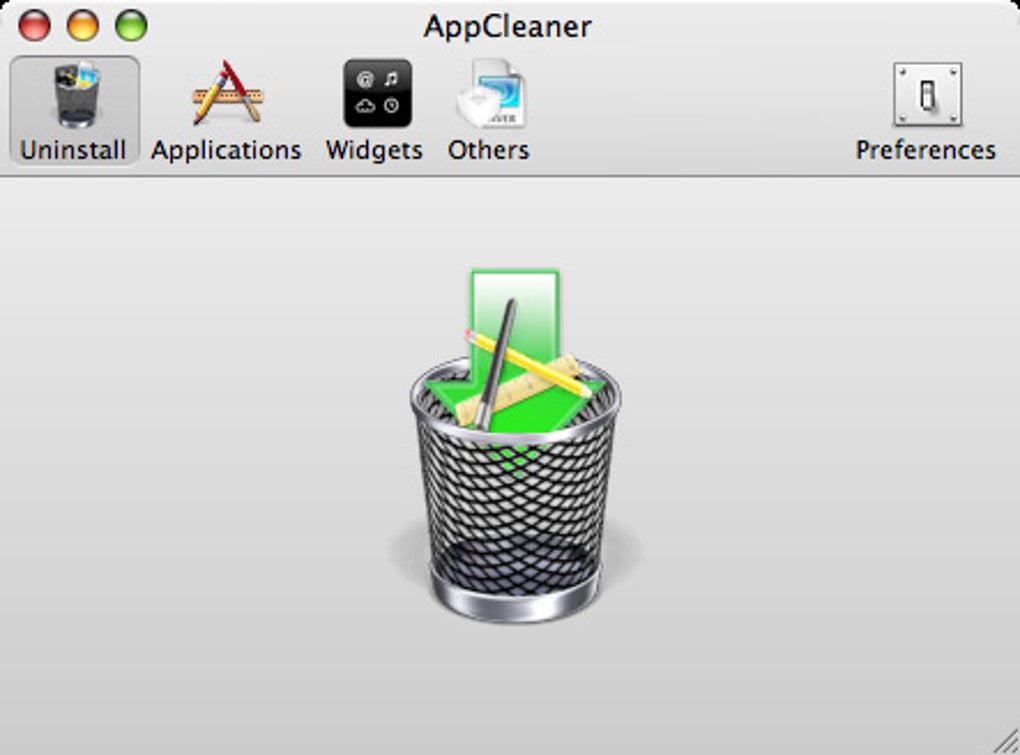
AppCleaner boasts a clean and intuitive user interface designed for simplicity and ease of use. The main screen features two distinct modes: “Importer” and “Browser.” The “Importer” mode allows users to drag and drop application files directly into the AppCleaner window. Once an application is dropped, AppCleaner automatically begins scanning for associated files. This drag-and-drop functionality significantly streamlines the uninstallation process.
The “Browser” mode provides a more organized view of all installed applications. Applications are categorized and listed with their locations, making it easy to find specific applications for removal. A search function further enhances navigation, enabling quick searches for applications based on their names. Selecting an application in either mode reveals a detailed report listing all identified associated files, including their sizes and locations, facilitating informed decision-making regarding which files to delete.
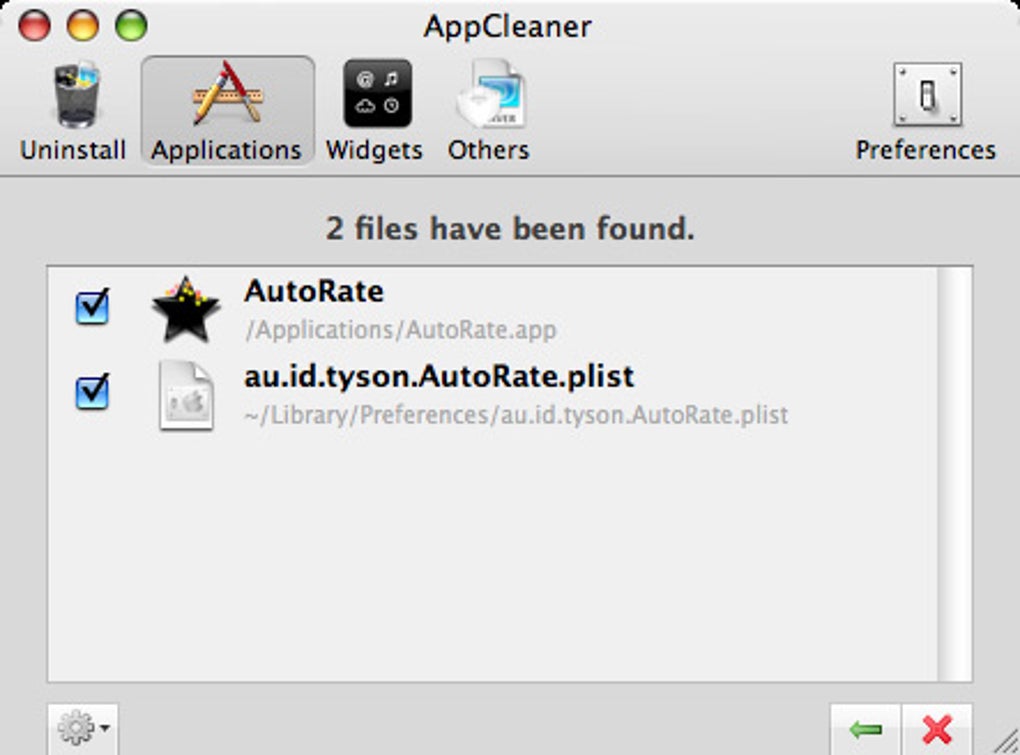
The simplicity of the interface makes AppCleaner accessible to users of all technical skill levels. The straightforward design minimizes confusion, enabling even novice users to quickly understand and use its functionalities.
Safety and Privacy Considerations
A common concern regarding free software is the potential inclusion of bundled third-party software, malware, or adware. AppCleaner actively addresses this concern by maintaining a clean and secure application. It is free from adware and any bundled third-party software, ensuring a safe and reliable experience for users. The application operates by accessing only the digital contents on your Mac, focusing solely on application management and file removal.
However, a notable omission is the lack of a clearly defined privacy policy on the official website. While AppCleaner itself poses no direct security risk as it only accesses and modifies local files, the absence of a privacy policy may be concerning to users who prioritize data privacy and security. The lack of a clearly stated policy leaves users with unanswered questions about data handling and potential future uses of collected information.
AppCleaner’s Advanced Features and Preferences
Beyond its core functionality, AppCleaner offers several advanced features accessible through the “Preferences” menu. This menu provides granular control over various aspects of the application’s behavior. The “General” tab allows users to enable or disable several protective features. These features help to prevent accidental deletion of essential system files or applications. Users can add applications to a whitelist, preventing them from being accidentally deleted.
The “SmartDelete” feature within the Preferences menu is particularly useful. When enabled, SmartDelete automatically prompts users to remove leftover files associated with an application after it has been uninstalled. This automation enhances the thoroughness of the uninstallation process. Lastly, the “Updates” section allows users to control automatic updates, providing options for automatic checks or manual updates.
AppCleaner as an Efficient Cleaning Solution
AppCleaner effectively addresses the issue of incomplete application removal, a persistent problem with macOS. The comprehensive scanning and detailed reporting capabilities ensure that users can accurately identify and remove all associated files, maximizing available disk space and preventing potential system conflicts. AppCleaner’s streamlined interface and intuitive design make it easily accessible to all users, irrespective of technical expertise. The application’s focus on thorough cleaning makes it a valuable tool for maintaining a clean and efficient Mac system.
What’s New and Updates
AppCleaner’s developers regularly release updates, incorporating bug fixes, performance improvements, and potentially new features. The most recent version history is typically available on the official website. While the application does not feature a built-in changelog, checking the official website regularly is recommended to remain informed about the latest updates and features. Users can also manually check for updates within the application’s preferences.
Pros and Cons of AppCleaner
Pros:
- Free to use: AppCleaner is completely free, making it an accessible option for all users.
- Easy to use: The intuitive interface makes the app simple and straightforward to use, even for novice users.
- Lightweight: The application is lightweight and doesn’t significantly impact system resources.
- Saves space: By removing leftover files, AppCleaner effectively frees up valuable disk space.
- Ad-free: The application is entirely free of ads, ensuring an uninterrupted user experience.
- Simple user interface: The minimalist design is clean, uncluttered, and user-friendly.
Cons:
- Missing privacy policy: The absence of a clearly defined privacy policy on the official website is a significant drawback, raising concerns about data handling and user privacy.
Alternatives to AppCleaner
While AppCleaner offers a robust and effective solution for uninstalling applications, several alternatives exist, each with its strengths and weaknesses. Some popular alternatives include AppZapper, CCleaner, and CleanMyMac. These alternatives often offer similar core functionalities but may differ in their user interface design, advanced features, pricing models, and overall approach to application management and system cleanup. Exploring these alternatives allows users to compare features and choose the application that best suits their individual needs and preferences.
Conclusion
AppCleaner provides a valuable service for macOS users seeking a thorough and efficient method for uninstalling applications. Its straightforward interface, comprehensive file scanning, and optional granular control make it a user-friendly solution. The lack of a privacy policy is a significant concern, however, and prospective users should carefully weigh this against the benefits of the software. Overall, AppCleaner represents a strong contender in the field of Mac application uninstallers, particularly for those seeking a free, effective, and easy-to-use solution. The absence of a privacy policy should, however, be considered carefully before use.
File Information
- License: “Free”
- Latest update: “February 19, 2024”
- Platform: “Mac”
- OS: “Mac OS X”
- Language: “English”
- Downloads: “1M”
- Size: “4.17 MB”


