
In the contemporary digital landscape, cloud storage has become an indispensable utility for individuals and businesses alike. Google Drive stands as one of the most prominent contenders in this space, offering generous storage, seamless integration with Google’s suite of productivity tools, and accessibility from virtually any device with an internet connection. Users store a vast array of documents, spreadsheets, presentations, images, and other media on Google Drive, relying on its robustness for safekeeping and collaboration.
However, the convenience of cloud storage often comes with a subtle but significant trade-off: how do you interact with these files using the sophisticated, feature-rich applications installed natively on your computer? Google’s ecosystem, while powerful, tends to push users towards its web-based applications like Google Docs, Sheets, and Slides. While these web apps offer fantastic collaboration features and are incredibly convenient for basic editing, they frequently fall short when compared to the depth, power, and advanced functionalities of dedicated desktop software like Microsoft Word, Excel, Adobe Photoshop, or specialized CAD programs. This disparity creates a common user dilemma: files are securely stored in the cloud, but the preferred tools for editing them reside locally.
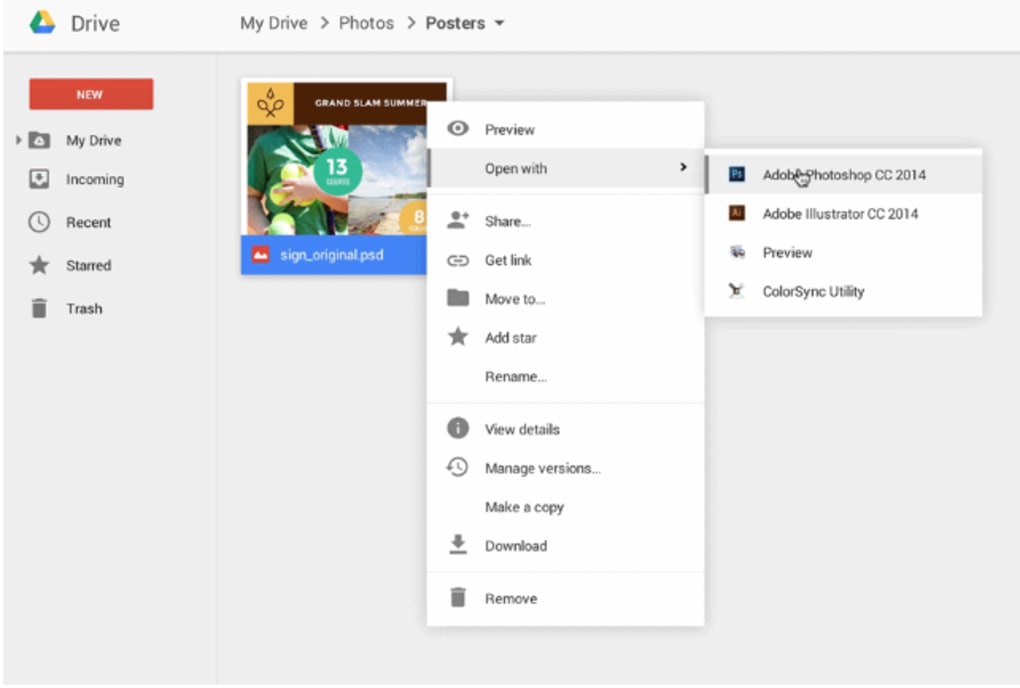
Enter the concept of an “application launcher” for cloud drives. The idea is simple yet profound: to bridge the gap between cloud-hosted files and local desktop applications, allowing users to open a document stored in Google Drive directly with their favorite installed software, just as if the file were sitting on their local hard drive. This is precisely the problem that “Application Launcher for Drive” sought to solve, promising a seamless workflow that would integrate Google Drive more deeply into a user’s local computing experience.
Developed by Google itself, “Application Launcher for Drive” emerged as a free browser extension designed to empower users with this capability. Its core promise was to liberate Google Drive files from the confines of Google’s web applications, enabling them to be opened and potentially edited using any compatible program on the user’s computer. For those who had invested time, effort, and even money into mastering their preferred desktop software, or for professionals who required specific, advanced features not found in GSuite, this extension appeared to be a beacon of hope, offering a pathway to reclaim control over their file-editing experience. The intention was to simplify workflows, enhance productivity, and provide users with the flexibility to choose their tools without compromising on the benefits of cloud storage.
Understanding the Vision: Bridging Google Drive and Local Applications
The proliferation of cloud storage services like Google Drive has fundamentally altered how we manage and access our digital files. Gone are the days when all critical documents resided solely on a local hard drive, susceptible to hardware failures or limited to a single machine. Google Drive, as a cornerstone of this paradigm shift, offers not only vast storage capacity but also an ecosystem of integrated applications that allow for creation, editing, and real-time collaboration directly within the browser. From word processing with Google Docs to data analysis with Google Sheets and compelling presentations with Google Slides, the GSuite provides a comprehensive, browser-based office environment.
However, the very integration that makes GSuite powerful also presents a limitation for many users. By default, clicking on a Google Drive file within your browser will prompt it to open with its corresponding Google web application. A .docx file might open in Google Docs, a .xlsx in Google Sheets, and so on. While this is convenient for quick edits or collaborative work sessions, it often falls short for tasks demanding the full power and intricate features of desktop-installed software. Professional designers, engineers, writers, and data analysts frequently rely on specialized applications that offer a depth of functionality, customization, and performance that web-based alternatives simply cannot match. Think of the advanced macros in Microsoft Excel, the complex layer management in Adobe Photoshop, the specific formatting options in Microsoft Word, or the unique tools found in industry-specific software. These capabilities are crucial for their workflows, and attempting to replicate them or even approximate them within a web browser can be cumbersome or, in many cases, impossible.
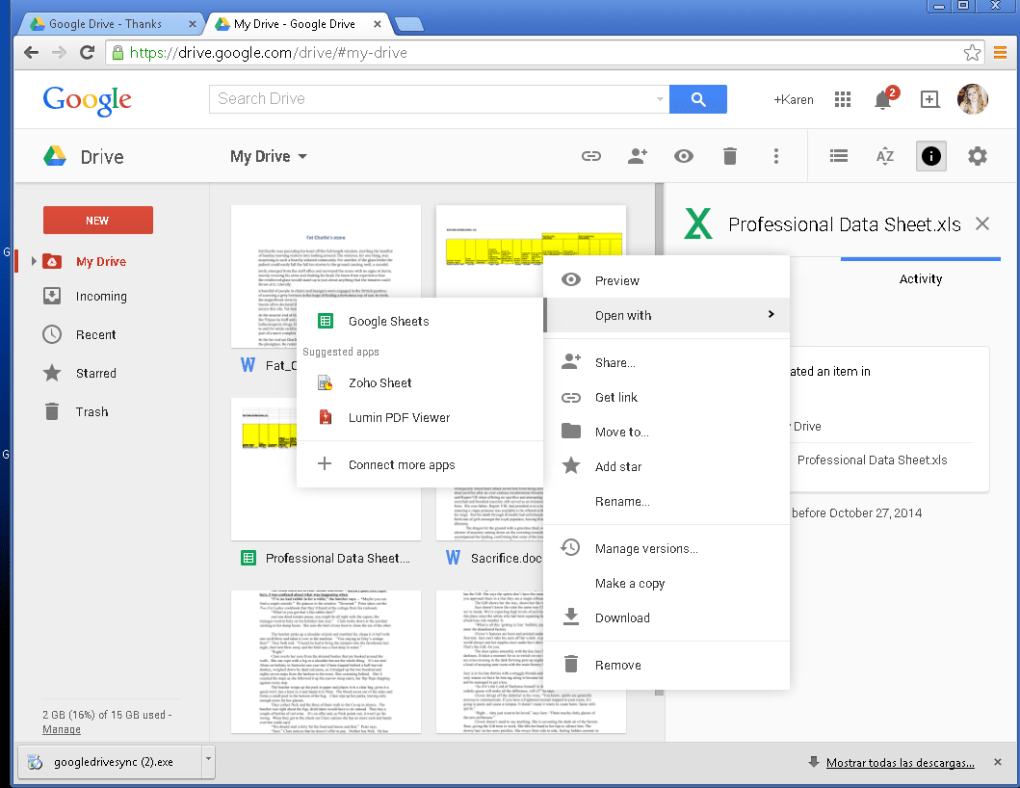
The “Application Launcher for Drive” extension was conceived to address this precise challenge. Its fundamental purpose was to act as a conduit, creating a seamless connection between the files stored in Google Drive and the powerful applications residing on a user’s local computer. Instead of a .docx file automatically opening in Google Docs, the extension aimed to provide an option to launch it directly in Microsoft Word. This functionality was particularly appealing to users who were deeply entrenched in their existing software ecosystems, preferring the familiarity, feature set, and offline capabilities of their installed programs over Google’s web-first approach.
The extension aimed to empower users with a choice that was previously absent or inconvenient to achieve. Without it, the common workaround for using local software would involve manually downloading the file from Google Drive, opening it in the desired desktop application, making edits, saving the changes, and then manually re-uploading the updated file back to Google Drive. This multi-step process is not only time-consuming but also prone to errors, especially when dealing with multiple revisions or collaborative efforts. Application Launcher for Drive promised to streamline this entire workflow, theoretically enabling a click-and-open experience that mirrored accessing a local file. This vision was to elevate Google Drive from a mere cloud storage repository to a truly integrated component of a user’s desktop environment, allowing them to leverage the best of both worlds: the accessibility and collaboration of the cloud, combined with the power and precision of local applications. For many, this represented a significant leap forward in optimizing their digital productivity.
The Promise vs. The Reality: A Deep Dive into Functionality and Frustration
Google’s commitment to providing a vast array of free, accessible applications is undeniable. From the ubiquitous Google Search and Maps to its sophisticated productivity suite—Docs, Sheets, Slides, and more—millions of users worldwide interact with these tools daily, often without needing a dedicated Google account. For those with a Google account, the integrated Google Drive cloud storage becomes a digital hub, centralizing files created within these web apps and offering a secure space for personal uploads. This ecosystem offers immense convenience, allowing users to access their work from any internet-connected device, facilitating collaboration, and providing a robust backup solution.
However, this convenience often comes with an inherent set of limitations, leading to what many users describe as “a hassle.” The primary issue stems from the functional parity—or lack thereof—between Google’s online applications and their desktop counterparts. While Google Docs can handle basic word processing, it often lacks the advanced formatting options, complex referencing tools, or extensive customization capabilities found in Microsoft Word. Similarly, Google Sheets, despite its collaborative prowess, might struggle with large datasets, intricate pivot tables, or specific macro functionalities that are second nature to Microsoft Excel users. This discrepancy forces users into a difficult choice: sacrifice certain features for the sake of cloud integration, or resort to cumbersome workarounds.
One common workaround involves using third-party add-ons to extend the functionality of Google’s web apps. While some add-ons are genuinely useful, they rarely replicate the comprehensive feature set of full-fledged desktop software. More critically, the act of opening a file, whether it originated locally or in the cloud, within Google’s ecosystem often results in fundamental changes to its format. For instance, uploading a .docx file to Google Drive and then editing it in Google Docs can subtly alter its structure, leading to unexpected formatting shifts when it’s later downloaded and opened in Microsoft Word. The inverse is also true: a file natively created in Google Docs (a .gdoc file) will undergo a conversion process when downloaded to a .docx format, and this conversion is rarely flawless. These formatting inconsistencies, while seemingly minor, can become significant roadblocks for professionals, leading to lost time, frustration, and a potential compromise of document integrity. The promise of seamless document exchange often clashes with the reality of conversion artifacts.
This is where “Application Launcher for Drive” was meant to step in, theoretically offering a straightforward solution to these formatting woes and functional limitations. The extension aimed to circumvent the default browser-based editing entirely, allowing users to interact with their Google Drive files as if they were local documents. The setup process, as envisioned, involved a few crucial steps:
- Install Google Drive Software for PC: This refers to the “Google Drive for Desktop” client (formerly “Drive File Stream” or “Backup and Sync”). This desktop application is essential as it creates a direct link between your Google Drive cloud storage and your local file system, effectively syncing your files to your computer.
- Sync Google Account Files: Once the desktop software is installed, users would sync their Google account files. This establishes a “two-way street” connection, ensuring that any changes made locally are reflected in the cloud, and vice versa. The installation of this desktop client also typically makes Google Docs, Sheets, and Slides available as local applications (though they still often launch web versions), giving more options for file management.
- Install the Application Launcher for Drive Extension: This browser extension acts as the trigger, intercepting requests to open Drive files and redirecting them to the local software client.
- Refresh Google Drive in Browser: A simple browser refresh would then theoretically display new options for opening files, showing local applications alongside Google’s web-based ones.
In theory, this setup promised a truly integrated workflow, allowing users to click a file in their browser’s Google Drive interface and choose to open it with their preferred desktop application, ensuring full fidelity and leveraging all local software features. However, the practical experience often diverged significantly from this promising vision. The anticipated ease of use and seamless integration frequently dissolved into a frustrating cycle of unreliability and broken functionality, turning what was meant to be a solution into “another hassle” entirely.
Navigating the Pitfalls: Common Issues and User Experience
While the theoretical promise of “Application Launcher for Drive” was compelling, the practical implementation consistently fell short, leading to widespread user frustration and ultimately rendering the extension largely ineffective. The core issue, as reported by countless users and reflected in its poor reviews, was its profound unreliability. This wasn’t a matter of occasional glitches; for many, the extension simply “doesn’t work most of the time.”
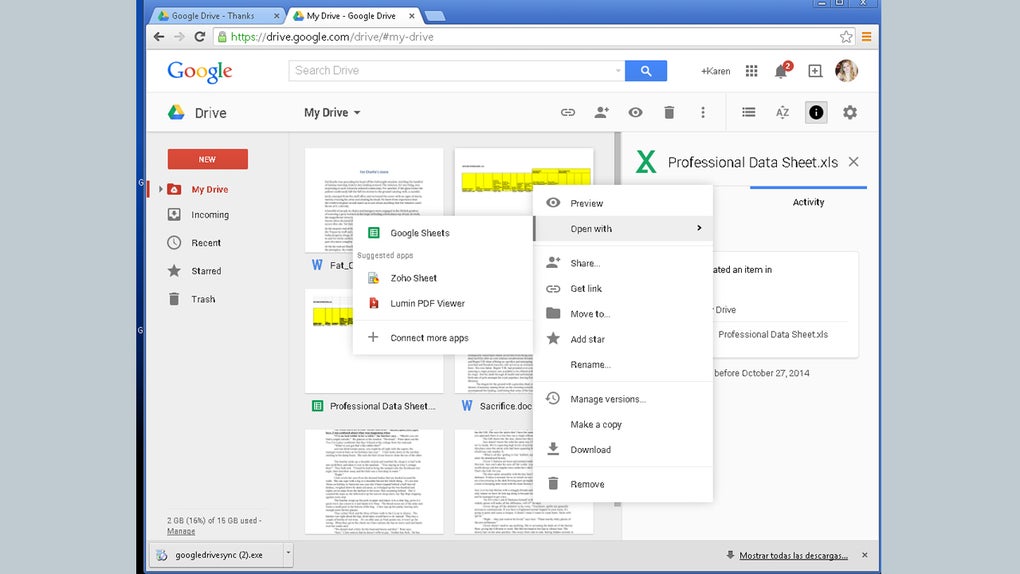
A primary symptom of this unreliability was the absence of the promised functionality. Users would diligently follow the installation and setup instructions, hoping to see new options for opening their Google Drive files with local applications. However, these options would often fail to appear. The expectation of a dropdown menu or a context-click option revealing their desktop software was frequently met with disappointment, as the default behavior—opening files in Google’s web apps—persisted, or no new options would be presented at all.
Further exacerbating the problem was the visual indicator of its inactivity: the extension’s logo, typically found in the browser’s taskbar or extension tray, would often appear “grayed out.” This muted icon served as a constant, passive-aggressive reminder that the tool was dormant, inactive, and failing to perform its intended function. Clicking on this unresponsive, grayed-out logo, in a desperate attempt to coax it into action, would often lead to another dead end: users would find themselves redirected back to its download page. This created a maddening loop, where the tool failed to work, yet its only interactive element pointed back to its installation source, implying that re-downloading or re-installing would somehow fix a fundamental flaw that persisted regardless. This redirection felt like a taunt, wasting precious time and compounding the user’s annoyance.
The reliance on an additional program, the Google Drive for Desktop software, also added a layer of complexity and potential failure points. While necessary for the extension to function, it meant that users needed to ensure both the desktop client and the browser extension were correctly installed, configured, and communicating flawlessly. Any hiccup in this multi-component setup—be it a sync issue with the desktop client, a browser update, or a conflict with other extensions—could easily derail the entire system. This dependency made troubleshooting difficult, as the source of the problem could reside in multiple places, further contributing to the feeling of an unstable and demanding utility.
Perhaps the most damning indictment of “Application Launcher for Drive” was the comparison to the manual alternative. When the extension failed, users often found it “so much easier to just manually download and open a file on your File Explorer.” This simple, albeit tedious, process involved navigating to the file in Google Drive, selecting the download option, waiting for the file to save to the local downloads folder, and then manually opening it with the desired desktop application. While this method lacked the elegance and automation that the extension promised, it consistently delivered results. The fact that a manual, multi-step process was preferable to an automated tool designed to simplify it speaks volumes about the extension’s failure. It completely undermined its very purpose, rendering it a cumbersome and ultimately unnecessary addition to a user’s workflow.
The implications of such an unreliable tool extend beyond mere inconvenience. It can erode user trust in official Google extensions, lead to wasted time and diminished productivity, and force users to reconsider their entire cloud integration strategy. In an age where digital tools are expected to be intuitive and robust, “Application Launcher for Drive” became a textbook example of a utility that, despite its noble intentions, stumbled badly in its execution, demonstrating a significant gap between design aspiration and user experience reality.
Seeking Better Solutions: Exploring Effective Google Drive Integration
Given the significant drawbacks and pervasive unreliability of “Application Launcher for Drive,” it becomes imperative for users to explore more robust and functional alternatives for integrating Google Drive with their local computing environment. The goal remains the same: to seamlessly access and edit cloud-stored files with powerful desktop applications, but with a reliable and frustration-free experience. Fortunately, several other options exist that offer superior functionality and a much more dependable workflow.
One of the most frequently recommended and widely adopted alternatives, mentioned in the original context, is the “Save to Google Drive” extension. While “Save to Google Drive” serves a slightly different primary purpose—that of easily capturing web content and saving it directly to your Drive—its functionality is generally stable and well-executed, offering a stark contrast to the application launcher. This extension excels at quickly archiving web pages, entire articles, images, audio files, and even screenshots directly into your Google Drive with just a few clicks. It streamlines the process of collecting information from the web, preventing the need for multiple manual downloads and uploads. However, it’s important to note its own limitations: it typically saves web content in its original format (e.g., HTML for a webpage, JPG for an image) and might not offer extensive options for converting or choosing specific file formats upon saving. Users often need to manually open the extension’s options to configure its behavior, which can be an extra step. Despite these minor inconveniences, its core function of web content capture is reliable and highly useful, making it a valuable addition to many users’ browser toolkits and a far more effective utility than the “Application Launcher for Drive.”
For the primary use case of opening Google Drive files with local applications, the most effective and widely adopted solution is not a browser extension at all, but rather Google Drive for Desktop. This official application, installed directly on your Windows or Mac computer, is the gold standard for integrating Google Drive with your local file system. Here’s why it’s superior:
- Seamless Local Access: Google Drive for Desktop creates a virtual drive or mirrors selected files/folders to your local storage. This means your Google Drive files appear directly in your File Explorer (Windows) or Finder (Mac), just like any other local folder.
- Open with Any Local App: Once files are accessible locally, you can double-click them to open them with any installed desktop application that supports the file type. A
.docxfile will open in Microsoft Word, a.xlsxin Excel, a.psdin Photoshop, etc., without any browser intervention. - Automatic Two-Way Sync: Any changes you make to these local files using your desktop applications are automatically synced back to your Google Drive in the cloud. This ensures that your cloud-based version is always up-to-date, and you never have to manually re-upload files.
- Offline Access: By setting certain folders or files to be “available offline,” you can continue working on them even without an internet connection. Once you’re back online, the changes will sync.
- Reliability: As an official desktop client, Google Drive for Desktop is generally very reliable, designed for deep operating system integration, and continuously updated by Google. This contrasts sharply with the sporadic performance of the “Application Launcher” extension.
While “Application Launcher for Drive” claimed to offer a streamlined experience, it inadvertently highlighted the efficiency of a different approach—one that leverages a dedicated desktop client for cloud storage. For users who primarily interact with Google Drive through their web browser, the idea of an extension that offers native app integration might seem appealing. However, the consistent failures of “Application Launcher for Drive” underscore that for robust and dependable functionality, especially concerning file handling and synchronization, a fully integrated desktop application like Google Drive for Desktop is undeniably the superior choice. It provides the seamless experience that the extension only promised, making it the de facto solution for users seeking genuine cloud-to-local file management.
Other alternatives mentioned in related content, like the now-deprecated Chrome App Launcher (which focused on launching web apps from the desktop) or the Google Play Chrome Extension (for accessing the Play Store), are not direct replacements for opening Drive files with local applications. They serve different purposes within the Chrome ecosystem and do not address the core need that “Application Launcher for Drive” intended to fulfill.
In conclusion, for anyone seeking to bridge the gap between their Google Drive files and their preferred desktop applications, the recommendation is clear: invest in the official Google Drive for Desktop client. It offers the reliability, seamless integration, and automatic synchronization that the “Application Launcher for Drive” extension tragically lacked. While the idea behind the extension was sound, its execution made it a frustrating and ultimately unviable tool, pushing users towards more conventional yet consistently effective methods for managing their cloud-stored data. Choosing the right tools is paramount for productivity, and in this instance, simpler, more robust alternatives prove to be far more advantageous.
PhanMemFree Opinion:
All in all, Application Launcher for Drive was designed with a seemingly noble intention: to offer a more convenient Google Drive experience by enabling direct access to local software. However, in practice, it ultimately falls flat, proving to be largely unreliable and, to a great extent, unusable. The extension’s frequent failures, often manifesting as a grayed-out icon and redirects to its download page instead of providing functionality, undermine its very purpose.
In comparing its functionality with the manual process of downloading, editing, and re-uploading files, or with the robust capabilities of Google Drive for Desktop, the “Application Launcher for Drive” clearly pales in comparison. It often feels much easier to just handle files manually, even if it means navigating occasional formatting changes between different software environments. Users are undeniably better off seeking out other applications and methods with demonstrably better functionality and a more dependable feature set for managing their Google Drive files.
PhanMemFree Pros:
- Open files with your own PC programs: When it sporadically works, it fulfills its core promise.
PhanMemFree Cons:
- Unreliable: The most significant flaw, leading to frequent frustration.
- Will most often redirect you to its store page: Creates a frustrating loop rather than providing functionality.
- The other program options don’t show up: Fails to deliver the promised “open with” choices.
- Requires another program (Google Drive for Desktop): Adds a dependency without delivering on its own promise.
Alternatives to “Application Launcher for Drive” (as referenced in original content and beyond):
- Save to Google Drive: A reliable extension for saving web content, offering better functionality in its specific domain.
- Chrome App Launcher (Deprecated): A former tool for launching web apps, not directly relevant to opening Drive files with desktop apps.
- Google Play Chrome Extension: Integrates the Play Store, unrelated to Drive file management.
- Gspace: A trial version tool leveraging Gmail for storage, but not primarily for direct local app integration.
- Google Input Tools: For typing in various languages, not file management.
- Lost Photos: Helps locate lost photos, a different utility entirely.
- Facebook Container: A privacy tool to isolate Facebook, unrelated.
- SaveFrom.net Helper: A media downloader, not a Drive utility.
File Information
- License: “Free”
- Version: “3.2”
- Latest update: “January 31, 2023”
- Platform: “Windows”
- OS: “Windows 8”
- Language: “English”
- Downloads: “17K”


