
Auto Click Script is a free software application designed to automate repetitive mouse clicks on your Windows computer. This powerful tool eliminates the need for manual clicking, saving you time and effort on tasks that involve repeated mouse interactions. Whether you’re a gamer, a data entry specialist, or simply someone looking to streamline their workflow, Auto Click Script offers a user-friendly solution for automating these actions.
Understanding Auto Click Script Functionality
At its core, Auto Click Script functions by recording a series of mouse clicks and actions. This recording process creates a script that can be replayed as many times as needed. The software allows users to define specific intervals between clicks, offering a high degree of customization to match the requirements of various tasks. This flexibility makes it suitable for a wide range of applications, from simple click-based games to more complex data entry processes.
The software simplifies the automation process by providing a graphical user interface (GUI). This intuitive interface eliminates the need for any programming knowledge, making it accessible to even the most technically unsophisticated users. The recording process is straightforward: simply initiate the recording, perform the desired mouse clicks and actions, and then stop the recording. The software then creates a script based on this recording. This script can then be saved and reused whenever needed.
One of the key features of Auto Click Script is its ability to set the number of clicks per minute. This allows users to fine-tune the automation process to precisely match the speed required for a given task. The ability to save custom actions for later use adds further convenience and efficiency, eliminating the need to re-record frequently used actions.
The software’s ease of use is further enhanced by its straightforward installation process. Requiring no specialized technical expertise, users can quickly download and install the software and begin automating their tasks almost immediately. This simplicity is a significant advantage for those who are unfamiliar with automation software or who have limited technical skills.
Using Auto Click Script: A Step-by-Step Guide
-
Download and Installation: Begin by downloading the Auto Click Script software from the official website or a trusted source. The installation process is typically straightforward and requires minimal user intervention. Follow the on-screen instructions to complete the installation.
-
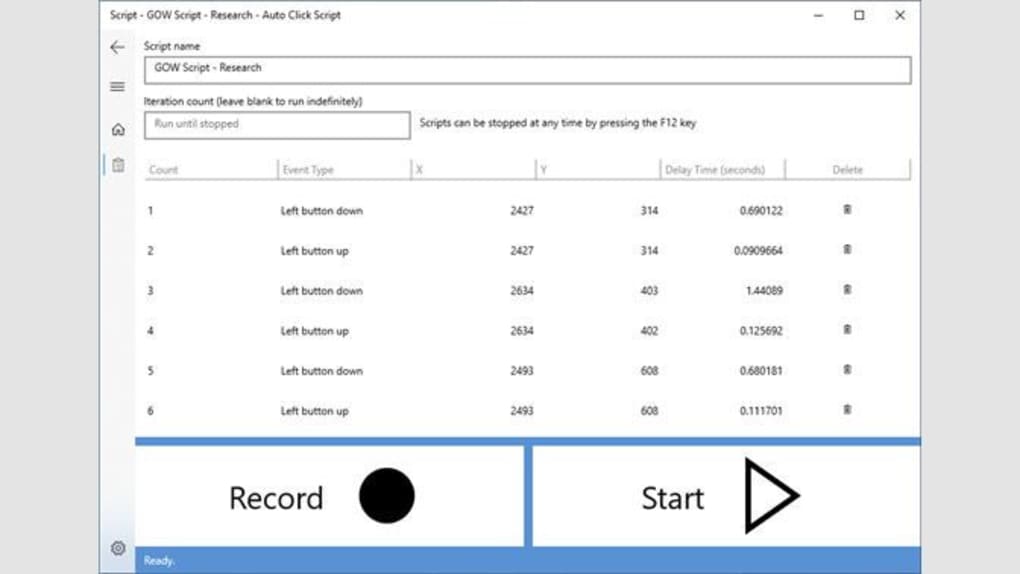
Creating a Script: Once the software is installed, launch the application. The primary function is recording and playback of mouse clicks. To create a script, click the “Record” button. The software will now start recording your mouse clicks and movements. Perform the actions you want to automate, carefully and accurately.
-
Defining Click Intervals: During the recording process, pay attention to the timing of your clicks. Auto Click Script allows you to customize the delay between each click. This precision is critical for ensuring the script works correctly within the targeted application or game. If you need to introduce pauses, you can simply pause during the recording process.
-
Stopping the Recording: Once you have completed the actions you want to automate, click the “Stop” button to end the recording. The software will now process the recorded actions and create a script.
-
Editing and Refining the Script (Optional): Auto Click Script may provide options to edit the recorded script. This allows users to make adjustments, such as changing the delay times between clicks or removing unwanted actions. This feature allows for fine-tuning and optimization of the script’s performance.
-
Saving and Loading Scripts: Save the created script for later use. The software will allow you to save the script to a file. This allows for convenient reuse of the script. In subsequent sessions, you can load and run saved scripts without having to re-record the actions.
-
Running the Script: To run the script, simply click the “Play” button. The software will then execute the recorded actions, automating the mouse clicks according to the script’s settings. You can customize how many times the script is run or set it to run indefinitely.
-
Stopping the Script: You can stop the script at any time by pressing the designated stop key (typically F12) or by clicking the “Stop” button within the software interface.
- Advanced Features (If Available): Some versions of Auto Click Script might offer more advanced features, such as the ability to incorporate keyboard shortcuts into the script or to specify more complex mouse actions beyond simple clicks. Explore the software’s capabilities to discover these advanced features and fully leverage the program’s potential.
Auto Click Script’s Advantages and Applications
Auto Click Script offers several key advantages:
-
Ease of Use: The software is designed to be user-friendly, requiring no programming expertise. The intuitive interface makes it accessible to a broad range of users.
-
Time Savings: Automating repetitive tasks dramatically reduces the time spent on manual clicking, freeing up time for other activities.
-
Increased Efficiency: By automating repetitive actions, Auto Click Script enhances overall efficiency and productivity.
-
Customization: The software provides several options for customizing the automation process, allowing users to fine-tune scripts to precisely match specific needs.
-
Free Availability: Auto Click Script is often offered as freeware, making it accessible to a wider audience.
The applications of Auto Click Script are diverse, including:
-
Gaming: Automating actions in clicker games or other games that involve repetitive clicking.
-
Data Entry: Automating data entry tasks, such as filling out forms or entering information into spreadsheets.
-
Web Scraping (With Caution): While not its primary function, it can be used in conjunction with other tools for basic web scraping tasks. However, always respect website terms of service and avoid actions that could overload or harm a server.
-
Testing: Automating repetitive mouse clicks for software testing purposes.
Alternative Auto Clicker Software
While Auto Click Script provides a solid solution, several alternative auto-clicker programs exist, each offering slightly different features and capabilities. These alternatives may offer additional functionality, such as support for keyboard shortcuts, advanced scripting capabilities, or more sophisticated customization options. Some notable examples include:
- GS Auto Clicker: A popular and highly-rated auto-clicker known for its flexibility and ease of use.
-
Auto Clicker Auto Keybot: Offers a combination of mouse click automation and keyboard input automation.
-
Mini Mouse Macro: Provides more advanced features for creating complex macros, going beyond simple click sequences.
-
Logitech G Hub: If you’re using Logitech gaming peripherals, their G Hub software offers built-in macro recording and playback capabilities.
Choosing the right auto-clicker will depend on your specific needs and technical proficiency.
Ethical and Legal Considerations
It’s crucial to use auto-clicker software responsibly and ethically. Many online games and services explicitly prohibit the use of automation tools. Violating these terms of service can lead to account suspension or permanent bans. Furthermore, using auto-clickers for malicious purposes, such as automated attacks or unauthorized access to systems, is illegal and can have serious consequences.
Always ensure that your use of Auto Click Script or any similar software aligns with the terms of service of any websites or applications you use it with. Respect the rules and regulations of the platforms you’re interacting with and avoid any actions that could be considered harmful or unethical. Responsible and ethical usage is essential to prevent negative consequences.
Always download software from official and trusted sources to minimize the risk of malware or viruses. Be cautious of unofficial downloads, as they might contain malicious code.
File Information
- License: “Full”
- Version: “1.0”
- Latest update: “July 15, 2022”
- Platform: “Windows”
- OS: “Windows 11”
- Language: “English”
- Downloads: “2K”


