
AutoHideDesktopIcons is a lightweight, free software utility designed to streamline your Windows desktop by automatically hiding icons. This guide provides a detailed overview of the software’s features, functionality, and how to effectively utilize it to enhance your computing experience. We’ll cover its installation, configuration options, compatibility, and user reviews (or lack thereof).
Understanding AutoHideDesktopIcons Functionality
AutoHideDesktopIcons offers a simple yet powerful solution for managing desktop clutter. Its primary function is to conceal desktop icons, restoring them only when needed. This functionality significantly improves screen real estate, allowing for a cleaner, more focused workspace. The program operates unobtrusively in the background, requiring minimal system resources. This makes it ideal for users who appreciate a clean desktop but don’t want to constantly manually hide and show their icons.
One of the key advantages of AutoHideDesktopIcons is its portability. Packaged as a compact ZIP file, it requires no complex installation process. Simply unzip the file and run the executable. This eliminates registry entries and potential conflicts with other software, ensuring a clean and safe user experience.
The software is designed to be intuitive and user-friendly, catering to users with varying levels of technical expertise. Its minimalistic interface allows for easy navigation and configuration, eliminating the need for extensive tutorials or manuals. The low memory footprint (956KB RAM usage reported) is a testament to its efficient design, ensuring it won’t impact your computer’s performance, even on older machines.
Configuring AutoHideDesktopIcons for Optimal Performance
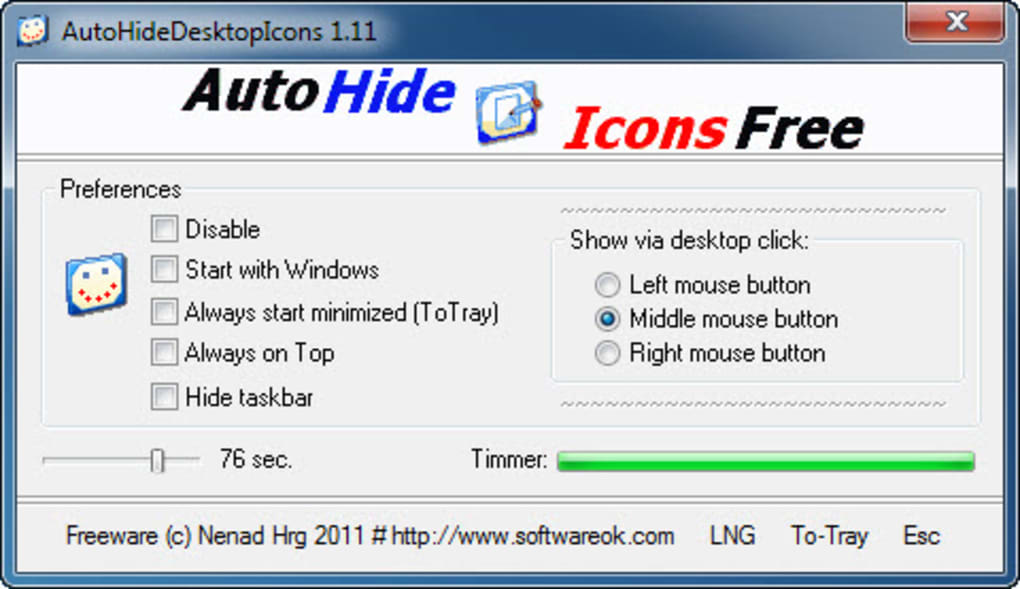
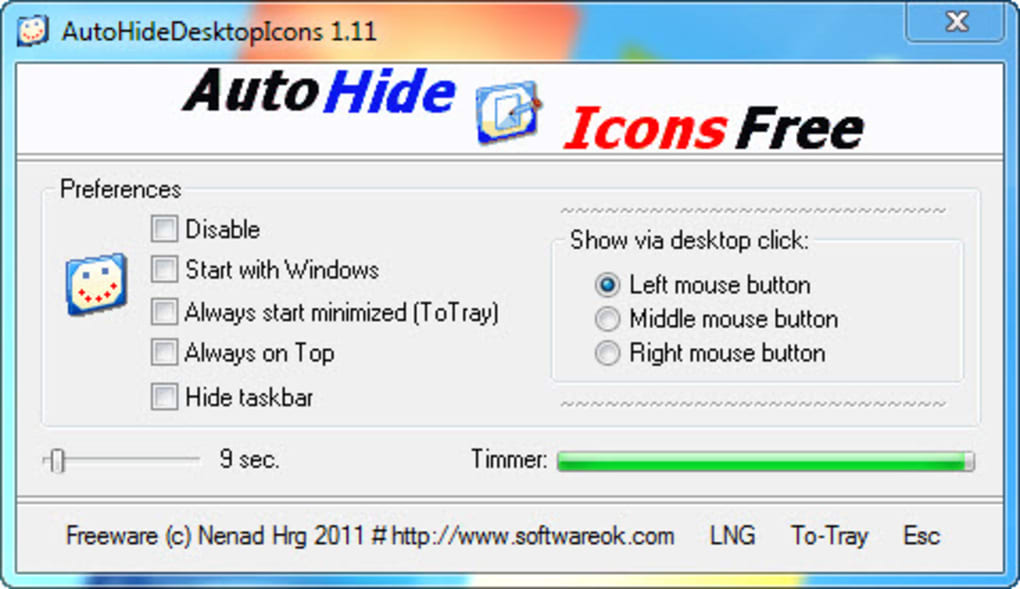
AutoHideDesktopIcons offers several customization options to personalize its behavior according to individual needs. Users can configure the software to automatically start with Windows, ensuring consistent icon management upon system boot. This eliminates the need to manually launch the application each time you start your computer.
The program can run discreetly in the background, silently managing your desktop icons without any visible interface elements. Alternatively, users can choose to permanently hide icons, maintaining a clean desktop at all times. The flexibility of these options allows for a truly personalized workflow.
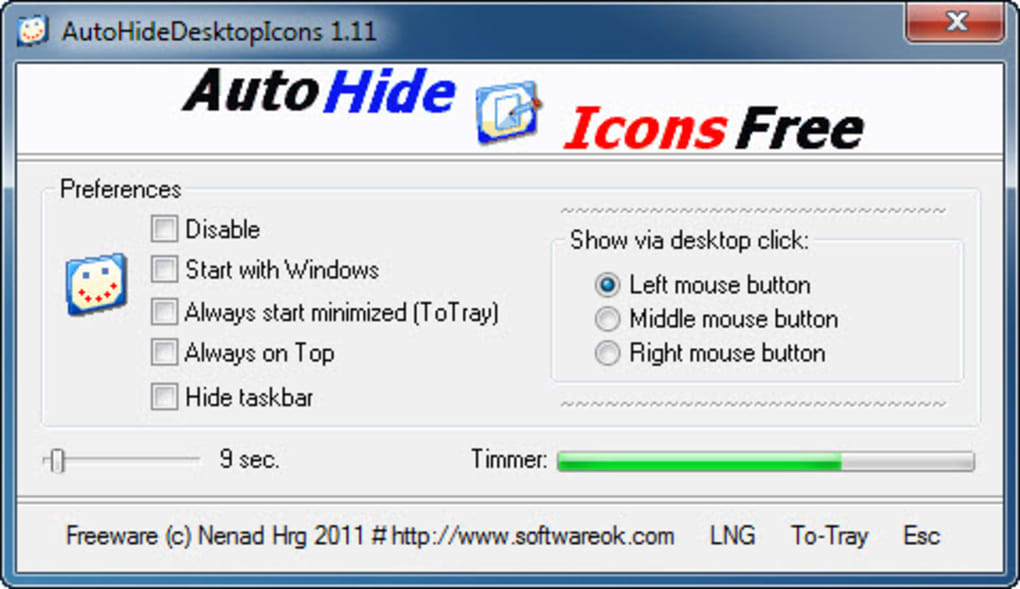
A particularly convenient feature is the ability to automatically hide icons after a specified period of inactivity. This allows the desktop to remain clean and uncluttered when not actively in use, providing a distraction-free environment for focused work. Upon resuming interaction with the desktop (e.g., moving the mouse), the icons are automatically restored. This balances the benefits of a clean desktop with the ease of accessing icons when needed.
System Compatibility and Limitations
While AutoHideDesktopIcons provides a convenient solution for managing desktop icons, it’s crucial to understand its limitations regarding system compatibility. The original documentation states compatibility with Windows XP and Windows Vista. However, based on user reports and its continued availability, it likely functions on more recent versions of Windows (Windows 7 and potentially beyond), though this is not explicitly confirmed by the developer. It is highly recommended to test the application on the target system before relying on it critically.
The software is not explicitly compatible with macOS or other operating systems. Users seeking a similar tool for macOS would need to explore alternative solutions specifically designed for that platform.
Security and Performance Considerations
AutoHideDesktopIcons is designed to be a lightweight and non-invasive application. It doesn’t modify system registry settings, minimizing the risk of conflicts or system instability. The small file size contributes to its fast startup time and minimal resource consumption, ensuring it won’t negatively impact overall system performance. However, as with any third-party software, it is advisable to download it from reputable sources to prevent malware or viruses. The original source is reported as SoftwareOK, which should be verified.
While the software itself is not known to pose a security threat, the potential exists for malicious actors to create fraudulent copies. Therefore, exercising caution when downloading and installing any software, including AutoHideDesktopIcons, is always recommended. Always verify the source’s legitimacy before installation.
User Experience and Reviews
At the time of writing this article, direct user reviews for AutoHideDesktopIcons are unavailable. The provided source material lacks comprehensive user feedback, making it difficult to assess the general user experience. This lack of readily available reviews is a drawback; it would be beneficial to have independent user assessments to confirm its effectiveness and reliability across various Windows versions. However, its simple functionality and lightweight nature suggest a positive user experience for users seeking a straightforward solution for hiding their desktop icons.
The absence of reviews doesn’t necessarily indicate a negative experience but highlights the need for independent user feedback to further validate the software’s reliability and performance on different systems and configurations.
Alternative Solutions and Future Improvements
While AutoHideDesktopIcons offers a simple and effective solution, several alternative methods exist for managing desktop icons. Windows itself provides built-in options for organizing and managing icons, including the ability to show or hide them via the desktop settings. These built-in options, however, lack the automated features offered by AutoHideDesktopIcons.
Future improvements to AutoHideDesktopIcons could include:
- Expanded System Compatibility: Explicitly stating the range of supported Windows versions.
- Enhanced Configuration Options: Offering more granular control over the auto-hide behavior, such as customizable inactivity timers and additional triggering events.
- User Interface Improvements: While the current interface is minimalistic, some users might benefit from a slightly more visually appealing or informative interface.
- User Feedback Integration: Implementing a mechanism for collecting user reviews and feedback to continuously improve the software.
In conclusion, AutoHideDesktopIcons provides a valuable, free utility for users seeking to simplify their Windows desktop experience by automatically hiding icons. Its lightweight nature, ease of use, and customizable settings make it a practical choice for those who prioritize a clean and uncluttered workspace. However, the lack of readily available user reviews and limited documented system compatibility warrant cautious consideration. Always download software from trusted sources and exercise due diligence before installation.
File Information
- License: “Free”
- Latest update: “July 25, 2025”
- Platform: “Windows”
- OS: “Windows XP”
- Language: “English”
- Downloads: “653”


