
BitLocker, Microsoft’s built-in full disk encryption feature, offers robust security for Windows systems. However, situations can arise where accessing your encrypted data becomes problematic. This might be due to a forgotten password, a damaged hard drive, or a system failure. When BitLocker encryption prevents access to your valuable files, the need for a decryption solution becomes critical. This article explores the challenges associated with BitLocker decryption, outlines various methods for recovering data from BitLocker-encrypted drives, and discusses the strengths and limitations of available software solutions like M3 BitLocker Decryption Free.
Understanding BitLocker Encryption and its Challenges
BitLocker utilizes advanced encryption algorithms, primarily AES (Advanced Encryption Standard), to protect the entire contents of a hard drive or other storage device. This encryption makes it virtually impossible for unauthorized individuals to access your data without the correct decryption key. The key, typically derived from a password or a TPM (Trusted Platform Module) chip, is essential for unlocking the drive. Losing this key effectively renders your data inaccessible.
The strength of BitLocker’s encryption is also its biggest challenge when recovery is needed. Unlike simpler encryption methods, BitLocker doesn’t offer a simple “forgot password” option. Brute-forcing the password is computationally infeasible for most standard passwords due to the robust nature of the AES encryption. Moreover, if the drive itself is physically damaged, even advanced recovery techniques might be hampered.
Several scenarios can lead to the need for BitLocker decryption:
- Forgotten Password: The most common reason for requiring decryption is simply forgetting the BitLocker password. This is particularly challenging as BitLocker doesn’t typically store the password directly; instead, it relies on the key derived from the password.
- Hardware Failure: A malfunctioning hard drive, corrupted sectors, or a damaged storage device can prevent the system from correctly accessing the BitLocker key, making the drive inaccessible.
- System Corruption: A serious operating system failure can also compromise the ability to decrypt a BitLocker-protected drive. The system might be unable to load the necessary drivers or access the key storage mechanism.
- Lost Recovery Key: BitLocker allows users to create a recovery key. This key acts as a backup, allowing you to regain access to the drive even if you’ve forgotten your password. However, losing or misplacing this recovery key creates a significant hurdle.
- Stolen or Compromised Device: If a BitLocker-encrypted device is stolen or its security is compromised, decryption might be necessary to prevent sensitive information from falling into the wrong hands, assuming the thief is unable to access the necessary decryption key.
Methods for BitLocker Decryption
Several approaches can be employed to decrypt a BitLocker-encrypted drive, depending on the specific circumstances.
1. Using the Recovery Key: The simplest and often most effective method involves using the recovery key. This key is a crucial element that should be stored securely and separately from the encrypted drive. Microsoft recommends storing the recovery key in a password manager, cloud storage, or a printed document. If you have the recovery key, the decryption process is typically straightforward via the BitLocker recovery console.
2. Utilizing the Windows Recovery Environment (WinRE): If you have access to the system but can’t decrypt the drive through the regular boot process, the Windows Recovery Environment offers a built-in mechanism for recovering BitLocker-encrypted drives. This might involve using the recovery key or, in some cases, attempting to reset the BitLocker password (though this requires a certain level of access and can be difficult).
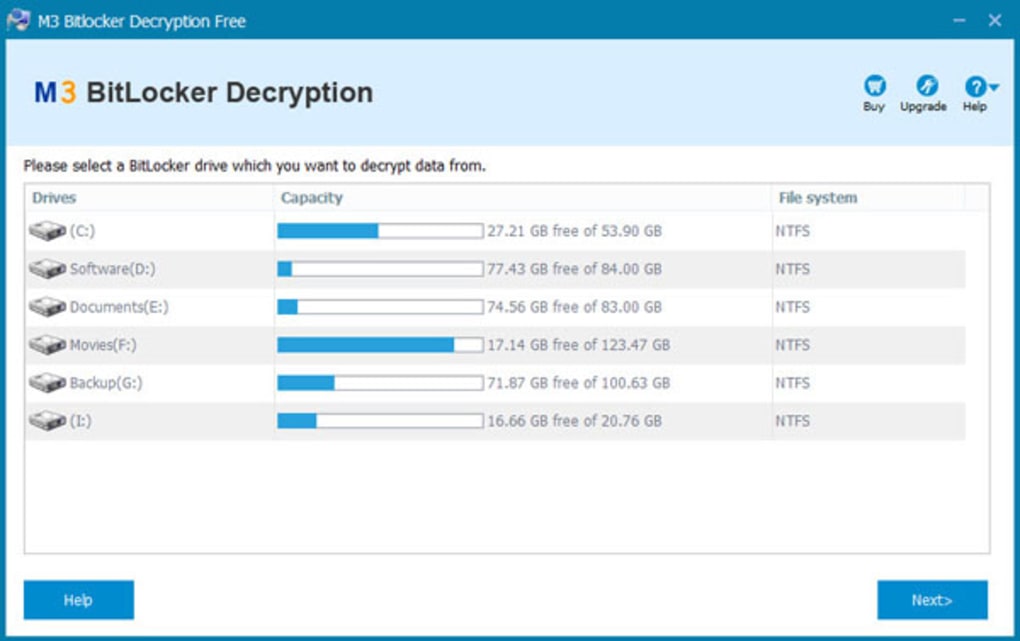
3. Employing Third-Party BitLocker Decryption Software: For more complex scenarios—particularly when the drive is damaged, the recovery key is unavailable, or the system has suffered a critical failure—third-party BitLocker decryption software might be necessary. These tools often offer more advanced recovery capabilities than standard Windows utilities, potentially able to recover data even from severely damaged drives. However, it is crucial to choose reputable software from trusted sources to avoid malware or data loss risks. One such tool is M3 BitLocker Decryption Free, which is discussed below.
4. Professional Data Recovery Services: In the most challenging situations, particularly those involving significant physical drive damage or complex data corruption, engaging a professional data recovery service is recommended. These services possess specialized equipment, software, and expertise to handle such complex scenarios. However, this approach is often significantly more expensive than other options.
M3 BitLocker Decryption Free: A Closer Look
M3 BitLocker Decryption Free is a software application designed to help recover data from BitLocker-encrypted drives that are inaccessible, damaged, or corrupted. While it claims to be a free solution, it’s important to understand its limitations and the potential risks associated with using third-party tools to handle sensitive encrypted data.
Pros:
- Free (potentially): As the name suggests, this software is promoted as free, potentially offering a cost-effective solution compared to professional recovery services. However, the free version’s capabilities may be restricted compared to commercial versions of this software or other competing products.
- Support for multiple file systems: M3 BitLocker Decryption Free claims compatibility with NTFS, FAT32, and exFAT file systems, offering broad coverage for various storage devices.
- Potential for recovery from damaged drives: The software aims to recover data from damaged BitLocker-encrypted drives, expanding its utility beyond simply accessing drives with forgotten passwords.
Cons:
- Limited success rate: The efficacy of M3 BitLocker Decryption Free is likely to vary significantly depending on the nature and severity of the damage to the drive or encryption failure. Many users report success and some report failure or even software crashes, suggesting unreliability. It is crucial to understand that there’s no guarantee of recovery.
- Potential for data loss: Using third-party decryption software carries the inherent risk of further data loss or corruption. It’s critical to exercise caution and back up any recoverable data as soon as possible.
- Software stability: Reports indicate issues with software crashes, indicating a need for improvement in software stability.
- Lack of detailed user documentation: User reviews and comments often mention a lack of comprehensive instructions or clear explanations of its functionalities and potential limitations.
Before using M3 BitLocker Decryption Free or any other third-party tool, it is crucial to carefully weigh the risks and benefits. Consider the cost of potential data loss compared to using professional services or exploring other recovery options.
Choosing the Right Decryption Method
The best method for BitLocker decryption depends heavily on the specific circumstances:
- If you have the recovery key: This is by far the easiest and safest approach. Use the recovery key immediately.
- If the drive is only slightly damaged and the system boots: Attempt recovery through the Windows Recovery Environment (WinRE).
- If the drive is severely damaged, or the recovery key is unavailable: Consider using professional data recovery services. They possess expertise and equipment far exceeding the capabilities of typical software solutions. This is generally the most expensive option but provides the highest likelihood of successful data recovery in critical situations.
- If you are evaluating a free solution: proceed with extreme caution. Free options like M3 BitLocker Decryption Free may help in specific situations, but they are not a guaranteed solution, and the risk of further data loss is significant.
Always back up any recovered data immediately to a different storage location to prevent further loss. Remember, data recovery is not always guaranteed, especially in cases of severe hardware failure or extensive data corruption. Proactive measures such as regular backups and secure storage of recovery keys significantly reduce the risk of data loss.
File Information
- License: “Free”
- Latest update: “September 25, 2018”
- Platform: “Windows”
- OS: “Windows 10”
- Language: “English”
- Downloads: “59.2K”
- Size: “3.69 MB”


