
BitLocker, Microsoft’s full disk encryption feature, provides robust security for your data. However, various scenarios can lead to BitLocker encryption issues, rendering your data inaccessible. These issues range from simple password forgetting to more complex problems such as hard drive failure, operating system corruption, or interruptions during the encryption or decryption process. When BitLocker encryption fails, recovering your data becomes critical. This article explores the common causes of BitLocker recovery issues and outlines various strategies for regaining access to your encrypted files.
Understanding BitLocker Encryption and Potential Problems
BitLocker Drive Encryption is a data protection feature built into Windows operating systems, designed to protect sensitive information by encrypting the entire hard drive or a specific partition. This encryption prevents unauthorized access to your data, even if your computer is stolen or compromised. The encryption uses a unique encryption key, which is protected by a password, a smart card, or a Trusted Platform Module (TPM).
While BitLocker offers strong security, several factors can cause issues requiring BitLocker recovery:
-
Forgotten Password or Recovery Key: This is the most common cause of BitLocker recovery issues. If you forget your BitLocker password or misplace your recovery key, you’ll be locked out of your encrypted drive. It’s crucial to securely store your recovery key in a separate, safe location, separate from your computer.
-
Hardware Failure: A malfunctioning hard drive, SSD, or USB drive can render your encrypted data inaccessible. Physical damage, sector failures, or other hardware issues can corrupt the drive’s structure and prevent BitLocker from functioning correctly. In these cases, data recovery becomes more complex and might require professional data recovery services.
-
Operating System Corruption: Problems with the Windows operating system itself can sometimes interfere with BitLocker’s operation. A corrupted boot sector, damaged system files, or a virus infection can disrupt the decryption process, leading to data inaccessibility.
-
Encryption/Decryption Errors: Interruptions during the BitLocker encryption or decryption process, such as power outages or system crashes, can corrupt the encryption key or leave the drive in an inconsistent state. This can make it impossible to access the encrypted data without specialized recovery tools.
-
Firmware or BIOS Issues: Problems with your computer’s firmware or BIOS (Basic Input/Output System) can also impact BitLocker functionality. This is less common, but if you suspect a BIOS issue, you’ll need to troubleshoot that aspect of your system first.
-
Incorrect TPM Configuration: The Trusted Platform Module (TPM) plays a vital role in BitLocker security. If the TPM is malfunctioning or improperly configured, it might prevent the decryption of your drive.
-
BitLocker Drive Encryption Failure: In rare cases, the BitLocker encryption process itself might fail, leading to an unusable drive. This can be caused by software bugs, hardware problems, or file system corruption.
BitLocker Recovery Methods: A Step-by-Step Guide
Recovering data from a BitLocker-encrypted drive depends on the cause of the problem. Here’s a breakdown of the most common recovery methods:
1. Using the Recovery Key: If you have your BitLocker recovery key, this is the simplest method. The key is a 48-character alphanumeric code that allows you to unlock your drive. You can usually find it in your Microsoft account, if you enabled that option during setup. If you saved it to a USB drive or file, retrieve it from there. Windows will prompt you to enter the recovery key if you have forgotten your password.
2. Recovering the Recovery Key: If you don’t have your recovery key, you can attempt to recover it. If you set up your BitLocker to use a Microsoft account, check your account history. Microsoft usually stores your recovery key associated with the computer’s serial number or the Windows user account you used when setting up BitLocker. Be aware that if you did not save a recovery key, this step will not work.
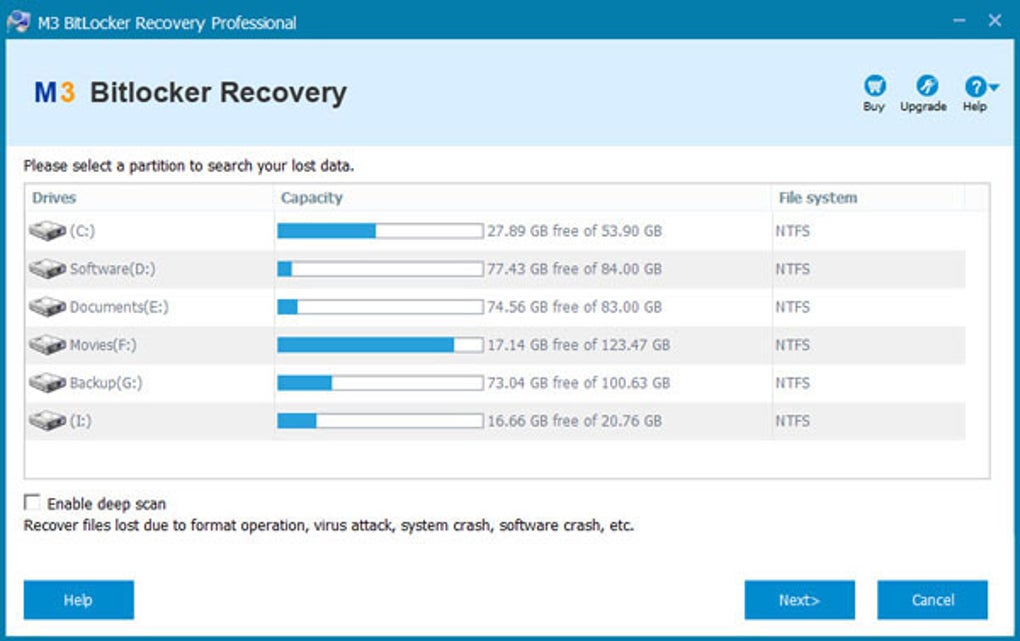
3. Using a Third-Party BitLocker Recovery Tool: For more complex issues, such as hardware failure or encryption errors, specialized BitLocker recovery software might be necessary. These tools often employ advanced data recovery techniques to bypass BitLocker encryption and recover your data, even if the recovery key is unavailable. These tools may have limitations and are not guaranteed to recover your data. Exercise caution when using third-party software, ensuring it comes from a reputable source and has positive user reviews.
4. Professional Data Recovery Services: If you have exhausted all other options, consider contacting a professional data recovery service. These services possess the expertise and specialized tools to handle complex BitLocker recovery scenarios, including severe hardware damage. They can recover data from physically damaged drives and often have a higher success rate than DIY methods. However, professional services are costly and should be considered a last resort.
5. Reinstalling the Operating System (Data Loss): As a last resort, and only if you have no interest in recovering the BitLocker encrypted files, you might choose to reinstall the operating system. This will erase all data on the encrypted drive, including the BitLocker encryption itself, but it will resolve BitLocker-related issues. This is a destructive method and should only be considered if your encrypted data is not important or if you have already created backups.
Preventing Future BitLocker Recovery Issues
Preventing BitLocker recovery problems is essential. Here are some preventive measures:
-
Store Your Recovery Key Securely: Always store your BitLocker recovery key in a safe and accessible location. Consider using a password manager, a secure cloud storage service with strong encryption, or writing it down and storing it in a physically secure location. Never store it on the encrypted drive.
-
Regular Backups: Implement a regular backup strategy. This protects your data against various scenarios, including BitLocker recovery issues. Back up your important files to an external hard drive, cloud storage, or a network drive. Remember, a well-maintained backup is your first line of defense against data loss.
-
System Maintenance: Regularly maintain your computer’s health, by keeping your operating system updated, installing antivirus software, and regularly scanning for malware. A healthy system is less likely to experience BitLocker failures.
-
Regularly Test Your Recovery Key: Periodically check if your BitLocker recovery key is still accessible and valid. You can test this by temporarily suspending and then resuming BitLocker encryption. This helps verify that your key works correctly and that your recovery plan is still effective.
-
Use a Strong Password: Choose a complex password that meets recommended password length and complexity guidelines. A stronger password is less likely to be guessed or cracked, reducing the risk of unauthorized access.
Choosing a BitLocker Recovery Tool: Considerations and Recommendations
If you need to use third-party BitLocker recovery software, consider the following factors:
-
Reputation and Reviews: Research the software thoroughly. Look for reviews and ratings from reputable sources to ensure the tool is effective and trustworthy. Avoid tools with little or no online presence or many negative reviews.
-
Compatibility: Check whether the software is compatible with your version of Windows and the type of drive you’re trying to recover.
-
Features: Look for tools that offer advanced data recovery capabilities and support different file systems. Consider whether the tool can recover deleted files, recover from damaged partitions, and has the ability to address specific BitLocker error codes.
-
Ease of Use: Choose a tool that is easy to use and understand, even if you have limited technical expertise.
-
Cost: Compare the pricing and features of different BitLocker recovery tools to find one that suits your budget and needs.
Disclaimer: Using third-party tools carries inherent risks. It is crucial to choose reputable software from trusted sources and always back up any recovered data to avoid further data loss.
Remember, data loss can be devastating. By understanding the causes of BitLocker recovery issues and employing preventative measures, you can significantly reduce the risk and protect your valuable information. If you encounter a BitLocker problem, carefully assess the situation and choose the most appropriate recovery method, prioritizing data preservation.
File Information
- License: “Trial version”
- Latest update: “July 11, 2023”
- Platform: “Windows”
- OS: “Windows 7”
- Language: “English”
- Downloads: “4.5K”
- Size: “3.75 MB”


