
Bootable USB Creator is a free, user-friendly Windows utility designed to simplify the process of creating bootable USB drives. This powerful tool allows users to easily install, reinstall, or repair their operating systems, making it an invaluable asset for both novice and experienced computer users. This comprehensive guide will explore the features, functionalities, and benefits of Bootable USB Creator, along with comparisons to alternative software and considerations for its use.
Streamlining the Bootable USB Creation Process
The core function of Bootable USB Creator is to transform a standard USB flash drive into a bootable drive containing an operating system image (typically an ISO file). This eliminates the need for cumbersome procedures and specialized knowledge often associated with creating bootable media. The software achieves this with an intuitive interface that guides users through the process with minimal steps. The user simply selects the target USB drive and the desired OS image file (usually an ISO). The software then handles the complex task of formatting the drive, copying the image, and setting the appropriate boot parameters.
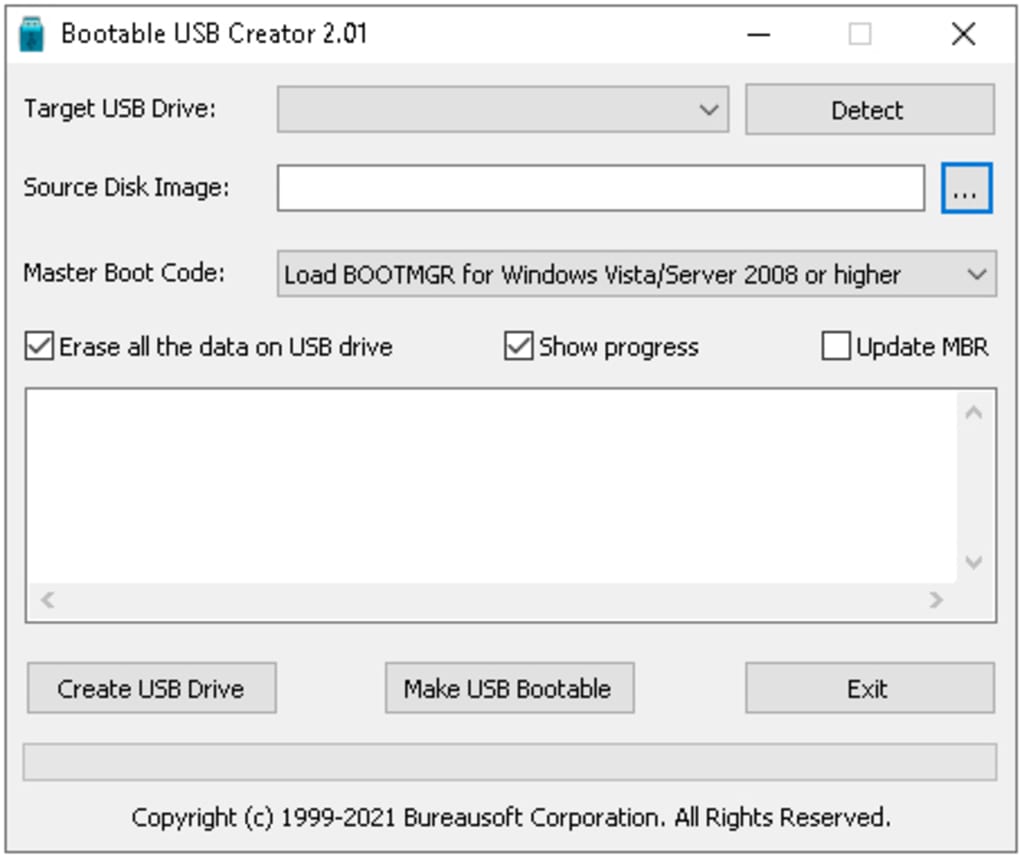
This streamlined approach is particularly beneficial for users who are unfamiliar with the technical details of bootloaders, partition tables, and other low-level aspects of operating system installation. Bootable USB Creator abstracts these complexities, providing a simple point-and-click experience. The automatic drive detection feature further enhances usability, simplifying the selection of the target USB drive and minimizing the risk of selecting the wrong drive—a critical consideration that can lead to data loss.
Advanced Features and Customization Options
Beyond its simplicity, Bootable USB Creator offers several advanced features that cater to users with more specific needs and preferences. These options provide a higher degree of control over the bootable drive creation process, allowing customization beyond the basic functionality.
One notable feature is the ability to select different Master Boot Records (MBRs). This provides flexibility for compatibility with various systems and BIOS settings. The choice of MBR can significantly impact the boot process, and the inclusion of this option within Bootable USB Creator demonstrates its attention to detail and broader compatibility.
Furthermore, the software offers the option to erase all data on the target USB drive before creating the bootable image. This is a crucial safety precaution, ensuring that any existing data is not accidentally overwritten. This action safeguards against data loss and removes any potential conflicts or issues that might arise from pre-existing files on the drive. The software clearly prompts the user to confirm this action, reinforcing the importance of data integrity.
Another useful feature is the option to display the progress of the bootable drive creation process. This provides users with real-time feedback and allows them to monitor the progress of the operation. The visual feedback reduces uncertainty and keeps the user informed about the status of the bootable USB creation.
Lastly, the software has been rigorously tested with a wide array of USB drive controller brands. This extensive testing ensures compatibility and reliability across a broad range of hardware, reducing the likelihood of encountering compatibility issues. The compatibility list includes prominent manufacturers such as Intel, Samsung, Micron, SMI, Marvell, Toshiba, Sierra, Realtek, SanDisk, Western Digital, Hyperstone, and Novachips, demonstrating a strong commitment to broad hardware support.
Applications and Use Cases
Bootable USB Creator is a versatile tool with a variety of practical applications. Its primary use is to create bootable Windows installation media, allowing users to perform a clean installation of Windows on their computer. This is beneficial when upgrading to a newer version of Windows, performing a system repair, or resolving system-critical errors that cannot be addressed within the current operating system.
However, the tool’s applications extend beyond simply installing or reinstalling Windows. It’s equally useful for creating recovery drives. A bootable USB drive containing system recovery tools can be a lifesaver when facing critical system issues or boot failures. The ability to boot from a recovery drive allows access to essential tools for troubleshooting and restoring the system to a functional state.
Another valuable use case is testing out a new operating system on a borrowed or public computer, such as an internet cafe, without altering the existing system’s configuration. This allows users to evaluate the operating system in a controlled environment without affecting the host machine’s settings. The use of a bootable USB drive ensures that the test environment is isolated and easily removed.
Advantages and Disadvantages
Bootable USB Creator offers several key advantages, making it a compelling choice for creating bootable USB drives. Its user-friendly interface simplifies a typically complex process, making it accessible to users of all technical skill levels. The advanced customization options provide flexibility for more experienced users, while the automatic drive detection feature minimizes the risk of errors. The wide range of supported hardware ensures compatibility across various devices, and the free-of-charge accessibility further enhances its appeal.
However, there are some limitations to consider. The software requires a certain level of technical understanding to effectively utilize its full capabilities, specifically understanding the implications of different MBR choices or managing data erasure. Although the interface is intuitive, a basic comprehension of operating system installation and recovery processes is still recommended.
Alternatives and Comparisons
While Bootable USB Creator provides a robust solution for creating bootable USB drives, several alternative tools offer similar functionalities. These alternatives might provide additional features, support different operating systems, or offer unique advantages based on specific user needs. Some notable alternatives include:
-
Rufus: A widely-used, open-source utility known for its speed and extensive compatibility with various operating systems and image formats. Rufus offers a more technical interface but provides greater control over the bootable drive creation process.
-
Universal Media Creation Tool (UMCT): Officially provided by Microsoft, UMCT is designed specifically for creating Windows installation media. It offers a streamlined and user-friendly experience, focusing exclusively on Windows OS installations. While simpler, it lacks the flexibility and customization options available in Bootable USB Creator.
-
ISO to USB: This tool focuses solely on the task of copying an ISO image to a USB drive, making it a lightweight and straightforward option for users with basic needs. However, it lacks the advanced features found in Bootable USB Creator.
-
Universal USB Installer: Designed to create bootable USB drives for various Linux distributions, this tool caters specifically to Linux users who need to create bootable drives from ISO images.
The best choice among these alternatives depends on individual needs and technical expertise. Bootable USB Creator strikes a balance between user-friendliness and advanced features, making it a suitable option for many users.
Conclusion
Bootable USB Creator provides a valuable and user-friendly solution for creating bootable USB drives on Windows. Its ease of use, coupled with its advanced features, caters to a broad spectrum of users, from those unfamiliar with bootable media creation to seasoned computer users needing greater control over the process. While alternatives exist, Bootable USB Creator’s balance of simplicity and functionality makes it a powerful and convenient tool for a wide range of applications, from clean installations to system recovery and OS testing. The free accessibility further enhances its overall value, making it a valuable addition to any computer user’s toolkit.
File Information
- License: “Free”
- Version: “2.01”
- Latest update: “January 11, 2022”
- Platform: “Windows”
- OS: “Windows 10”
- Language: “English”
- Downloads: “32.6K”
- Size: “1.17 MB”


