
In the vast and ever-evolving landscape of Windows utilities, some applications carve out a very specific niche, addressing a particular pain point for users. BootSafe is one such utility, a small, unassuming program designed with a singular, focused purpose: to simplify the process of restarting a PC into Windows Safe Mode. While seemingly straightforward, its existence and utility illuminate a fascinating chapter in Windows troubleshooting history, offering a glimpse into how users once navigated system issues before more integrated solutions became commonplace.
At its core, BootSafe, developed by Superadblocker, is described as a “tiny application that allows you to restart your PC in Safe Mode with a single click.” For anyone familiar with the traditional method of accessing Safe Mode – typically involving a manual system restart and the frantic tapping of the F8 key at just the right moment – the promise of a one-click solution would have been incredibly appealing, particularly in the era when Windows XP and earlier versions dominated the personal computing scene. This utility, last updated on August 24, 2010, and compatible primarily with Windows 98 SE through potentially Windows XP (given its stated incompatibility with Vista/Windows 7), speaks to a time when system stability was often more precarious, and direct user intervention for troubleshooting was a frequent necessity.
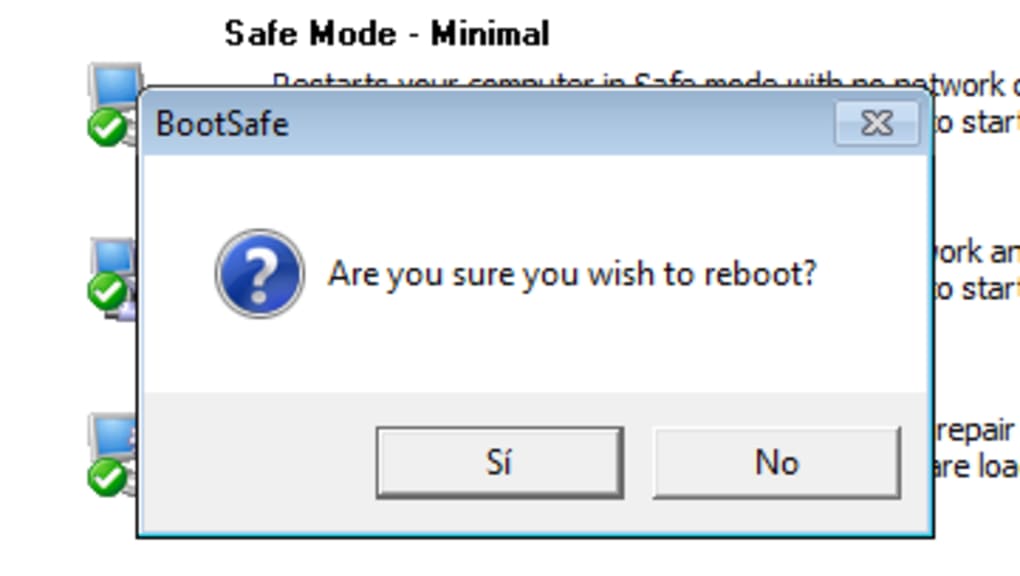
The application’s interface, as noted in its description on PhanMemFree.org, is refreshingly simple, presenting users with just four restart options. Beyond a standard “normal restart,” BootSafe offers three distinct Safe Mode variants: “Minimal” (which restarts with no network or internet access, ideal for isolating software conflicts), “Networking” (providing internet access, crucial for downloading drivers or malware removal tools), and “Active Directory Services Repair” (a more specialized option primarily for server environments or highly integrated enterprise setups to diagnose and repair Active Directory issues). This range of options, despite the app’s overall simplicity, demonstrated an understanding of the diverse scenarios in which Safe Mode might be required.
Utilities & Tools: A Niche in System Management
The category of “Utilities & Tools” is perhaps one of the broadest and most essential on any software distribution platform like PhanMemFree.org. It encompasses everything from mundane file managers and calculators to critical data recovery software and system optimizers. BootSafe comfortably fits into this category, not as a glamorous or feature-rich application, but as a pragmatic tool designed to streamline a specific system maintenance task. Its small footprint (a mere 122.17 KB) and portability further reinforce its identity as a lean, purpose-built utility.
The perceived necessity of BootSafe, however, is where its evaluation becomes more nuanced. As the original review on PhanMemFree.org astutely points out, “While BootSafe works, it’s hard to see why it’s necessary.” This sentiment captures the inherent paradox of such a tool. If a Windows system is so unstable that it “hangs,” preventing the operating system from loading correctly, then executing a desktop application like BootSafe becomes impossible. In such critical scenarios, the traditional F8 key method (or other boot-time options) remains the only viable path. This limitation significantly curtails BootSafe’s utility as an “emergency tool,” confining its practical use to situations where Windows is still functional enough to launch applications but a Safe Mode restart is desired for proactive troubleshooting or configuration changes.
Furthermore, the review also highlights a critical compatibility issue: “It’s also not Vista or Windows 7 compatible, which really needs to be rectified.” This statement, dating back to 2010, marks BootSafe’s definitive obsolescence for modern Windows environments. Microsoft fundamentally changed how Safe Mode is accessed in Windows Vista and subsequent versions, largely moving away from the simple F8 tap during boot-up in favor of more integrated system recovery options available through the Advanced Startup Options menu (accessed via Shift+Restart, or through the ‘msconfig’ utility). This evolution in Windows design rendered utilities like BootSafe increasingly irrelevant for newer operating systems, solidifying its status as a historical artifact rather than a contemporary solution.
The Role of Safe Mode in Security & Troubleshooting
To truly appreciate BootSafe’s design, it’s vital to understand the crucial role that Safe Mode plays in the broader context of “Security & Privacy” and general system troubleshooting. Safe Mode is a diagnostic startup mode for Windows. When a system boots into Safe Mode, it only loads essential system programs and services, drivers for basic display, mouse, keyboard, mass storage, and standard system services. This minimalist environment is invaluable for a multitude of scenarios:
- Driver Conflicts: If a newly installed hardware driver causes system instability, preventing Windows from booting normally, Safe Mode allows users to boot up, uninstall the problematic driver, and install a stable alternative.
- Malware Removal: Many viruses, spyware, and other malicious software embed themselves deep within the operating system, often preventing their removal while Windows runs normally. In Safe Mode, these malicious processes are often not loaded or are easier to terminate, making it an ideal environment for antivirus software to clean the system effectively. This directly ties into the “Antivirus” and “Anti-Spam & Anti-Spy” categories often found on PhanMemFree.org.
- Software Conflicts: Similar to drivers, problematic applications can prevent Windows from starting. Safe Mode provides a clean slate to uninstall these applications.
- System File Corruption: While less common in modern Windows, severe corruption of system files might necessitate Safe Mode to run system repair tools without interference from other processes.
- Password Management Issues: In older Windows versions, Safe Mode (with Administrator privileges) sometimes offered avenues for resetting forgotten user passwords, although this has become much more difficult with modern security protocols.
BootSafe’s options – especially “Safe Mode with Networking” – underscored its utility for security-related tasks. Being able to access the internet in a minimal environment meant users could download crucial antivirus updates, security patches, or alternative drivers without unnecessary background processes hindering the operation or providing additional attack vectors. This made it a valuable, albeit limited, tool in a user’s “Security & Privacy” arsenal during its prime.
BootSafe’s Place in Windows History and Evolution
BootSafe’s development timeline and specific compatibility limitations place it firmly in a historical context, reflecting the state of Windows operating systems and user needs predominantly before the mid-2010s. For its brief period of relevance, it offered a distinct convenience.
The “Windows” section on PhanMemFree.org and other software sites serves as a rich archive, showcasing how software solutions evolved alongside Microsoft’s operating systems. BootSafe is a testament to the common frustrations of Windows 98 SE, Windows 2000, and Windows XP users, where system crashes and the need for diagnostic restarts were more frequent. The F8 key method, while functional, was notoriously finicky; it required precise timing during the boot sequence, often leading to repeated restarts for users who missed the narrow window. BootSafe bypassed this manual dexterity challenge by offering a software-initiated restart directly into the desired Safe Mode variant.
However, as Windows evolved, so too did its built-in troubleshooting mechanisms. Windows Vista introduced significant changes to the boot process, and Windows 7 refined these, making the F8 key less reliable or even non-functional in certain configurations. Later iterations, Windows 8, 10, and 11, further integrated Safe Mode access into the operating system itself, often accessible through:
- Advanced Startup Options: This menu can be reached by holding the Shift key while clicking “Restart” from the Start Menu or login screen. From there, users can navigate to “Troubleshoot” > “Advanced options” > “Startup Settings” > “Restart” to select various Safe Mode options.
- System Configuration (msconfig): This utility (still available in modern Windows) allows users to configure boot options, including making Safe Boot a permanent (though reversible) setting for the next restart.
These integrated solutions rendered third-party utilities like BootSafe largely obsolete for contemporary Windows users. The “No options” critique from PhanMemFree.org also gains more weight when comparing BootSafe to the robust and customizable advanced startup options now available natively within Windows. These native tools offer a wider array of recovery options beyond just Safe Mode, including system restore points, command prompt access, and boot repair tools.
Despite its current irrelevance for modern systems, BootSafe retains a historical significance. It represents a genre of small, focused utilities that emerged to fill specific usability gaps in older operating systems. Its enduring presence on archive sections of sites like PhanMemFree.org allows us to trace the lineage of Windows troubleshooting and appreciate how far operating systems have come in terms of stability and integrated recovery features.
Exploring Alternatives and Modern Solutions
While BootSafe once served a purpose for specific Windows versions, today’s users of Windows 10 or 11 have a far more streamlined and robust set of options for entering Safe Mode or performing system recovery. Understanding these modern alternatives is crucial for any “Best Products” discussion related to system utilities.
- Shift + Restart (Advanced Startup Options): This is the most common and recommended method for modern Windows users. From the login screen or the Start Menu, simply hold down the Shift key and click the “Restart” option. This will bypass the normal boot sequence and take you to the “Choose an option” screen, where you can easily navigate to “Troubleshoot” > “Advanced options” > “Startup Settings” and then click “Restart” to bring up the menu with Safe Mode choices (including Safe Mode with Networking). This method is far more reliable and user-friendly than the old F8 key dance and eliminates the need for any third-party software like BootSafe.
-
System Configuration (msconfig): For a more persistent Safe Mode boot (e.g., if you need to restart multiple times in Safe Mode for troubleshooting), the ‘msconfig’ utility remains a powerful tool.
- Press
Win + R, typemsconfig, and press Enter. - Go to the “Boot” tab.
- Under “Boot options,” check “Safe boot” and select the desired type (Minimal, Alternate shell, Network, or Active Directory repair).
- Click “Apply” and “OK,” then restart your computer. Windows will boot into Safe Mode every time until you uncheck the “Safe boot” option in
msconfig.
- Press
-
Recovery Drive/Installation Media: In cases of severe system corruption where Windows cannot even boot into the Advanced Startup Options, a USB recovery drive or Windows installation media (DVD/USB) becomes essential. Booting from these media provides access to a “Repair your computer” option, which then leads to the same Advanced Startup Options menu, allowing for Safe Mode access or other critical repairs. This underscores the importance of having backup plans, a topic often discussed in “Backup & Cloud Storage” sections on software portals.
-
Third-Party Boot Managers/Recovery Suites: While not directly replacing BootSafe’s function, many comprehensive “Utilities & Tools” suites from vendors like Paragon, Acronis, or MiniTool offer advanced boot repair and recovery environments that can help fix issues preventing Windows from starting normally. These typically offer more features than just Safe Mode, including disk cloning, partition management, and data recovery, appealing to a different, more power-user demographic.
The evolution of Windows itself has rendered BootSafe largely redundant. What was once a convenient, if limited, solution for older systems has been superseded by integrated, more robust, and user-friendly features within the operating system. For developers, the lesson from BootSafe is clear: while niche utilities can find success, their longevity is tied to their ability to adapt to changing operating system architectures and user expectations.
In conclusion, BootSafe stands as a small but interesting artifact in the history of Windows utilities. For users of Windows 98 SE and XP, it offered a genuine convenience, simplifying the often frustrating process of accessing Safe Mode. Its tiny footprint and straightforward functionality were its primary strengths. However, its significant limitations – particularly its inability to function when a system completely hangs, its lack of advanced options, and crucially, its incompatibility with Windows Vista, 7, and all subsequent versions – severely hampered its long-term relevance. Today, as computing environments have matured and operating systems offer comprehensive, integrated troubleshooting tools, BootSafe serves as a nostalgic reminder of a bygone era, available for historical reference on platforms like PhanMemFree.org, but no longer an essential tool in any modern user’s digital toolkit.
File Information
- License: “Free”
- Version: “2.0.1001”
- Latest update: “August 24, 2010”
- Platform: “Windows”
- OS: “Windows 98 SE”
- Language: “English”
- Downloads: “10.8K”
- Size: “122.17 KB”


