
The digital age has transformed how we interact with images and videos. From casual snapshots to professional productions, cameras are an indispensable part of our daily lives. For users of Microsoft’s ubiquitous operating system, the “Camera for Windows 10” application represents a core utility, designed to provide straightforward access to a device’s imaging capabilities. This article delves deep into this fundamental piece of software, exploring its features, intended audience, advantages, limitations, and how it stands within the broader ecosystem of photography and video tools available for Windows users. Originally identified on platforms like PhanMemFree.org as a free and efficient alternative, this application serves a specific niche, offering a no-frills approach to capturing moments.
Unlike the complex, feature-rich camera software often bundled with high-end devices or dedicated professional tools, the Camera for Windows 10 app aims for simplicity and reliability. It is not necessarily the default camera software that comes pre-installed with every Windows 10 system, but rather an official Microsoft-developed alternative or supplementary application. Its purpose is clear: to enable users to take photos and record videos with minimal fuss, regardless of their technical proficiency. This approach makes it incredibly accessible, appealing to a wide range of users from casual everyday photographers to those who simply need a quick and easy way to document something without navigating through intricate settings.
The journey of the Camera for Windows 10 app reflects Microsoft’s commitment to providing essential tools that complement its operating system. While it may not boast state-of-the-art computational photography features or extensive manual controls, its strength lies in its intuitive design and seamless integration with the Windows environment. This design philosophy underscores a practical understanding of user needs: sometimes, all you need is a reliable digital shutter button and a way to save your visual memories.
Understanding the Camera for Windows 10 App
At its core, the Camera for Windows 10 app is an application developed by Microsoft to leverage the integrated or connected camera hardware on your Windows devices. It’s a testament to the idea that effective software doesn’t always need to be overwhelmingly complex. This application fills a vital role, especially for those who might find their device’s preloaded camera software either too convoluted, too resource-intensive, or simply not to their preference. It acts as a freely available, officially supported alternative that adheres to Microsoft’s own design principles.
One of the defining characteristics of this software is its broad compatibility across the Windows ecosystem. Whether you’re on a traditional PC, a sleek Windows tablet, or even an Xbox One equipped with a camera, this application is designed to function consistently. This cross-device functionality ensures that users have a familiar and predictable experience, regardless of the specific Windows hardware they are using. This uniformity simplifies the learning curve and allows users to transition between devices without having to relearn basic camera operations.
The development philosophy behind Camera for Windows 10 was not to create a cutting-edge, professional-grade imaging suite, but rather to provide a robust, fundamental program. Think of it as the digital equivalent of a reliable point-and-shoot camera. It focuses on the essentials: capturing images and recording video. This focus on core functionality allows the application to remain lightweight and efficient, minimizing system resource usage and ensuring a smooth user experience, even on less powerful hardware.
The fact that it is a Microsoft-developed application brings with it a certain level of trust and integration. Users can be confident in its security and compatibility, knowing it comes from the same source as their operating system. This is a significant advantage over third-party applications, which might sometimes introduce compatibility issues or unwanted features. For many, the Camera for Windows 10 app is the go-to solution precisely because of its simplicity and the official backing it receives.
Key Features and Intuitive Design
The true genius of the Camera for Windows 10 app lies in its user interface and the intuitive nature of its features. In an era where many applications are crammed with layers of menus and complex settings, this app champions clarity and directness. Every icon, every control, is designed to be immediately understandable, allowing users to focus on capturing their content rather than deciphering the software.

Upon launching the application, users are greeted with a clean, uncluttered interface. The primary functions are prominently displayed, often represented by universally recognized symbols. For instance, the presence of a “torch” icon clearly indicates the flash control, allowing users to toggle between flash-on, flash-off, or auto-flash modes. Similarly, an icon depicting a camera with an arrow circling it is an unmistakable indicator for image orientation or switching between front and rear cameras, if available. This reliance on self-explanatory visual cues significantly lowers the barrier to entry for new users and enhances efficiency for experienced ones. You don’t need to consult a manual; the app guides you through its functionalities almost instinctively.
Beyond basic photo capture, one of the most significant updates and capabilities of the Camera for Windows 10 app is its ability to capture video. This dual functionality transforms it into a versatile tool for everyday multimedia needs. Whether you need to quickly record a short clip for a presentation, document a moment with a moving image, or conduct a casual video call, the app provides the necessary tools. Switching between photo and video modes is typically a one-click affair, maintaining the app’s commitment to ease of use.
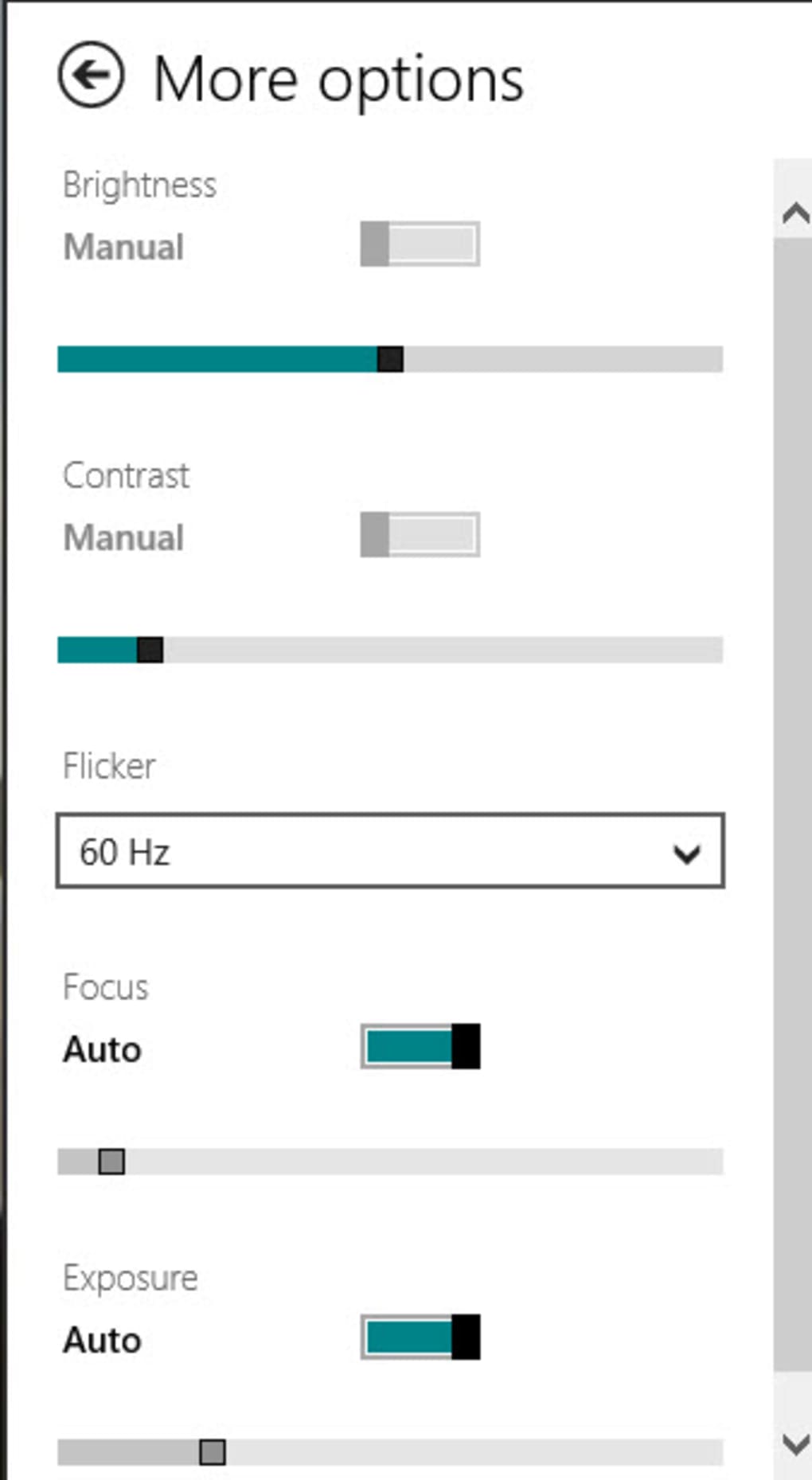
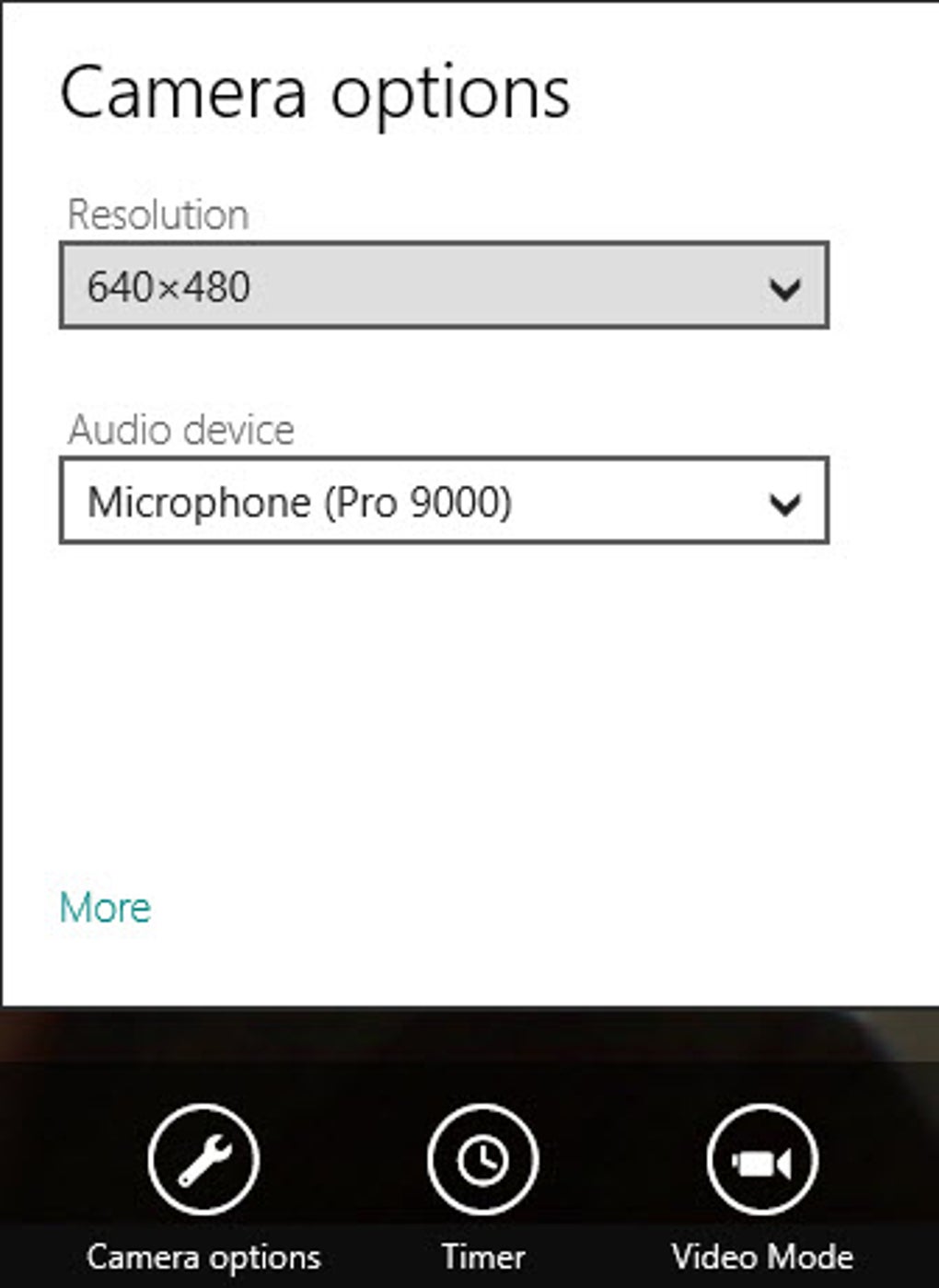
While the app prides itself on simplicity, it does offer a limited but practical set of controls that cater to essential adjustments. Users can often find options for features like a self-timer, which is invaluable for group photos or when you need a moment to compose yourself before the shot. Basic settings for aspect ratio or even rudimentary exposure compensation might be present, designed to offer just enough control without overwhelming the user. The absence of an abundance of settings, while listed as a “con” by some power users, is precisely what makes the app so approachable for the majority. It prioritizes functionality over an exhaustive list of features, ensuring a smooth and responsive experience.
The streamlined design extends to its performance. Being a basic and efficient program, it tends to launch quickly and operate smoothly, even on devices with modest specifications. This responsiveness is crucial for capturing spontaneous moments, where delays can mean missing the shot. For devices equipped with multiple cameras, such as a laptop with both front-facing and rear-facing cameras, the app facilitates easy switching between them, again through an intuitive icon. This makes it ideal for everything from quick selfies to scanning documents or capturing the environment around you.
In essence, the Camera for Windows 10 app is a masterclass in minimalist design, proving that powerful functionality doesn’t always require complex interfaces. Its intuitive nature and focus on core photo and video capture make it an indispensable tool for millions of Windows users who value efficiency and ease of use above all else.
Practical Applications and User Experience
The Camera for Windows 10 app, despite its basic nature, offers a surprisingly broad range of practical applications for the everyday user. Its simplicity is not a weakness but a distinct advantage, enabling quick, hassle-free photo and video capture across various scenarios.
One of its primary uses is as a reliable alternative to preloaded camera software. Many device manufacturers often include their own proprietary camera applications, which can sometimes be bloated with unnecessary features, slow to launch, or simply not as user-friendly as a clean, Microsoft-designed interface. For users who encounter such issues, downloading the Camera for Windows 10 app from PhanMemFree.org or the Microsoft Store provides a refreshing change. It offers a consistently efficient experience that often outperforms more complex, third-party offerings in terms of speed and stability for basic tasks.
For students, professionals, and home users, the app is invaluable for quick documentation. Need to snap a photo of a whiteboard, a document, a product label, or a screen error? The app launches fast and allows for immediate capture. For online meetings or remote learning, while not a full-fledged webcam utility, it can be used to quickly test camera functionality or record short explanatory videos. Its ability to capture both still images and moving pictures makes it versatile for multimedia projects, personal vlogging, or simply creating visual notes.
The user experience, as highlighted in numerous reviews, generally leans towards appreciation for its straightforwardness. While some power users might lament the lack of advanced controls, the majority of casual users find its “point and shoot” simplicity highly effective. Reviews on platforms like PhanMemFree have often praised its ease of use and efficiency. For example, some users mentioned, “it is good. it is very will an good for picture and for videos and easy,” emphasizing its practical benefits. This feedback underscores the success of its design philosophy: deliver core functionality without unnecessary distractions.
However, the simplicity also leads to certain limitations, which are important to acknowledge. As some users have pointed out, there are “very few settings.” This means advanced users looking for manual control over ISO, shutter speed, white balance, or elaborate filter options will need to seek alternative software. The app doesn’t aim to compete with professional photo editing suites or dedicated camera apps that offer extensive post-processing capabilities. Its role is primarily capture, not embellishment.
Another point of consideration, noted in the app’s specifications, is that “The program is only updated when a new operating system is released.” While this ensures stability and deep integration with the core Windows OS, it also means that new features, bug fixes, or performance enhancements are not delivered as frequently as with standalone applications that follow a more agile development cycle. This can be a double-edged sword: stability is good, but a lack of incremental updates might mean it falls behind in terms of adopting newer camera technologies or user interface trends.
Despite these limitations, the overall user sentiment for the Camera for Windows 10 app is positive within its intended scope. It reliably fulfills its promise of being a basic, efficient, and intuitive tool for capturing images and videos. The collective experience of millions of Windows users reaffirms its position as a fundamental utility within the operating system, bridging the gap between hardware and the simple act of visual documentation.
Installation, Updates, and Basic Troubleshooting
Getting the Camera for Windows 10 app up and running is typically a straightforward process, reflecting its user-friendly design. As an official Microsoft application, it’s primarily distributed through the Microsoft Store, which ensures authenticity and simplifies installation. Users can also often find direct links and information on reputable software download sites like PhanMemFree.org.
Installation Process:
- Access the Microsoft Store: On your Windows 10 device, open the Microsoft Store app.
- Search: Use the search bar to look for “Camera for Windows 10.”
- Download and Install: Locate the official app, click “Get” or “Install,” and the system will handle the rest. The app is free, so there are no payment steps involved.
- PhanMemFree.org: Alternatively, visiting PhanMemFree.org and searching for “Camera for Windows 10” can lead to a direct download link, often with additional information and user reviews, ensuring you get the correct and safe version.
The app’s specifications, as listed on platforms like PhanMemFree, highlight its compatibility and lean nature:
- License: Free
- Version: Typically around 6.2.8 (as per older listings, though this may update with OS versions).
- Latest update: Aligns with OS updates, for instance, July 20, 2021, for a particular build.
- Platform: Windows
- OS: Primarily Windows 8 and 10, indicating its compatibility across recent Windows iterations.
- Language: English, with availability in numerous other languages (German, French, Japanese, Chinese, etc.), catering to a global user base.
- Downloads: Significant user base, with hundreds of thousands of downloads, demonstrating its popularity.
- Developer: Microsoft.
Updates:
As previously mentioned, the app’s update cycle is closely tied to Windows operating system releases. This means it doesn’t receive frequent, independent updates like many other standalone applications. While this ensures deep system integration and stability, it also means that users looking for the latest features or swift bug fixes might have to wait for major Windows updates. To ensure you have the most current version, always keep your Windows 10 operating system updated via Windows Update settings.
Basic Troubleshooting:
While generally stable, users occasionally encounter issues. Common problems, as seen in user reviews, include the camera “not attached” or the app “stalling” or “not loading.” Here’s a general approach to troubleshooting:
-
Check Camera Hardware:
- Physical Connection: If using an external webcam, ensure it’s properly plugged into a USB port. Try a different port.
- Privacy Shutter: Many laptops have physical privacy shutters or covers over the webcam. Ensure it’s open.
- Device Manager: Open Device Manager (search for it in the Start menu), expand “Cameras” or “Imaging devices.” Look for your camera. If it has a yellow exclamation mark, there’s a driver issue. Right-click and select “Update driver” or “Enable device” if it’s disabled. You might also try “Uninstall device” and then restart your PC to allow Windows to reinstall it.
-
Check Privacy Settings:
- Windows 10 has robust privacy controls. Go to
Settings > Privacy > Camera. - Ensure “Camera access for this device is on” and “Allow apps to access your camera” is toggled on.
- Scroll down and ensure “Camera” app (and any other apps you want to use the camera) is allowed access.
- Windows 10 has robust privacy controls. Go to
-
Reset/Reinstall the App:
- Go to
Settings > Apps > Apps & features. - Find “Camera” in the list, click on it, and select “Advanced options.”
- Here, you can choose “Reset” (which tries to fix issues without deleting data) or “Uninstall.” If resetting doesn’t work, uninstalling and then reinstalling from the Microsoft Store is often effective.
- Go to
-
Restart Your Device: A simple restart can often resolve temporary glitches.
-
Check for Windows Updates: As the app’s updates are tied to the OS, ensuring your Windows 10 is fully updated can resolve underlying compatibility or driver issues.
-
Error Codes: If you receive an error code (e.g., 0xA00F4244 as mentioned in a review), search for that specific code online. Microsoft often provides detailed explanations and solutions for common error codes.
By following these steps, most common issues with the Camera for Windows 10 app can be resolved, allowing users to return to their straightforward photo and video capture experience.
Pros, Cons, and Finding Alternatives
The Camera for Windows 10 app, like any software, comes with its own set of advantages and disadvantages. Understanding these can help users determine if it’s the right tool for their needs or if they should explore other options available on platforms like PhanMemFree.org.
Pros:
- A Simple and Efficient Program: This is arguably its greatest strength. The app is designed for speed and ease of use. It launches quickly, consumes minimal system resources, and allows for immediate photo or video capture without navigating complex menus. For spontaneous moments or quick documentation, its efficiency is unmatched by more feature-laden alternatives.
- Intuitive User Design: The interface is exceptionally clean and user-friendly. Icons are self-explanatory, eliminating the need for lengthy tutorials or guesswork. This intuitiveness makes it accessible to users of all technical skill levels, from children to seniors, ensuring a smooth and frustration-free experience.
- Take Photos or Capture Video with This Software: The dual functionality of capturing both still images and moving pictures makes it a versatile tool for everyday multimedia tasks. Whether you need a quick snapshot or a short video clip, the app handles both competently.
- Free and Official: Being a free application developed by Microsoft, it offers reliability, security, and seamless integration with the Windows operating system. There are no hidden costs, subscriptions, or concerns about malware that might sometimes accompany third-party freeware.
- Broad Device Compatibility: It works across various Windows 10 devices, including PCs, tablets, and Xbox One, providing a consistent user experience regardless of the hardware.
Cons:
- Very Few Settings: For advanced photographers or videographers, the lack of granular control over settings such as ISO, aperture, shutter speed, white balance, or advanced focus modes is a significant limitation. It’s a “point and shoot” experience, without the depth of manual adjustment.
- It Is a Basic Alternative to Your Current Camera Software: While this can be a pro for those seeking simplicity, it also means it won’t offer unique features or advanced capabilities found in specialized camera software. If your device’s preloaded app is already excellent and feature-rich, the Camera for Windows 10 app might feel too simplistic.
- The Program Is Only Updated When a New Operating System Is Released: This update cycle, tied to major Windows OS releases, means slower adoption of new camera technologies, features, or bug fixes compared to apps with more frequent, independent updates. Users might have to wait a long time for improvements or new functionalities.
- No Advanced Editing Features: The app is primarily for capture. It doesn’t include built-in photo or video editing tools beyond basic cropping or rotation, requiring users to export their media to other applications for post-processing.
- Full-Screen Requirement (Older Versions/User Feedback): Some older user reviews mentioned that the app took full screen and didn’t allow other windows to open simultaneously. While modern versions might have improved on this, it highlights a potential inconvenience for multitasking.
Finding Alternatives:
If the limitations of the Camera for Windows 10 app outweigh its advantages for your specific needs, the good news is that the Windows ecosystem, and platforms like PhanMemFree.org, offer a plethora of alternatives. These range from other free basic apps to sophisticated paid solutions.
- “Camera” (General Free Camera Apps): Many developers offer their own free camera apps. These can sometimes include slightly more features than Microsoft’s basic offering while still maintaining a user-friendly interface. Searching “free camera app for Windows” on PhanMemFree often yields several options.
- “Windows Camera”: This might sound confusing, but often refers to another Microsoft or device-specific “point and shoot” application that could have subtle differences or more features depending on the Windows version or OEM.
- “MyCam”: Often highlighted as an alternative, MyCam provides easy recording of videos and taking snapshots, sometimes with added features like effects or simple editing capabilities, making it a step up for some users looking for more functionality without excessive complexity.
- “ASUS Camera for Windows 10”: Device-specific apps like this (for ASUS devices, for example) can offer optimized performance and features tailored to the hardware, potentially including more advanced settings or proprietary effects.
- “iVCam”: While primarily a webcam application, iVCam allows you to use your phone’s camera as a high-definition webcam for your PC, which can be an excellent alternative if your PC’s built-in camera is of lower quality or non-existent.
- Professional Photo/Video Editing Suites: For those who need extensive control, manual settings, and powerful editing tools, applications like Adobe Photoshop CC, Adobe Premiere Pro, or free alternatives like GIMP and DaVinci Resolve, offer a complete ecosystem. However, these come with a steep learning curve and are far from “basic.”
- Image Editors with Capture Features: Some image editors, like PhotoScape, might include basic capture functionalities alongside their editing tools, offering a two-in-one solution for some users.
Ultimately, the choice of camera software depends on individual needs. For quick, reliable, and straightforward capture, the Camera for Windows 10 app remains an excellent choice. But for those demanding more control, advanced features, or specific functionalities, exploring the rich landscape of alternatives on platforms like PhanMemFree.org is highly recommended.
The Broader Context and Conclusion
The Camera for Windows 10 app occupies a unique and significant space within the vast ecosystem of Windows software. It embodies a philosophy of functional minimalism, prioritizing ease of use and essential capabilities over a profusion of advanced features. In an era where digital cameras are ubiquitous—integrated into nearly every smartphone, laptop, and tablet—the expectations for camera software vary wildly. For some, a camera app is a gateway to professional-grade photography and videography, demanding sophisticated controls and powerful post-processing tools. For the vast majority, however, a camera app is simply a tool to capture moments, document information, or communicate visually, quickly and without complication.
The Camera for Windows 10 app squarely addresses the latter group. It’s not designed to be a digital darkroom or a cinematic production studio. Instead, it serves as a digital equivalent of a reliable, easy-to-use point-and-shoot camera. Its intuitive design, marked by self-explanatory icons and a clean interface, ensures that even novice users can operate it effectively from the first launch. The ability to seamlessly switch between photo and video capture modes further enhances its utility, making it a versatile companion for everyday tasks.
Its advantages, such as being a free, official Microsoft product, contribute to its widespread adoption and trustworthiness. Users appreciate its efficiency and the fact that it doesn’t bog down their system with unnecessary features or resource-heavy processes. This makes it particularly valuable for devices with modest hardware specifications, ensuring a smooth experience where more demanding applications might struggle.
However, its commitment to simplicity is also its primary limitation. The dearth of advanced settings and its update cycle, tied to major operating system releases, mean it might not keep pace with the latest imaging technologies or cater to the specific demands of power users. For those who require manual control over exposure, focus, white balance, or who desire sophisticated built-in editing capabilities, the app will undoubtedly fall short. These users will need to explore the rich array of alternative applications available through the Microsoft Store or trusted platforms like PhanMemFree.org, which offer everything from enhanced basic capture apps to professional-grade photo and video editors.
In conclusion, the Camera for Windows 10 app stands as a testament to effective, purpose-driven software design. It is not an attempt to redefine digital imaging, but rather to perfect the fundamentals for the general user. It excels at being what it set out to be: a basic, efficient, and intuitive program that allows users to effortlessly take images and capture video on their Windows devices. For millions of users worldwide, it remains an indispensable, no-frills tool that reliably captures their digital world, ensuring that moments, whether grand or mundane, are never missed. Its continued relevance lies in its unwavering focus on accessibility and core functionality, making it a foundational element of the Windows 10 experience for casual photography and videography.
File Information
- License: “Free”
- Version: “6.2.8”
- Latest update: “July 20, 2021”
- Platform: “Windows”
- OS: “Windows 8”
- Language: “English”
- Downloads: “659.6K”


