
Canon IJ Scan Utility is a free software application developed by Canon Inc. designed to streamline the scanning process for users of Canon printers and scanners. This comprehensive guide explores its functionality, installation, advantages, limitations, and alternatives. Whether you’re a seasoned photographer or a casual user, understanding the capabilities of this utility can significantly enhance your workflow.
Understanding Canon IJ Scan Utility
Canon IJ Scan Utility serves as a bridge between your Canon multi-function printer (MFP) or dedicated scanner and your Windows computer. It provides a user-friendly interface for scanning documents and photos, offering various customization options to tailor the output to your specific needs. The utility simplifies the often-complex process of scanning, making it accessible to users of all technical skill levels. Its core function is to facilitate quick and efficient scanning with minimal effort. Essentially, it transforms your Canon hardware into a readily accessible and versatile scanning tool for your digital needs.
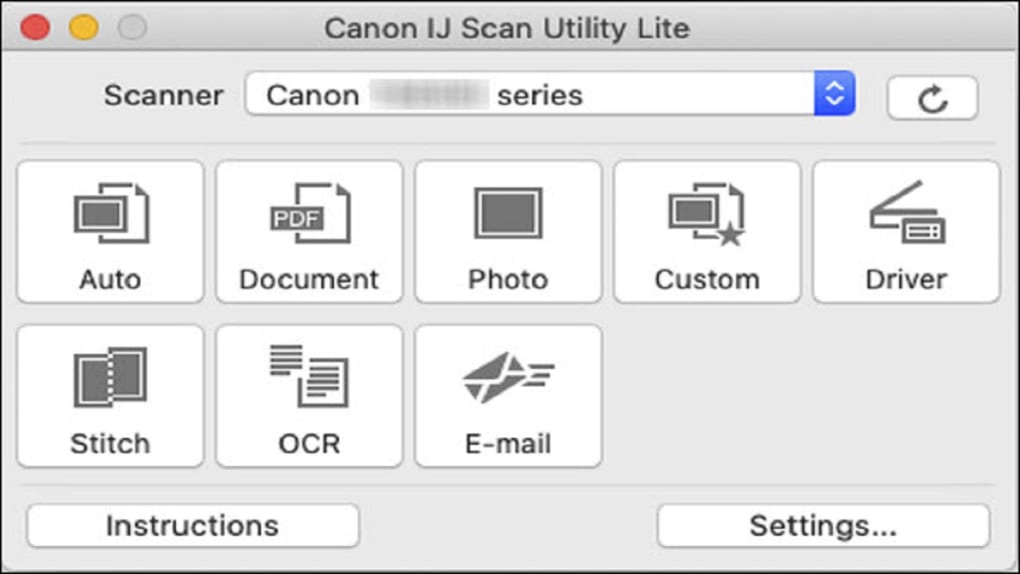
The software’s intuitive design eliminates the need for navigating complex printer driver settings. Instead, it presents a streamlined interface focused on the scanning process. Users can select the desired scan type (photo, document, etc.), adjust settings such as resolution, color mode, and file format, and initiate the scan with a single click. Furthermore, advanced features like the ability to stitch multiple scans together into a single, larger image are integrated for added convenience.
However, it’s crucial to understand that Canon IJ Scan Utility’s compatibility is limited to specific Canon printer and scanner models. Not all Canon devices are supported, and some models may require the use of the “Lite” version of the software. This incompatibility is a key limitation to consider before relying on this specific utility. The compatibility details are meticulously maintained on the official Canon website, making it essential to verify your device’s compatibility before downloading and installation.
Downloading and Installing Canon IJ Scan Utility
Obtaining and installing Canon IJ Scan Utility is generally a straightforward process. The first step involves navigating to Canon’s official website. It’s crucial to use the official website to ensure you’re downloading the authentic software and avoiding potentially malicious downloads. Once on the website, locating the appropriate drivers and downloads for your specific Canon device model is paramount. The model numbers sometimes vary by region, so precise identification is vital.
Within the “Drivers & Downloads” section, you’ll need to select your operating system from the provided dropdown menu. This ensures compatibility with your Windows version (Windows 11, 10, 8.1, 8, and 7 are supported). Under the “Drivers” tab, you’ll find the MP driver designed for your specific device. Download this driver; it contains the Canon IJ Scan Utility software.
Once the download is complete, running the downloaded file will initiate the installation process. The installer will guide you through the steps, providing options to customize installation preferences if desired. After installation is complete, the Canon IJ Scan Utility icon will appear on your computer, allowing you to easily access and utilize the scanning capabilities of your Canon hardware.
Remember that the correct scanner driver must be installed for Canon IJ Scan Utility to function properly. This driver establishes the communication pathway between the software and your hardware, ensuring seamless integration and functionality. If the software fails to work correctly, reinstalling the driver might solve the problem.
Features and Functionality
Canon IJ Scan Utility boasts a range of features designed to enhance the scanning experience:
-
Ease of Use: The user interface is designed for simplicity, allowing even novice users to quickly and efficiently scan documents and photos without extensive training or technical knowledge. The intuitive layout and clear labeling minimize the learning curve.
-
Simple Interface: The program’s clean and uncluttered interface is another major selling point. All essential functions are easily accessible, eliminating the need to navigate through complex menus and settings. This prioritizes efficiency and user satisfaction.
-
Customizable Output Settings: The software offers a variety of customization options, enabling users to tailor the output to their exact requirements. This includes adjustments to resolution, color depth, file format (e.g., JPEG, TIFF, PDF), and other relevant parameters. This level of customization ensures optimal results for a diverse range of scanning tasks.
-
File Stitching: One of the more advanced features is the ability to stitch multiple scans together seamlessly into a single, larger image. This is incredibly useful when scanning large documents or images that exceed the scanner’s single-scan area. This functionality eliminates the need for manual stitching in image editing software.
- Support for Multiple File Formats: The utility typically supports a variety of common image formats, such as JPEG, TIFF, and PDF. This flexibility enables users to choose the file format best suited for their intended use.
Limitations and Alternatives
Despite its strengths, Canon IJ Scan Utility has some limitations:
-
Limited Device Support: The software’s compatibility is restricted to specific Canon printer and scanner models. Users with other brands or unsupported Canon models will need to explore alternative scanning solutions. This is a significant drawback, limiting the software’s accessibility.
-
No Advanced Image Editing Features: Canon IJ Scan Utility is primarily a scanning tool; it doesn’t offer advanced image editing features found in comprehensive photo editing programs. Users seeking editing capabilities will need to utilize a separate image editing software.
-
Dependence on Canon Drivers: The software relies on the installation and proper functioning of the correct Canon drivers. Driver issues can interfere with the utility’s functionality, potentially requiring driver updates or reinstalls.
Several alternative scanning solutions exist for Windows users. These range from freeware applications to comprehensive professional-grade software packages. Some popular alternatives include:
-
Free Scan to PDF: A free application offering basic scanning functionality with PDF output.
-
Face Smoother: A trial version program offering image editing features, potentially useful for post-scan enhancements.
-
inPixio Photo Eraser: A paid program providing more advanced image editing capabilities, including the ability to remove unwanted objects from scanned images.
Choosing an alternative depends on your specific needs and technical expertise. If you require simple scanning with PDF output, a free application may suffice. If extensive editing capabilities are desired, a more advanced, paid option may be necessary.
Conclusion
Canon IJ Scan Utility is a valuable tool for users of compatible Canon printers and scanners. Its user-friendly interface and efficient scanning capabilities significantly simplify the process of digitizing documents and photos. However, its limited device support and lack of advanced editing features necessitate considering alternatives depending on your specific requirements. Before using the software, always check the official Canon website for the latest version and compatibility information, ensuring your device is supported and you are installing the correct drivers. Remember to always download from official sources to avoid potential security risks.
File Information
- License: “Free”
- Version: “1.0.5”
- Latest update: “July 11, 2023”
- Platform: “Windows”
- OS: “Windows 8.1”
- Language: “English”
- Downloads: “347.7K”
- Size: “32.76 MB”


