
Creating personalized CDs and DVDs adds a professional and memorable touch to your projects. While digital distribution is increasingly common, there’s still a certain charm and practicality to physical media, particularly for archiving important data or sharing collections of music, photos, or videos. To elevate your physical media, a well-designed label is essential. This guide explores CD & DVD Label Maker software, its features, alternatives, and how it can enhance your disc-creation experience.
What is CD & DVD Label Maker?
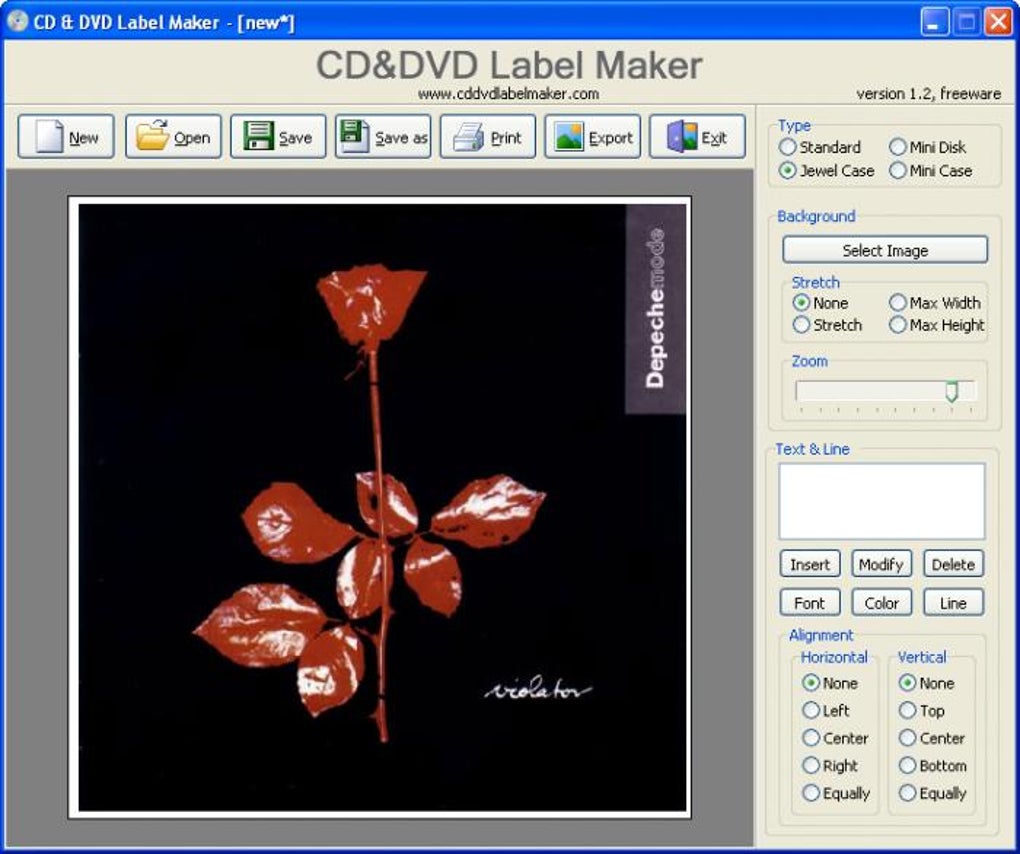
CD & DVD Label Maker is a straightforward Windows application designed for creating and printing labels and covers for standard and mini-sized CDs and DVDs. Its primary function is to facilitate the easy creation of visually appealing and informative disc labels, moving beyond the often-generic default labels. The software provides a basic yet functional interface, allowing users to add images and text to their designs. This simplicity makes it accessible to users of all technical skill levels, requiring minimal prior experience with graphic design software. The program’s strength lies in its ease of use, making it a practical solution for individuals who need a quick and effective method for labeling their discs without the complexity of professional-grade design tools.
Key Features and Functionality
CD & DVD Label Maker’s core functionality revolves around its simple drag-and-drop interface and its capacity for adding both image backgrounds and text overlays. Users can choose from various text alignment options to position the text effectively on their label designs. While the software doesn’t offer advanced text formatting options like curving text to follow the disc’s circular shape, it provides sufficient control for creating clear and readable labels. The ability to zoom in and out helps users accurately position images and text, ensuring that elements fit the intended space appropriately on both standard and mini-sized discs.
One notable limitation is the absence of automatic metadata extraction. Unlike some more advanced label-making software, CD & DVD Label Maker doesn’t directly read track information from the disc. Users must manually input the title, artist, track list, or any other relevant data they wish to include. This manual input, while requiring extra effort, allows for complete customization and control over the label content.
Once the label or cover design is complete, the program enables immediate printing, or alternatively, users can save their creations in common graphic file formats. This functionality offers flexibility; users can choose to print the label directly or save it for future use or modification. The ability to save in various formats allows for compatibility with other applications if further editing or manipulation is required.
Pros and Cons of CD & DVD Label Maker
As with any software, CD & DVD Label Maker presents both advantages and disadvantages. Understanding these strengths and weaknesses is crucial for determining its suitability for specific needs.
Pros:
- Ease of use: The user-friendly interface simplifies the label-creation process, making it accessible to beginners. The intuitive layout minimizes the learning curve, ensuring that users can quickly create labels without extensive training or technical expertise.
- Support for multiple disc sizes: The software supports both standard and mini-sized CDs and DVDs, catering to various disc types. This adaptability accommodates diverse user needs and project requirements, making it a versatile option for various applications.
- Image and text integration: The capability to combine images and text enables users to create visually engaging and informative labels. This dual functionality allows for both aesthetically pleasing designs and clear identification of disc contents.
- Direct printing and file saving: The option for direct printing eliminates the need for extra steps, while the file-saving functionality ensures design preservation and future editing possibilities. This integrated approach streamlines the workflow, providing efficiency and convenience.
Cons:
- Limited text formatting options: The lack of advanced text formatting, such as curved text along the disc’s edge, restricts design creativity for users seeking more sophisticated label aesthetics.
- No automatic metadata extraction: The absence of automatic data extraction from the disc requires manual data input, adding to the overall time commitment for creating labels. This manual process may prove cumbersome for users dealing with numerous discs containing extensive track information.
- Basic design features: While functional, the overall design features are relatively basic, limiting customization compared to more advanced software options. This simplicity, while beneficial for ease of use, may not meet the creative needs of all users.
Alternatives to CD & DVD Label Maker
Several alternatives offer similar functionality or enhanced features compared to CD & DVD Label Maker. Choosing the best option depends on individual needs and preferences. Here are a few examples:
-
Nero Cover Designer: A more comprehensive program offering more design options and features, including advanced text formatting and the potential for more sophisticated layout capabilities. While likely more complex to learn initially, it provides users with significantly expanded design freedom.
-
CdCoverCreator: A free alternative that provides a simpler interface, similar in ease of use to CD & DVD Label Maker, but with potentially slightly fewer features. It could be a good choice for users seeking a free and straightforward option.
-
UnderCoverXP: Another free option known for its compatibility with a wide range of disc formats. This broad compatibility could be beneficial for users who work with various disc types.
-
Easy CD & DVD Cover Creator: This program, available as both a free and a trial version, provides a balance between ease of use and advanced features. It often includes templates and a more guided workflow.
-
Disketch CD Labeling Software: This free option is known for its simplicity and efficiency. It might be a suitable alternative for users who prioritize a quick and easy solution.
Each of these alternatives presents different trade-offs between features, ease of use, and pricing. Users should carefully evaluate their specific requirements to select the most suitable software for their needs.
Choosing the Right CD and DVD Label Maker Software
The decision of which CD and DVD label maker to use hinges upon several factors:
-
Technical Proficiency: If you’re a beginner, a simple program like CD & DVD Label Maker or CdCoverCreator is a good starting point. However, if you’re comfortable with more complex software, Nero Cover Designer might be a more satisfying option, despite its steeper learning curve.
-
Design Needs: For basic labels with minimal design elements, CD & DVD Label Maker suffices. But for more intricate designs, incorporating multiple images, advanced text formatting, or special effects, consider a more feature-rich program.
-
Budget: Several free alternatives exist, while others are commercial products. Assess your budget and determine if the cost of a premium program justifies the added features and functionality.
-
Operating System Compatibility: Ensure compatibility with your operating system before downloading or purchasing any software.
Ultimately, the best CD and DVD Label Maker is the one that meets your specific needs and preferences. Weighing the pros and cons of each option based on your technical skills, design requirements, and budget will lead you to the most suitable solution for creating professional-looking, personalized disc labels.
File Information
- License: “Free”
- Version: “1.2”
- Latest update: “May 31, 2024”
- Platform: “Windows”
- OS: “Windows XP”
- Language: “English”
- Downloads: “93.2K”
- Size: “641.63 KB”


