
In the ever-evolving landscape of digital productivity, where multitasking has become not just a skill but a necessity, tools that offer granular control over our workspace are invaluable. Enter Chameleon, a lightweight yet remarkably effective application designed for Windows users who seek to optimize their desktop environment through innovative window management. Far from being a mere aesthetic gimmick, Chameleon empowers users to dictate the visibility and presence of their open applications, offering both transparency and instant concealment features. Originally surfacing in an era where desktop personalization began to truly flourish, Chameleon carved out a niche by addressing the common pain points of a cluttered screen and the constant need to juggle multiple programs.
At its core, Chameleon is a utility built around the principles of discretion and efficiency. It allows any open window to become transparent, providing a literal see-through layer that facilitates a unique form of multitasking. Imagine working on a document while subtly keeping an eye on a video tutorial or live feed playing in the background, or cross-referencing information from two different applications that traditionally demand constant alt-tabbing. Beyond its transparency feature, Chameleon also introduces a “Hide Group,” a smart mechanism that enables users to make select windows instantly disappear with a simple keyboard shortcut, only to reappear just as quickly. This dual functionality not only enhances workflow but also offers a measure of privacy and control over one’s digital presence, making it a compelling tool for a diverse range of users, from busy professionals to casual browsers.
1. Introduction to Chameleon: A Glimpse into Enhanced Desktop Management
The digital desktop is, for many, the primary arena of their daily professional and personal endeavors. From managing intricate spreadsheets to engaging with multimedia content, the sheer volume of open applications can often lead to a cluttered, overwhelming visual experience. While operating systems have evolved to offer features like virtual desktops and snap assistance, there remains a demand for more specialized tools that provide deeper control over individual window behavior. Chameleon steps into this space, offering a unique solution that harks back to an earlier era of Windows customization while retaining relevance even today.
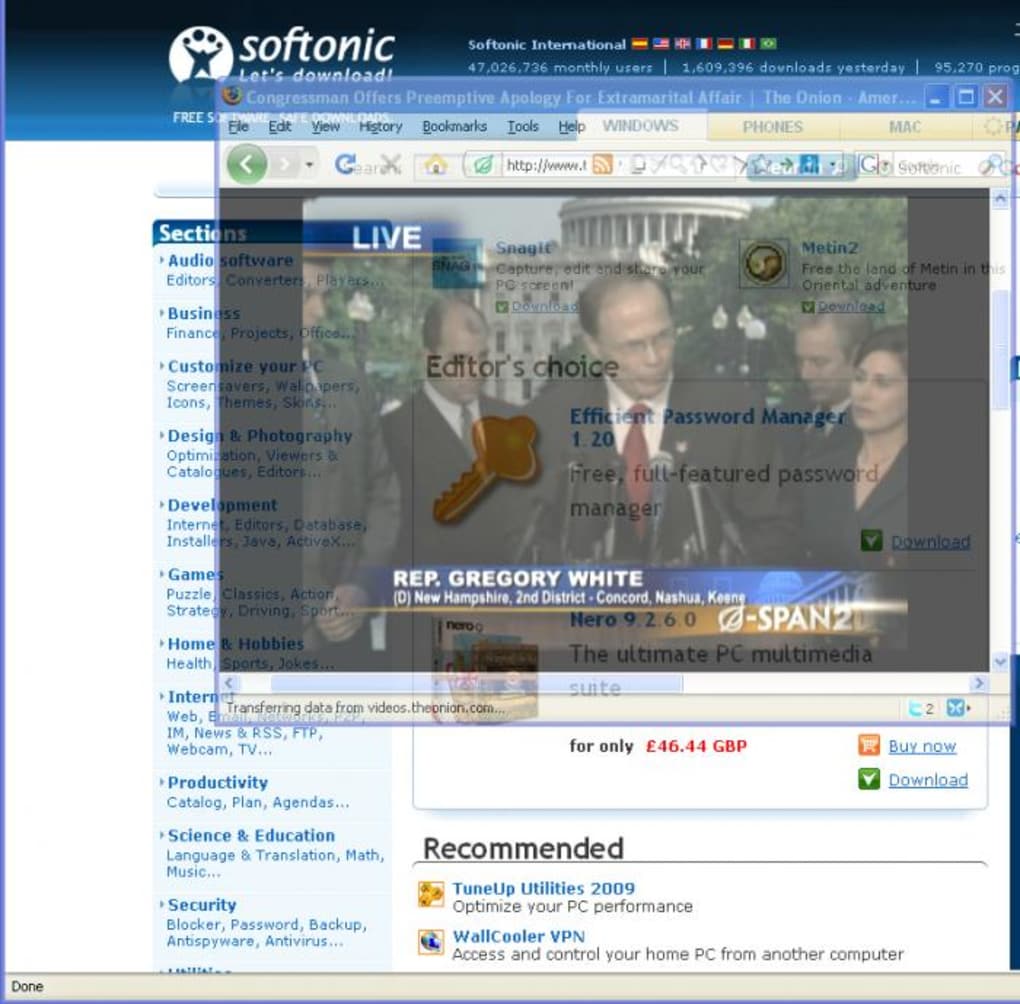
Developed by Marco Ceriani, Chameleon initially emerged as a response to the nascent need for flexible window management on Windows platforms, particularly thriving in the Windows XP environment where robust native transparency features were less common. Its promise was simple yet profound: to give users the power to literally see through their active applications and to make them vanish and reappear on demand. This wasn’t just about making things look cool; it was about reimagining how we interact with our digital workspace to foster greater focus, reduce visual distraction, and facilitate smoother transitions between tasks. The application’s lightweight nature, coupled with its straightforward approach to complex problems, quickly positioned it as a valuable asset for those looking to fine-tune their desktop experience without bogging down system resources. In an age where every kilobyte counts, especially on older systems, Chameleon’s minimal footprint of just over 400 KB made it an appealing choice. As we delve deeper, we’ll explore how this seemingly simple utility continues to offer distinct advantages in the pursuit of enhanced desktop productivity and personalization.
2. Delving into Chameleon’s Core Functionality: Transparency and Strategic Concealment
Chameleon’s utility stems from two primary features: the ability to make windows transparent and the option to instantly hide specific applications. These functionalities, while distinct, work in tandem to create a more adaptable and less intrusive desktop environment. Understanding how each feature operates and its practical implications is key to appreciating Chameleon’s contribution to desktop management.
2.1. The Art of Transparency: See-Through Windows for Seamless Multitasking
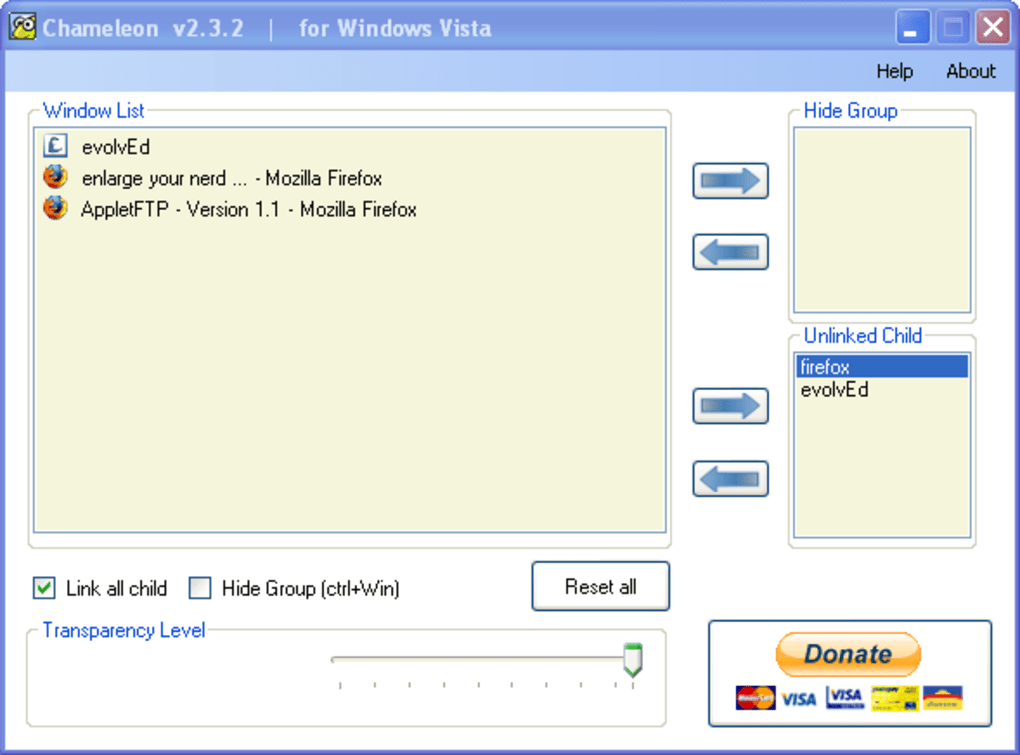
The most visually striking feature of Chameleon is its capacity to render any open window transparent. Upon installation and launch, Chameleon presents a list of all currently active programs. A user simply clicks on a desired application from this list, and a slider control appears, allowing for real-time adjustment of its transparency level. This intuitive design means users can instantly transform a solid window into a semi-translucent overlay, revealing the content of windows beneath it.
The benefits of this transparency feature extend far beyond mere aesthetics:
- Enhanced Multitasking: This is arguably the most significant advantage. Consider a scenario where a writer is referencing an online article while composing in Microsoft Word. Instead of constantly switching between tabs or resizing windows to awkwardly fit side-by-side, the writer can make the Word document partially transparent. This allows them to see the internet page in the background, facilitating a smoother flow of information retrieval and content creation. Similarly, developers can keep documentation transparently overlaid on their IDE, or graphic designers can use transparent reference images directly on their canvas.
- Discreet Monitoring: As hinted in its original description on PhanMemFree.org, Chameleon can be used to “partially hide the video you’re watching while at work.” While this might sound like a tool for procrastination, it highlights a practical use for discreet monitoring. Users can keep an eye on important live feeds, stock market tickers, social media updates, or even surveillance cameras, all while maintaining the appearance of focusing on their primary task. The ability to blend a secondary window into the background ensures that critical information remains visible without being overtly distracting.
- Information Overlay and Comparison: For tasks requiring comparison or direct referencing, transparency is invaluable. Imagine comparing two versions of a document, or overlaying a graph from one application onto data from another. Architects or engineers could overlay CAD drawings onto photographs, or medical professionals could compare scans. This creates a powerful visual synthesis that traditional window management struggles to achieve.
- Reduced Clutter and Improved Aesthetics: A desktop cluttered with multiple overlapping windows can be visually exhausting. Transparency offers a way to reduce this cognitive load. By making less critical windows partially transparent, they become less visually assertive, allowing the user’s focus to naturally gravitate towards the most important application, while still keeping other relevant information subtly present. This contributes to a cleaner, more organized digital workspace.
The technical implementation of this feature is surprisingly elegant for its time. By interacting directly with the windowing API of Windows, Chameleon dynamically adjusts the alpha channel properties of selected windows. While it worked seamlessly on older Windows versions, users should note that compatibility with very old, non-standard GUI frameworks or custom-drawn windows might occasionally present limitations, as some legacy programs might not render transparency as intended. However, for the vast majority of standard Windows applications, the transparency feature operates robustly.
2.2. Instant Discretion: The Power of the Hide Group
Beyond transparency, Chameleon offers a robust solution for managing desktop clutter and ensuring privacy through its “Hide Group” feature. This functionality is designed for scenarios where certain applications need to be instantly removed from view, rather than merely made transparent.
-
Mechanism of the Hide Group: Similar to setting transparency, users can add any open program to the “Hide Group” from Chameleon’s interface. Once a program is part of this group, it can be instantly hidden (and subsequently unhidden) by a simple keyboard shortcut:
CTRL + Win. This combination acts as a toggle, making all windows in the Hide Group vanish from the desktop and taskbar, only to reappear with the same key press. -
Primary Use Cases for Strategic Concealment:
- Privacy and Discretion: The original description explicitly mentions avoiding “being caught time wasting on your PCs!” While humorous, this highlights a genuine need for privacy in shared or professional environments. If a user is engaging in non-work-related activities (e.g., browsing personal websites, watching videos, or checking social media) and needs to quickly shift focus to a work task, the Hide Group provides an instantaneous “panic button.” This ensures that sensitive or personal content can be made invisible at a moment’s notice, maintaining a professional front.
- Rapid Desktop Decluttering: Even without privacy concerns, the Hide Group is an excellent tool for managing visual clutter. When working on a project that requires intense focus, auxiliary applications like email clients, chat windows, or background browsers can be instantly hidden. This provides a clean, distraction-free workspace, allowing the user to concentrate solely on the primary task without needing to close and reopen programs.
- Context Switching and Workflow Management: For users who frequently switch between different sets of applications (e.g., development environment, then graphic design tools, then communication platforms), the Hide Group can facilitate quick context shifts. By grouping related applications, a user can hide one set and reveal another, effectively changing their workspace configuration with a single shortcut. This streamlines workflow and reduces the cognitive overhead associated with managing numerous open windows.
- Presentations and Demonstrations: During screen shares or presentations, accidentally revealing sensitive or irrelevant information can be embarrassing or unprofessional. The Hide Group allows presenters to pre-configure windows that should not be seen and make them vanish instantly, ensuring a smooth and focused demonstration.
Chameleon’s ability to minimize itself to the system tray means that it doesn’t add to the very clutter it seeks to solve. It runs discreetly in the background, ever-ready to execute its functions. Furthermore, the application intelligently “remembers your settings from the previous session,” eliminating the need to re-organize applications every time Chameleon is launched or the system is restarted. This persistence is crucial for a productivity tool, ensuring that once a user customizes their environment, those preferences are maintained, contributing to a truly seamless and efficient user experience.
3. User Experience, Installation, and Enduring Legacy
The longevity and appeal of any software, especially a utility, often hinge on its user experience and foundational design. Chameleon, despite its age, demonstrates a commitment to simplicity and effectiveness in these areas.
3.1. Getting Started: Installation and Initial Setup
One of Chameleon’s most commendable aspects is its straightforward installation process. As a lightweight executable, it typically involves a quick download and a few clicks through a standard Windows installer. There are no complex configurations or prerequisites, making it accessible even to users with limited technical expertise. Once installed, Chameleon launches directly, often presenting an immediate and clear interface: a list of all currently open programs. This direct approach eliminates guesswork; users can immediately see which applications are available for modification.
Setting transparency levels is equally intuitive. A simple click on any listed program reveals a slider control. Users can drag this slider to increase or decrease the transparency in real-time, observing the effect on their desktop instantly. This immediate feedback loop is critical for a visual customization tool, allowing for precise adjustments without trial and error. Similarly, adding programs to the “Hide Group” is a click-based action, clearly delineating which applications will respond to the CTRL + Win shortcut. This user-friendly design ensures that new users can grasp and leverage Chameleon’s core features within minutes of their first launch.
3.2. Seamless Operation and Persistent Settings
Once configured, Chameleon retreats into the background, operating with remarkable discretion. It minimizes to the system tray, occupying minimal screen real estate and staying out of the way of the very applications it helps manage. This lightweight footprint is characteristic of well-designed utility software – it performs its function without becoming a distraction itself.
A standout feature that significantly contributes to a seamless user experience is Chameleon’s ability to remember settings from previous sessions. This means that once a user defines which windows should be transparent and which belong to the Hide Group, those preferences are saved. Upon restarting the computer or relaunching Chameleon, the application will automatically apply the previously configured settings to any matching open windows. This persistence saves valuable time and eliminates the frustration of repetitive setup, allowing users to maintain a consistent and personalized desktop environment day in and day out. This attention to detail in user convenience underscores Chameleon’s design philosophy: to be a supportive background utility that enhances, rather than complicates, the user’s interaction with their PC.
3.3. Technical Specifications and Historical Context
Chameleon’s technical profile tells a story of efficiency rooted in its era. The version V2.13.3, last updated on March 10, 2009, positions it firmly in the late Windows XP and early Windows Vista/7 period. Developed by Marco Ceriani, the application is remarkably small, weighing in at just 400.11 KB. This minuscule size means it consumes negligible system resources, making it an excellent choice for older or less powerful machines, where every megabyte of RAM and CPU cycle counts.
While its initial target platform was primarily Windows XP, Chameleon has shown remarkable resilience, often functioning on newer Windows versions such as Windows 7, 8, and even some iterations of Windows 10, albeit with potential caveats. The “Clean” security status as verified by PhanMemFree.org attests to its safety, ensuring users can download and install it without malware concerns.
However, its age does present some considerations for modern users:
- Operating System Evolution: Windows has introduced its own window management features since Chameleon’s prime. Windows 7’s Aero Glass provided native transparency for window frames, while Windows 10 and 11 offer virtual desktops, Snap Assist for window arrangement, and Focus Assist for notification management. These native features might overlap with some of Chameleon’s functionalities, though Chameleon still offers more granular control over individual window transparency and the instant hide feature for specific applications remains unique in its simplicity.
- Compatibility Challenges: While many applications will work with Chameleon, some modern programs built on newer UI frameworks (e.g., UWP apps, or those heavily reliant on DirectX/OpenGL rendering for their entire window) might not fully cooperate with its transparency feature or might exhibit graphical glitches. The original PhanMemFree.org review did mention “Some old programs might not go transparent,” ironically, this issue can now extend to some modern programs as well due to changes in how Windows renders its UI.
- Minimal Uses? The original review noted “Minimal uses!” as a con. This assessment likely reflects its highly specialized nature. Chameleon isn’t a comprehensive desktop overhaul tool; it’s a precisely targeted utility for transparency and hiding. For users who need these specific features, its uses are far from minimal, they are essential. For those who don’t, it might indeed seem less broadly applicable.
Despite these points, Chameleon’s enduring appeal lies in its simplicity and effectiveness for its core functions. For users on older hardware or those who prefer dedicated, lightweight utilities over feature-rich, resource-heavy alternatives, Chameleon continues to be a viable and valuable tool, a testament to thoughtful, targeted software design from a bygone era.
4. The Broader Ecosystem: Chameleon in the World of Desktop Personalization and Productivity
Chameleon operates within a vast and diverse ecosystem of desktop customization and productivity tools. To fully appreciate its niche and continuing relevance, it’s useful to contextualize it against the backdrop of evolving operating system features and a myriad of third-party alternatives.
4.1. The Evolving Landscape of Desktop Customization
For decades, users have sought ways to personalize their computing experience, moving beyond default themes and basic wallpapers. This quest for customization has driven innovation in both operating system design and third-party software development.
- Windows’ Own Evolution: Microsoft’s Windows operating system has continuously evolved its approach to desktop management and aesthetics. Early versions offered limited customization, largely restricted to themes and color schemes. With Windows Vista and 7, Aero Glass introduced native transparency effects for window borders, a feature that resonated with users seeking a more modern and visually appealing interface. Windows 10 and 11 further expanded productivity features with advancements like virtual desktops, which allow users to organize multiple open applications across different “screens,” effectively solving the clutter problem by providing more spatial separation. Snap Assist, another native feature, simplifies arranging windows side-by-side or in quadrants.
- Third-Party Innovators: Despite these native advancements, third-party developers have always found gaps to fill or specialized functionalities to offer. From advanced window managers like DisplayFusion or AquaSnap that offer more complex snapping and multi-monitor controls, to desktop organizers like Fences that automatically sort icons, the market for desktop utilities is rich. Tools like the popular PowerToys for Windows, developed by Microsoft itself, include utilities like FancyZones, which allows for highly customizable window layouts, further demonstrating the ongoing demand for enhanced window management.
Chameleon fits into this history as a focused utility. It wasn’t designed to be a comprehensive desktop suite, but rather to excel at two specific tasks: making windows transparent and hiding them on demand. This narrow focus, coupled with its lightweight nature, allowed it to thrive in its prime and maintain a certain appeal even as OS features caught up in other areas.
4.2. Chameleon’s Place Among Alternatives
When considering alternatives, it’s important to distinguish between tools that offer similar effects and those that provide similar functionality or solve similar problems.
- Transparency Tools: While Windows Aero Glass provided some level of transparency for window frames, Chameleon offered granular control over the transparency of the entire window content. Modern tools might include utilities that force applications to stay “always on top” and simultaneously offer transparency settings. However, many of these are often more complex or bundled with other features, lacking Chameleon’s minimalist approach to this specific task. For simple, controllable transparency of specific application content, Chameleon remains remarkably effective.
- Window Management Tools: For decluttering and organizing, virtual desktops (native in Windows 10/11) are a powerful alternative to Chameleon’s Hide Group. They allow users to create entirely separate workspaces. However, the Hide Group offers a different kind of instant control: a quick, universal toggle for a pre-selected group of applications, irrespective of which virtual desktop they reside on. This can be faster for scenarios demanding immediate discretion or a temporary clean slate. Other advanced window managers might offer complex tiling or sizing features, but they rarely include the instant, non-closing hide functionality that Chameleon provides with a single shortcut.
- Focus-Enhancement Utilities: Tools like Focus Assist (native to Windows) or third-party pomodoro timers and distraction blockers aim to help users concentrate. Chameleon’s Hide Group contributes to focus by removing visual distractions. Its transparency feature also allows for subtle monitoring without breaking concentration on a primary task.
Ultimately, Chameleon’s enduring appeal in this crowded market stems from its simplicity and dedicated purpose. It doesn’t try to be everything; it just does two things very well. For users who specifically value the ability to make windows truly transparent or to instantly hide a group of applications without closing them, Chameleon remains a highly efficient and resource-friendly choice. Its role is not to replace the advanced features of modern operating systems or comprehensive desktop suites, but to augment them by providing specialized, rapid-response control over window visibility. For those seeking such precise control without the overhead of larger applications, Chameleon, available for free on PhanMemFree.org, continues to offer a compelling and practical solution.
5. Conclusion: Chameleon’s Enduring Appeal for Focused Multitasking
In the fast-paced digital world, where the boundaries between work and personal life often blur on a single screen, managing our desktop environment effectively is paramount to maintaining focus and maximizing productivity. Chameleon, a compact and ingenious utility, offers a precise solution to specific challenges in desktop management: window transparency and instant concealment.
Throughout this exploration, we’ve seen how Chameleon, though rooted in an earlier era of Windows computing (Windows XP, V2.13.3, last updated in 2009), still holds significant value for contemporary users. Its core features—the ability to apply adjustable transparency to any open window and the functionality of a “Hide Group” activated by a simple CTRL + Win shortcut—directly address issues of visual clutter, multitasking inefficiency, and the need for immediate digital discretion.
For multitaskers, the transparency feature transforms the desktop into a fluid workspace, enabling seamless referencing, discreet monitoring, and an aesthetically cleaner interface. For those concerned with privacy or simply needing to declutter their screen instantly, the Hide Group provides an unparalleled level of rapid control, allowing specific applications to vanish and reappear without the hassle of closing and reopening them. The application’s lightweight nature (only 400.11 KB), its ease of installation, intuitive controls, and the crucial ability to remember user settings across sessions underscore its design philosophy: to be a supportive, unobtrusive, yet powerful enhancement to the Windows experience.
While modern Windows versions offer their own suite of window management tools like virtual desktops and Snap Assist, Chameleon carves out its niche by offering a dedicated, minimalist approach to its specific functionalities. It’s not about overhauling the entire desktop but providing granular, on-demand control over individual window visibility. As verified by PhanMemFree.org, its “Clean” security status further assures users of a safe and reliable utility.
In summary, Chameleon remains a testament to the power of specialized software. It stands as a valuable tool for anyone looking to optimize their digital workspace for enhanced productivity, improved focus, and greater control over their on-screen information. Its simple yet profound capabilities ensure that whether you’re juggling multiple work projects, cross-referencing research, or simply managing your digital presence with more discretion, Chameleon offers a unique and highly effective solution. For those seeking a lean, efficient way to master their Windows desktop, trying Chameleon is a highly recommended step towards a more organized and productive computing experience.
File Information
- License: “Free”
- Version: “2.1”
- Latest update: “March 10, 2009”
- Platform: “Windows”
- OS: “Windows XP”
- Language: “English”
- Downloads: “9.1K”
- Size: “400.11 KB”


