
In the vast and intricate world of computing, the integrity and health of our storage devices are paramount. From precious family photos to critical business documents, all digital assets reside on hard drives or solid-state drives, making their reliable operation indispensable. Yet, these storage mediums are susceptible to various forms of degradation and error over time, which can lead to data loss, system instability, and frustrating performance issues. This is precisely where powerful utilities like CheckDisk come into play – serving as a vigilant guardian, scanning, identifying, and repairing these lurking problems before they escalate into major catastrophes.
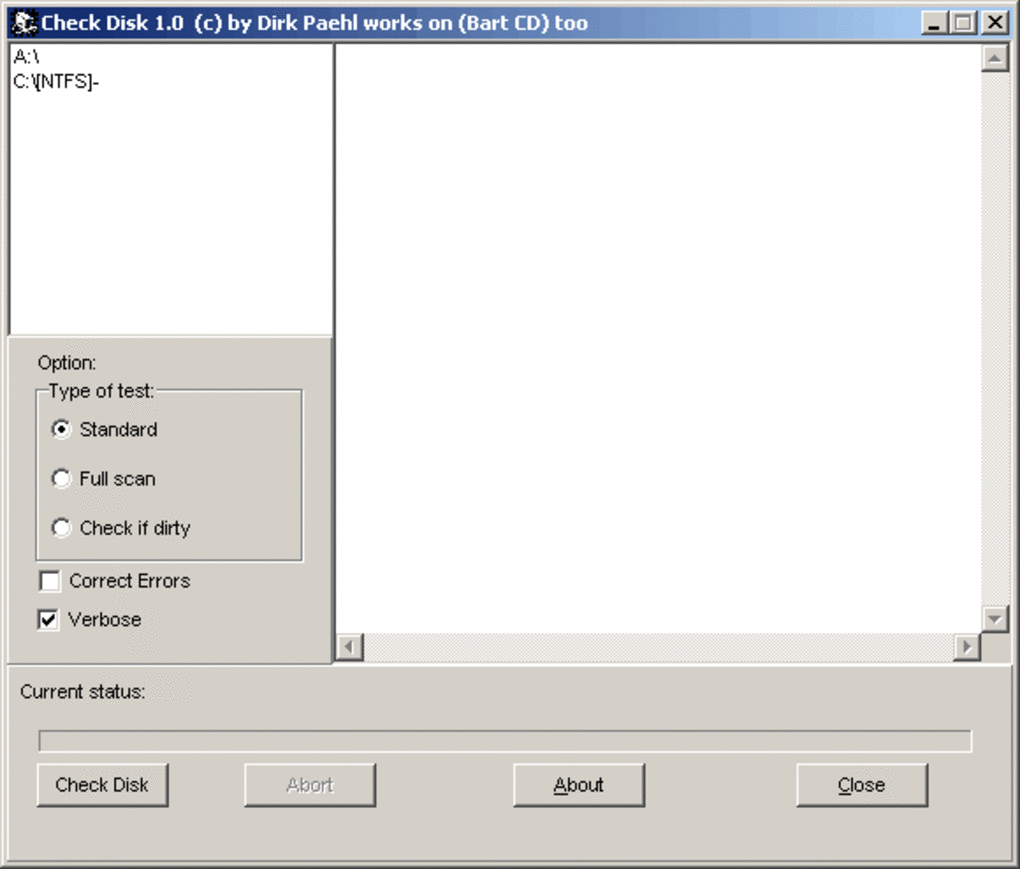
CheckDisk is a robust and highly effective software solution designed specifically for detecting and rectifying errors on disk drives. It stands as a sophisticated alternative or complement to the native disk checking tools provided within Windows operating systems, such as the chkdsk.exe command-line utility and the older ScanDisk program, which it significantly mirrors in its core purpose. Developed to offer users a comprehensive means of maintaining their disk health, CheckDisk provides both standard and advanced testing capabilities, making it an invaluable asset for anyone looking to safeguard their data and ensure optimal system performance.
Whether you’re dealing with an aging HDD, a cutting-edge SSD, or even various forms of removable media, disk errors can strike without warning. These errors can range from minor logical inconsistencies in the file system to serious physical damage on the disk platters. Ignoring them is akin to ignoring warning lights on a car’s dashboard – eventually, a breakdown is inevitable. CheckDisk empowers users by giving them the tools to proactively monitor and manage these potential issues, offering peace of mind in an increasingly digital world. This article will delve deep into the functionalities of CheckDisk, its importance, how it works, and how it compares to other disk utility tools available on PhanMemFree.org and beyond.
Understanding Disk Errors: Why Utilities Like CheckDisk Are Essential
To fully appreciate the value of a tool like CheckDisk, it’s crucial to understand the nature of disk errors themselves. These errors can broadly be categorized into two main types: logical errors and physical errors. Both can have detrimental effects on your data and the overall stability of your system, but they originate from different causes and require distinct approaches for detection and repair.
Logical Errors (File System Errors): These are issues related to the way your operating system organizes and accesses data on the disk. They don’t necessarily indicate physical damage to the drive itself but rather inconsistencies within the file system structure. Common causes include:
- Improper Shutdowns: If your computer loses power unexpectedly or is shut down incorrectly, the operating system might not have enough time to finish writing data or update file system tables, leading to inconsistencies.
- Software Glitches: A bug in an application or the operating system itself can sometimes corrupt file system entries.
- Malware Infections: Viruses or other malicious software can intentionally or unintentionally damage file system structures.
- Corrupted Data During Transfer: Errors during file copying or moving can leave behind incomplete or incorrect file system entries.
Examples of logical errors include:
- Lost Clusters: Blocks of data on the disk that are marked as “in use” but are not associated with any file. This can lead to wasted space and data fragmentation.
- Cross-Linked Files: Two different files claiming to use the same cluster of data. When one file is opened or modified, it can corrupt the other.
- Directory Entry Errors: Problems with the pointers that tell the operating system where files and folders are located.
- Security Descriptor Errors: Issues with the permissions and access controls assigned to files and folders.
The consequences of logical errors can range from an inability to open certain files, to slow system performance, and even to the operating system failing to boot. CheckDisk, particularly through its standard tests, is exceptionally skilled at identifying and rectifying these types of file system inconsistencies, essentially reorganizing the digital library of your disk to ensure everything is in its rightful place.
Physical Errors (Bad Sectors): These errors signify actual physical damage to the storage medium. In traditional Hard Disk Drives (HDDs), this means a portion of the disk platter has become physically damaged, making it impossible to read or write data to that specific sector reliably. In Solid State Drives (SSDs), physical errors typically refer to flash memory cells that have worn out or failed.
Causes of physical errors include:
- Wear and Tear: Over time, mechanical components of HDDs (like read/write heads) can degrade, or flash memory cells in SSDs can reach their write endurance limits.
- Impact or Shock: Dropping an HDD can cause the read/write heads to crash onto the platters, creating physical damage.
- Manufacturing Defects: Some drives may ship with a small number of latent bad sectors.
- Power Surges/Fluctuations: Sudden power changes can sometimes lead to localized physical damage, especially on vulnerable electronics.
When a bad sector is encountered, the drive might exhibit:
- Read/Write Errors: The system struggles or fails to access data stored in or around the faulty sector.
- Slow Performance: The drive repeatedly tries to access the bad sector, causing delays.
- Clicking or Grinding Noises (HDDs): Indicative of mechanical failure, often associated with physical damage.
- Data Corruption: If critical data is stored in a bad sector, it can become unreadable or partially corrupted.
Physical errors, particularly bad sectors, are a serious concern because they represent irreversible damage. While CheckDisk cannot “repair” physical damage in the sense of restoring the damaged area, it performs a critical function: it identifies these bad sectors and marks them as unusable. By doing so, the operating system is prevented from attempting to write new data to these faulty areas, thereby preventing future data loss and improving the drive’s reliability by forcing it to use healthy sectors. The full test performed by CheckDisk is specifically designed to uncover these physical imperfections.
Understanding these two categories of errors highlights why a comprehensive disk utility is not a luxury, but a necessity. Ignoring disk errors is a direct path to data loss and system instability. Proactive scanning with tools like CheckDisk allows users to detect and address these issues early, preserving data integrity and extending the lifespan of their storage devices.
CheckDisk’s Core Functionality: Standard vs. Full Tests
CheckDisk differentiates its approach to disk diagnostics and repair through two primary testing modes: the standard test and the full test. Each mode is designed to address different aspects of disk integrity, offering users flexibility based on their needs and the suspected nature of their disk problems.
Standard Test: Ensuring File System Integrity
The standard test in CheckDisk is primarily focused on the logical integrity of the disk’s file system. This mode operates by thoroughly examining the structure and organization of data on your drive, rather than scrutinizing the physical surface. It’s akin to checking the index and catalog system of a library to ensure all books are correctly listed and accounted for, without necessarily inspecting every page of every book.
During a standard test, CheckDisk performs several crucial operations:
- Verifying File System Structure: It checks the consistency of the file system (e.g., NTFS for Windows, FAT32 for older systems or removable media) to ensure that its internal tables, such as the Master File Table (MFT) in NTFS or File Allocation Table (FAT), are correctly structured and free from corruption.
- Checking File and Directory Entries: The utility ensures that all files and directories have valid entries, proper timestamps, and correct size information. It looks for inconsistencies where a file might be recorded in the directory but its data blocks are missing, or vice versa.
- Identifying and Repairing Lost Clusters: As mentioned earlier, lost clusters are data blocks that are marked as “in use” but are not linked to any file. The standard test identifies these orphaned clusters. Depending on user preference, CheckDisk can either delete these lost clusters (freeing up disk space) or convert them into files (often with a
.CHKextension) that users can then attempt to recover data from, if desired. - Detecting Cross-Linked Files: This occurs when two different files believe they own the same data cluster. CheckDisk resolves this by typically duplicating the cluster, assigning one copy to each file, and then potentially marking one or both files for user inspection, as some data might still be corrupted.
- Verifying Security Descriptors: It checks the integrity of the Access Control Lists (ACLs) and other security attributes associated with files and folders, ensuring that permissions are correctly applied and not corrupted.
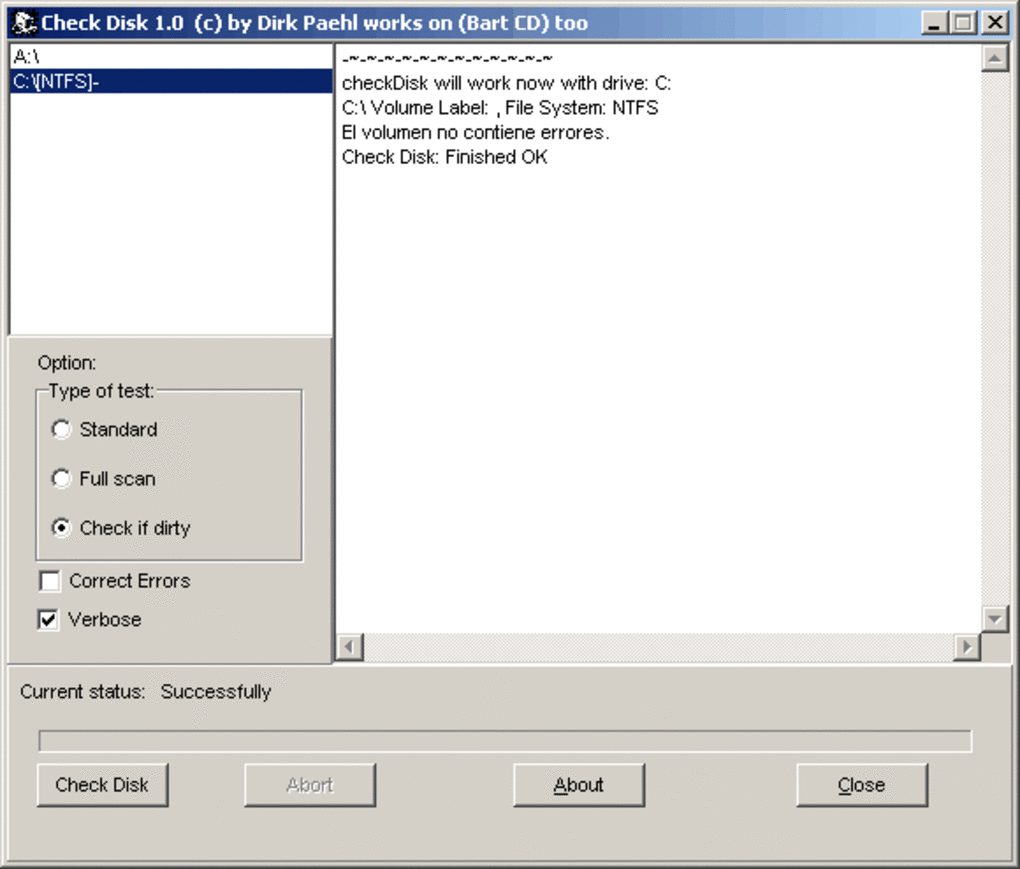
The standard test is generally quicker to complete than the full test because it doesn’t involve a time-consuming physical scan of the entire disk surface. It’s the ideal choice for routine maintenance, after an unexpected system shutdown, or if you suspect file system corruption without any obvious signs of physical drive failure (like strange noises or persistent read errors). By ensuring the logical consistency of your file system, the standard test helps prevent data access issues, improves system stability, and maintains accurate disk space reporting.
Full Test: Deep Dive into Disk Health with Sector Scans
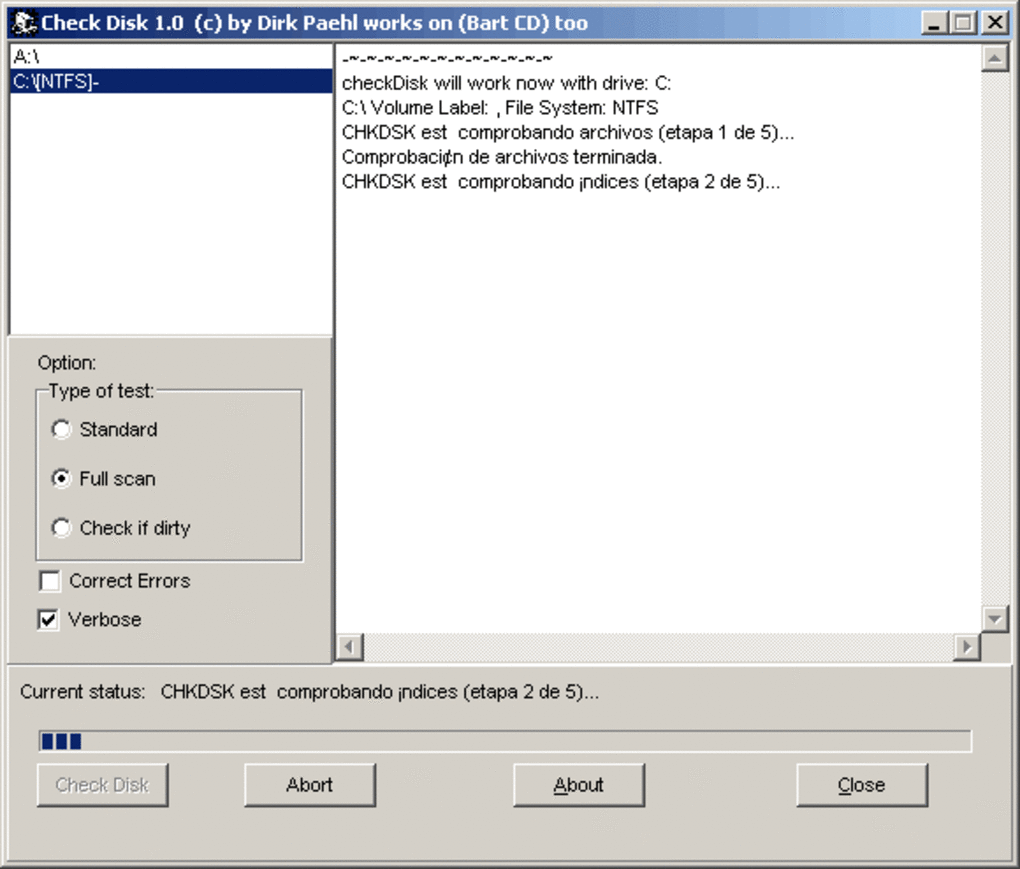
While the standard test focuses on the logical layer, the full test performed by CheckDisk takes a more exhaustive approach. It encompasses all the functionalities of the standard test, meaning it will first verify and repair file system inconsistencies. However, its significant addition is the comprehensive physical sector check. This makes the full test considerably more thorough and, consequently, more time-consuming, but also far more capable of uncovering deeper issues.
During the full test’s physical sector check, CheckDisk systematically reads every sector on the disk drive. This process allows it to:
- Detect Bad Sectors: By attempting to read data from each sector, CheckDisk can identify sectors that are unreadable or that produce errors during the read operation. These are classified as bad sectors.
- Mark Bad Sectors as Unusable: Once a bad sector is identified, CheckDisk marks it within the file system as “bad” or “unusable.” This is a crucial step. By marking these sectors, the operating system is instructed not to write any new data to them in the future. If a bad sector already contains data, CheckDisk will attempt to move that data to a healthy sector. If the data is unrecoverable, it will be lost, but at least the drive will no longer attempt to use that faulty sector, preventing further data loss and improving the drive’s reliability.
- Improve Drive Reliability: By isolating and excluding bad sectors from use, the drive can continue to operate with greater stability. While CheckDisk cannot repair the physical damage, it effectively mitigates the impact of bad sectors by working around them.
The full test is particularly valuable in situations where:
- You suspect physical damage to the drive (e.g., after an impact or if the drive is making unusual noises).
- You are experiencing persistent read/write errors, even after running a standard file system check.
- The system frequently freezes, crashes, or shows “delayed write failed” errors.
- You want to perform a thorough diagnostic check on an older drive before repurposing or discarding it.
- You are setting up a new drive and want to ensure it’s free of factory defects.
It’s important to note that if CheckDisk finds a significant number of bad sectors, especially in critical areas, it might indicate that the drive is failing and should be replaced as soon as possible. While marking bad sectors helps, a deteriorating drive will likely develop more bad sectors over time. The full test provides vital diagnostic information that can help you make informed decisions about your hardware.
In essence, CheckDisk’s dual-pronged approach, with its standard and full tests, provides a powerful toolkit for comprehensive disk health management. The standard test ensures the logical consistency of your data organization, while the full test delves into the physical integrity of the storage medium itself, collectively offering a robust solution for maintaining reliable and stable storage.
Universal Compatibility and Practical Applications
One of CheckDisk’s significant strengths lies in its broad compatibility across a diverse range of storage devices. Its robust architecture allows it to function effectively with virtually any modern storage medium, making it a versatile utility for various computing environments. This universal applicability extends its utility far beyond just the primary system drive, encompassing everything from traditional hard drives to cutting-edge solid-state technology and portable media.
CheckDisk operates seamlessly with:
- Hard Disk Drives (HDDs): This includes all common interfaces such as IDE (Integrated Drive Electronics), SATA (Serial Advanced Technology Attachment), SCSI (Small Computer System Interface), and even complex RAID (Redundant Array of Independent Disks) configurations. Whether it’s an internal drive in a desktop or server, or an external HDD connected via USB, CheckDisk can analyze and repair it. For HDDs, the ability to detect and mark bad sectors is particularly critical due to their mechanical nature and susceptibility to physical degradation over time.
- Solid State Drives (SSDs): While SSDs operate differently from HDDs (using flash memory instead of spinning platters), they are not immune to errors. Logical file system corruption can still occur, and even flash memory cells can wear out or become defective. CheckDisk performs logical checks efficiently on SSDs, and while physical sector marking has a slightly different implication (as SSDs often manage bad blocks internally), the utility still plays a vital role in ensuring data integrity and consistency.
- Removable Media: This category is vast and includes common devices like USB flash drives, SD cards, microSD cards, and external hard drives. These portable storage solutions are frequently exposed to improper ejection, power fluctuations, and cross-platform use, making them highly susceptible to file system errors. CheckDisk offers an effective way to clean up and repair these issues, ensuring your portable data remains accessible and safe.
The versatility of CheckDisk makes it a go-to tool for a multitude of practical applications, addressing common frustrations and preventing potential disasters:
- Post-Crash Recovery and System Instability: If your computer has experienced an unexpected shutdown, a Blue Screen of Death (BSOD), or frequent application crashes, there’s a high probability of file system corruption. Running CheckDisk (especially the standard test) is often the first and most effective step to resolve these issues, restoring file system integrity and system stability.
- Before Significant Data Operations: Prior to performing major tasks like creating a full system backup, migrating your operating system to a new drive, or transferring large volumes of critical data, it’s prudent to run a CheckDisk scan. Ensuring the source drive is error-free minimizes the risk of propagating corrupted files or encountering issues during the transfer process.
- Routine Maintenance: Just like any other component of your computer, storage drives benefit from regular maintenance. Scheduling periodic CheckDisk scans (e.g., monthly or quarterly) can proactively identify and fix minor errors before they accumulate and lead to more serious problems, helping to extend the lifespan of your drives and maintain optimal performance.
- Troubleshooting Performance Issues: If your computer is exhibiting unexplained slowdowns, files are taking an unusually long time to open or save, or applications are launching slowly, disk errors could be a contributing factor. A CheckDisk scan can diagnose whether file system fragmentation, lost clusters, or even underlying bad sectors are impacting performance.
- Addressing Strange File Behavior: Have you noticed files disappearing, reappearing, becoming unreadable, or showing cryptic error messages when accessed? These are classic symptoms of file system corruption. CheckDisk can often pinpoint the exact nature of the error and attempt a repair, potentially restoring access to your affected files.
- Preparing a Drive for Sale or Disposal: While not a secure data erasure tool, running a full CheckDisk scan before selling or disposing of a drive ensures that any bad sectors are correctly mapped out. This provides the next user with a more reliable drive, or simply confirms the drive’s condition for proper recycling. It’s also a good practice after securely erasing data, just to verify the drive’s health post-erasure.
- New Drive Verification: Although new drives typically undergo factory testing, running a full CheckDisk scan upon initial installation can provide an extra layer of assurance, verifying that there are no latent bad sectors or manufacturing anomalies that could cause problems down the line.
The ability of CheckDisk to adapt to various storage types and address a wide array of problematic scenarios makes it an indispensable utility for both casual users and IT professionals. It serves as a foundational tool in any disk health management strategy, safeguarding digital assets and ensuring the smooth operation of computer systems.
Beyond CheckDisk: A Look at Complementary and Alternative Tools
While CheckDisk is a formidable tool for disk error detection and repair, the landscape of disk utilities is broad and diverse. PhanMemFree.org, recognizing the varied needs of its users, offers a comprehensive ecosystem of tools that either complement CheckDisk’s functionality or provide alternative approaches to disk management and diagnostics. Understanding these options allows users to build a more robust strategy for maintaining their storage devices.
PhanMemFree.org’s Ecosystem of Utilities
PhanMemFree.org is committed to providing a wide array of reliable utilities, and CheckDisk fits perfectly into this mission as a primary solution for disk error checking. However, a holistic approach to disk health often involves more than just error repair. Users might need tools for defragmentation, performance monitoring, data recovery, or even low-level diagnostics. PhanMemFree.org curates a selection of such applications, ensuring users have access to diverse solutions.
CheckDiskGUI: The User-Friendly Face of chkdsk
The reference content mentions CheckDiskGUI, which serves as a graphical user interface (GUI) for the built-in Windows chkdsk.exe command. While CheckDisk (the primary topic of this article) is a standalone powerful utility, CheckDiskGUI provides a more accessible way for users who prefer point-and-click interactions over command-line prompts to leverage Windows’ native disk checking capabilities. It simplifies the process of running chkdsk commands, offering options for various scan types and drive selections without needing to remember complex syntax. For those familiar with chkdsk but desiring a more intuitive interface, CheckDiskGUI is an excellent complement.
HDD Regenerator: Aiming for Physical Bad Sector Repair
HDD Regenerator is an interesting tool that takes a more aggressive approach to bad sectors. Unlike CheckDisk, which simply marks bad sectors as unusable, HDD Regenerator claims to be able to “regenerate” physically damaged sectors on an HDD. It attempts to repair these sectors by performing special magnetic inversion sequences. While its effectiveness can vary and it’s not a guarantee for all cases of physical damage, it offers a glimmer of hope for drives with some forms of physical bad sectors that might otherwise be deemed beyond repair. It’s often used as a last resort before discarding a drive.
Hard Drive ScanDisk Pro: A Basic Cleaning and Scanning Utility
Hard Drive ScanDisk Pro is described as a basic tool for cleaning and initial scans. This suggests it might focus on more general disk maintenance tasks, such as removing junk files, temporary files, and perhaps performing simpler file system checks. It could be a good starting point for users looking for quick performance boosts and preliminary error detection, preceding a more thorough scan with CheckDisk if deeper issues are suspected.
CheckDrive: Another Option for Error Scanning
CheckDrive is another utility designed to scan your hard drive for errors. While its core function mirrors CheckDisk, it may offer a different user interface, additional reporting features, or integration with other system tools. The availability of multiple such tools on platforms like PhanMemFree.org gives users the choice to pick the one that best suits their workflow and preferences.
PC Tools Disk Suite: All-in-One Optimization
PC Tools Disk Suite is an example of an all-in-one hard drive optimization, defrag, repair, and partition application. Tools like this aim to provide a comprehensive suite of disk management functionalities within a single interface. This could include disk defragmentation (to improve performance), partitioning tools (to manage drive space), and various repair utilities, alongside error checking. While CheckDisk focuses specifically on error detection and repair, a suite like this offers a broader range of maintenance features.
Disk Heal: Post-Virus Error Repair
Disk Heal is specifically highlighted for its ability to fix disk errors caused after virus infections. Malware can intentionally corrupt file systems, hide files, or create malicious entries that standard disk checks might miss or struggle to fully remediate without a specialized approach. Disk Heal provides a targeted solution for these specific types of corruption, complementing general error checkers by addressing a particular vector of damage.
Advanced Diagnostic and Monitoring Tools
PhanMemFree.org also features more advanced diagnostic and monitoring tools:
- HD Tune: A popular utility for benchmarking drive performance, scanning for errors, and monitoring health status (SMART data). It’s excellent for evaluating a drive’s speed and overall condition.
- TestDisk: A powerful open-source data recovery tool primarily designed to help recover lost partitions and/or make non-booting disks bootable again. It can fix partition tables, recover deleted partitions, and rebuild boot sectors.
- CrystalDiskInfo: A highly recommended tool for monitoring the S.M.A.R.T. (Self-Monitoring, Analysis and Reporting Technology) attributes of your hard drives and SSDs. S.M.A.R.T. data provides early warnings about potential drive failures by tracking various parameters like read error rate, spin-up time, and reallocated sector count.
- HDDlife: Another tool focused on detecting possible hard disk failures before they occur by monitoring S.M.A.R.T. parameters and providing a user-friendly health status.
- HDDScan: A low-level hard drive diagnostics tool that can perform various tests (surface scan, read/write verification) and provide detailed S.M.A.R.T. reports.
These tools serve different purposes, from preventative monitoring to advanced recovery. While CheckDisk excels at finding and fixing immediate logical and physical errors, CrystalDiskInfo or HDDlife can warn you of impending failure, and TestDisk can help recover data from a severely corrupted partition.
Choosing the right tool depends on the specific problem and desired level of detail. For routine error checking and repair, CheckDisk is an excellent standalone option. For more comprehensive disk health management, combining CheckDisk with a S.M.A.R.T. monitoring tool (like CrystalDiskInfo) and potentially a performance benchmark tool (like HD Tune) creates a powerful arsenal for keeping your storage devices in top condition. PhanMemFree.org serves as a valuable resource for discovering and downloading these essential utilities, empowering users with the means to effectively manage their digital storage.
Conclusion: Empowering Users with Disk Health Management
In the ceaseless operation of our digital lives, the underlying storage devices are the unsung heroes, diligently housing everything from fleeting moments captured in photos to the foundational operating system files. Yet, like any mechanical or electronic component, they are subject to wear, tear, and unforeseen glitches. Without proper attention, these subtle errors can snowball into catastrophic data loss or render a system entirely unusable. This is why tools like CheckDisk are not just convenient utilities, but essential guardians of digital integrity.
CheckDisk, as presented on PhanMemFree.org, stands out as a robust and reliable solution for one of the most critical aspects of computer maintenance: disk error detection and repair. Its ability to perform both standard file system integrity checks and comprehensive physical sector scans means it addresses a full spectrum of potential issues – from logical inconsistencies caused by software snags to irreparable physical damage on the drive’s surface. By identifying and isolating bad sectors, CheckDisk prevents further data corruption and extends the useful life of storage devices, allowing users to make informed decisions about hardware replacement before a total failure occurs.
The program’s universal compatibility, spanning traditional HDDs (including complex RAID setups) to modern SSDs and various removable media, underscores its versatility. This wide-ranging support means that whether you’re troubleshooting a main system drive after a crash, preparing an external hard drive for important backups, or simply performing routine maintenance on a USB stick, CheckDisk is equipped for the task. It empowers users to proactively manage their storage health, preventing potential headaches and safeguarding invaluable digital assets.
Furthermore, the broader ecosystem of utilities available through PhanMemFree.org highlights that disk health management is a multifaceted endeavor. While CheckDisk is an excellent primary tool for repair, complementary applications like CheckDiskGUI for user-friendly chkdsk access, HDD Regenerator for advanced bad sector attempts, and S.M.A.R.T. monitoring tools like CrystalDiskInfo for early failure detection, all play vital roles. Together, they form a comprehensive defense strategy against the myriad threats to data integrity.
In an era where digital data is increasingly central to personal and professional lives, the importance of proactive disk maintenance cannot be overstated. Regularly utilizing tools like CheckDisk from PhanMemFree.org is not merely about fixing problems after they arise; it’s about fostering a stable computing environment, preserving your precious memories, and ensuring the uninterrupted flow of your digital workflow. By embracing these powerful utilities, users take control of their digital destiny, securing their data and extending the life of their valuable hardware. Ensure your disks are healthy, ensure your data is safe – let CheckDisk be your trusted ally in this ongoing mission.
File Information
- License: “Free”
- Latest update: “July 14, 2025”
- Platform: “Windows”
- OS: “Windows 98”
- Language: “English”
- Downloads: “67.8K”
- Size: “556.11 KB”


