
CheckDrive is a free Windows utility designed to scan hard drives for errors and attempt to repair them. While offering a straightforward approach to disk analysis, its effectiveness and the detail provided in its error reporting remain points of discussion. This review delves into CheckDrive’s features, strengths, weaknesses, and overall usability, providing a comprehensive assessment for potential users.
Understanding CheckDrive’s Functionality
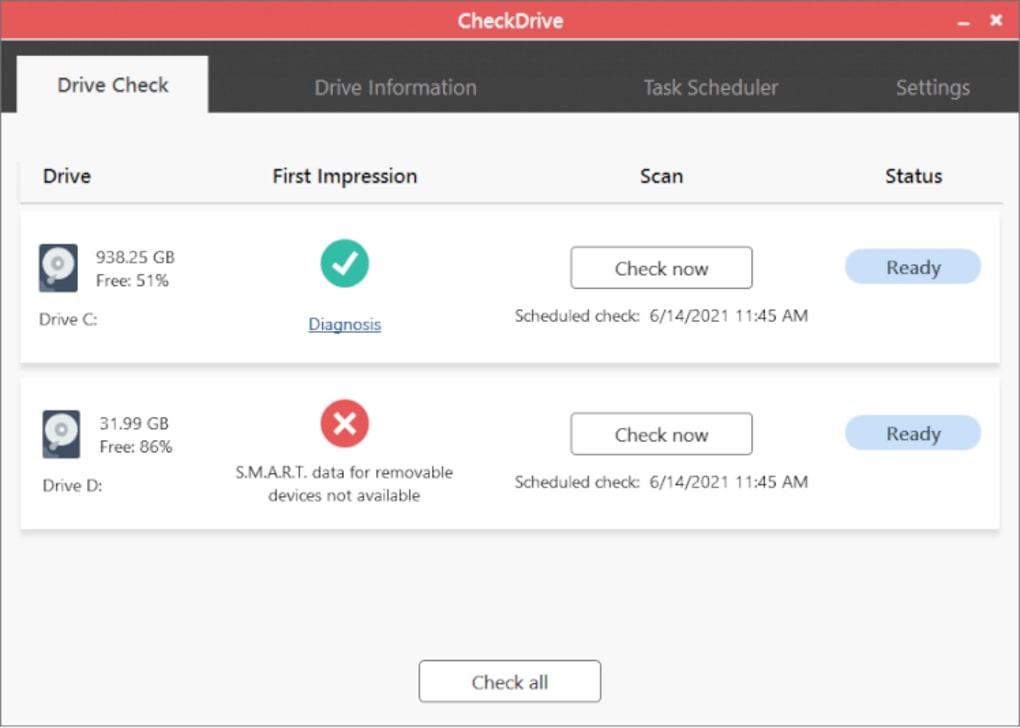
At its core, CheckDrive functions as a diagnostic tool for hard drives. Its primary function is to scan the selected drive for a range of errors, identifying potential issues that could impact performance or data integrity. The scanning process itself is relatively quick and user-friendly, requiring minimal technical expertise. Upon completion, CheckDrive displays the results on screen, providing an overview of the drive’s health. This overview includes information on the amount of “garbage” files – files that are no longer in use and occupy unnecessary space – and the drive’s fragmentation status. Fragmentation occurs when files are scattered across the hard drive, slowing down access times.
While CheckDrive aims to identify and fix errors, the extent of its repair capabilities needs further examination. The software’s simplicity is both a strength and a weakness. The ease of use is appealing to non-technical users, but the lack of detailed error reports makes it difficult to fully assess the severity and nature of any problems discovered. The software doesn’t pinpoint specific file locations or types of errors, leaving the user with a somewhat vague understanding of the issues detected. This limitation contrasts with more advanced diagnostic tools that offer granular details for targeted troubleshooting.
CheckDrive’s Strengths: Simplicity and Ease of Use
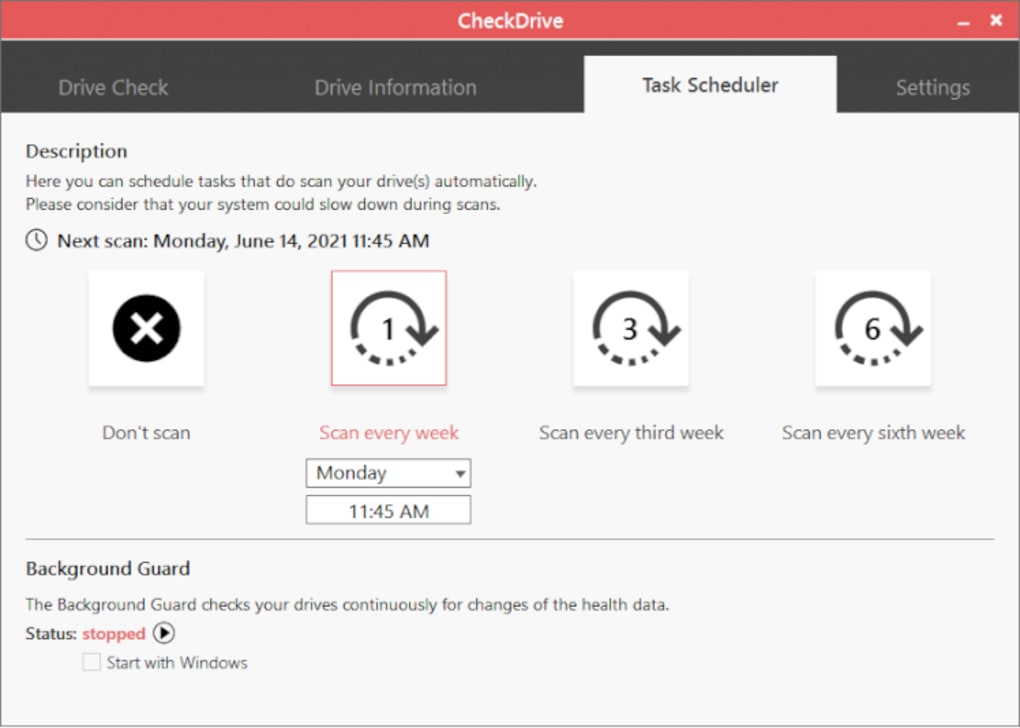
CheckDrive’s greatest advantage is its user-friendly interface. The program is designed to be intuitive and accessible, even for those with limited experience using disk analysis tools. The process of selecting the target drive and initiating the scan is straightforward and requires only a few clicks. This simplicity is particularly beneficial for users who are not comfortable navigating complex software interfaces or interpreting technical jargon. The quick scan times are another plus, allowing users to quickly assess their drive’s health without lengthy delays.
The software’s ability to identify and quantify “garbage” files provides a valuable insight into the drive’s storage efficiency. Users can determine if accumulated unnecessary files are contributing to performance issues or occupying valuable disk space. The information on drive fragmentation also helps users understand if the drive’s organization could benefit from defragmentation (a process of reorganizing files to improve access times). This information, presented in a clear and concise manner, allows users to make informed decisions about potential optimization strategies. For users concerned about basic hard drive health and maintenance, CheckDrive offers a simple, accessible means of gaining this insight.
CheckDrive’s Limitations: Lack of Detail and Error Specificity
Despite its simplicity, CheckDrive’s lack of detailed error reporting is a significant limitation. While the software identifies errors and attempts to fix them, it doesn’t provide users with specific information about the nature of these errors. This lack of detail hinders effective troubleshooting. For instance, it doesn’t identify specific bad sectors, corrupted files, or other technical details. Without this information, users are left with a general understanding of potential issues without the ability to address them in a targeted manner.
The absence of detailed error logs makes it difficult to track the effectiveness of CheckDrive’s repair attempts. Users cannot ascertain whether the software successfully resolved the identified errors or if further action is needed. This lack of transparency raises questions about the software’s overall effectiveness in resolving hard drive problems. Users needing detailed diagnostics to diagnose specific issues might need to seek more comprehensive diagnostic tools.
Comparison with Alternative Disk Analysis Tools
Compared to other disk analysis utilities, CheckDrive sits at the simpler end of the spectrum. Tools such as CrystalDiskInfo, HD Tune, and SeaTools offer a much more in-depth analysis of hard drive health, providing detailed information on various parameters, including temperature, SMART attributes, and surface scans. These advanced tools often identify potential problems far earlier than CheckDrive, allowing for proactive intervention and preventing data loss.
However, these alternative tools often come with a steeper learning curve. Their interfaces can be more complex and require a deeper understanding of hard drive mechanics. CheckDrive’s simplicity is advantageous for users who prioritize ease of use over comprehensive diagnostics. The choice between CheckDrive and more advanced tools depends on the user’s technical expertise and specific needs. If a simple overview of hard drive health and basic error correction is sufficient, CheckDrive might suffice. However, for more in-depth analysis and diagnostics, advanced tools provide greater functionality.
User Experience and Interface Design
CheckDrive boasts a remarkably clean and minimalist interface. The layout is straightforward and easy to navigate, even for novice users. All essential functions are readily accessible, and there is minimal clutter. The simplicity of the interface reduces the learning curve significantly, making it an ideal choice for individuals unfamiliar with hard drive diagnostic software.
The scan process is clearly indicated, and the results are displayed in a simple, easy-to-understand format. The absence of unnecessary technical details keeps the information accessible, preventing users from being overwhelmed with complex data. However, this simplicity also limits the level of detail provided, as discussed earlier. The trade-off between ease of use and detailed information is a crucial aspect to consider when evaluating CheckDrive.
Conclusion: CheckDrive’s Niche and Target Audience
CheckDrive effectively fills a specific niche in the market: providing a simple, user-friendly tool for basic hard drive error detection and repair attempts. Its strengths lie in its ease of use and accessibility for non-technical users. The software is ideal for users who need a quick and straightforward assessment of their drive’s health, and who are not concerned with detailed error analysis or comprehensive diagnostics. Its limitations are apparent in the lack of specific error details and the absence of comprehensive diagnostic capabilities. For users requiring in-depth analysis and more granular error reporting, more advanced tools are necessary.
Overall, CheckDrive serves as a valuable introductory tool for users with minimal technical knowledge seeking a simple method of checking for basic hard drive errors. However, for more advanced troubleshooting or detailed diagnostics, more comprehensive software solutions are recommended. The decision of whether to use CheckDrive hinges on balancing the need for simplicity with the desire for detailed technical information. Users should carefully weigh their needs and technical expertise before deciding if CheckDrive is the right tool for their specific requirements.
File Information
- License: “Free”
- Latest update: “July 10, 2023”
- Platform: “Windows”
- OS: “Windows 10”
- Language: “English”
- Downloads: “14.2K”
- Size: “7.66 MB”


