Contents

Chrome

Google Chrome stands as a titan in the world of web browsers, a free-to-use application developed by the technology giant Google. It offers Windows users a simple, fast, and secure gateway to their favorite corners of the internet. For over a decade, this browser has cemented its position as an indispensable tool for countless individuals, lauded for its light footprint, impressive speed, robust security features, and a seemingly endless array of additional functionalities. It consistently outperforms established alternatives like Mozilla Firefox, Microsoft Edge, Apple Safari, and Opera, making it the preferred choice for a vast global audience.

With a sleek, modern, and uncluttered design, Google Chrome seamlessly integrates with the expansive suite of Google tools, a synergy that brings forth a wealth of benefits. Users enjoy a customizable bookmark bar for quick access to frequently visited sites, access to thousands of extensions, extensive personalization options, private browsing through Incognito mode, continuous updates, cross-platform synchronization, and end-to-end encryption. These myriad advantages collectively position Google Chrome as, without doubt, one of the foremost web browsers available today.

What is Google Chrome and What is it Used For?

Google Chrome is a proprietary web browser developed by Google, the multinational corporation that also owns the world’s largest internet search engine, along with other universally recognized applications such as Google Drive, Gmail, and Google Docs. Launched in 2008, Chrome emerged as a formidable challenger to then-dominant browsers like Internet Explorer and Firefox. Over the years, it has not only survived but thrived, evolving into the most widely used web browser globally, boasting over 1 billion active users. While it is proprietary software, its foundation lies in the open-source Chromium web browser, from which it derives much of its core functionality and visual similarity.

The primary virtues that distinguish this free web browser for Windows, and indeed for all its supported platforms, are its unparalleled speed and stability when loading any type of web page. This efficiency stems from a sophisticated architecture, where each tab runs as a separate process, preventing a single problematic webpage from crashing the entire browser. This multi-process design, while sometimes contributing to higher RAM usage, ensures a smoother and more resilient browsing experience. Another standout feature is its intuitive tabbed navigation system, which allows users to manage multiple web pages within a single browser window efficiently. This capability is not just a convenience but a fundamental aspect of modern web browsing, enabling quick switching between tasks and information sources.

Fundamentally, Chrome’s main purpose is to facilitate quick and secure access to all types of web pages. While the browser itself is optimized for speed, the actual page loading speed is, of course, also contingent on the user’s internet connection. Beyond its core browsing function, Chrome’s multi-platform availability—spanning Windows, macOS, Linux, Android, iOS, and even Smart TVs—is a significant advantage. This ubiquity allows users to synchronize their Google accounts across all devices. This synchronization ensures that settings, bookmarks, extensions, browsing history, and saved passwords are consistently available, providing a seamless and personalized browsing experience regardless of the device in use. This level of integration has made Chrome a central hub for many users’ digital lives, connecting their work, entertainment, and communication across various platforms. The continuous development and integration of new web standards also mean that Chrome is consistently at the forefront of supporting modern web technologies, ensuring compatibility and optimal performance for the latest web applications and content.

Distinguishing Between a Web Browser and a Search Engine

A common point of confusion for many internet users is the distinction between a web browser and a search engine, largely due to Google Chrome’s deep integration with the Google search engine. It’s a relationship so tight that the two can seem almost inseparable. However, understanding their individual roles is crucial for comprehending how we interact with the internet.

At its core, Chrome is a web browser. It is an application, a piece of software installed on your device, that enables you to access and navigate the internet. Its functions include rendering web pages (translating the code of a website into the visual and interactive content you see), managing tabs, storing bookmarks, handling downloads, running extensions, and providing various security features. When you type a website address like “phanmemfree.org” into Chrome’s address bar, the browser is responsible for fetching that website’s data from the internet and displaying it to you. It acts as your window to the World Wide Web, allowing you to move between different websites and interact with their content.

Google, on the other hand, is primarily a search engine. It is a website (google.com) that you can access through a web browser. Its purpose is to help you find information on the internet. When you type keywords into Google’s search bar, the search engine scans its vast index of web pages, algorithms process your query, and it then presents you with a list of relevant results. These results are links to other websites that match your search intent. While Google the search engine is incredibly powerful and widely used, it is distinct from Google Chrome the browser.

The confusion largely arises because Google Chrome, by default, integrates the Google search engine as its primary search provider. This means that when you type a query into Chrome’s unified search and address bar, known as the Omnibox, it automatically sends that query to Google’s servers to retrieve search results. This seamless experience makes it feel as if the browser is the search engine. However, users have the option to change their default search engine in Chrome’s settings, allowing them to use alternatives like Bing, DuckDuckGo, or Yahoo, further highlighting the separation between the browser and the search service.

The Omnibox is a particularly interesting feature that blurs these lines. It’s designed to accept both website URLs and search queries. As you type into the Omnibox, Chrome provides search suggestions and often directly displays answers from Google’s knowledge graph. This is where a privacy concern often arises: queries typed into Chrome’s Omnibox are sent to Google’s servers even before the user presses Enter, particularly if search prediction is enabled (which is the default setting in Chrome). This “type-ahead” functionality, while enhancing convenience, means that Google receives partial search queries even if the user never completes the search or navigates to a search results page. This continuous communication with Google’s servers is a point of distinction when compared to browsers that maintain separate search and address bars, potentially offering users a greater sense of privacy for their typed input.

A Closer Look at Google Chrome’s User Interface and Customization

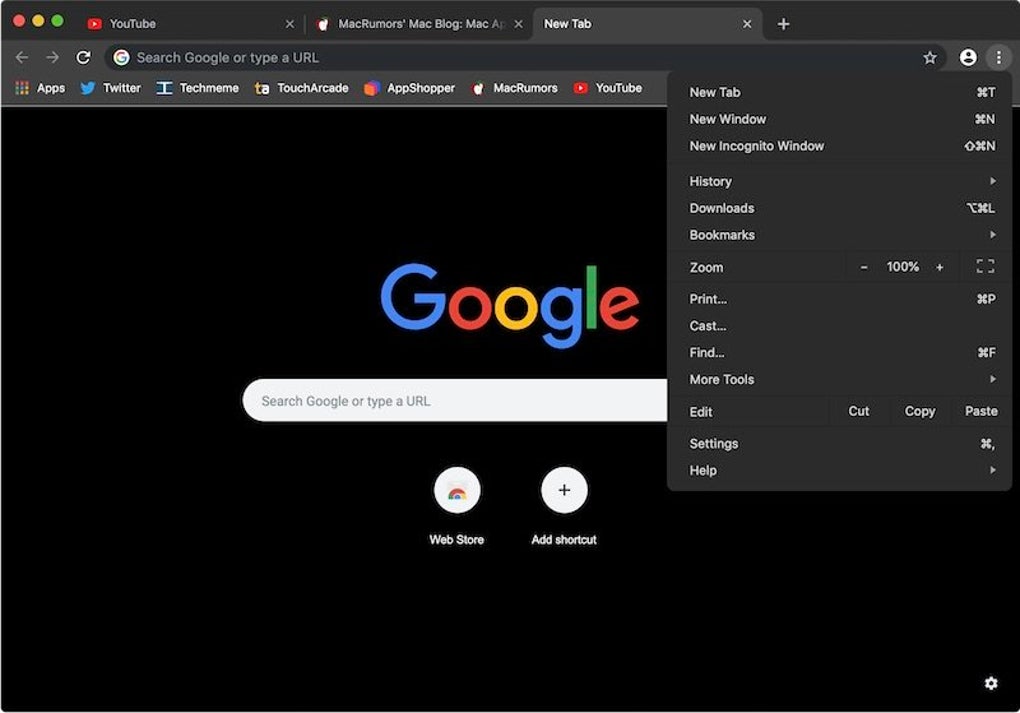
Google Chrome’s user interface is renowned for its simplicity and ease of use, a design philosophy that has profoundly influenced and inspired similar styles in other major browsers. When Chrome first launched, its minimalist aesthetic was groundbreaking, stripping away much of the clutter that characterized browsers of the era. This clean, understated design, once unique to Chrome, has now become a standard feature across many contemporary browsers, including Microsoft Edge, which ships with Windows 10 and often boasts an even more simplified interface than Chrome itself.

Like its competitors, Chrome provides a single Menu button, typically located in the top-right corner, which serves as the gateway to all its options, settings, and tools. This consolidated access point contributes to the overall uncluttered look. However, when it comes to visual customization, Chrome’s options for themes allow users to alter the background of the window border and the new tab page, but they typically do not extend to modifying buttons and other core interface elements. In contrast, browsers like Firefox offer a more interactive Theme gallery, enabling users to preview themes directly within their browser, providing a more dynamic customization experience.

The Omnibox, Chrome’s unified search and address bar, spans across the top of the browser window. This design has been widely adopted by other browsers, with Microsoft Edge also employing a similar layout. Edge, however, takes a slightly different approach by often placing tabs directly alongside the search/address bar, a design choice aimed at maximizing the usable space for web content. Firefox, meanwhile, remains distinctive with its separated search and address fields. This separation offers an additional layer of privacy, as queries typed into Chrome’s Omnibox are transmitted to Google’s servers even before the user hits Enter, especially when search prediction, Chrome’s default setting, is active. This aspect is particularly noteworthy for users who prioritize keeping their preliminary typing private from third-party servers.

In terms of tab management, Chrome excels with its distinctive, angular-edged tabs. These tabs are visually prominent and intuitively designed, allowing users to easily drag them to create separate windows or reorder them within the current window. A highly convenient feature is the ability to “pin” sites to the tab bar, shrinking them to an icon for quick access to frequently used web applications or pages, like email or social media. However, when it comes to the New Tab page, Chrome’s customization options are somewhat limited compared to Firefox. Chrome automatically populates new tabs with tiles representing frequently visited sites and allows users to remove these thumbnails from view. Other browsers, such as Edge and Opera, offer more personalized experiences; Edge’s New Tab page includes customizable tiles for frequently visited sites and an integrated news feed, while Opera’s Speed Dial provides the most extensive flexibility, featuring customizable tiles that can even display live information such as weather updates. Despite these differences, Chrome’s tab management remains highly efficient for most users, offering a balance of simplicity and functionality.

Performance, Security, and Core Functionality

Chrome’s reputation isn’t just built on its interface; its underlying performance, security measures, and integrated functionalities are equally crucial to its dominance.

Is Chrome Secure?

Yes, Chrome is widely regarded as a secure web browser, a claim backed not only by Google’s extensive resources but also by the trust of countless cybersecurity experts and billions of users worldwide. Its security architecture is multi-layered and continuously evolving. A cornerstone of Chrome’s security is its emphasis on Safe Browsing. It prioritizes navigation through secure HTTPS web pages, alerting users when they are attempting to access websites that may be insecure or part of a phishing scam. This proactive protection helps steer users away from potentially malicious content.

Chrome also incorporates advanced security features like sandboxing, which isolates each tab and extension in its own separate process. This means that if a malicious script manages to compromise one tab, it is largely contained within that sandbox and cannot easily affect other tabs, the browser as a whole, or the underlying operating system. Furthermore, Chrome’s automatic updates play a vital role in security, ensuring that users always have the latest patches against newly discovered vulnerabilities without needing manual intervention.

For personal data protection, Chrome offers end-to-end encryption for synchronized data, meaning that bookmarks, passwords, and other synchronized information are encrypted on Google’s servers and can only be decrypted with your Google account password. The browser also includes robust password management capabilities, securely storing passwords and alerting users if any of their stored credentials have been compromised in known data breaches. It even suggests strong, unique passwords when creating new accounts, promoting better password hygiene. Beyond this, Chrome features parental controls through its integration with Google Family Link, allowing parents to manage and monitor their children’s online activity, offering another layer of safety for younger users.

Does Google Chrome Consume a Lot of RAM?

While Google Chrome is a free web browser with a multitude of strengths, it is not without its imperfections. One of its most frequently cited drawbacks is its high RAM consumption. Many users, particularly those with older or less powerful computers, often complain about Chrome’s tendency to hog system memory. The reality is that, yes, Chrome can consume a significant amount of RAM, especially under certain conditions. This is particularly noticeable when a large number of tabs are open simultaneously, or when multiple extensions are active.

This high RAM usage is a consequence of Chrome’s architectural design choices, which prioritize stability and security. As mentioned, Chrome runs each tab, extension, and plugin in a separate process. While this isolation prevents crashes and enhances security, each process requires its own allocation of memory. So, ten open tabs could mean ten separate processes, each consuming RAM. Additionally, Chrome’s powerful V8 JavaScript engine, responsible for executing complex web applications, is resource-intensive by nature.

However, it’s important to note that Google has made significant strides in improving Chrome’s memory management over the years. Modern versions include features like tab freezing (suspending inactive background tabs to free up memory) and more efficient resource allocation. For users with contemporary computers equipped with 8GB of RAM or more, Chrome’s memory consumption is unlikely to severely impact the overall user experience. On the other hand, for systems with 4GB of RAM or less, users might still experience slowdowns or sluggish performance, especially with heavy browsing habits. The best way to ascertain its impact is to download Google Chrome for free from PhanMemFree and evaluate its performance on your specific system.

Can Google Chrome Open PDF Files?

Yes, Google Chrome is fully capable of opening PDF files, providing a seamless and integrated experience for viewing this common type of content. When you click on a PDF link or open a local PDF file, Chrome’s built-in PDF viewer handles it directly within the browser window, eliminating the need for a separate application or plugin. This functionality is a testament to Chrome’s broader approach to in-browser capabilities.

Chrome was a pioneer in directly embedding technologies like Adobe Flash into the browser. This integration meant that users no longer had to go through the often cumbersome process of separately installing and updating Flash Player. This trend of incorporating essential multimedia and document viewing technologies has since been followed by other browsers, including Microsoft Edge and Opera, the latter of which also shares Chrome’s underlying rendering technology (Blink, an offshoot of WebKit). An additional advantage of this integrated approach is the automatic updating of these embedded components, which not only simplifies the user experience but also significantly enhances security. By running these plug-ins, like the PDF viewer or historical Flash player, in a sandboxed, isolated environment, they are kept separate from critical system areas, thereby reducing the risk of system-wide vulnerabilities. The embedded PDF reader offers basic functionalities such as zooming, printing, and searching within the document, providing sufficient tools for most users without the overhead of a dedicated PDF application.

Disadvantages and Overall Verdict

Despite its overwhelming popularity and many strengths, Google Chrome, like any complex software, has its share of drawbacks. Understanding these can help users make informed decisions about their browsing habits.

Disadvantages of Chrome

One notable limitation is Chrome’s approach to automatic updates. While this ensures users always have access to the latest features and crucial security enhancements, it often occurs without explicit user permission or significant notification. This can be disruptive, as updates might restart the browser at inconvenient times, leading to loss of unsaved work or interruption of ongoing tasks. Though beneficial for security, the lack of control over update timing can be a source of frustration for some users.

Another disadvantage lies in Chrome’s compatibility with older computer systems. Users running outdated hardware or operating systems may find that Chrome does not perform optimally, or in some cases, might not be compatible at all. As web technologies advance and Chrome itself becomes more feature-rich, it demands more system resources. This can be a significant hurdle for individuals who cannot regularly upgrade their computing equipment, forcing them to seek out lighter, less demanding browsers.

Lastly, the inconsistency in keyboard shortcuts across various Google services can be confusing for users deeply integrated into the Google ecosystem. For example, while Ctrl+T typically opens a new tab in the Chrome browser itself and in Gmail, the same action might require Ctrl+Shift+N in Google Drive to create a new folder. This lack of standardization in keyboard shortcuts among different Google applications, even within the same browser, can lead to a fragmented user experience, requiring users to remember different key combinations for similar actions, reducing workflow efficiency.

Google Chrome, the Best Free Web Browser for Windows

Despite the existence of many excellent alternative browsers, Google Chrome has consistently earned the title of the best web browser for Windows year after year. Its winning formula is built upon a foundation of exceptional speed, intuitive design, user-friendliness, and unwavering security. These core characteristics form the pillars of its widespread appeal. Beyond its individual strengths, Chrome offers a truly cross-platform experience, meticulously synchronizing user preferences, data, and settings across all their devices. This seamless continuity ensures that whether you’re working on a desktop, browsing on a laptop, or checking something on a mobile phone, your browsing environment remains consistent and personalized.

Chrome’s tabbed navigation system is exceptionally well-executed, allowing for efficient multitasking and organization. Its Incognito mode provides a private browsing experience, ensuring that browsing history, cookies, and site data are not stored. The browser’s bookmark management is robust, allowing users to easily save and organize their favorite sites, while its integrated password manager securely stores and autofills login credentials. The comprehensive browsing history feature enables users to revisit past web pages with ease, and its privacy controls give users command over their online footprint.

In summary, Google Chrome is an incredible browser brimming with infinite possibilities. Its lightweight yet powerful engine ensures efficiency, making it fast and responsive. Its deep integration with the vast array of Google tools provides an interconnected digital experience. The emphasis on security and data privacy reassures users, while its easy-to-manage interface makes it accessible to everyone. Coupled with an expansive ecosystem of extensions, which unlock endless customization and functionality, Chrome delivers a browsing experience that is not only highly efficient but also deeply personalizable. For these reasons, it is highly unlikely to disappoint users who choose it as their primary gateway to the internet. You can download it for free from PhanMemFree and experience its benefits firsthand.

Pros:

  • Lightweight, efficient, and exceptionally fast
  • Full integration with Google tools and services
  • Strong security and data privacy features
  • User-friendly and easy to manage interface
  • Infinite possibilities through its extensive extension ecosystem

Cons:

  • Can exhibit excessive RAM consumption, particularly with many tabs or extensions
  • Bookmark organization could be improved for power users
  • May not be fully compatible with some older computer systems
  • Automatic updates can sometimes be disruptive
  • Inconsistent shortcuts across various Google services

For more details or to download the latest version, visit PhanMemFree.org.