
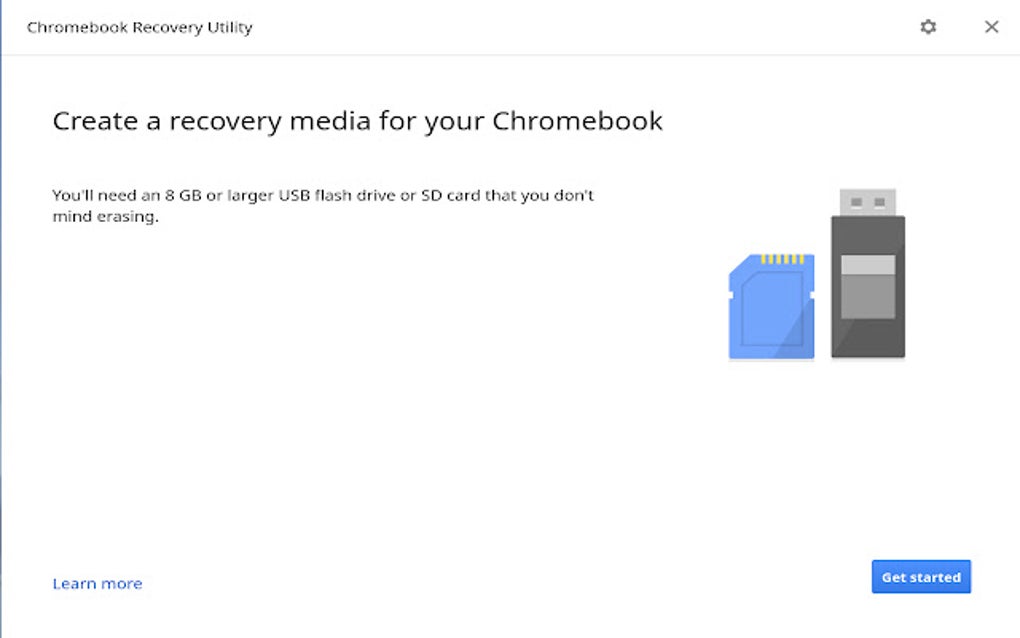
The Chromebook Recovery Utility is a free Chrome extension designed to simplify the process of creating recovery media for Chromebook devices. This invaluable tool ensures data restoration in case of system failures, accidental data loss, or other unforeseen issues. This comprehensive guide will delve into its functionality, benefits, usage, and address any potential limitations.
Understanding the Chromebook Recovery Utility
The Chromebook Recovery Utility’s primary function is to generate bootable recovery media – typically on a USB drive or SD card – containing the necessary operating system files to restore your Chromebook to its factory settings. This process is crucial for recovering from various scenarios, including:
- System Crashes: If your Chromebook’s operating system becomes corrupted or unbootable, the recovery media allows you to reinstall the OS, restoring functionality.
- Accidental Data Deletion: While the recovery process reinstalls the operating system, it doesn’t directly recover individual files. However, it allows you to restore the system to a point before significant data loss occurred, potentially allowing recovery through other means.
- Hardware Issues: In some cases, hardware problems might render the Chromebook unusable. The recovery media bypasses these hardware issues by reinstalling the operating system onto a clean system.
- Malware Infection: If your Chromebook is infected with malware that affects the operating system, the recovery media provides a clean slate to remove the malicious software.
- Software Conflicts: Software conflicts can sometimes cause system instability. A clean reinstallation using the recovery media can resolve these conflicts.
The utility’s straightforward design makes it accessible to users of all technical skill levels. Regardless of whether you’re using a Chromebook or a desktop computer (Windows, macOS, Linux), the process is largely intuitive, guided by clear on-screen instructions.
Using the Chromebook Recovery Utility: A Step-by-Step Guide
The process of creating recovery media using the Chromebook Recovery Utility is relatively straightforward. While the exact steps may vary slightly depending on your operating system and Chromebook model, the general workflow remains consistent:
-
Installation: Begin by installing the Chromebook Recovery Utility extension from the Chrome Web Store. This is typically a quick and effortless download and installation process.
-
Device Selection: After installation, launch the extension. You will be prompted to select your Chromebook model. This is crucial, as the correct model ensures the correct operating system image is downloaded and installed onto your recovery media. Accurate model identification is vital for a successful recovery. If you’re unsure of your Chromebook model, check the device’s specifications or the underside of the device for a model number.
-
Media Selection: Next, you’ll need to select the USB drive or SD card that will serve as your recovery media. Ensure that this is a correctly formatted drive with sufficient storage capacity; the required space will be indicated by the utility. All data on the selected drive will be erased during the process, so it’s crucial to back up any important files beforehand.
-
Download and Installation: Once the media is selected, the utility will download the necessary Chromebook operating system image. The download size will vary depending on the Chromebook model and the operating system version. The download speed will depend on your internet connection speed; a stable, high-speed connection is recommended.
-
Verification: After the download completes, the utility will verify the integrity of the downloaded image. This step ensures that the image is not corrupted, preventing potential recovery failures.
-
Media Creation: Finally, the Chromebook Recovery Utility will install the operating system image onto the selected USB drive or SD card, creating the bootable recovery media. This process can take some time, depending on the size of the image and the speed of your computer.
-
Testing (Optional): While not strictly necessary, it’s recommended to test the recovery media to ensure it functions correctly before needing it. This involves booting your Chromebook from the recovery media (usually done by pressing a specific key combination during startup, which varies depending on the Chromebook model). A successful boot confirms the recovery media’s functionality.
Advantages of Using the Chromebook Recovery Utility
The Chromebook Recovery Utility offers several significant advantages:
- Simplicity: The user-friendly interface and straightforward instructions make the process accessible to users of all technical skill levels.
-
Reliability: The utility is officially developed and supported by Google, guaranteeing a reliable and efficient recovery process.
-
Efficiency: The streamlined process minimizes the time and effort required to create recovery media.
-
Compatibility: The utility supports a wide range of Chromebook models and operating systems, ensuring broad applicability.
-
Accessibility: The free availability of the utility makes it accessible to all Chromebook owners.
-
Cross-Platform Compatibility: The utility works on various operating systems, including Windows, macOS, and Chrome OS, enhancing its usability.
Limitations and Potential Improvements
While the Chromebook Recovery Utility is highly effective, there is room for improvement:
- Limited Support for Bootable Images: While the utility flawlessly creates recovery media for Chrome OS, explicitly supporting the creation of bootable images for other operating systems (such as Windows or Linux) would expand its functionality and appeal to a broader audience. Currently, this functionality is not directly supported.
-
Lack of Advanced Options: More advanced options, such as selecting specific OS versions or partitions, could provide users with greater control over the recovery process.
-
Error Handling: While the utility generally handles errors well, more informative error messages could be helpful in troubleshooting specific issues. More detailed error reporting can assist users in identifying and resolving problems.
-
Offline Mode: An offline mode would enhance usability in situations with limited or no internet access. This would allow users to create recovery media even when an internet connection is unavailable.
-
Multiple Device Support: The current version only supports creating recovery media for one Chromebook at a time. The ability to create multiple recovery drives simultaneously would improve efficiency for users with multiple Chromebooks.
Conclusion: An Essential Tool for Chromebook Users
The Chromebook Recovery Utility stands as a crucial tool for any Chromebook owner. Its user-friendly interface, reliable functionality, and broad compatibility make it an indispensable resource for safeguarding your data and ensuring a smooth recovery process in case of system failures or other issues. While a few enhancements could improve its overall usability, its current capabilities make it a highly valuable and essential part of any Chromebook user’s toolkit. The proactive creation of recovery media represents a vital step in protecting your investment and ensuring the long-term usability of your Chromebook.
File Information
- License: “Free”
- Version: “0.2.3”
- Latest update: “August 7, 2024”
- Platform: “chrome”
- Downloads: “30.6K”


