
ChromeDriver is a powerful, open-source development tool that significantly streamlines the process of automated testing for web applications. It allows developers to seamlessly interact with web pages, execute JavaScript, handle user input, and perform a wide array of other actions, all without manual intervention. This makes it an indispensable tool for ensuring the quality and reliability of web applications across various browsers. This comprehensive guide delves into the functionality, applications, and intricacies of ChromeDriver, empowering you to leverage its capabilities for efficient web application testing.
What is ChromeDriver?
At its core, ChromeDriver is a standalone server that meticulously adheres to the W3C WebDriver standard. This standard defines a remote-controlled interface, enabling developers to introspect and control user agents – essentially, the software that acts as an intermediary between the user and the web application (like web browsers). In essence, it provides a consistent and standardized way to interact with web browsers programmatically. ChromeDriver’s specific role is to act as this intermediary for the Google Chrome and Chromium browsers. It acts as a bridge between your testing scripts (written in languages like Python, Java, or others) and the Chrome browser itself.
This means that ChromeDriver isn’t a browser in itself; it’s a specialized tool that controls a browser. It translates commands from your testing scripts into actions within the Chrome browser. This allows you to automate tasks such as:
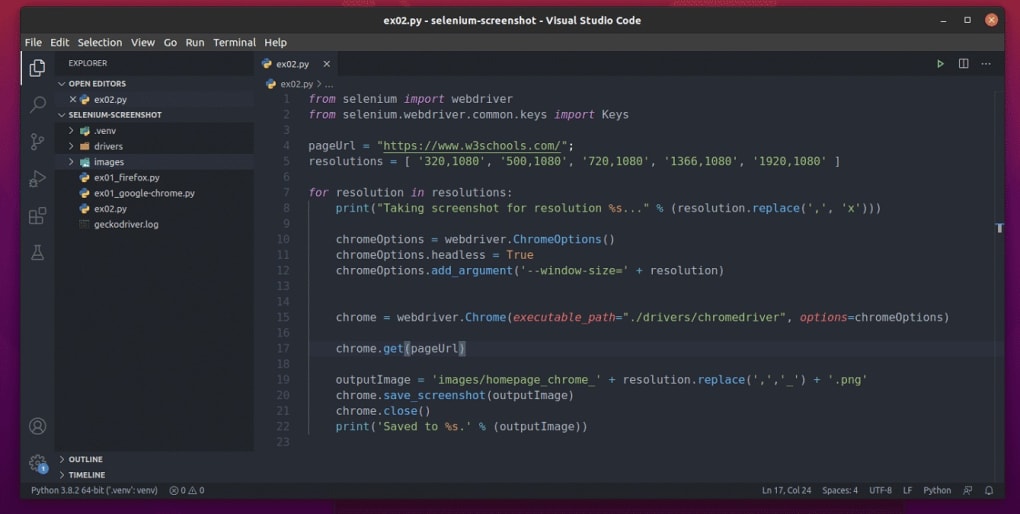
- Navigating to specific URLs: ChromeDriver can automatically open and navigate to any given URL, simulating a user clicking a link.
- Interacting with page elements: It can simulate user interactions like clicking buttons, filling out forms, and selecting options from dropdown menus.
- Executing JavaScript: ChromeDriver can execute JavaScript code within the context of the web page, allowing you to interact with elements and modify the page’s behavior dynamically.
- Handling waits and delays: It provides mechanisms for handling asynchronous operations and ensuring that elements are loaded before interacting with them. This prevents errors that often occur when attempting to interact with elements that aren’t yet visible or fully rendered.
- Capturing screenshots: ChromeDriver facilitates the capturing of screenshots during the testing process, providing visual records of the application’s state at specific points in time. This is particularly useful for debugging and reporting issues.
- Managing cookies and session storage: It provides capabilities for managing browser cookies and session storage, enabling the simulation of user logins and sessions.
- Generating logs and reports: ChromeDriver can generate detailed logs that track the sequence of actions performed during the tests, aiding in identifying the root cause of any encountered issues.
Because ChromeDriver adheres to the W3C WebDriver standard, it offers a platform- and language-neutral wire protocol for Chromium-based browsers. This ensures compatibility and interoperability across various programming languages and operating systems. The open-source nature of ChromeDriver further promotes collaboration and community support, leading to continuous improvements and expansions of its functionalities. The availability of both stable and beta versions allows developers to choose the version that best fits their testing needs and risk tolerance. Beta versions offer access to the latest features and bug fixes, while the stable version ensures compatibility and reliability.
Setting up ChromeDriver
Before harnessing the power of ChromeDriver, it’s crucial to ensure that both Chrome (or Chromium) and ChromeDriver itself are correctly installed and configured. This typically involves several steps:
-
Install Chrome or Chromium: First, download and install the appropriate version of Google Chrome or Chromium on your system. Ensure it’s installed in a location easily accessible to your system.
-
Download ChromeDriver: Download the ChromeDriver executable that matches your Chrome version. Mismatched versions can lead to compatibility issues. Download the correct version from the official ChromeDriver website, carefully selecting the appropriate version for your operating system and Chrome version. Inconsistencies can easily lead to unexpected errors or failures during the test execution.
-
Path Configuration: Add the directory containing the ChromeDriver executable to your system’s PATH environment variable. This allows the WebDriver to automatically locate the ChromeDriver executable without explicitly specifying its path in your test scripts. This is often the simplest and most preferred method. However, there are other approaches.
-
Alternative Path Specification: For specific programming languages like Java, you can specify the path to the ChromeDriver executable using system properties. In Java, this would typically involve setting the
webdriver.chrome.driversystem property to the path of the ChromeDriver executable. For Python, you might incorporate the path into thewebdriver.Chromefunction call.
These configuration steps are essential for the successful integration of ChromeDriver into your testing framework. Without proper configuration, the WebDriver will fail to locate the executable, leading to test failures.
Utilizing ChromeDriver in Automated Web Application Testing
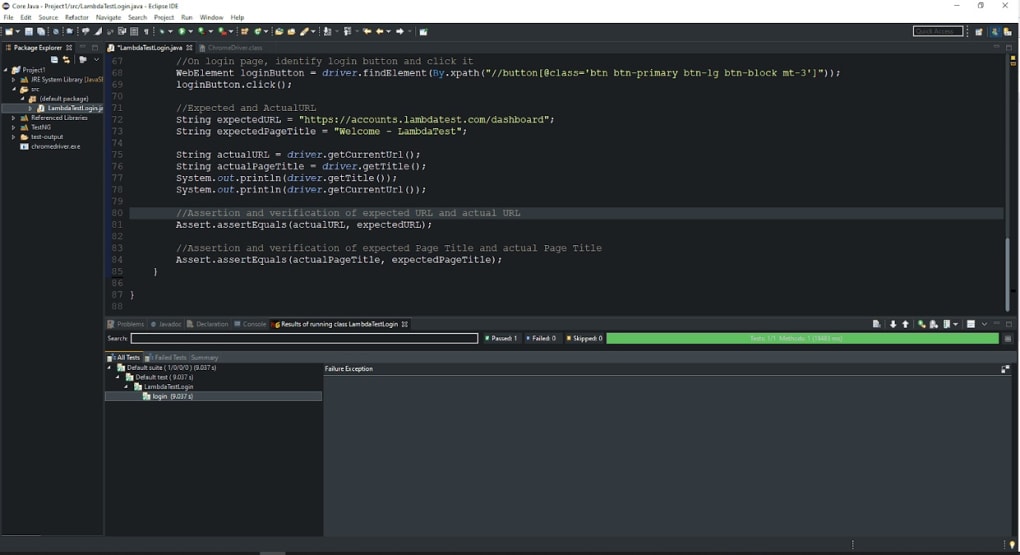
ChromeDriver’s true power lies in its ability to automate web application testing. It allows developers to create automated test suites that comprehensively evaluate the functionality, performance, and user experience of their web applications. The process typically involves writing scripts in a programming language (such as Java, Python, C#, or others) that utilize the WebDriver API to interact with the ChromeDriver instance and, subsequently, the Chrome browser.
Here’s a simplified outline of how to utilize ChromeDriver within an automated testing workflow:
-
Test Script Development: Write test scripts using a preferred programming language and the WebDriver API. These scripts define the sequence of actions to be performed, including navigation to pages, interaction with elements, validation of results, and reporting of findings.
-
Test Execution: The test scripts are executed, initiating the ChromeDriver server, which in turn launches a Chrome browser instance. The scripts then instruct ChromeDriver to interact with the web application according to the pre-defined actions.
-
Result Validation: The scripts include assertions to validate the expected outcomes of each action. For instance, verify that a button click navigates to the expected page, that form submission results in a successful response, and that displayed content matches the expected values.
-
Reporting: The results are documented, either through built-in WebDriver reporting mechanisms or via custom reporting tools. Detailed logs and reports are generated to provide insights into the test execution, including successes, failures, and any encountered errors.
This automated testing approach significantly enhances efficiency and reduces the time and effort required for thorough web application testing. It helps identify and resolve defects early in the development cycle, leading to higher quality software.
Advantages and Disadvantages of Using ChromeDriver
Like any tool, ChromeDriver offers both advantages and disadvantages. Understanding these helps developers make informed decisions regarding its suitability for their projects.
Advantages:
- Automated Testing: The primary advantage is its ability to automate web application testing, significantly reducing the time and effort required for comprehensive testing.
- Cross-Browser Compatibility (with limitations): While primarily designed for Chrome, its adherence to the W3C WebDriver standard enhances compatibility with other WebDriver implementations, theoretically extending its usage to other browsers with appropriate WebDriver drivers. However, some browser-specific quirks might require handling.
- Open-Source and Free: Being open-source and freely available makes it accessible to a wider range of developers and projects.
- Comprehensive Capabilities: Offers a wide range of capabilities for interacting with web applications, including navigation, user input, JavaScript execution, and handling asynchronous operations.
- Active Community Support: The active community around ChromeDriver and Selenium (the popular automation framework often used with ChromeDriver) provides ample support, documentation, and resources.
Disadvantages:
- Chrome Dependency: It requires the Chrome or Chromium browser to be installed on the system, potentially adding complexity to the setup process.
- Maintenance Overhead: Keeping ChromeDriver updated to match the Chrome version is crucial to avoid compatibility problems. This can sometimes be a source of minor inconvenience.
- Performance: For very large test suites or complex applications, the performance might become a limiting factor. Optimizations within test scripts are often necessary to mitigate this.
- Browser-Specific Quirks: While the W3C WebDriver standard aims for consistency, some subtle differences between browsers can still necessitate adjustments to test scripts.
Despite these disadvantages, ChromeDriver’s strengths significantly outweigh its weaknesses, making it a widely preferred choice for automated web application testing.
Conclusion
ChromeDriver is a powerful and versatile tool for automating the testing of web applications. Its adherence to the W3C WebDriver standard, its open-source nature, and its comprehensive capabilities make it an invaluable asset in the software development lifecycle. While some minor maintenance and configuration are required, the benefits of automated testing and improved software quality far outweigh the initial setup effort. By understanding its functionality, advantages, and limitations, developers can effectively leverage ChromeDriver to build robust and reliable web applications.
File Information
- License: “Free”
- Latest update: “August 23, 2023”
- Platform: “Windows”
- OS: “Windows 11”
- Language: “English”
- Downloads: “5.1K”
- Size: “6.60 MB”


