
ClipGrab is a free and user-friendly application designed for downloading videos from a wide array of websites. Its simplicity and effectiveness have made it a popular choice among users seeking a hassle-free way to acquire multimedia content for offline viewing or personal use. This comprehensive guide delves into the features, functionality, and capabilities of ClipGrab, providing a detailed overview for potential users.
ClipGrab’s Key Features and Functionality
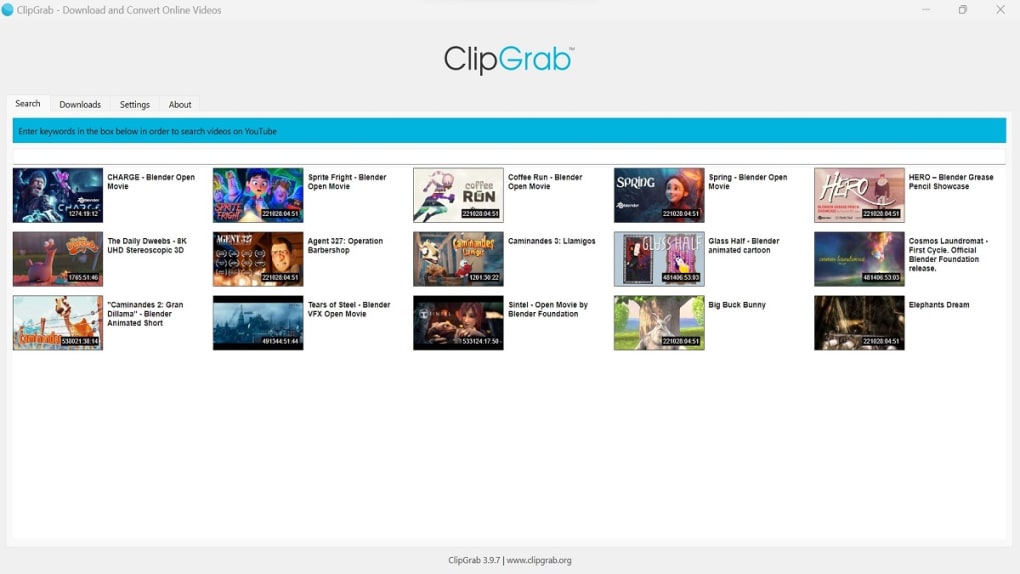
ClipGrab distinguishes itself from other video downloaders through several key features that enhance its usability and efficiency. At its core, ClipGrab offers a straightforward method for downloading videos. Users can either paste a video URL directly into the application or utilize ClipGrab’s integrated search function to locate and download videos directly within the program. This built-in search functionality is a significant advantage, eliminating the need to navigate a web browser to find the desired content. However, it’s important to note that the search results are limited to a maximum of 12 entries.
Beyond its core download functionality, ClipGrab provides several additional features that enhance the overall user experience:
-
Clipboard Monitoring: ClipGrab constantly monitors the system clipboard for URLs. If a video URL is copied to the clipboard, ClipGrab automatically detects it and prompts the user to initiate the download process. This eliminates the need to manually input URLs, streamlining the download workflow, especially for users who frequently download multiple videos.
-
Format Conversion: ClipGrab functions as a versatile converter, allowing users to download videos in various formats including MP3, WMV, OGG Theora, OGG Vorbis, and MPEG4. This flexibility caters to a broad range of devices and user preferences. The ability to convert videos to audio-only MP3 files is particularly useful for saving storage space and extracting audio from music videos or podcasts.
-
Quality Selection: When downloading videos, users can choose the desired quality and resolution. This option allows users to optimize downloads based on their storage capacity and viewing preferences. Choosing a lower resolution can significantly reduce file size without sacrificing the overall viewing experience in many cases. For MP3 downloads, ClipGrab also offers the convenience of adding standard ID3 tags to maintain metadata associated with the audio files.
-
Multiple Website Support: ClipGrab’s versatility extends to its compatibility with a wide range of video-sharing websites. While it’s particularly known as a YouTube downloader, it supports numerous other platforms, including DailyMotion, Vimeo, Clipfish, and more. This broad compatibility ensures users can download content from their preferred sources.
How to Use ClipGrab: A Step-by-Step Guide
The user experience with ClipGrab is designed for simplicity and ease of use. The process of downloading videos is straightforward and intuitive, requiring minimal technical expertise. Here’s a step-by-step guide:
-
Installation: Download the appropriate version of ClipGrab for your operating system (Windows, macOS, or Linux) from the official website. Install the program following the standard installation procedure.
-
Finding the Video: You have two primary options to initiate a download:
-
Direct URL Paste: Copy the URL of the video you wish to download from your web browser. Open ClipGrab, and paste the URL into the provided field. ClipGrab automatically analyzes the URL and identifies the video.
-
Integrated Search: Utilize ClipGrab’s built-in search functionality. Enter a keyword or search phrase related to the video you’re looking for. ClipGrab will display a limited number (maximum 12) of search results. Select the desired video from the search results.
-
-
Choosing the Format and Quality: Once the video is identified, ClipGrab presents a selection of available formats and qualities. Choose the desired format (e.g., MP4, MP3, WMV) and quality (resolution for videos, bitrate for audio). Consider the balance between quality and file size based on your storage space and device capabilities. For MP3 downloads, you can also choose to add ID3 tags.
-
Initiating the Download: After selecting the desired format and quality, click the “Download” button. ClipGrab will initiate the download process, displaying the download progress.
-
Accessing the Downloaded File: Once the download is complete, ClipGrab typically provides options to locate the downloaded file on your computer’s file system.
ClipGrab’s Advantages and Disadvantages
Like any software application, ClipGrab possesses both advantages and disadvantages. Understanding these aspects is crucial for making an informed decision about whether it suits your needs.
Advantages:
-
Simplicity and Ease of Use: ClipGrab’s intuitive interface and straightforward workflow make it accessible to users with varying levels of technical proficiency.
-
Integrated Search Function: The built-in search feature enhances convenience, eliminating the need for separate web browser searches.
-
Versatile Format Conversion: The ability to download and convert videos to multiple formats (including audio-only) significantly improves versatility.
-
Clipboard Monitoring: The automatic detection of URLs copied to the clipboard streamlines the download process, especially beneficial for frequent users.
-
Cross-Platform Compatibility: ClipGrab is available for Windows, macOS, and Linux, catering to a wide range of users.
Disadvantages:
-
Limited Search Results: The search function only displays a maximum of 12 results, which can be limiting compared to comprehensive web searches.
-
Download Speed: While functionality is generally smooth, download speed can be affected by factors such as internet connection speed and server load. In some cases, this can lead to slower downloads compared to other downloaders.
-
Potential for Outdated Information: The integrated search function relies on external data sources. The results may occasionally include outdated information or links to non-functional videos.
ClipGrab Alternatives
While ClipGrab offers a valuable solution for downloading videos, several alternative applications provide comparable or enhanced functionalities. Choosing the right application often depends on individual needs and preferences. Some notable alternatives include:
-
4K Video Downloader: Known for its fast download speeds and support for a wide range of websites, including YouTube, Vimeo, and Facebook. This application also offers features for downloading subtitles and playlists.
-
JDownloader: A powerful open-source download manager that supports many websites and offers advanced features like download scheduling, pause/resume functionality, and parallel downloads.
-
YTD Video Downloader: A popular downloader known for its ease of use and support for multiple formats and quality options. Available for both Windows and macOS.
-
Freemake Video Downloader: This free application supports numerous video platforms, including YouTube, Facebook, and Vimeo, and allows for batch downloads and format conversion.
This comparison highlights the diversity of options available, and the optimal choice often depends on individual priorities and preferences.
In conclusion, ClipGrab offers a practical and user-friendly approach to downloading videos from a range of websites. Its simplicity, combined with its format conversion capabilities, makes it a suitable option for many users. However, users should also consider the limitations and explore alternative solutions to find the best fit for their specific needs and preferences. The choice between ClipGrab and alternative downloaders often hinges on a balance between desired features, ease of use, and download speed.
File Information
- License: “Free”
- Latest update: “February 5, 2025”
- Platform: “Mac”
- OS: “Mac OS X”
- Language: “English”
- Downloads: “333.2K”


