
Clonezilla is a powerful, open-source disk cloning and imaging utility renowned for its efficiency and versatility. Whether you’re a home user needing a simple backup solution or a system administrator managing a large network, Clonezilla offers a robust and flexible approach to data protection and system restoration. This comprehensive guide delves into the features, functionalities, and applications of Clonezilla, exploring its strengths and limitations to help you determine if it’s the right solution for your needs.
Understanding Clonezilla’s Core Functionalities
At its heart, Clonezilla is a disk imaging and cloning program. This means it creates bit-by-bit copies of hard drives or partitions, preserving the entire system state, including the operating system, applications, settings, and user data. This differs from simple file backups, which only copy specific files and folders, leaving out the intricate operating system configurations necessary for a complete system restoration. Clonezilla’s strength lies in its ability to replicate an entire drive or partition, allowing for rapid and complete system recovery in case of hardware failure, accidental data loss, or other catastrophic events.
The process involves creating an image file, essentially a compressed snapshot of your hard drive, which can then be used to restore the system to its exact previous state. This is achieved through a combination of partitioning and imaging techniques, ensuring a faithful replication of the source drive’s structure and content. The resulting image can be stored on a variety of media, including external hard drives, USB drives, network shares, or even cloud storage, depending on your preference and storage capacity.
Clonezilla’s Two Main Versions: Live and Server Edition
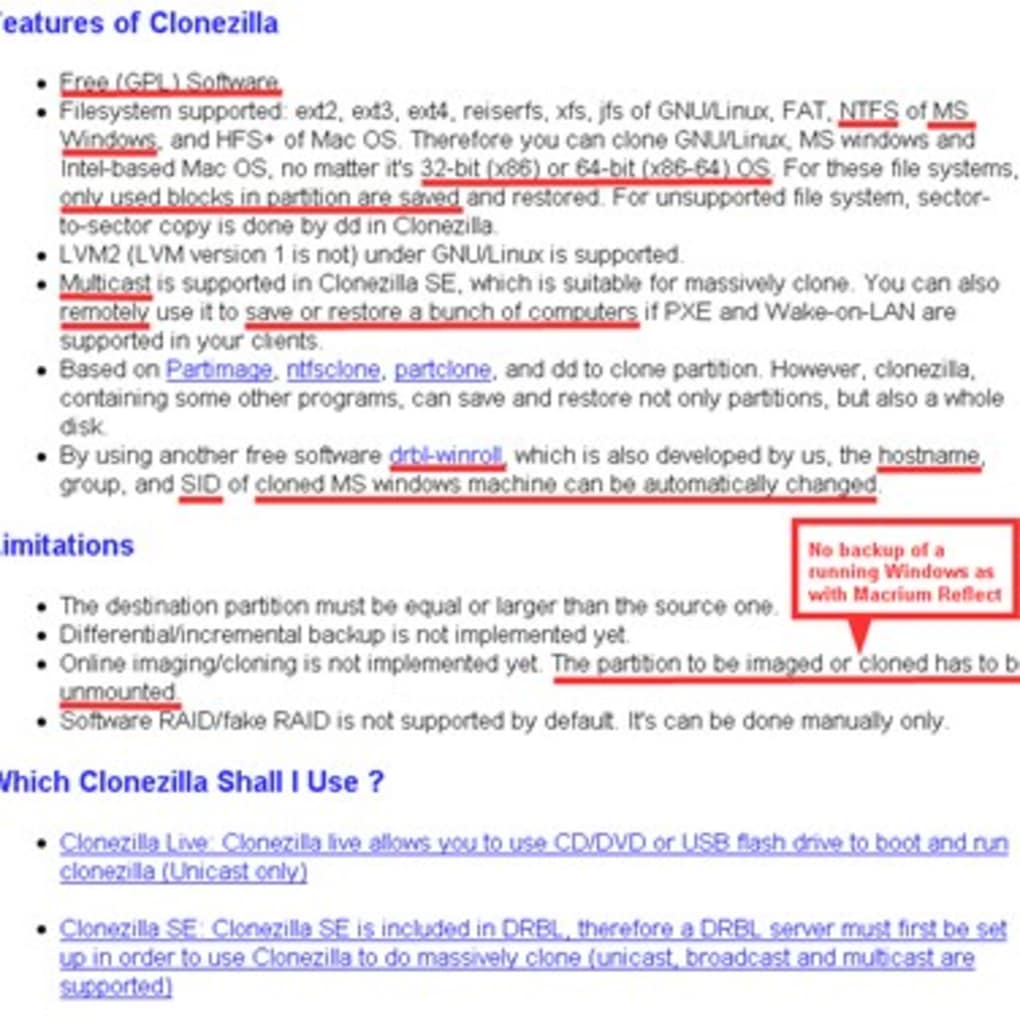
Clonezilla offers two primary versions, each catering to different user needs and deployment scenarios:
-
Clonezilla live: This is the standard version, designed for single-machine backups and restores. It’s ideal for home users, small businesses, or anyone needing to create a backup of their personal computer. The live version boots from a bootable USB drive or CD/DVD, making it independent of the operating system installed on the target machine. This is particularly useful for recovering systems that have become unbootable. The simplicity of Clonezilla live makes it a user-friendly option for those unfamiliar with command-line interfaces or complex system administration tasks.
-
Clonezilla SE (Server Edition): The Server Edition is tailored for large-scale deployments, particularly in enterprise environments. It’s designed for efficient cloning and imaging of multiple machines simultaneously. Clonezilla SE leverages network-based cloning, allowing administrators to clone or restore images to multiple clients across a network, significantly streamlining the process for managing large numbers of computers. This version shines in its ability to manage and automate backups and restores across an entire organization’s computer infrastructure. Its capabilities for multicast restoration allow for incredibly fast deployment, making it an invaluable tool for organizations with many machines to manage.
Both versions support a wide range of file systems, including NTFS (Windows), HFS+ (macOS), ext2/ext3/ext4 (Linux), and others, ensuring broad compatibility across various operating systems. Additionally, both versions support AES-256 encryption, adding an extra layer of security to protect sensitive data during backup, storage, and transfer.
Advanced Features and Capabilities
Beyond its core cloning and imaging functions, Clonezilla boasts several advanced features that enhance its functionality and adaptability:
-
Multiple Image Restoration: Clonezilla allows restoring a single image to multiple local devices, useful for deploying a standardized system image across multiple machines quickly. This is a significant advantage, particularly for organizations deploying identical workstations or servers.
-
PXE (Preboot Execution Environment) Support: The ability to boot via PXE allows for network-based cloning and restoration, further enhancing Clonezilla SE’s capabilities in a networked environment.
-
Versatile Boot Options: Clonezilla can be booted from a variety of media, including USB drives, CD/DVDs, and via PXE, offering flexibility depending on the hardware available.
-
Support for Various File Systems: Clonezilla’s compatibility with numerous file systems ensures broader application across diverse environments.
-
AES-256 Encryption: The integrated AES-256 encryption provides data security and integrity, protecting sensitive information throughout the backup and restoration process.
-
Command-Line Interface: While the user interface is relatively straightforward, Clonezilla also utilizes a command-line interface, offering greater control and automation options for experienced users.
System Requirements and Hardware Considerations
The hardware requirements for Clonezilla are relatively modest. A functional CD/DVD drive or a USB port is essential for booting the live version. For the Server Edition, network connectivity is vital for its network-based cloning capabilities. The available memory and processing power will impact the speed of the cloning and restoration process. Larger drives and more complex systems will necessitate higher specifications for efficient operation. However, Clonezilla’s efficiency is often noted even on older hardware.
Clonezilla vs. Other Backup Solutions: Advantages and Disadvantages
Compared to commercial backup software, Clonezilla stands out for its:
-
Cost: Clonezilla is completely free and open-source, eliminating the cost of licensing that can be significant with proprietary software.
-
Flexibility: Its compatibility with various file systems and operating systems offers unparalleled adaptability.
-
Efficiency: Especially in the Server Edition, its network-based cloning and multicast restoration significantly speed up the process for large-scale deployments.
However, Clonezilla also has limitations:
-
Lack of Incremental Backups: Unlike some commercial solutions, Clonezilla does not support incremental backups, meaning it creates a full image each time. This can be time-consuming for frequent backups.
-
Steeper Learning Curve (for SE): While the live version is user-friendly, the Server Edition may require a greater understanding of networking and command-line interfaces.
-
Manual Processes: Many tasks, particularly with the live version, require manual intervention and a degree of technical expertise. Automation is less integrated than in some commercial counterparts.
-
Partition Size Limitation: Each partition being imaged needs to have at least half the free space on the target disk.
Conclusion: Is Clonezilla Right for You?
Clonezilla is a robust and versatile tool for disk cloning and system imaging. Its free and open-source nature, combined with its powerful features and broad compatibility, make it an attractive option for a wide range of users. The live version is ideal for individuals and small businesses needing a reliable backup solution, while the Server Edition caters to larger organizations requiring efficient, large-scale deployment capabilities. However, the absence of incremental backups and the need for some technical expertise may make it less suitable for users who prefer a more automated and user-friendly experience. Ultimately, the decision of whether or not to use Clonezilla depends on your specific needs, technical skills, and budget. Its strengths lie in its power and cost-effectiveness, whereas its limitations reside in the need for a higher level of technical knowledge and manual intervention compared to commercial alternatives. If you are comfortable with a command-line interface and prioritizing cost savings over ease-of-use, Clonezilla remains a highly capable option.
File Information
- License: “Free”
- Version: “varies-with-device”
- Latest update: “March 29, 2017”
- Platform: “Windows”
- OS: “Windows 7”
- Language: “English”
- Downloads: “13.7K”


