
CloudReady Home Edition is a free, versatile operating system that breathes new life into aging Windows or macOS computers. By transforming them into efficient Chrome devices, it offers a cost-effective solution for extending the lifespan of older hardware and providing a modern computing experience. Built upon Google’s open-source Chromium OS, CloudReady Home Edition delivers a user interface remarkably similar to Chromebooks, offering familiar functionality and ease of use. However, it’s crucial to understand the key distinctions between CloudReady Home Edition and the official Chrome OS.
Understanding the Differences Between CloudReady Home Edition and Chrome OS
While CloudReady Home Edition shares a strong resemblance to Chrome OS due to its foundation in Chromium OS, several critical differences exist. These distinctions stem from its design as a downloadable operating system installable on existing hardware, rather than a pre-installed OS on dedicated Chromebook devices.
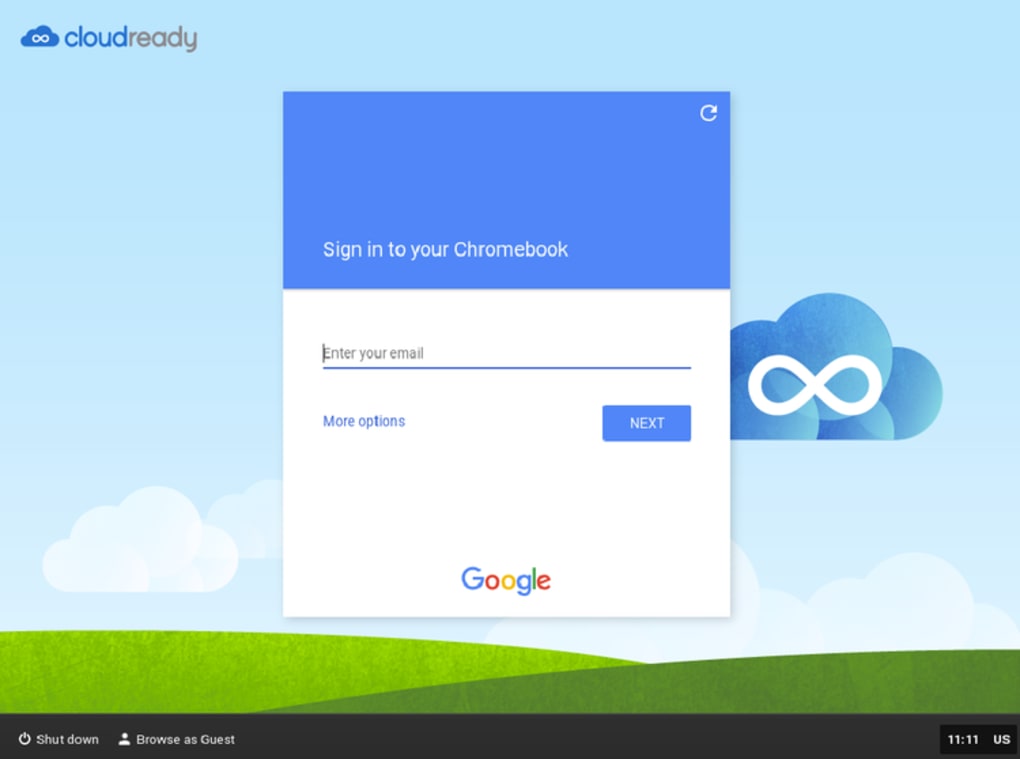
Installation and Hardware Compatibility: CloudReady Home Edition’s primary advantage lies in its flexibility. Unlike Chrome OS, which is exclusively available on certified Chromebook hardware, CloudReady Home Edition can be installed on a wide range of existing PCs and Macs. This allows users to revitalize older machines without the need for new hardware purchases. The ability to breathe new life into older hardware makes it a remarkably eco-friendly option, reducing e-waste and extending the useful life of existing technology.
Application Support and Functionality: One significant difference is application support. While both operating systems are built upon Chromium, CloudReady Home Edition lacks access to the Google Play Store and therefore cannot run Android applications. This limitation is a trade-off for its broad hardware compatibility. Chrome OS, on the other hand, often integrates with the Google Play Store, offering a wider range of apps and functionalities. This means that while CloudReady provides a streamlined Chrome experience, users accustomed to Android applications will find this a significant limitation.
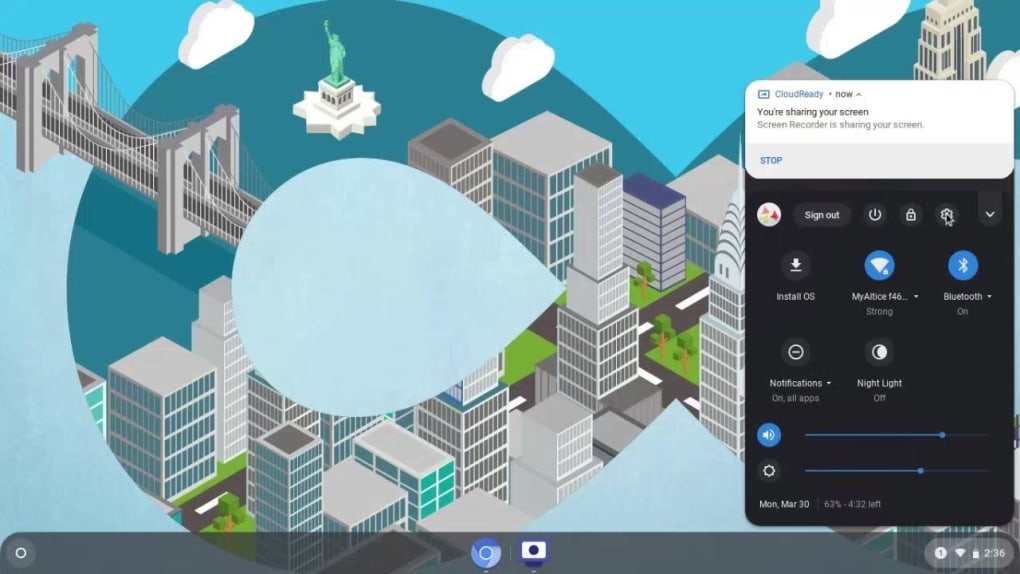
Virtual Machine Support and System Policies: Another key difference lies in the lack of support for virtual machine integration in CloudReady Home Edition. Some Chrome OS devices offer capabilities to run local virtual machines, such as Windows, through Parallels or similar software. This functionality is not available in CloudReady Home Edition. Furthermore, CloudReady Home Edition does not implement the Forced Re-Enrollment policy found in Chrome OS. This policy, intended to enhance security, isn’t necessary in CloudReady’s context.
Data Reset and Security: The methods for resetting a device also differ. Chromebooks typically utilize powerwashing to erase data, while CloudReady Home Edition recommends a clean reinstallation from a USB drive for a complete system reset. Concerning security, Chrome OS commonly employs Trusted Platform Modules (TPMs) for encryption. While some desktops possess TPMs, CloudReady Home Edition uses software encryption as an alternative for devices lacking this hardware-based security feature. This reliance on software encryption represents a potential vulnerability compared to the hardware-based security provided by TPMs in Chrome OS, although the software encryption used is likely robust. The user should be aware of this difference and take appropriate precautions.
Boosting Your PC’s Performance with CloudReady Home Edition
CloudReady Home Edition’s primary appeal lies in its ability to rejuvenate older PCs, transforming them into responsive and efficient Chrome-based machines. Before installation, it’s essential to verify several prerequisites. Checking system requirements, network connectivity, and compatibility are crucial steps to ensure a successful installation.
Installation Process: Once the necessary checks are completed, the installer can be created using one of two methods: downloading the official USB Maker tool or manually creating the USB installer. The official USB Maker tool streamlines the process, providing a user-friendly interface for creating the bootable USB drive. The manual method requires more technical expertise and involves formatting the USB drive and transferring the CloudReady image files correctly. Following the instructions carefully is essential in both cases.
Advantages and Considerations of Using CloudReady Home Edition
Pros:
- Revitalizes Old PCs: Transforms outdated computers into functional Chrome devices, extending the lifespan of existing hardware and minimizing e-waste.
- Chromium OS Foundation: Built on a stable and secure foundation, inheriting the inherent security and stability of the Chromium OS platform.
- Flexible and Adaptable: Can be installed on a broad range of existing PC and Mac hardware, offering greater compatibility than Chrome OS.
- Familiar User Experience: Provides a user-friendly interface largely identical to the Chrome OS environment, offering ease of use for those familiar with Chromebooks.
- Cost-Effective Solution: A budget-friendly alternative to purchasing new computers, allowing for significant cost savings.
Cons:
- No Google Play Store Access: Cannot install or run Android applications, limiting access to the vast Android application ecosystem.
- Limited Virtual Machine Support: Does not offer support for running virtual machines, restricting the capability to run other operating systems concurrently.
- Alternative Data Reset Method: Requires reinstallation from USB for a full system reset, unlike the powerwashing method used in Chrome OS.
- Software Encryption Dependence: Relies on software encryption for security in devices without TPMs, potentially posing a slightly increased vulnerability compared to hardware-based TPM encryption used in Chrome OS.
Conclusion: A Powerful Tool for Extending the Life of Your Computer
CloudReady Home Edition presents a compelling solution for users looking to breathe new life into older computers. By offering a familiar Chrome OS-like experience without the limitations of operating exclusively on certified Chromebook hardware, it provides a powerful and cost-effective approach to updating existing systems. However, users should carefully consider the limitations, specifically the lack of Android application support and the absence of some features found in Chrome OS. The decision to utilize CloudReady Home Edition hinges on the user’s priorities and hardware considerations. If the goal is to revitalize an older PC with a familiar, streamlined Chrome experience, CloudReady Home Edition is a worthy contender. However, users requiring Android app support or virtual machine capabilities will need to explore alternative options. Ultimately, CloudReady Home Edition provides a practical and often superior solution for extending the usable life of older computers, offering a balance between functionality and affordability.
File Information
- License: “Free”
- Latest update: “July 11, 2023”
- Platform: “Windows”
- OS: “Windows 11”
- Language: “English”
- Downloads: “10.5K”
- Size: “47.97 MB”


