
Context Menu Editor is a free Windows utility designed to streamline and simplify the management of your system’s context menus. These are the pop-up menus that appear when you right-click on files, folders, or within applications like Internet Explorer. Over time, these menus can become cluttered with entries from uninstalled programs, obsolete applications, or simply too many options. Context Menu Editor provides a straightforward solution to clean up this clutter, enhancing both the usability and efficiency of your Windows experience.
Understanding Context Menus and Their Importance
Context menus are a fundamental part of the Windows user interface, offering quick access to commonly used actions related to the selected item. They’re designed for efficiency, providing a context-sensitive list of commands. However, this very design can lead to a buildup of redundant or unwanted entries. Every program you install often adds its own entries, and as you uninstall programs, these entries may persist, leading to an increasingly unwieldy and confusing menu.
This accumulation of extraneous entries not only clutters the context menu, making it difficult to find the desired option, but it also potentially impacts system performance. While the impact might be negligible with a small number of extra entries, a heavily cluttered context menu can lead to slight delays when opening the menu, especially on less powerful systems.
The importance of a clean and efficient context menu extends beyond mere aesthetics. It directly affects productivity. A streamlined context menu saves time and reduces frustration, allowing users to locate and execute desired actions quickly and efficiently. This is especially crucial for power users and those who frequently interact with their file systems.
Key Features of Context Menu Editor
Context Menu Editor’s primary function is the removal of unwanted context menu entries. It doesn’t remove the underlying programs themselves; instead, it meticulously targets and removes only the links from the context menu, leaving the program files untouched. This selective removal is a critical distinction, offering users a safe way to clean up their menus without accidentally deleting crucial system components.
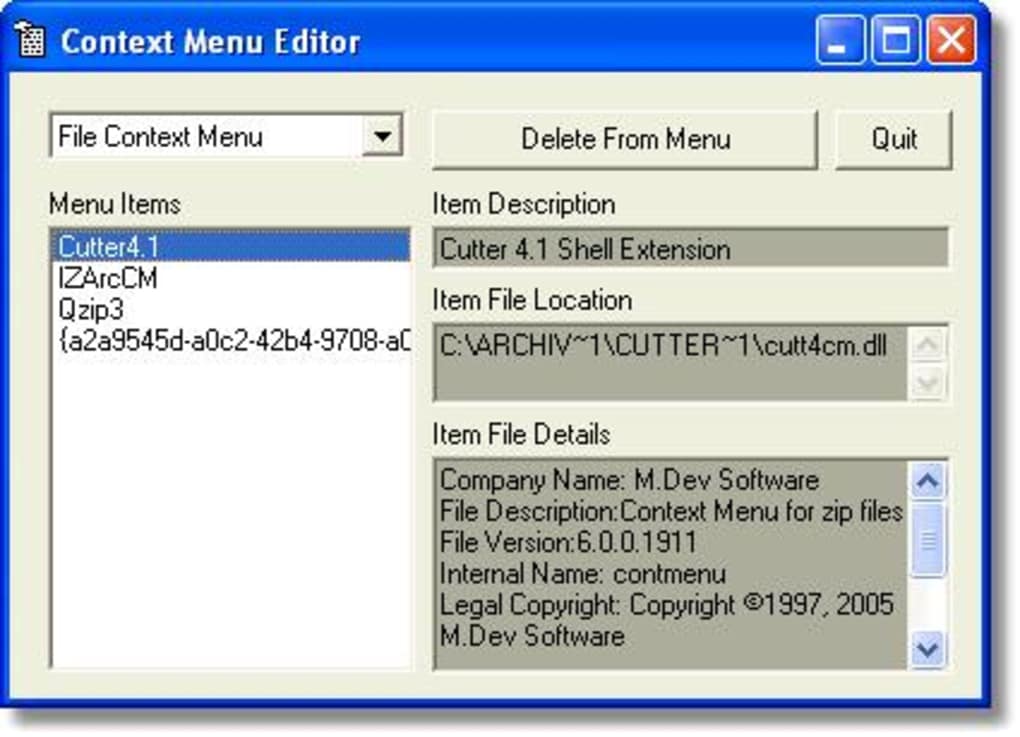
Viewing and Deleting Context Menu Entries: The core strength of Context Menu Editor lies in its ability to display all the entries that make up the context menu. This detailed view allows users to meticulously identify and remove only the items they wish to eliminate. This precision is vital as mistakenly removing a critical system entry can lead to unexpected issues.
Context-Specific Menu Management: The program allows for managing context menus related to various contexts, including:
- File Context Menus: Customize the menu that appears when you right-click on individual files.
- Folder Context Menus: Manage the options presented when right-clicking on folders.
- Internet Explorer Context Menus: Clean up the context menu within Internet Explorer, focusing on eliminating entries specific to that browser.
This targeted approach ensures users can tailor their context menus to their specific needs and preferences. They can address clutter in specific areas, without affecting other parts of the system’s menus.
Caution: Irreversible Deletions: A key aspect to understand is that the deletions performed by Context Menu Editor are irreversible. Once an entry is removed, it is not possible to simply undo the change. This highlights the importance of exercising caution and making informed decisions before deleting any entries. If a crucial entry is unintentionally removed, the affected program may need to be reinstalled to restore the context menu entry. Users should take the time to carefully review the listed entries before deleting any of them. Keeping a record of what’s removed is advisable as a precaution.
Alternatives and Comparisons to Other Context Menu Managers
While Context Menu Editor offers a focused and effective solution, several other tools cater to similar needs, each with its strengths and weaknesses.
MenuMaid: This program also aims to clean up cluttered context menus. Its ease of use makes it suitable for novice users. However, Context Menu Editor’s more granular control over specific context menu types (files, folders, Internet Explorer) may be more appealing to those needing detailed management.
ShellExView: A powerful tool for viewing and managing system shell extensions, ShellExView provides a more comprehensive view of the underlying components that contribute to context menus. While its functionality extends beyond simple context menu management, this can feel overwhelming for casual users who only want to clean up their menus. It’s a more advanced tool requiring a higher level of technical understanding.
Ultimate Windows Context Menu Customizer: As the name suggests, this tool allows for extensive customization of Windows context menus. While powerful, it might be overkill for users seeking a simple solution. Its expansive feature set can be daunting for those just seeking basic context menu cleanup.
In comparison, Context Menu Editor strikes a balance between simplicity and effectiveness. Its ease of use, coupled with the ability to selectively target specific context menu types, makes it an attractive choice for many users.
Using Context Menu Editor: A Step-by-Step Guide
-
Download and Installation: The installation process for Context Menu Editor is typically straightforward. Download the program from a reputable source and follow the on-screen instructions.
-
Launching the Application: After installation, launch Context Menu Editor. The interface is generally intuitive and easy to navigate.
-
Viewing Context Menu Entries: The program will present a list of context menu entries, categorized by context (files, folders, etc.). Take your time to review this list, paying close attention to the entries listed.
-
Selecting Entries for Deletion: Carefully select the entries you wish to remove. Remember that this action is irreversible. If you’re unsure about an entry, it’s best to leave it in place.
-
Deleting Selected Entries: After selecting the unwanted entries, initiate the deletion process. The program typically provides a confirmation dialog before completing the deletion, allowing one last chance for verification.
-
Restarting Explorer: To apply the changes, it’s usually necessary to restart Windows Explorer. This can often be accomplished by simply closing and reopening file explorer windows.
-
Verification: After restarting Explorer, right-click on various files and folders to verify that the unwanted entries have been successfully removed.
Conclusion: Maintaining a Clean and Efficient Windows Experience
Context Menu Editor provides a simple yet effective solution for managing and cleaning up cluttered context menus in Windows. Its focus on precise and targeted removal of unwanted entries makes it a valuable tool for users who want to optimize their Windows experience. While it’s important to exercise caution and remember that deletions are irreversible, the ability to selectively manage context menus across different contexts offers users a considerable degree of control and customization. By using Context Menu Editor responsibly, users can dramatically improve the efficiency and usability of their Windows system, saving time and reducing frustration. Remember to always back up your system before making significant changes to system settings or registry entries. This precautionary step offers a safeguard against unforeseen issues.
File Information
- License: “Free”
- Version: “1.0”
- Latest update: “March 9, 2017”
- Platform: “Windows”
- OS: “Windows ME”
- Language: “English”
- Downloads: “5.2K”
- Size: “754.41 KB”


