
Screen rotation is a fundamental feature of modern smartphones and tablets, allowing users to seamlessly switch between portrait and landscape modes depending on the application or activity. However, the automatic screen rotation feature isn’t always desirable. Sometimes, you might prefer to lock your screen in a specific orientation, whether for better viewing in a particular scenario, to conserve battery life, or simply for personal preference. This is where screen rotation control apps, like “Control Screen Rotation,” come into play. This article provides a detailed analysis of screen rotation control applications, focusing on the functionalities, advantages, and potential drawbacks. We’ll explore the features offered by “Control Screen Rotation” and compare it to other similar applications available on the Android platform.
Understanding Screen Rotation on Android
Android devices typically offer automatic screen rotation, which senses the device’s orientation and automatically adjusts the screen accordingly. This functionality is generally convenient, automatically adapting the display to optimize viewing for different activities, such as watching videos in landscape mode or reading text in portrait mode. However, this automatic rotation can sometimes be disruptive or inconvenient. For instance, when watching videos while lying down, the screen might keep rotating as you adjust your position, interrupting the viewing experience. Similarly, reading in portrait mode may be preferred for better readability, even when holding the device at an angle.
The automatic screen rotation feature is often controlled by a sensor within the device that detects its orientation relative to gravity. This sensor constantly monitors the device’s position and triggers the rotation accordingly. However, this constant monitoring can contribute to slightly higher battery consumption. The precise impact on battery life is generally minimal, but it can be a consideration for users striving for optimal battery performance.
Manually disabling automatic screen rotation is usually possible through the system settings. This generally locks the screen orientation in the current position, regardless of the device’s physical orientation. However, this method lacks the convenience and flexibility of dedicated screen rotation control applications.
Introducing Control Screen Rotation: Features and Functionalities
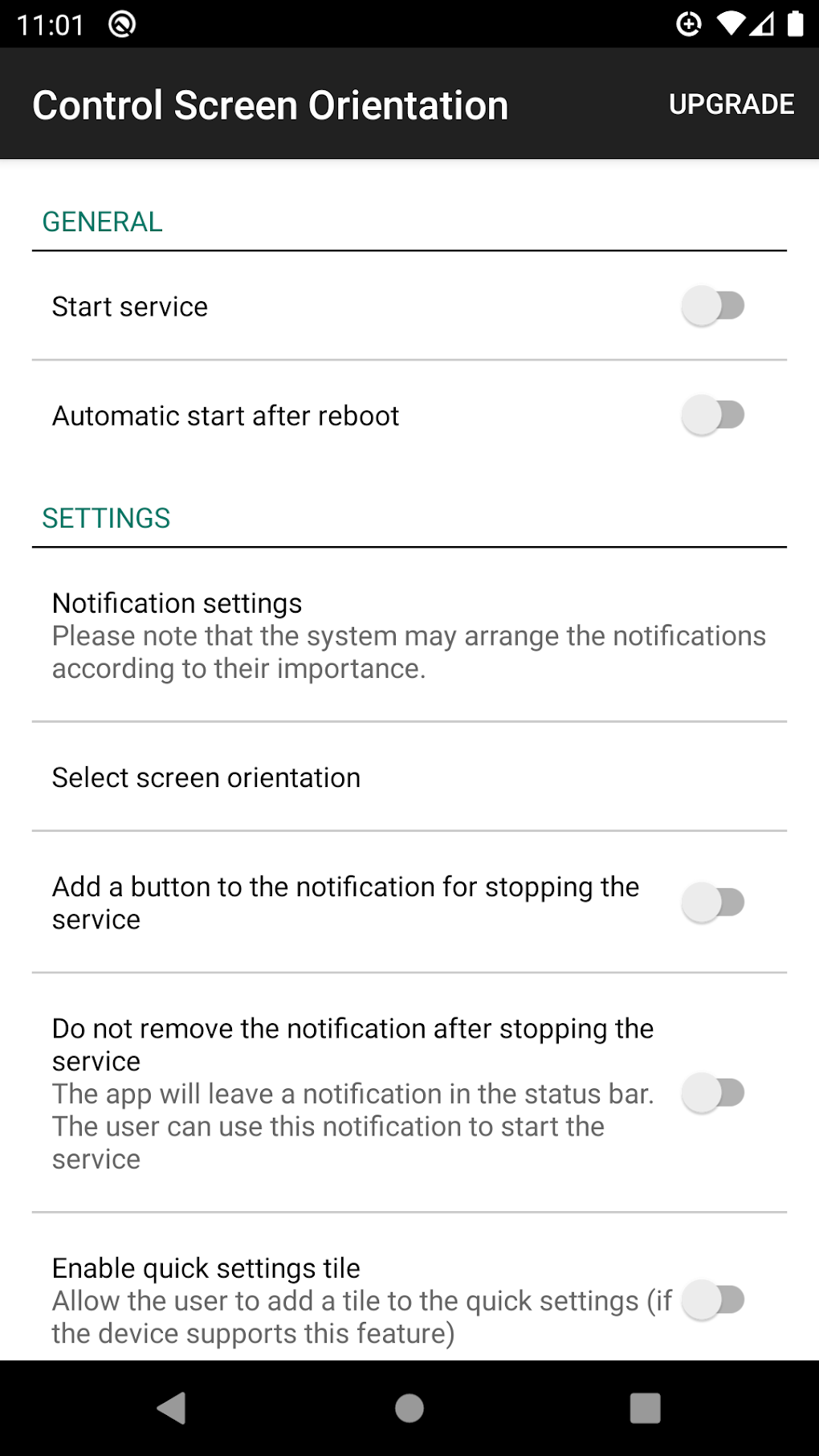
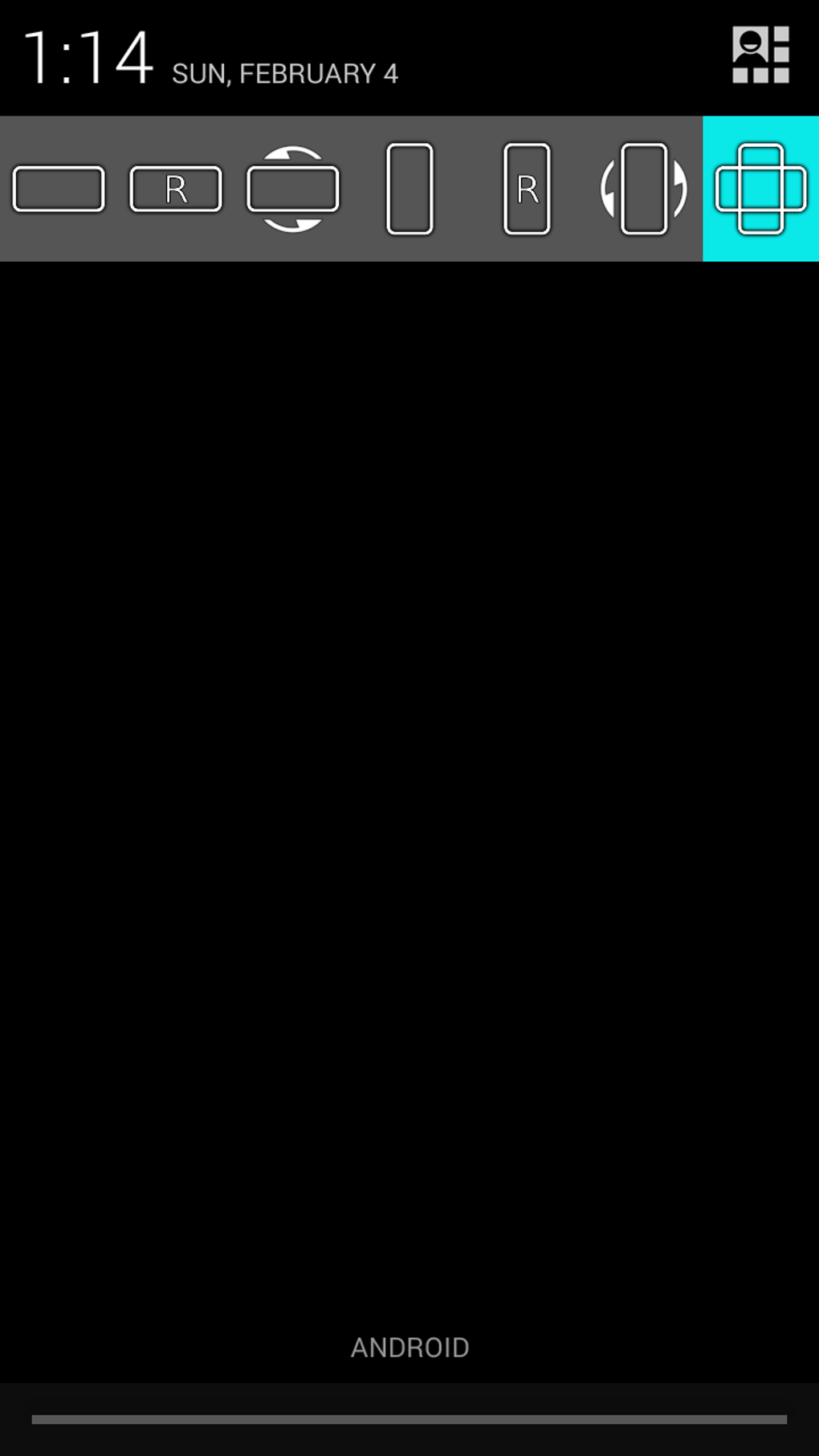
“Control Screen Rotation,” developed by ah_apps, is a free utility application designed to offer a more refined and convenient control over screen orientation on Android devices. Unlike relying solely on the built-in system settings, this app provides a quick and easy way to manage screen rotation directly from the notification bar. This allows for instant toggling between different rotation modes without navigating through multiple system menus.
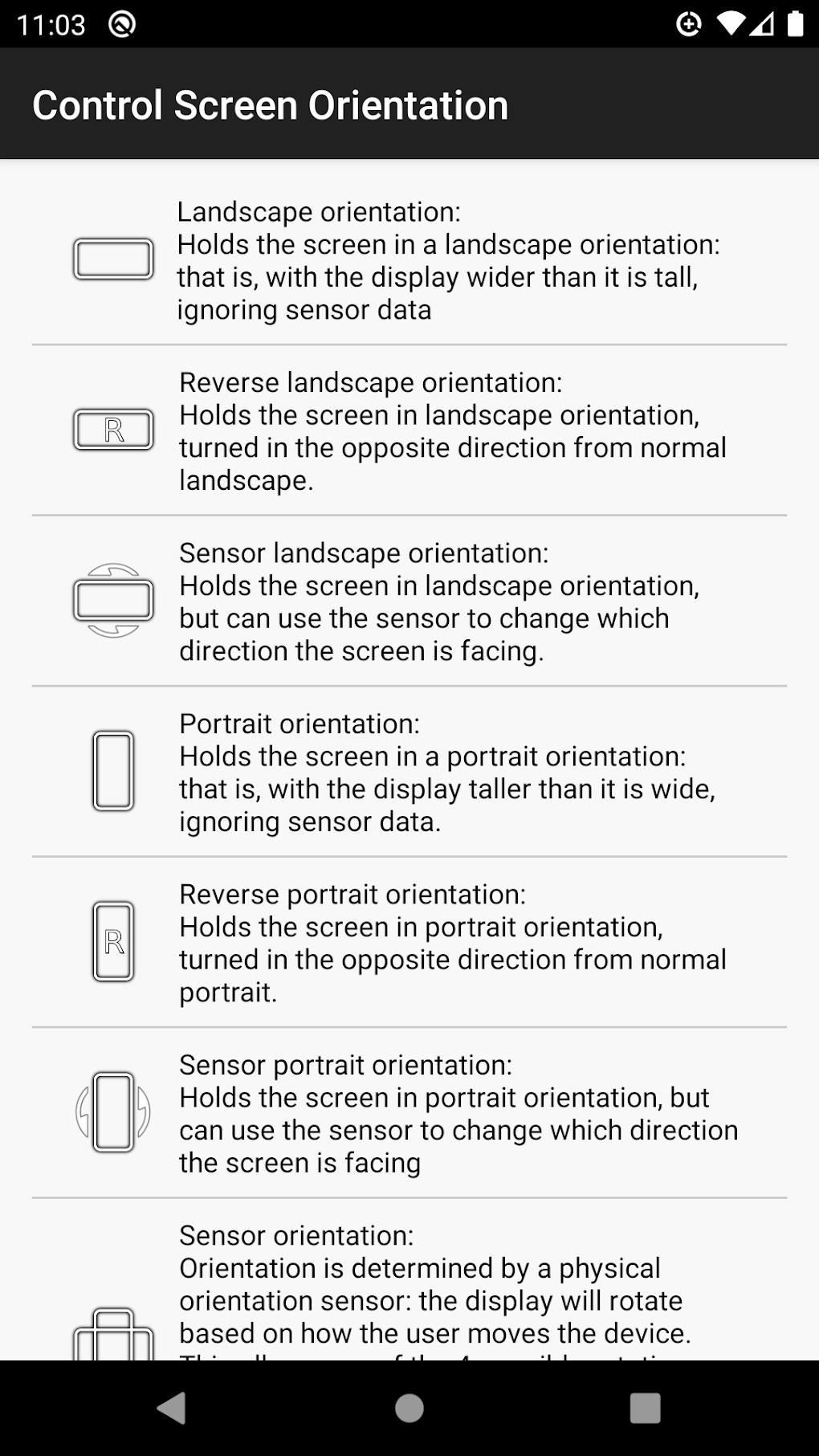
The app’s core functionality centers around its preset rotation modes. These presets offer various levels of control, catering to different user preferences and scenarios. The seven predefined options include:
- Portrait: Locks the screen in portrait orientation, regardless of the device’s physical position. This is ideal for reading or using applications designed for vertical viewing.
-
Landscape: Locks the screen in landscape orientation. This is generally preferred for watching videos, playing games, or using applications optimized for horizontal viewing.
-
Auto-rotate: This is the standard automatic screen rotation mode, allowing the screen to dynamically switch between portrait and landscape based on the device’s orientation.
-
Reverse Portrait: This option inverts the standard portrait orientation, effectively turning the screen upside down. This can be useful in specific niche situations, though less common than other modes.
-
Reverse Landscape: This mirrors the standard landscape orientation, presenting a flipped horizontal view. Similar to reverse portrait, its utility is more specific.
-
Sensor-based Portrait: This mode uses the orientation sensor but only allows changes to portrait orientation. The screen will remain in portrait unless rotated 180 degrees, and will switch back to the initial orientation if rotated 180 degrees back.
-
Sensor-based Landscape: Similar to sensor-based portrait, this mode utilizes the orientation sensor but only allows switching within landscape orientation. The screen will remain in landscape, unless rotated 180 degrees from its initial position.
This range of presets offers unparalleled flexibility, ensuring users can find the ideal orientation setting for almost any situation. The ability to quickly switch between these modes via the notification bar significantly enhances usability.
Advantages of Using Control Screen Rotation
The primary advantage of “Control Screen Rotation” is its convenience. The quick toggle within the notification bar allows for instant adjustments to screen orientation without needing to delve into system settings. This is particularly beneficial for users who frequently switch between different screen orientations.
Secondly, the app’s diverse range of presets addresses a wide spectrum of user needs and preferences. Whether you need a simple portrait or landscape lock, or a more nuanced sensor-based approach, “Control Screen Rotation” provides the option to match your specific requirements. This level of control surpasses what’s typically offered by the default Android settings.
Thirdly, its lightweight nature ensures minimal impact on system performance and battery life. The app is designed to be efficient, consuming minimal resources.
Potential Drawbacks and Limitations
While “Control Screen Rotation” offers many benefits, it’s not without potential drawbacks. User reviews indicate occasional instances of the application causing a black screen, suggesting some instability or incompatibility with certain devices or apps. This indicates that while generally reliable, there might be situations where the app fails to function correctly. The frequency of these issues is not extensively documented, but it’s a point to consider.
Another potential issue is that the app’s functionality relies heavily on the device’s orientation sensors. If these sensors are malfunctioning or inaccurate, the app’s performance may be negatively affected. This is a limitation inherent to any application dependent on sensor data. Calibration of the device’s sensors might be necessary to resolve potential issues related to inaccurate readings.
Alternatives to Control Screen Rotation
Several alternative applications offer similar screen rotation control features. Some popular options include:
- Rotation Control: This app offers a streamlined interface with options for quick toggling between portrait, landscape, and auto-rotate.
-
Force Rotation: Auto-rotate: This application focuses on forcing rotation even when specific apps restrict it, which may be useful in some situations.
-
Screen Orientation Control: This app provides basic controls similar to “Control Screen Rotation,” allowing users to lock the screen in portrait or landscape modes.
-
Screen Orientations: This app offers a broader array of orientation controls, including custom settings and sensor-based options.
When choosing an alternative, factors such as the interface, feature set, and user reviews should be carefully considered to ensure it meets your specific needs.
Conclusion
“Control Screen Rotation” offers a convenient and versatile solution for managing screen orientation on Android devices. Its quick access via the notification bar, combined with a comprehensive set of presets, makes it a valuable tool for users seeking more refined control over their screen rotation. However, the occasional reports of black screen issues warrant careful consideration. Prospective users should weigh the potential benefits against the potential drawbacks, and potentially explore alternative applications to find the optimal solution for their needs. The best choice will depend on individual requirements and preferences, taking into account factors such as the interface, stability, and the range of offered features. Thorough research and evaluation of user reviews are recommended before installing any screen rotation control app.
File Information
- License: “Free”
- Latest update: “June 12, 2025”
- Platform: “Android”
- OS: “Android 13.0”
- Downloads: “18.5K”
- Size: “3.33 MB”
- Download Options: “APK, Google Play”
- Filename: “ahapps-controlthescreenorientation-22-70857940-ca3723b53c17e00c8f269779e45116d8.apk”


