
ControlMyMonitor is a free, lightweight utility for Windows that provides extensive control over your monitor’s settings, often referred to as Video Controller Panel (VCP) features. This powerful tool, developed by NirSoft, allows users to fine-tune various aspects of their display, offering a level of customization not readily available through standard Windows settings. Whether you’re a seasoned tech enthusiast or a casual user seeking improved visual comfort, ControlMyMonitor empowers you to take charge of your monitor’s performance and appearance.
Accessing and Modifying Monitor Settings
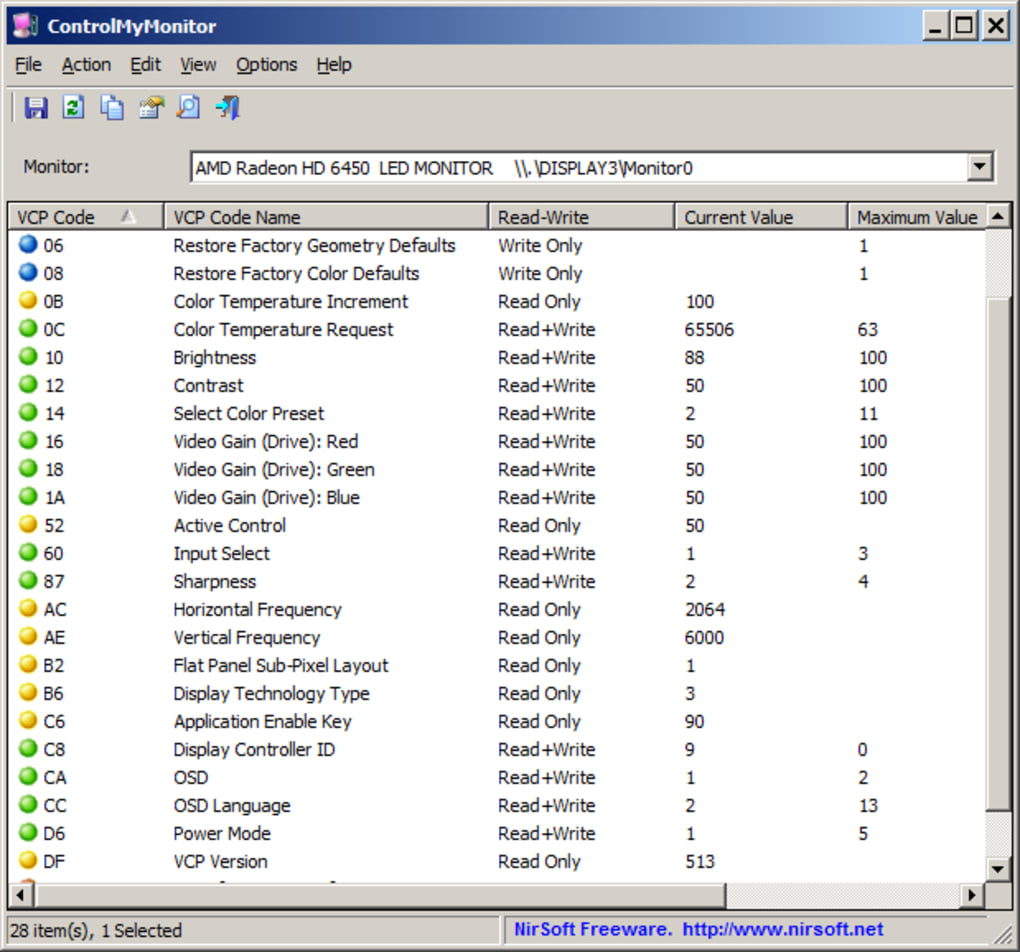
ControlMyMonitor’s interface, while admittedly dated in its visual style, is remarkably intuitive and easy to navigate. The program presents a straightforward list of configurable monitor settings. Modifying a setting is as simple as selecting it from the list and then either double-clicking the entry or pressing the F6 key to access its adjustment menu. For even quicker adjustments, you can right-click on an item to reveal a context menu with “Increase Value” and “Decrease Value” options. Alternatively, using the mouse scroll wheel while holding down the CTRL key provides another convenient method for incremental adjustments.
The range of settings ControlMyMonitor allows you to manipulate is extensive. You gain precise control over parameters such as:
-
Brightness: Adjust the overall luminance of your screen for optimal viewing comfort in different lighting conditions. Fine-tune the brightness level to minimize eye strain and enhance visual clarity.
-
Contrast: Control the difference between the darkest and brightest areas on the screen. Adjusting contrast allows for richer blacks, more vibrant colors, and improved image detail.
-
Sharpness: Enhance the definition and clarity of images and text displayed on your monitor. Fine-tuning sharpness can help to reduce blurriness and create a crisper visual experience.
-
Color Presets: Select from pre-defined color profiles designed for various applications and usage scenarios. Options might include presets optimized for gaming, photo editing, or general use.
-
RGB Color Balance: Individually adjust the intensity of red, green, and blue color components. This allows for precise color calibration to achieve accurate color reproduction tailored to your preferences.
-
Color Temperature: Adjust the overall color tone of the display. Options range from warmer (more orange/yellow hues) to cooler (more blue/white hues) settings, influencing the ambiance and perceived visual temperature.
-
Horizontal and Vertical Frequencies: These settings control the refresh rate of your monitor, affecting the smoothness of motion and the clarity of moving images. Adjusting these values (within the monitor’s supported range) can improve image fluidity, particularly beneficial for gaming.
Beyond these individual adjustments, ControlMyMonitor offers a crucial feature: the ability to export and import monitor settings profiles. This allows you to save your customized settings as a configuration file. This file can then be loaded onto other compatible monitors, preserving your preferred visual experience across multiple devices. This is especially useful when switching between monitors or using the same settings on different systems.
ControlMyMonitor: A Powerful Tool for Every User
ControlMyMonitor’s strength lies in its accessibility and comprehensive feature set. Its intuitive design caters to users of all technical skill levels, allowing everyone to benefit from precise monitor control. The various methods of adjusting settings – mouse clicks, keyboard shortcuts, and scroll wheel manipulation – ensure ease of use, regardless of user preference.
The program’s completely free nature makes it a highly attractive option, offering a level of customization that would typically require paid professional calibration tools. The ability to save and load profiles adds a layer of convenience that significantly increases its practicality for users with multiple monitors or those who frequently switch between different displays.
Advantages and Disadvantages of Using ControlMyMonitor
Pros:
- Free: ControlMyMonitor is completely free to download and use without any limitations or hidden costs.
-
Comprehensive Control: Offers extensive customization options for various VCP features, allowing for precise fine-tuning of monitor settings.
-
Intuitive Interface: The user-friendly design makes the program easy to navigate and use, regardless of technical expertise.
-
Multiple Input Methods: Supports multiple ways to adjust settings, catering to different user preferences.
-
Profile Export/Import: Allows for easy saving and loading of customized monitor configurations, making it ideal for users with multiple monitors or those who frequently change displays.
-
Lightweight: Consumes minimal system resources, ensuring smooth operation without impacting system performance.
Cons:
-
Outdated Interface: The visual design of the program is relatively outdated, lacking the modern aesthetic of many contemporary software applications. This is purely a cosmetic issue and does not affect functionality.
-
Limited Documentation: While the program is intuitive, comprehensive online documentation might enhance the user experience.
Alternatives to ControlMyMonitor
While ControlMyMonitor offers a compelling solution for monitor control, several alternative applications exist. These alternatives often provide similar functionality but may feature different interfaces or sets of capabilities. Some examples include:
-
Gamma Panel: Focuses specifically on gamma adjustment, allowing precise control over the luminance range.
-
Monitor Plus: Provides a basic level of control over brightness, contrast, and color temperature.
-
ClickMonitorDDC: Offers another approach to manipulating monitor settings, potentially providing alternative capabilities or a different interface.
These alternatives may offer features not found in ControlMyMonitor, or they may be better suited to users with specific needs. However, ControlMyMonitor’s combination of free access, extensive functionality, and user-friendly interface makes it a strong contender in this category.
Choosing the right monitor control utility depends largely on individual needs and preferences. If you require extensive control over your monitor’s settings in a user-friendly and free application, ControlMyMonitor remains an excellent choice. However, exploring the alternatives may uncover features tailored to specific requirements or preferences. Ultimately, the best option is the one that meets your individual demands and enhances your computing experience.
File Information
- License: “Free”
- Version: “1.35”
- Latest update: “February 28, 2022”
- Platform: “Windows”
- OS: “Windows 8”
- Language: “English”
- Downloads: “2K”
- Size: “78.40 KB”


