
MP3 Converter is a free audio file converter for Windows, similar to Total Audio Converter or MP3 Converter. Its primary function is transforming audio files from one format to another, specifically focusing on MP3 conversions. It’s not a video-to-audio converter; its capabilities are strictly limited to sound files. This review delves into the software’s features, usability, pros, and cons, offering a detailed assessment of its performance and value.
Functionality and Supported Formats
MP3 Converter allows for bidirectional conversion between MP3 and a variety of other audio formats. You can convert MP3 files to formats such as AC, AC3, AIFF, AMR, AU, FLAC, M4A, MP2, OGG, WAV, and WMA. Conversely, it supports converting AC, WAV, WMA, MPA, MPC, APE, OFR, OGG, CDA, FLAC, M4A, MID, MKA, MP2, RA, WV, TTA, AC3, and DTS files to MP3. This broad range of supported formats makes it a versatile tool for managing and converting your audio library. The ability to handle multiple file formats in both directions is a significant advantage over some more limited converters.
The software’s core strength lies in its straightforward approach to audio conversion. There are no complex settings or advanced editing features; it’s designed for users who need a simple and efficient method for changing audio file formats. This simplicity, however, could be considered a limitation for users who need more sophisticated editing tools or effects.
Installation and Interface
The installation process for MP3 Converter is straightforward. After downloading the installer, you simply run the executable file, select your preferred language (including English and Spanish, among others), and follow the on-screen instructions. The installer typically guides you through a series of simple steps, leading to the completion of the installation. There are no unusual or difficult steps, making it accessible to users with varying levels of technical expertise.
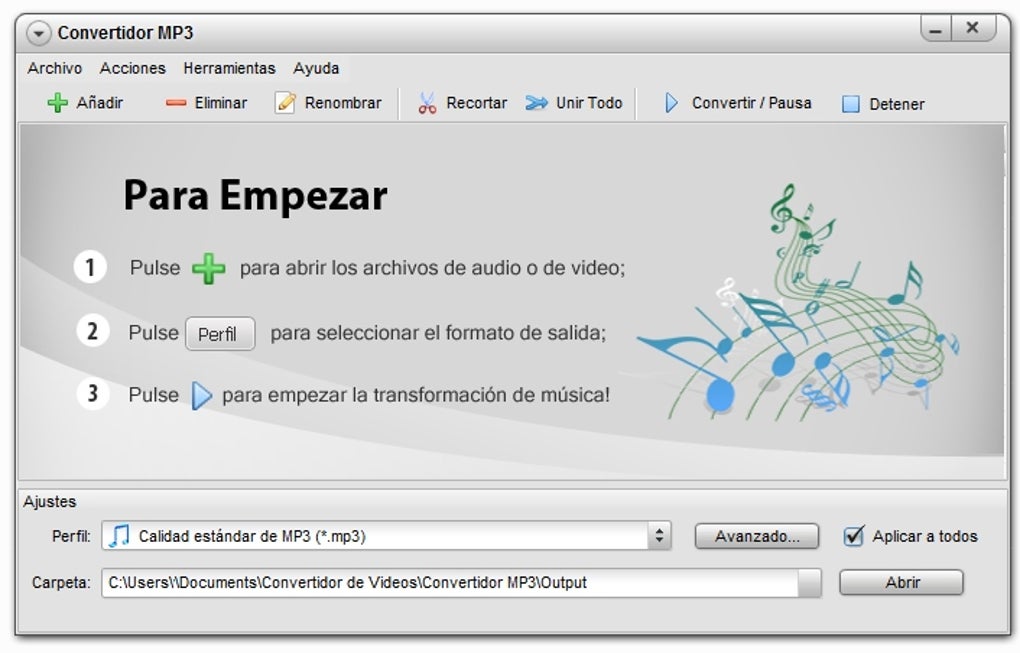
The user interface is designed for simplicity. This is both a strength and a weakness. The clean layout prioritizes ease of use, making it intuitive even for novice users. The interface is divided into four main areas:
-
The Top Bar: Contains standard menu options like “File,” “Actions,” “Tools,” and “Help,” consistent with other Windows applications. This area provides access to the basic program functions and settings.
-
The Tool Panel: This area houses buttons for essential file management tasks, including “Add,” “Remove,” “Rename,” “Trim,” “Join All,” “Edit Tags,” “Convert/Pause,” and “Stop.” These buttons provide direct access to the most frequently used actions within the application.
-
The File Table: This section displays a list of the audio files added for conversion, including details such as file name, format, and size. The table provides a clear overview of the files being processed.
-
The Settings Panel: Located at the bottom of the interface, this panel allows you to select the desired output format and output folder for the converted files. The settings panel is where you specify the target format and location of the converted files. A key feature of this area is the ability to choose different quality settings within each format, offering users some control over the file size and audio quality.
This clear separation of functions contributes to the overall usability of the software. The intuitive layout and straightforward operation make it easy to perform audio conversions without requiring extensive technical knowledge. However, the simplicity might lack the advanced options some users would desire.
Converting Audio Files
The conversion process is exceptionally simple. Users add files using the “Add” button, select the desired output format from the “Profile” tab (located in the settings panel), and then initiate the conversion process using the “Convert” button. The software supports batch conversion, allowing users to convert multiple files simultaneously. The software will then process the files, displaying the progress of each conversion. Once the conversion is complete, the converted files are saved to the designated output folder.
The selection of the output format and quality is crucial. MP3 Converter offers different quality levels within each format, allowing users to balance file size with audio quality. Choosing a higher quality will result in a larger file size, while lower quality will result in smaller files but potentially some loss of audio fidelity.
Strengths and Weaknesses
Pros:
- Ease of Use: The simplicity of the interface and conversion process makes it accessible to all users, regardless of technical expertise.
- Batch Conversion: Allows for efficient conversion of multiple files at once, saving significant time and effort.
- Wide Format Support: The wide range of supported input and output formats makes it highly versatile.
- Free to Use: MP3 Converter is available at no cost, making it an attractive option for users on a budget.
- Fast Conversion Speeds: Generally, the conversion process is relatively fast, especially for smaller files.
Cons:
- Limited Advanced Features: The lack of advanced editing features may limit its appeal for users requiring more sophisticated tools.
- Visual Interface Improvements: While functional, the visual interface could benefit from some aesthetic enhancements.
- Potentially Misleading Reviews: Some user reviews mention limitations in the free version, such as time limits on conversion, suggesting that some functionality might be restricted unless a paid license is purchased. This aspect should be carefully considered before relying on the free version for substantial conversions.
User Reviews and Alternatives
User reviews are mixed. While many praise its simplicity and effectiveness, others complain about limitations in the free version, including potential time restrictions on conversions. Therefore, it’s crucial to carefully consider whether the free version’s capabilities meet your needs before committing to using the software.
Numerous alternative MP3 converters exist, offering varying features and functionalities. Some offer more advanced editing tools, while others might focus on specific features or integrations. Choosing the right converter depends on your specific requirements and preferences. Users considering alternatives should research and compare features before making a decision.
Conclusion
MP3 Converter provides a simple and effective solution for converting audio files between a wide range of formats, particularly those involving MP3. Its intuitive interface and straightforward conversion process make it an excellent choice for users who prioritize ease of use. However, the lack of advanced features and potential limitations in the free version should be carefully considered before choosing this software. If you need a quick and easy way to convert audio files without any complex settings, MP3 Converter is a viable option. However, users needing advanced editing or extensive batch conversion without limitations should explore alternative software options that may better meet their needs.


