
Cool Screen Recorder is a free screen recording software designed for Windows 10. While not as feature-rich as some professional-grade alternatives, it offers a straightforward and user-friendly approach to capturing screen activity, making it a viable option for casual users and those needing simple screen recording functionality. This review will delve into its capabilities, ease of use, and limitations, providing a comprehensive assessment of its suitability for various needs.
Ease of Use and Interface
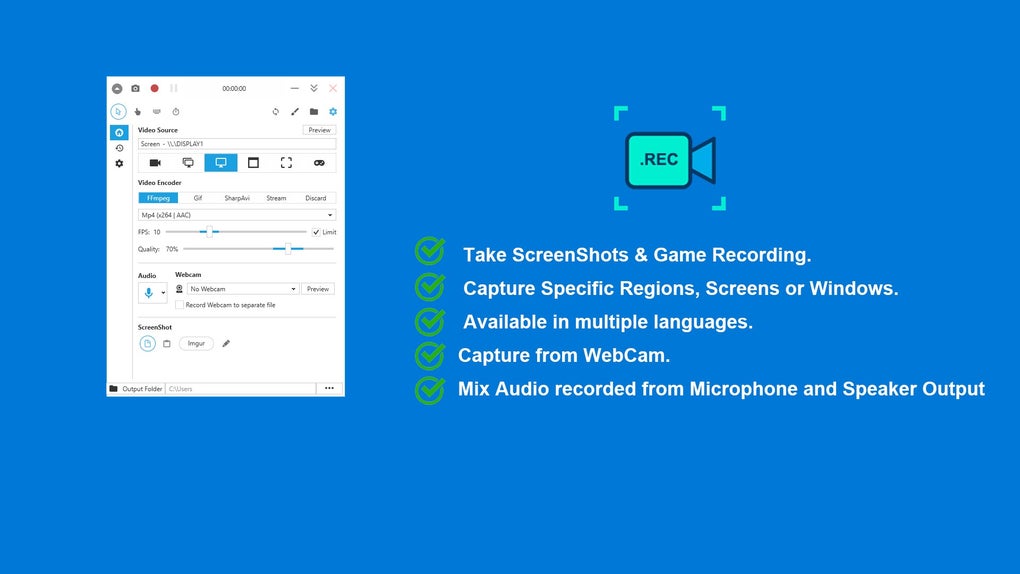
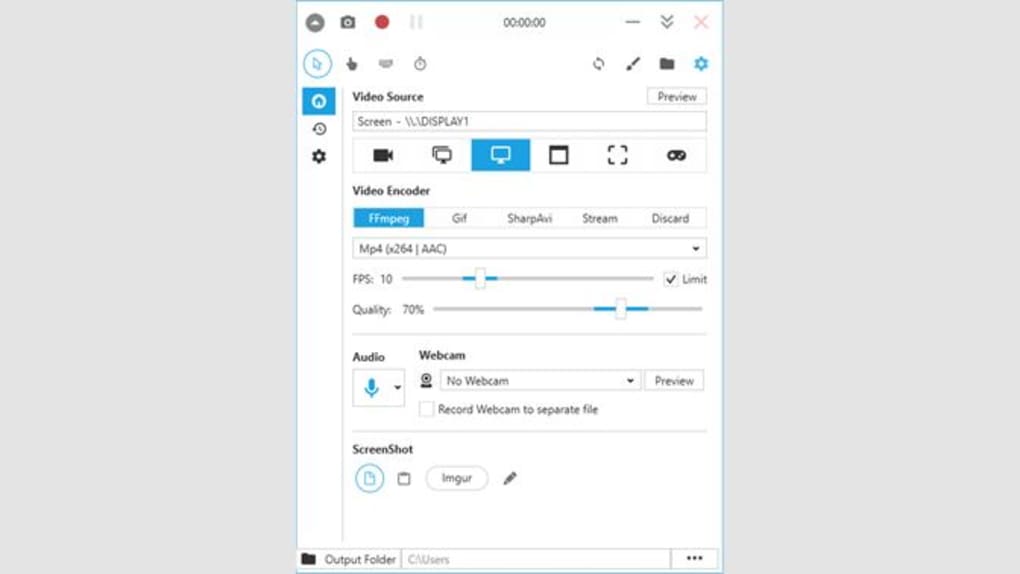
Cool Screen Recorder prioritizes simplicity. The interface is clean and intuitive, devoid of overwhelming options or complex settings. This minimalist approach is beneficial for users who are unfamiliar with screen recording software, allowing them to quickly start recording without a steep learning curve. The primary controls—start recording, stop recording, and selecting the recording area—are easily accessible and clearly labeled. This user-friendly design makes it ideal for those who need a quick and easy solution for capturing screen content without extensive configuration. However, this simplicity also means a lack of advanced features that power users might desire. The absence of extensive customization options could be a drawback for users needing finer control over recording parameters.
Recording Capabilities and Features
Cool Screen Recorder offers basic screen recording capabilities. Users can select a specific area of the screen to record or capture the entire desktop. The software supports recording video and audio simultaneously, although there aren’t advanced audio options like separate audio source selection or audio mixing. The quality of the recorded videos is generally acceptable for casual use, but might not be suitable for professional-grade productions requiring high resolution or frame rates. While the software is capable of recording various types of screen activities, including gameplay, presentations, and software demonstrations, it lacks features like webcam integration, annotations, or editing capabilities within the application itself. Post-recording editing would need to be performed using external video editing software.
The recording process is straightforward. Users select the recording area, press the record button, and the software begins capturing the screen. The software does not include a countdown timer, so users need to be ready to start their recording immediately after pressing the record button. This can be a minor inconvenience, especially for capturing events requiring precise timing. Once the recording is complete, the software saves the video file in a user-specified location. While convenient, the lack of advanced options, such as scheduling recordings or automatically saving recordings to the cloud, limits its functionality compared to more robust alternatives.
Performance and System Requirements
Cool Screen Recorder is relatively lightweight, placing minimal strain on system resources. This makes it suitable for use on older or less powerful machines. The software’s low system requirements contribute to its overall ease of use, enabling smooth recording performance without significant lag or frame drops, even on systems with less processing power or memory. However, performance may degrade slightly when recording high-resolution video content or complex on-screen activity, depending on the system specifications. Users with older hardware might experience some performance issues when recording extensive gameplay or high-definition videos. Optimizing the recording area and adjusting the video quality settings can help mitigate performance issues.
The installation process is quick and straightforward, requiring minimal user interaction. The software does not include any bundled third-party software, ensuring a clean installation process without unnecessary bloatware. This contributes to a streamlined user experience, minimizing any potential conflicts or interference with other software running on the system.
Comparison with Alternative Screen Recorders
Compared to other screen recording software available, Cool Screen Recorder occupies a niche position. It excels in its simplicity and ease of use, making it an excellent entry-level option for individuals needing a basic screen recorder without complex settings or features. However, more advanced screen recording software offers a far broader range of features, including advanced editing capabilities, webcam integration, annotation tools, and support for various output formats. Software like OBS Studio, for instance, provides highly customizable recording and streaming options, allowing for professional-grade productions. However, this functionality comes at the cost of increased complexity and a steeper learning curve. Bandicam, another popular option, strikes a balance between ease of use and advanced features, offering a wider range of customization options while maintaining a user-friendly interface.
While Cool Screen Recorder’s simplicity is advantageous, its limited functionality makes it unsuitable for users requiring advanced features or professional-quality recordings. The lack of editing capabilities, annotation tools, and advanced audio controls significantly restricts its versatility compared to more comprehensive screen recording solutions. For casual users with basic recording needs, Cool Screen Recorder’s simplicity and ease of use are appealing. However, power users seeking greater control and advanced features would find its capabilities insufficient.
Conclusion: Who is Cool Screen Recorder For?
Cool Screen Recorder’s primary strength lies in its simplicity and ease of use. Its straightforward interface and minimal feature set make it an ideal choice for users who require a quick and easy way to record their screen without needing extensive configuration or advanced features. This makes it particularly suitable for:
- Beginners: Individuals new to screen recording will appreciate the user-friendly interface and lack of complex settings.
- Casual users: Those needing basic screen recording for occasional use, such as recording short tutorials or capturing quick demonstrations, will find it sufficient.
- Users with low-powered systems: The software’s low system requirements make it a viable option for those with older or less powerful computers.
However, Cool Screen Recorder is not suitable for:
- Power users: Individuals requiring advanced features such as webcam integration, annotation tools, or extensive customization options should explore other, more feature-rich alternatives.
- Professional content creators: Those producing professional-grade videos requiring high-resolution recordings, advanced audio controls, and post-recording editing capabilities should consider more sophisticated software.
- Users needing cloud integration: The lack of cloud storage integration limits its utility for those needing to save recordings directly to the cloud.
In summary, Cool Screen Recorder is a perfectly adequate screen recorder for users who need a simple, straightforward, and easy-to-use tool. Its simplicity comes at the cost of a limited feature set, making it unsuitable for users with more demanding needs. The decision of whether or not to use Cool Screen Recorder depends on the user’s specific requirements and technical expertise. If ease of use is paramount, and advanced features are unnecessary, then Cool Screen Recorder is a solid choice. However, if more advanced functionality is required, users should consider exploring alternative screen recording solutions.
File Information
- License: “Free”
- Version: “1.0”
- Latest update: “February 7, 2024”
- Platform: “Windows”
- OS: “Windows 10”
- Language: “English”
- Downloads: “4.4K”


