
CPU-Z is a free, lightweight, and highly portable utility that provides detailed information about your computer’s hardware components. It’s a go-to tool for anyone wanting to understand the specifics of their system’s architecture, from the processor and motherboard to the RAM and graphics card. This comprehensive guide explores CPU-Z’s features, functionality, compatibility, and usage, highlighting its strengths and weaknesses.
Understanding CPU-Z’s Functionality
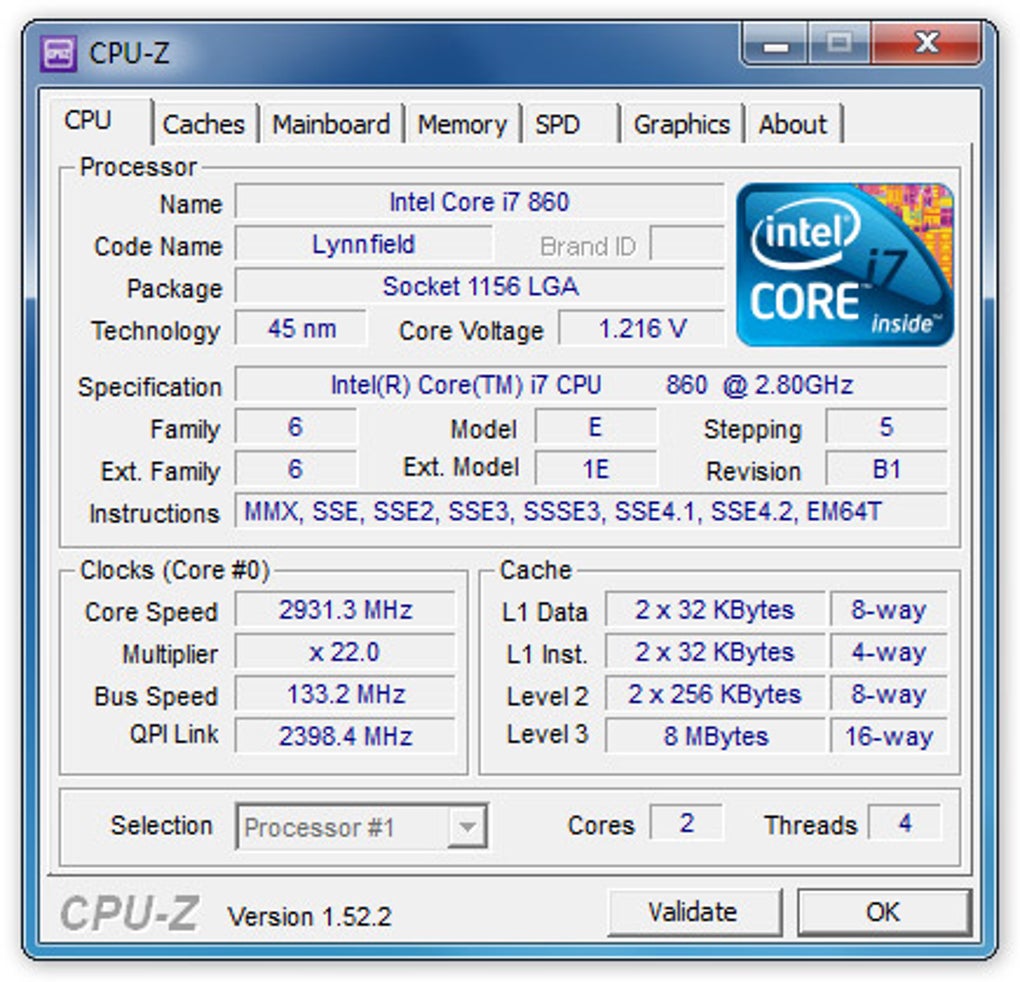
CPU-Z, developed by CPUID, excels at providing a detailed snapshot of your computer’s hardware configuration. Unlike more comprehensive system information utilities, CPU-Z focuses on delivering precise, readily understandable data in a concise manner. This makes it ideal for quick checks, troubleshooting, and verifying system specifications. The information is presented across six main tabs:
-
CPU: This tab provides the most comprehensive details about your processor. You’ll find information such as the processor’s name, manufacturer, core count, clock speed, cache sizes (L1, L2, L3), instructions sets supported (SSE, AVX, etc.), and stepping revision. This information is crucial for identifying the specific processor model and its capabilities. Overclocking information, if applicable, is also displayed here, providing valuable insight into system performance tuning.
-
Cache: This section details the different levels of cache memory your processor utilizes. Cache memory is a high-speed buffer that stores frequently accessed data, significantly impacting application performance. CPU-Z displays the size, level (L1, L2, L3), and type of each cache level, enabling users to understand the processor’s caching strategy.
-
Mainboard: This tab provides specifics about your motherboard. This includes the manufacturer, model name, chipset (northbridge and southbridge), BIOS version, and other relevant information. This data is essential for identifying compatibility issues with other hardware components and for finding appropriate drivers. Understanding the chipset is especially important for users considering upgrades or troubleshooting performance bottlenecks.
-
Memory: This tab provides detailed information about the RAM installed in your system. You’ll find the type of RAM (DDR3, DDR4, etc.), the total capacity, clock speed, timings (CAS latency, RAS to CAS delay, etc.), and the manufacturer and module size of each RAM stick. This is crucial for troubleshooting memory-related issues and planning upgrades. CPU-Z even identifies specific memory modules and allows for detailed analysis of each module’s specifications, such as timings and voltage.
-
SPD: The SPD (Serial Presence Detect) tab provides even more granular information about each RAM module. This section displays data directly read from the SPD EEPROM on each RAM stick, which may include more detailed timing parameters and other manufacturer-specific information. This level of detail is invaluable for fine-tuning memory performance or troubleshooting compatibility problems.
-
Graphics: This tab displays information about your graphics card (GPU). You’ll see the GPU name, manufacturer, memory type and size, shader version, and other important specs. This information is particularly useful for gamers and graphics professionals who need to know the capabilities of their graphics card.
System Compatibility and Usage
CPU-Z is remarkably compatible with a wide range of operating systems and hardware configurations. While primarily designed for Windows (both 32-bit and 64-bit versions), it also offers an Android version providing comparable functionality. This broad compatibility makes CPU-Z a versatile tool regardless of your operating system preference.
Using CPU-Z is incredibly straightforward. After downloading the executable (no installation is needed), simply double-click the file to run the application. It will automatically scan your system and display the information across its different tabs. The interface is intuitive, making it easily accessible to both novice and experienced users. The program’s minimal design prioritizes information clarity over complex features, ensuring users can quickly gather the data they need without navigating a cluttered interface.
Strengths and Weaknesses of CPU-Z
CPU-Z’s simplicity and accuracy are its greatest strengths. It’s a reliable source of detailed hardware information, presented in a clear and concise format. The ability to identify each RAM module separately and provide fine-grained details from the SPD is a notable advantage over many alternative tools. Its portability and lack of installation requirements also contribute to its ease of use and widespread appeal. It doesn’t require administrator privileges to run, making it a great tool for quick checks on systems where you may not have full administrator access.
However, CPU-Z does have limitations. Its simplistic design, while beneficial for clarity, lacks advanced features found in more comprehensive system utilities. It doesn’t offer benchmarking capabilities or performance monitoring in real time. Furthermore, the program’s relatively infrequent updates might occasionally lead to delays in recognizing newly released hardware. The interface could also benefit from customization options to tailor the display of information to specific needs.
CPU-Z: A Valuable Tool for System Administrators and Enthusiasts
CPU-Z’s simplicity and comprehensive hardware information make it an indispensable tool for various users. System administrators use it for troubleshooting, hardware inventory management, and verifying system configurations. PC enthusiasts leverage its capabilities to verify overclocking results, check compatibility before upgrades, and gain a deeper understanding of their computer’s architecture. Even casual computer users can benefit from its straightforward interface and readily accessible information to quickly identify key system components.
Comparison with Alternative Tools
While CPU-Z shines in its simplicity and accuracy, it’s beneficial to compare it with other system information utilities:
-
HWMonitor: HWMonitor provides real-time monitoring of hardware temperatures, voltages, and fan speeds, adding a real-time monitoring aspect that CPU-Z lacks. However, HWMonitor’s information about components might not be as detailed as CPU-Z’s.
-
Speccy: Speccy offers a more visually appealing and feature-rich interface, presenting a broader overview of system information. However, it might not match CPU-Z’s precision in detailing specific hardware characteristics, particularly those related to RAM modules.
-
GPU-Z: If your primary concern is graphics card information, GPU-Z is a dedicated and powerful utility providing exceptionally detailed information about your GPU. CPU-Z covers graphics card information, but GPU-Z provides a much more comprehensive and focused analysis.
Ultimately, the best choice depends on your specific needs. If you require a lightweight, quick, and highly accurate tool for specific hardware details, CPU-Z remains a top choice. If you need real-time monitoring, more visually appealing presentation, or more comprehensive system information, other utilities might be more suitable. However, CPU-Z’s combination of simplicity, accuracy, and portability makes it a valuable addition to any system administrator’s or PC enthusiast’s toolkit.


