
In the vast and ever-evolving landscape of software development tools, certain applications leave an indelible mark, becoming go-to choices for specific segments of the user base due to their unique blend of features and performance. Crimson Editor stands as one such example: a compact, powerful, and remarkably efficient source code editor that carved out a significant niche, particularly among users with older or resource-constrained Windows PCs. Released at a time when bloated software was becoming more common, Crimson Editor offered a refreshing alternative, prioritizing speed, a small footprint, and robust functionality, making it a reliable companion for countless developers and coders.
At its core, Crimson Editor was designed to be a highly efficient source code editor, meticulously crafted for almost any PC specification. Its most immediately noticeable attributes are its speedy loading time and remarkably compact size. This design philosophy made it an invaluable asset for individuals operating systems low on RAM and storage space, allowing them to engage in serious coding without the typical slowdowns associated with more demanding Integrated Development Environments (IDEs). Far from being a mere text editor, it positioned itself as a professional-grade solution, offering a wealth of advanced features that extended its utility far beyond what a basic tool like Notepad could provide. Its legacy, though tied to older operating systems, continues to resonate with those who appreciate minimalist design coupled with powerful capabilities.
Crimson Editor: A Legacy of Efficient Code Editing
Crimson Editor’s journey began with a clear mission: to provide a fast, lightweight, yet feature-rich environment for code editing on the Windows platform. Unlike many contemporary editors that began incorporating an ever-growing array of features, often at the expense of performance, Crimson Editor maintained a steadfast commitment to efficiency. This commitment manifested in its astonishingly small installation size – so compact, in fact, that it could famously be copied onto a single floppy disk in its earlier iterations. This made it not only easy to distribute but also incredibly quick to launch and operate, a critical advantage in the days when computing resources were far more limited than today.
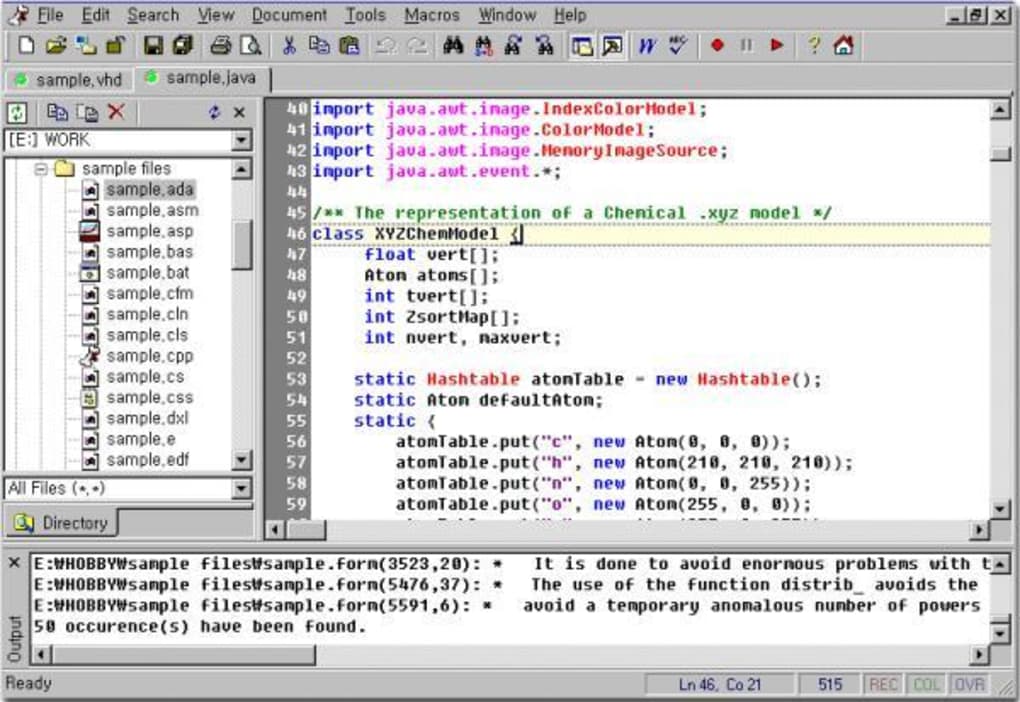
This focus on efficiency wasn’t just about small size; it permeated every aspect of the editor’s design. The user interface, while functional and comprehensive, remained uncluttered, ensuring that developers could focus on their code without unnecessary distractions. The rapid startup time meant that opening even large files or complex projects was instantaneous, a stark contrast to the sometimes lengthy boot processes of heavier IDEs. This responsiveness cultivated a seamless workflow, allowing coders to move between tasks fluidly and maintain their concentration. For many, Crimson Editor became the quintessential “replacement for Notepad,” offering the simplicity of a basic text editor but layered with sophisticated features that empowered serious programming endeavors.
Beyond its performance metrics, Crimson Editor earned its reputation through its unwavering reliability. It was a tool that simply worked, consistently delivering a stable editing environment without unexpected crashes or data loss—a crucial consideration for anyone engaged in serious development work. This dependability, combined with its lightweight nature, allowed it to run comfortably in the background or alongside other applications without bogging down the system. It became a silent workhorse for many, handling the day-to-day task of writing and modifying code with an unassuming grace that endeared it to its user base. Its enduring appeal, even years after its last major update, speaks volumes about the quality of its initial design and implementation. It proved that powerful tools didn’t need to be cumbersome, establishing a benchmark for what a lean, mean code-editing machine could achieve.
Unpacking Crimson Editor’s Feature Set
Despite its small footprint, Crimson Editor packed a significant punch in terms of functionality, offering a comprehensive suite of tools tailored for developers. These features were not merely add-ons but integrated components designed to enhance productivity and streamline the coding process across a multitude of programming languages. Its versatile toolkit ensured that it remained a reliable choice for a broad spectrum of development tasks, from simple script modifications to more complex project development.
Extensive Language Support and Syntax Highlighting
One of Crimson Editor’s most celebrated features is its wide language support, a critical capability for any serious code editor. It provides robust syntax highlighting for an impressive array of programming languages, including but not limited to HTML, C/C++, Perl, Java, Matlab, and LaTeX. This feature is indispensable for developers, as it color-codes different elements of the code—keywords, variables, comments, strings, etc.—making the code significantly easier to read, understand, and debug. The visual cues help in quickly identifying syntax errors and improving code readability, which is paramount in collaborative or large-scale projects.
What set Crimson Editor apart was not just the breadth of its built-in language support but also its extensibility. Developers had the option to expand its capabilities to include additional programming languages through the use of custom syntax files. This flexibility meant that even obscure or proprietary languages could benefit from Crimson Editor’s powerful highlighting engine, allowing users to tailor the editor precisely to their specific development needs. This adaptability was a huge draw, ensuring that the editor could evolve with a developer’s changing requirements without needing to switch to an entirely different tool.
Productivity Tools: Macros, Undo/Redo, and Spell Checker
Beyond syntax highlighting, Crimson Editor integrated several other productivity-enhancing features designed to make coding more efficient:
- Undo/Redo Capabilities: These fundamental features are essential for any text manipulation tool. Crimson Editor provided robust undo and redo functionalities, allowing users to revert mistakes or reapply changes with ease, minimizing the fear of irreversible errors and fostering a more experimental coding style.
- User Tools: This feature allowed users to define and integrate external tools or scripts directly into the editor. This meant that common tasks, such as compiling code, running a script, or executing a custom command, could be triggered from within Crimson Editor, further streamlining the development workflow. For instance, a C++ developer could set up a user tool to compile their current file with a single click, without ever leaving the editor.
- Macros: Macros enabled users to record a sequence of keystrokes and commands and then play them back with a single shortcut. This was incredibly powerful for automating repetitive tasks, such as formatting code, inserting boilerplate text, or navigating complex file structures. The ability to automate tedious operations significantly boosted productivity, allowing developers to focus on the logical aspects of their code rather than mechanical repetitions.
- Spell Checker: While seemingly a minor detail for a code editor, the integrated spell checker proved invaluable for ensuring the accuracy of comments, documentation strings, and embedded text within code. Well-written and typo-free comments are crucial for code maintainability and collaboration, and the spell checker helped developers uphold high standards in this regard.
Performance and Modern Enhancements (Version 3.7)
Version 3.7, a significant update, brought several crucial enhancements that further solidified Crimson Editor’s position as a robust editor:
- Drag and Drop Text Editing: This feature simplified text manipulation, allowing users to intuitively move blocks of code or text by simply dragging and dropping them, enhancing the ease of editing and refactoring.
- Reduced Memory Footprint: While already known for its lightweight nature, version 3.7 further optimized memory usage, ensuring that the editor remained exceptionally efficient even when handling large files or multiple documents simultaneously. This was particularly beneficial for users on older machines or those running multiple demanding applications.
- Unicode Support: The inclusion of Unicode support was a forward-thinking enhancement, allowing Crimson Editor to correctly display and edit text in various languages and character sets from around the world. This was vital for international development and for projects that involved multi-language content, broadening the editor’s applicability globally.
- Saving Project Workspace: This feature allowed developers to save the state of their open files, project settings, and layout, enabling them to pick up exactly where they left off without manually reopening each file. It was a significant convenience for project-based work, enhancing continuity and workflow efficiency.
Collectively, these features—from broad language support and customizability to powerful productivity tools and performance enhancements—contributed to Crimson Editor’s versatility and made it a highly reliable and efficient choice for developers who valued speed and a compact design above all else. Its comprehensive feature set, packed into such a lightweight package, truly made it stand out as a formidable tool in its category.
Navigating Compatibility: A Look at Older Windows Versions
While Crimson Editor’s strengths are numerous, a significant factor for modern users to consider is its optimization primarily for older Windows versions. This aspect, though a cornerstone of its initial design philosophy (catering to less powerful hardware), presents certain challenges and limitations for individuals operating on contemporary operating systems. The statement “It might not be for new Windows users” encapsulates a critical truth about its current relevance and usability.
The editor was developed during an era when Windows 2000, XP, and perhaps early versions of Vista were prevalent. Its architecture and dependencies were tailored to these environments. Consequently, users attempting to run Crimson Editor on newer operating systems like Windows 10 or Windows 11 might encounter a range of issues. These can include:
- Lack of Full Compatibility: While the application might launch and function to some degree, there could be subtle or overt compatibility glitches. Certain features might not work as intended, or the user interface might not integrate seamlessly with the modern aesthetic and functionalities of newer Windows versions.
- Stability Concerns: Without active updates, Crimson Editor may not be fully stable on newer platforms. This could lead to unexpected crashes, data corruption, or other unpredictable behavior, which is unacceptable in a professional development environment. Modern operating systems frequently introduce changes in their core APIs, security protocols, and graphical rendering engines, which an older, unmaintained application might struggle to adapt to.
- Security Vulnerabilities: Perhaps the most critical concern for any unmaintained software is security. Older applications are less likely to receive patches for newly discovered vulnerabilities. While a code editor might seem innocuous, any application that handles user-generated content and interacts with the file system could potentially become an attack vector if it contains unpatched security flaws.
- Missing Modern OS Features Integration: Newer Windows versions offer enhanced features like improved display scaling for high-DPI monitors, better integration with cloud services, advanced accessibility options, and modern system notifications. Crimson Editor, being an older application, would naturally lack support for these contemporary features, potentially leading to a suboptimal user experience on high-resolution screens or in modern workflows.
- Lack of Active Development and Community Support: The ecosystem around an editor is as important as the editor itself. For actively developed tools, bugs are reported and fixed, new features are added, and a vibrant community often provides plugins, extensions, and troubleshooting advice. Crimson Editor, however, appears to be largely unmaintained. This means no official bug fixes, no new features to keep pace with evolving programming languages or paradigms, and dwindling community support, making it harder to resolve issues independently.
Despite these potential drawbacks, Crimson Editor might still find a niche among:
- Nostalgic Users: Developers who grew up using it might appreciate its familiar interface and workflow.
- Users of Very Old Hardware: For extremely resource-limited machines running older Windows OS, Crimson Editor might be one of the few viable options that offer a rich feature set without overwhelming the system.
- Specific Legacy Projects: In environments where development is tied to older toolchains or operating systems, Crimson Editor might be a suitable choice to maintain consistency.
In conclusion, while Crimson Editor’s historical context as a lean and powerful tool is undeniable, its optimization for older Windows versions is a critical consideration for prospective users today. Its strengths in speed and feature set are best appreciated within the context of the operating systems it was designed for. Those on newer systems are advised to explore more actively maintained alternatives that offer better compatibility, stability, and security in a modern computing environment.
The Verdict: Pros, Cons, and Who Benefits Most
Crimson Editor occupies a unique space in the pantheon of code editors. Its design philosophy, rooted in efficiency and a compact footprint, makes it a compelling choice for a specific user demographic, yet its age presents distinct limitations in the contemporary computing landscape. Understanding these trade-offs is crucial for determining if Crimson Editor is the right tool for one’s current needs.
Advantages for Specific User Bases
The “Pros” section in the original overview succinctly highlights its primary strengths: “Support for many programming languages” and being “Feature-packed.” Expanding on these, Crimson Editor’s advantages are particularly pronounced for:
- Users with Limited Hardware Resources: This is arguably its strongest selling point. For individuals still operating older PCs, netbooks, or virtual machines with minimal RAM and storage, Crimson Editor is a godsend. Its rapid loading times and negligible memory footprint ensure a smooth, responsive editing experience that heavier IDEs simply cannot deliver. It allows productive coding even on systems where other development tools would struggle to run.
- Developers Seeking Speed and Simplicity: Even on modern hardware, some developers prefer a minimalist editor that launches instantly and doesn’t get in the way. Crimson Editor provides a focused environment for coding without the overhead of complex project management features or integrated debuggers that might not always be needed. Its simplicity can lead to a more direct and efficient workflow for quick edits or single-file projects.
- Learning and Educational Environments: For students or those learning to code, especially in environments where resource limitations are a concern, Crimson Editor offers a powerful yet accessible tool. Its clear syntax highlighting and basic productivity features can aid in understanding code structure without the cognitive load associated with feature-heavy IDEs.
- Multi-Language Developers: With its extensive out-of-the-box support for HTML, C/C++, Perl, Java, Matlab, LaTeX, and the ability to add custom syntax files, Crimson Editor caters well to developers who work across multiple programming languages. They can rely on a single, familiar tool for various tasks without needing to switch between different editors.
The core strength here is its blend of versatility and performance. It delivers a rich set of features—including macros, user tools, Unicode support, drag-and-drop editing, and project workspace saving—within an incredibly lightweight package. This combination made it a robust and reliable choice for developers who prioritized efficiency and a seamless coding experience on less powerful machines.
Acknowledging Limitations in a Modern Landscape
The primary “Con” identified is that it’s “Optimized only for older Windows OS versions.” This is a significant drawback that needs thorough consideration:
- Compatibility Issues on Newer OS: As discussed previously, running Crimson Editor on Windows 10 or 11 might lead to instability, display issues, or the inability to utilize certain modern OS features. This can significantly hamper the user experience and reliability.
- Lack of Modern Development Features: While “feature-packed” for its time, Crimson Editor lacks many functionalities now considered standard in modern IDEs and code editors. This includes integrated terminal access, sophisticated debugger integration, version control system (VCS) integration (like Git), marketplace for extensions/plugins, intelligent code completion (IntelliSense), and real-time collaboration features. These are essential for contemporary development workflows.
- Absence of Active Development and Security Updates: The apparent lack of ongoing development means no new features, no bug fixes, and critically, no security patches for newly discovered vulnerabilities. This can pose security risks and limit its utility as programming languages evolve and new standards emerge.
- User Interface and Experience: While clean, its UI might feel dated compared to modern editors, which often boast sleek designs, customizable themes, and highly optimized user experiences for modern displays.
- Ecosystem Integration: Modern development often relies on a rich ecosystem of tools that integrate seamlessly. Crimson Editor exists somewhat in isolation, lacking the hooks and APIs for deep integration with contemporary build systems, testing frameworks, or cloud platforms.
In conclusion, Crimson Editor is a compact and powerful source code editor that brilliantly catered to specific specifications, particularly for users with limited RAM and storage. Its extensive language support and advanced features made it a versatile and reliable choice for developers in its prime. However, its optimization for and reliance on older Windows versions means it may lack the necessary support, compatibility, and modern features for the majority of today’s users. For those operating within its intended environment or those who value extreme minimalism and speed above all else, it remains a charming and functional legacy tool. For most others, especially those engaging in complex, collaborative, or modern development, exploring actively maintained alternatives would be a more practical decision.
Beyond Crimson Editor: Exploring Alternative Code Editors
The landscape of code editors is incredibly diverse, offering a plethora of options that cater to different needs, preferences, and technical specifications. While Crimson Editor carved out its niche by prioritizing speed and a compact size for older Windows systems, the evolution of computing power and development paradigms has led to the emergence of numerous alternatives, each with its own set of strengths. For users evaluating Crimson Editor today, it’s essential to understand where it stands in relation to these other tools, some of which are direct competitors, while others offer vastly different approaches to code development.
When considering alternatives, one might categorize them broadly into: basic text editors, feature-rich code editors, and full-fledged Integrated Development Environments (IDEs). Crimson Editor sits comfortably in the “feature-rich code editor” category, aiming to offer more than Notepad but less than an IDE like Visual Studio.
Basic Text Editors: For the absolute simplest tasks, a basic text editor like Notepad (Windows) or TextEdit (macOS) suffices. Crimson Editor significantly surpasses these by offering syntax highlighting, advanced text manipulation (like drag-and-drop), and productivity tools such as macros and user-defined commands. If all you need is raw text editing without any programming-specific features, Notepad is lighter, but for any coding task, Crimson Editor immediately proves superior.
Other Code Editors (Closer Competitors/Modern Equivalents):
- InstaHTML (Free): This is presented as a “Lightweight HTML editor.” While specific to HTML, it aligns with Crimson Editor’s philosophy of being compact. However, Crimson Editor’s broader language support makes it more versatile for developers working beyond just HTML. For dedicated HTML work, InstaHTML might offer more specialized features, but Crimson Editor wins on general-purpose coding.
- Adobe Brackets (Free): Described as an “open source code editor for the web, written in JavaScript, HTML and CSS,” Brackets was a popular choice for web developers. It offered unique features like “Live Preview” and “Inline Editors.” While also lightweight, Brackets has seen its development slow down, much like Crimson Editor, though it targets a more modern web development stack.
- Atom (Free): Dubbed “Build text editor unique of your own,” Atom was developed by GitHub and built on Electron. It’s highly customizable, with a vast ecosystem of packages and themes. Atom is feature-rich and cross-platform, making it a powerful modern alternative. However, its Electron-based architecture means it’s generally heavier and more resource-intensive than Crimson Editor. For users prioritizing extreme lightness, Crimson Editor would win, but for modern features and extensibility, Atom is superior.
- Editra (Free): This is a “Programming editor with support for over 60 languages.” Editra directly competes with Crimson Editor in terms of broad language support and being a dedicated code editor rather than an IDE. If Crimson Editor’s compatibility issues on newer Windows versions become a blocker, Editra could be a strong alternative, likely offering better modern OS support while maintaining a focus on core editing capabilities.
- Visual Studio Code (Free): This is perhaps the most dominant modern code editor. Developed by Microsoft, VS Code is incredibly fast, lightweight (considering its features), cross-platform, and boasts an unparalleled marketplace of extensions. It includes integrated Git control, a terminal, debugging capabilities, and intelligent code completion out-of-the-box, effectively blurring the line between a code editor and a lightweight IDE. For most new users today, VS Code is the de facto recommendation, far surpassing Crimson Editor in modern functionality, community support, and active development, albeit at a slightly higher resource cost than Crimson Editor.
- SlickEdit (Trial version): Described as a “Cross platform programming environment packed with options,” SlickEdit is a commercial, professional-grade code editor known for its powerful features and multi-language support. It offers deep customization and advanced editing features, positioning itself as a premium alternative for serious developers. While more expensive, it offers a contemporary, actively supported experience compared to Crimson Editor.
Specialized Tools & IDEs:
- MATLAB (Paid): An “all-in-one interactive environment,” MATLAB is not a direct alternative to Crimson Editor. It’s a numerical computing environment and programming language primarily used for data analysis, algorithm development, and modeling. While it has an editor component, its scope is vastly different. A user would choose MATLAB for its computational power, not just for code editing.
- Total Validator (Free): This is an “app for Windows, by Total Validator.” As its name suggests, it’s a tool for validating HTML, CSS, and accessibility, not primarily for writing code. It complements a code editor rather than replacing it.
- BlueGriffon (Free): An “Innovative WYSIWYG web designer,” BlueGriffon focuses on visual web design (What You See Is What You Get) rather than raw code editing. While it generates HTML, its primary mode of interaction is graphical, a different paradigm than Crimson Editor.
- Dev-C++ / Code::Blocks / NetBeans IDE (Free): These are full-fledged IDEs designed for specific programming languages or broader development. They offer integrated compilers, debuggers, project management tools, and more. While offering far more functionality than Crimson Editor, they are also significantly heavier, slower to load, and more complex, moving away from Crimson Editor’s minimalist philosophy.
In conclusion, Crimson Editor stands as a testament to efficient software design from a particular era. For users on older Windows systems or those with a strong preference for extreme lightness and speed for quick code edits across various languages, it can still serve a purpose. However, the vast majority of developers today, especially those working on modern projects, operating systems, and collaborative environments, will find more comprehensive, actively maintained, and feature-rich alternatives like Visual Studio Code, Atom, or Editra to be more suitable and productive choices. The decision ultimately boils down to the user’s specific hardware limitations, operating system, and the demands of their development workflow.
License: Free Version: 3.72 Latest update: May 23, 2023 Platform: Windows (optimized for older versions) OS: Windows 2000 and later (best on older OS) Language: English Developer: Crimsoneditor Size: 1.68 MB
File Information
- License: “Free”
- Latest update: “May 23, 2023”
- Platform: “Windows”
- OS: “Windows 2000”
- Language: “English”
- Downloads: “23.6K”
- Size: “1.68 MB”


