
Cropper is a free, lightweight screen capture utility for Windows operating systems. Developed by Brian Scott and written in C# on the Microsoft .NET platform, it provides a straightforward and efficient way to capture portions of your screen, offering a simple alternative to more feature-rich screen capture tools. Since its addition to software catalogs in 2007, it has maintained a consistent user base, demonstrating its enduring appeal for users seeking a basic yet effective screen capture solution. This review will delve into Cropper’s features, usability, limitations, and compare it to other available options.
Functionality and Ease of Use
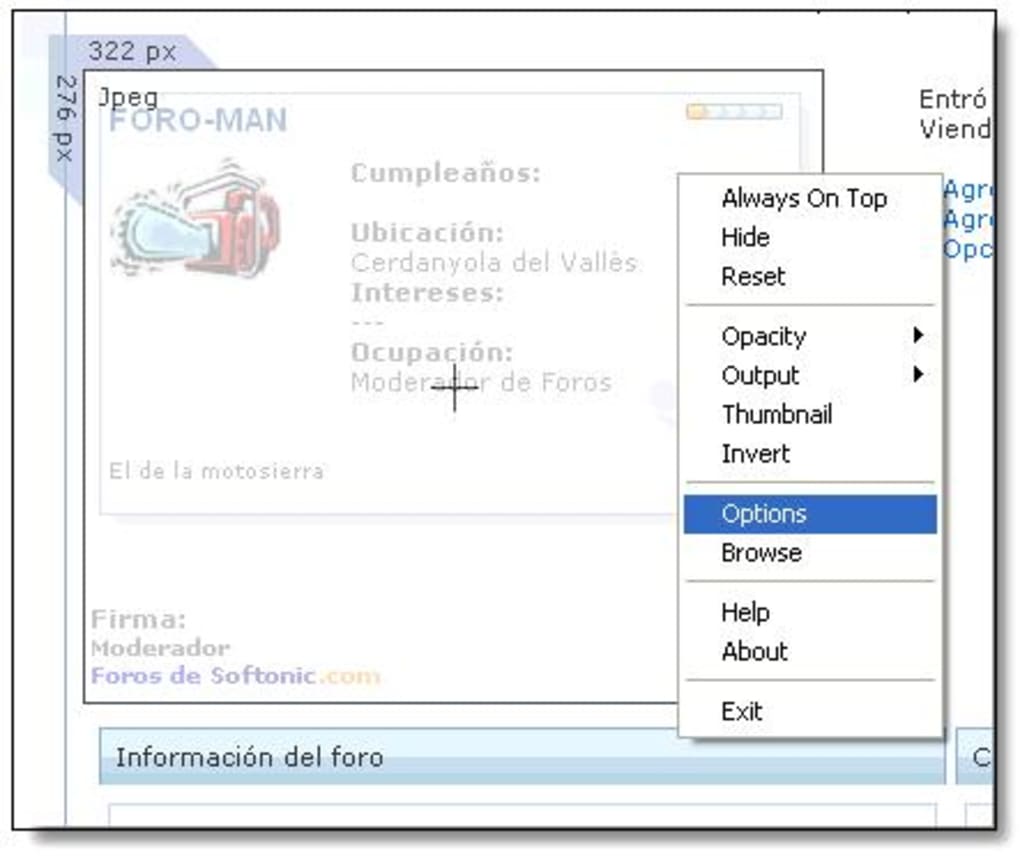
Cropper’s primary function is to allow users to quickly and easily capture specific sections of their screen. Unlike many screen capture tools that offer a variety of capture modes (e.g., full screen, window, region), Cropper focuses on capturing a region defined by a resizable selection box. This simplicity is both its strength and its limitation. The user launches the application, a resizable box appears on the screen, and the user adjusts the box to encompass the desired area. A double-click or pressing Enter finalizes the capture. The captured image is then saved to a user-specified folder in a chosen format (the specific formats supported are not explicitly stated in readily available documentation, but common image formats are likely supported), copied to the clipboard, or sent directly to the printer. This streamlined process eliminates the extra steps often involved with other tools, such as opening an image editor after using the Print Screen key.
The ease of use is further enhanced by the lack of complex settings or options. Users are presented with a minimal interface, focused solely on the capture process. This minimalistic design caters to users who require a simple, quick, and efficient screen capture solution without the need to navigate convoluted menus or understand advanced features. This makes Cropper particularly suitable for users who are not tech-savvy or those who need a quick and easy way to capture images without delving into complex software.
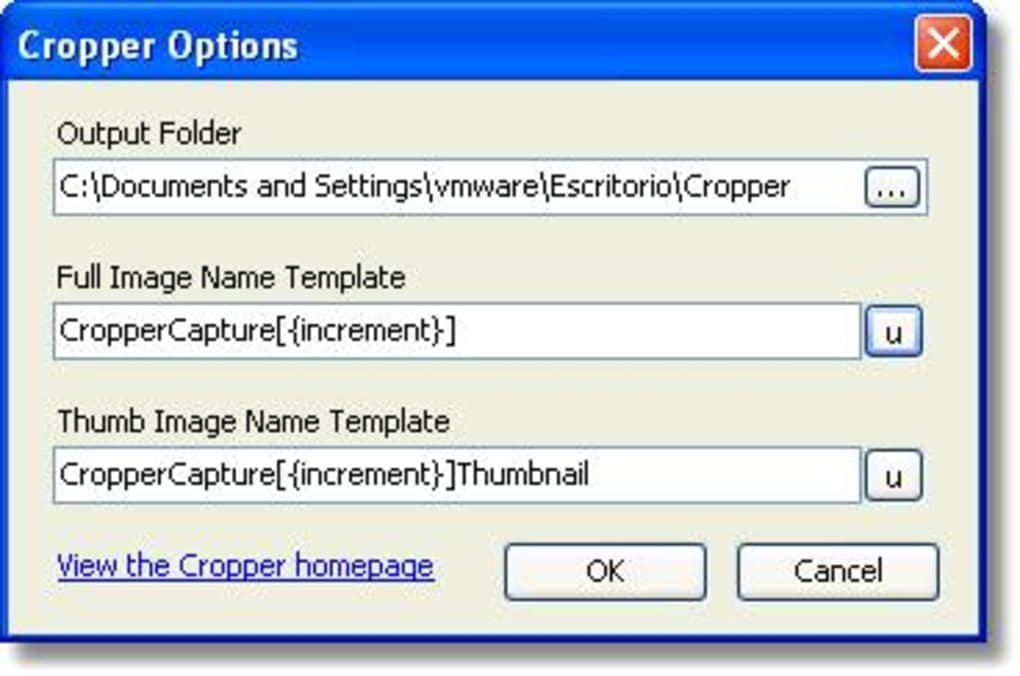
Output Options and File Formats
While the precise range of supported output formats isn’t definitively listed in publicly available information, Cropper’s functionality indicates support for common image formats, allowing for flexibility in saving captured images. The ability to save directly to a chosen folder, copy to the clipboard, or print directly from the application is a convenient feature, streamlining the workflow for users with various needs. The direct printing option is particularly useful for those who need quick printed copies of screen captures without needing to save the image first. Copying to the clipboard is crucial for users who want to integrate the captured image into other applications, like word processors or presentation software.
The flexibility in saving to a specified folder allows for better organization of captured images, separating them from other files on the computer. This straightforward approach avoids the potential clutter associated with saving images to default folders. This functionality enhances the overall user experience by making the application more suitable for diverse user requirements.
System Requirements and Compatibility
Cropper is designed for Windows operating systems. While documentation indicates compatibility with Windows 98 and earlier versions, this may be outdated information. Its reliance on the .NET framework necessitates a Windows system with appropriate .NET libraries installed. Given its age, Cropper’s compatibility with the latest Windows versions is uncertain, and it might not function optimally on more modern systems without potential compatibility issues. Further investigation into system requirements would be beneficial for users considering utilizing this program on newer operating systems. The application’s lightweight nature generally suggests minimal resource consumption, meaning it should work effectively even on older or less powerful machines.
The language support is limited to English, posing a potential barrier for users who prefer other languages. This lack of multilingual support might restrict its accessibility to a smaller user base compared to alternatives that offer a wider variety of language options.
Comparison to Alternative Screen Capture Tools
Cropper’s simplicity sets it apart from more feature-rich screen capture tools. Many alternatives, like Snagit, FastStone Capture, and Lightshot, offer a broader range of functionalities, including video recording, scrolling capture, annotation tools, and more advanced editing features. These applications cater to professional users or those with complex screen capture needs. However, this added functionality often comes at the cost of increased complexity and higher resource consumption.
In contrast, Cropper’s focus on simplicity makes it a viable option for users who only need a basic screen capture tool. Its minimal interface and direct capture approach prioritize ease of use over a vast array of features. The choice between Cropper and a more feature-rich alternative depends heavily on the user’s specific needs and technical expertise.
Tools like the built-in Windows Snipping Tool provide a comparable level of simplicity. However, Cropper offers the advantage of direct saving to a user-defined folder and direct printing, features not always readily available in the Snipping Tool.
Limitations and Potential Drawbacks
Cropper’s simplicity, while a strength for some, is a drawback for others. The lack of advanced features like scrolling capture, annotation tools, or video recording significantly limits its functionality compared to competitors. Its age also raises concerns about security updates and ongoing support. While the source code is available, relying on an older application without active maintenance increases the risk of vulnerabilities or compatibility problems.
The absence of readily available information on the specific image formats supported is a minor inconvenience. Detailed documentation clarifying supported formats and other technical aspects would improve the user experience. The lack of multilingual support further limits the potential user base.
Conclusion
Cropper serves as a functional and easily accessible screen capture utility for Windows. Its simplicity and streamlined workflow make it ideal for users who need a quick and effortless way to capture specific screen regions without the complexities of more comprehensive tools. However, its limited features and lack of ongoing updates make it less suitable for users requiring advanced functionalities or robust security measures. The choice of whether to use Cropper depends on the user’s needs and priorities. If simplicity and ease of use are paramount, and the lack of advanced features is not a significant concern, Cropper could be a viable solution. However, users requiring more advanced features or those prioritizing continuous updates and security should consider alternative screen capture tools available on the market.
File Information
- License: “Free”
- Latest update: “August 15, 2023”
- Platform: “Windows”
- OS: “Windows XP”
- Language: “English”
- Downloads: “37.3K”
- Size: “560.83 KB”


