
Custom Resolution Utility (CRU) is a free, open-source utility designed to grant users greater control over their monitor’s resolution settings. Developed by ToastyX, CRU allows for the creation of custom resolutions beyond those pre-defined by the operating system and monitor manufacturer. While seemingly a simple tool, its impact on user experience, particularly for those working with graphics, gaming, or specialized display setups, is significant. This article will explore CRU’s functionality, benefits, limitations, and alternatives, providing a comprehensive understanding of its role in optimizing display capabilities.
Understanding CRU’s Core Functionality: EDID Manipulation
At the heart of CRU’s functionality lies its ability to manipulate the Extended Display Identification Data (EDID). The EDID is a crucial piece of information stored within a monitor that informs the graphics card about its capabilities – resolution, refresh rate, color depth, and other specifications. Standard operating systems and graphics drivers rely on this data to configure the display properly. CRU, however, allows users to bypass these standard limitations by directly modifying the EDID stored in the system registry.
This manipulation isn’t about simply “making up” resolutions; it’s about precisely specifying the timing parameters required for a given resolution to work correctly with a particular monitor and graphics card. These parameters include:
- Horizontal and Vertical Active Resolution: These parameters define the actual number of pixels displayed horizontally and vertically. Incorrectly setting these values will result in a distorted image.
- Sync Width: This parameter specifies the number of pixels used for synchronization signals. Inaccurate settings can lead to synchronization issues and display instability.
- Blanking Options: These parameters define the time intervals between the active display area and the end of each horizontal and vertical scan line. Precise blanking settings are crucial for proper signal timing.
- Sync Polarity: This defines the voltage level used for synchronization signals. Incorrect polarity can prevent the monitor from displaying the signal correctly.
- Refresh Rate: This specifies the number of times per second the image is refreshed, impacting the smoothness and clarity of motion.
By providing a user-friendly interface to modify these intricate timing parameters, CRU empowers users to create resolutions tailored to their specific hardware. Importantly, this isn’t a matter of simply scaling existing resolutions; CRU facilitates the creation of truly new resolutions that are not natively supported. This ability to define precise timing characteristics makes CRU a powerful tool for specialized applications.
Compatibility and Limitations: GPU and Monitor Considerations
While CRU’s capabilities are impressive, it’s crucial to understand its limitations. One significant restriction is its compatibility with graphics processing units (GPUs). CRU primarily supports AMD/ATI and NVIDIA GPUs. Intel GPUs typically do not allow for EDID overrides, rendering CRU ineffective for systems using Intel integrated graphics. This limitation extends to laptops with switchable graphics, as the Intel integrated graphics are often the default, preventing CRU’s manipulation of EDID.
The monitor itself also plays a crucial role in the success of custom resolutions. While CRU enables the creation of new resolutions, the monitor’s physical capabilities ultimately determine whether those resolutions will work reliably. Attempting to create a resolution beyond the monitor’s maximum refresh rate or pixel density may result in display artifacts, instability, or even damage to the monitor. Therefore, understanding your monitor’s specifications is crucial before using CRU. A user should always prioritize safe settings and avoid pushing the hardware beyond its limits.
CRU’s User Interface and Workflow: A Detailed Overview
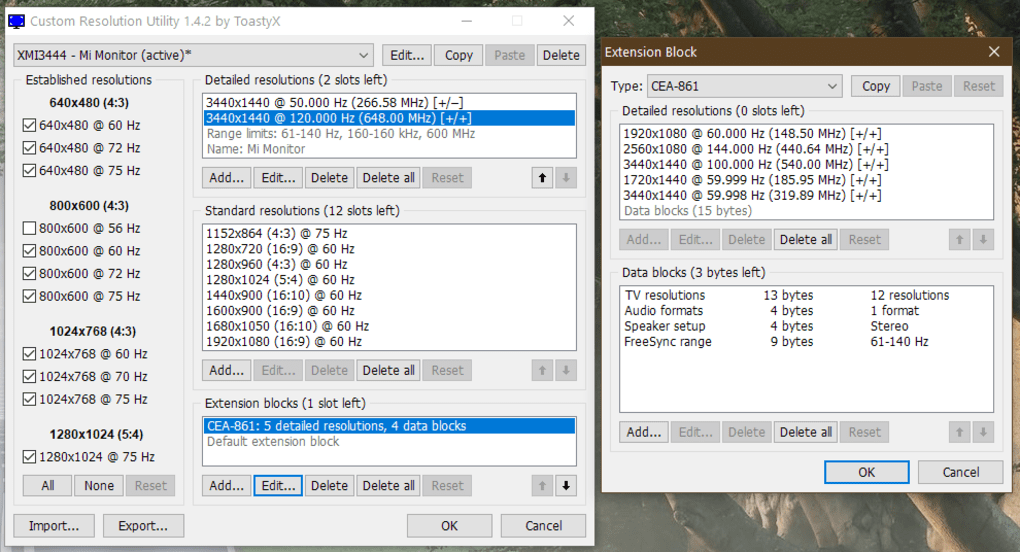
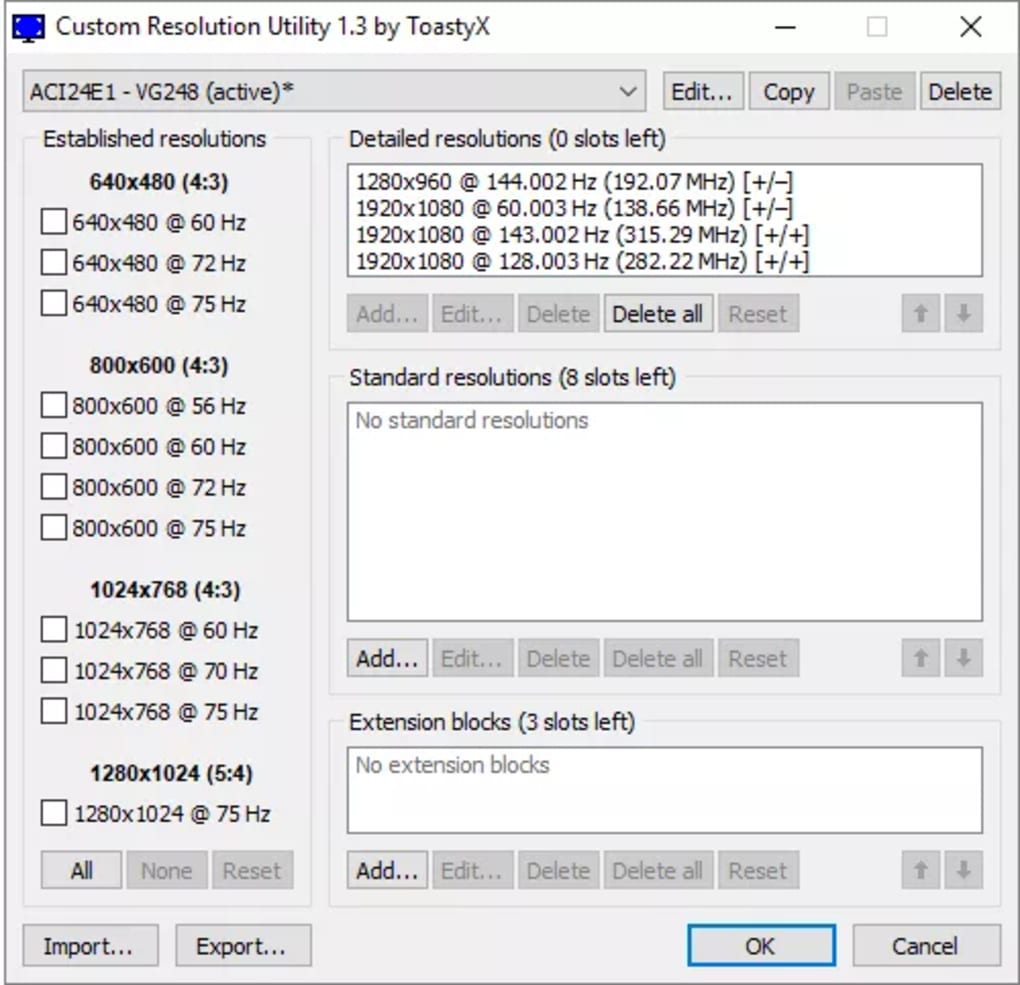
CRU presents a relatively straightforward interface, despite the complexity of the underlying EDID manipulation. The main window allows for the creation, editing, and deletion of custom resolutions. Users can manually input the timing parameters mentioned earlier, or alternatively, import EDID files to apply pre-configured resolution settings. This feature is especially useful for users who are less familiar with the technical aspects of timing parameters. The import feature allows experienced users to share optimized EDID configurations or use pre-made profiles for common monitors.
Additionally, CRU includes predefined options for common monitor types, such as LCD and CRT monitors. These presets provide a starting point for users who prefer not to manually configure all the timing parameters. However, manual adjustments might still be necessary to fine-tune the resolution for optimal performance.
Crucially, CRU allows users to save up to six custom resolution entries. The first entry is automatically designated as the primary resolution. This feature enables users to quickly switch between different resolutions, catering to varied usage scenarios, for instance, between high-resolution work and lower-resolution gaming or media consumption. It’s worth noting that regardless of the GPU type, the graphics driver automatically adds scaled-down lower resolutions, providing flexibility for different screen needs.
Advanced Usage and Potential Risks: Beyond Standard Resolutions
CRU’s advanced features extend beyond simply adding resolutions. Experienced users can utilize it to fine-tune various aspects of their display settings, potentially leading to improved image quality or compatibility with specific applications. However, it’s crucial to approach these advanced features with caution, as incorrect configuration can lead to system instability or display issues.
Modifying EDID directly impacts the system’s low-level configuration. Incorrectly set values could lead to instability, flickering, or complete failure of the display. It’s always wise to backup your system’s registry before making significant changes using CRU, allowing for easy restoration if problems arise. The potential for unintended consequences necessitates a careful and methodical approach.
Alternatives to CRU and Choosing the Right Tool
While CRU is a powerful and popular tool, several alternatives exist, each with its strengths and weaknesses. Some alternatives offer similar functionality with different interfaces or additional features, while others focus on specific aspects of display management. The best choice depends on individual needs and technical expertise.
Before using any resolution tweaking tool, it’s recommended to research your specific hardware’s capabilities and limitations. Improper configuration may damage your monitor or lead to unforeseen system issues.
Choosing the correct tool will depend on your specific needs. Some alternatives may offer a simpler interface, focusing more on pre-defined resolution profiles, making them ideal for less technically inclined users. Others might provide more advanced features, such as fine-grained control over various timing parameters, which are more suited to advanced users. Consider your comfort level with technical settings and the complexity of your display setup when deciding on an appropriate tool. Always back up your system before making changes.
In conclusion, CRU offers a powerful way to customize display resolutions beyond the limitations of standard operating system settings. Its ability to directly manipulate EDID provides control over intricate timing parameters, opening the door to enhanced display capabilities for a variety of purposes. However, its compatibility limitations and potential for misconfiguration necessitate a thorough understanding of its functionality and the risks involved. Careful planning and understanding of your hardware are essential for successful and safe utilization of CRU and any other similar software.
File Information
- License: “Free”
- Version: “1.5.1”
- Latest update: “May 4, 2022”
- Platform: “Windows”
- OS: “Windows 11”
- Language: “English”
- Downloads: “12.4K”
- Size: “542.94 KB”


