
In an increasingly digital world, the importance of robust data backup cannot be overstated. From cherished family photos to critical business documents, our digital lives are often encapsulated within the files stored on our computers. Losing these files due to hardware failure, accidental deletion, or cyber-attack can range from a minor inconvenience to an absolute catastrophe. This is where dedicated backup solutions like CyberLink PowerBackup step in, offering a vital safety net for your most important digital assets. As evaluated by experts at PhanMemFree, CyberLink PowerBackup has long been recognized as a handy and reliable tool, particularly for users seeking a straightforward approach to safeguarding their data.
CyberLink PowerBackup, available for Windows, presents itself as an accessible solution for anyone looking to secure their files without navigating overly complex interfaces. While many backup applications boast an array of advanced features that can often overwhelm the average user, PowerBackup emphasizes simplicity and efficiency. Its trial version provides users with the opportunity to experience its core functionalities, offering a glimpse into how easily one can implement a data protection strategy. This review delves into the specifics of CyberLink PowerBackup, exploring its features, capabilities, and user experience, while also considering its position in the broader landscape of data management tools.
An Overview of CyberLink PowerBackup
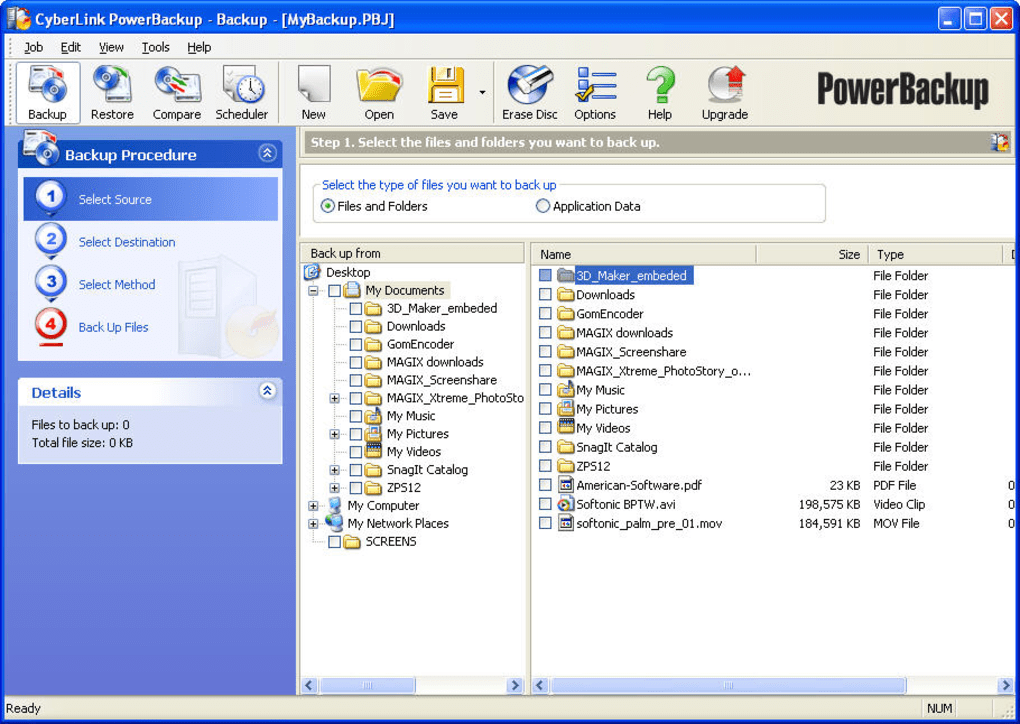
CyberLink PowerBackup distinguishes itself through its user-friendly design and a focus on core backup functionalities. Unlike some enterprise-grade solutions that might require extensive technical knowledge, PowerBackup is engineered for a broader audience, aiming to make data protection accessible to everyone. PhanMemFree’s extensive testing of backup utilities consistently highlights PowerBackup as one of the easiest tools to grasp and operate. Its strength lies in streamlining the often-daunting process of data backup into a few logical steps, ensuring that even novice users can confidently protect their information.
At its heart, CyberLink PowerBackup serves as a dedicated utility for creating copies of your valuable data. This includes not only personal files and folders but also application-specific data, which can be crucial for restoring software configurations or user preferences after a system overhaul. The software’s interface is designed to guide users through each stage of the backup process, minimizing confusion and maximizing efficiency. This straightforward approach has been a cornerstone of its appeal, particularly for those who prioritize ease of use over an exhaustive list of niche features. While it might not cater to every conceivable backup scenario, its focus on fundamental data safety makes it a commendable option for everyday users.
The Streamlined Backup Process
The beauty of CyberLink PowerBackup lies in its methodical, four-step approach to data backup, which demystifies the entire procedure. This intuitive workflow ensures that users can set up and execute a backup job with minimal fuss, transforming what could otherwise be a complex task into a manageable routine.
The first step involves selecting the data you wish to back up. PowerBackup provides flexibility here, allowing you to choose specific folders and individual files, or even target application-specific data. This precision ensures that you only back up what’s truly important, saving space and time. Whether it’s your documents folder, your photo library, or the settings for a particular software application, the selection process is intuitive and clear.
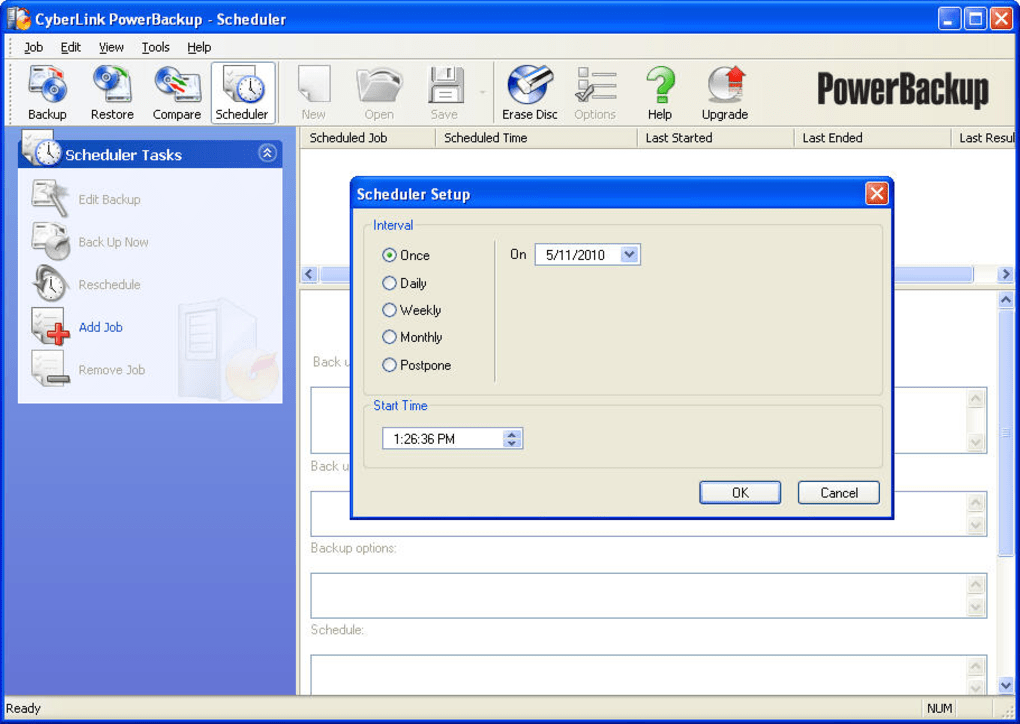
Once your data is selected, the second step is to pick a destination for your backed-up information. CyberLink PowerBackup offers a range of options, accommodating various storage preferences. This includes traditional hard drives, external USB drives, and notably, removable media such as DVD and Blu-ray discs. The inclusion of optical media support, while less common in an era dominated by cloud and large-capacity external drives, remains a valuable option for archival purposes or for users who prefer offline, physical backups. This versatility ensures that your backup strategy can be tailored to your available resources and comfort level.
The third crucial step is choosing a backup method. CyberLink PowerBackup supports the three most common and effective backup strategies, each serving a different purpose:
- Full Backup: As the name suggests, this method backs up all selected files and folders every time it runs. It’s the most comprehensive option, ensuring that a complete, standalone copy of your data exists. While it consumes the most storage space and time, it offers the simplest recovery process as all data is contained within a single backup set.
- Differential Backup: This method only backs up those files that have been added or modified since the last full backup. Differential backups are quicker and consume less space than full backups, but restoring data requires both the last full backup and the most recent differential backup.
- Incremental Backup: The most efficient in terms of storage and time, incremental backups only copy files and folders that have been modified since the last incremental backup (or the last full backup if it’s the first incremental). While very fast, restoring data from an incremental backup can be more complex, often requiring the original full backup and all subsequent incremental backups in chronological order.
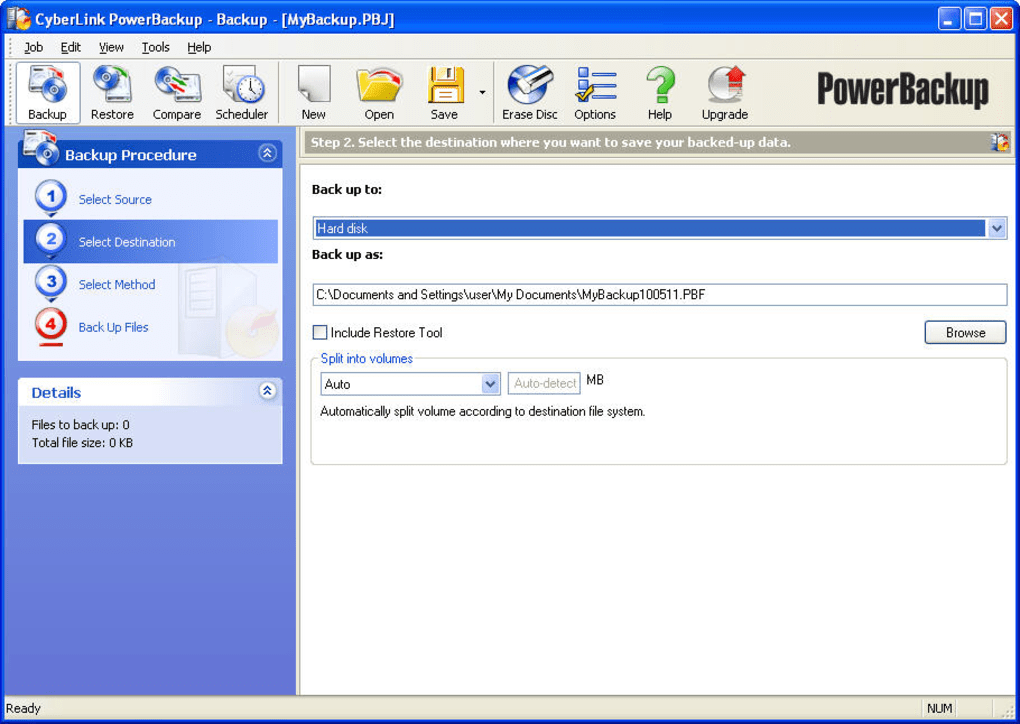
Finally, after configuring all your desired options, you can either hit the “Back Up Now” button to initiate the process immediately or leverage the Scheduler function within CyberLink PowerBackup. The scheduler is a particularly powerful feature, allowing you to automate your backup routines. By setting specific times and frequencies, you can ensure that your data copies are done automatically, minimizing the risk of forgetting to back up and maintaining a consistent data protection regimen without constant manual intervention. This automation is key to a truly reliable backup strategy, providing peace of mind that your data is being continuously safeguarded.
Key Features and Specifications
Beyond its core backup process, CyberLink PowerBackup incorporates several other features commonly found in reliable backup software, aimed at enhancing security and efficiency. One such feature is password protection, which allows users to encrypt their backup archives. This adds a crucial layer of security, safeguarding your sensitive data from unauthorized access, especially if your backup media falls into the wrong hands. Another practical option is the ability to ZIP backups, which compresses the backed-up files. This not only reduces the storage space required for your backups but can also accelerate the backup process itself, particularly when dealing with many small files.
The software is also designed to provide transparency regarding its operations. After each backup job, CyberLink PowerBackup generates reports, detailing the outcome of the process. These reports confirm which files were backed up, highlight any issues encountered, and provide valuable insights into the success and integrity of your data protection efforts. This reporting feature is essential for verifying that your backup strategy is functioning as intended.
However, it’s worth noting that while PowerBackup is robust in its core functionalities, it explicitly states that it does not offer “other advanced options.” This is a significant point, as it defines the scope and target audience for the software. For users seeking highly specialized features such as system imaging, bare-metal restore capabilities, or intricate versioning controls beyond the three basic backup types, PowerBackup might feel somewhat limited. It excels at what it promises – straightforward data backup – but intentionally avoids the complexity of more sophisticated data management suites.
Looking at the app’s specifications, CyberLink PowerBackup is provided as a Trial version, allowing potential users to test its capabilities before committing. The specific version detailed is 2.50.5520, with its latest update dating back to May 12, 2010. This indicates that the software has not seen significant updates in recent years, which is a factor to consider in a rapidly evolving technological landscape. It is designed for the Windows OS, specifically supporting versions like Windows Vista, and is available in English with support for numerous other languages including German, Spanish, French, Italian, Japanese, Korean, and Chinese. The file size is a modest 20.05 MB, making it a lightweight application that won’t strain system resources during download or installation. While historical download figures show 1.3K downloads, recent monthly figures stand at 8 downloads, reflecting its age and the emergence of newer solutions. The developer remains CyberLink, a well-known name in multimedia software.
Pros of CyberLink PowerBackup:
- Supports three backup modes: Full, Differential, and Incremental, offering flexibility in backup strategy.
- Can backup to DVD and Blu-Ray: Provides options for physical, offline archival of data.
- Support for scheduled backups: Automates the backup process, ensuring consistent data protection.
- Generates reports with every job: Offers transparency and verification of backup success.
- Easy to use: Its simple interface makes it accessible for non-technical users.
- Does what it says on the tin: Reliably backs up specified files and folders.
Cons of CyberLink PowerBackup:
- No advanced options: Lacks features like system imaging, granular recovery for specific applications, or extensive versioning.
- Older software: The last update was in 2010, which means it might not fully leverage modern OS features or security enhancements.
- Potential limitations for full system backups: As a user review highlights, it may require tweaking for comprehensive OS backups.
In summary, CyberLink PowerBackup serves as a pragmatic choice for users who need a no-frills, dependable tool for backing up their critical files and application data to various destinations, including optical media. Its ease of use and automated scheduling capabilities make it a strong contender for personal or small-office use, provided that its inherent limitations regarding advanced features and potential nuances with full system backups are understood.
Navigating the Nuances of Data Protection: A Deeper Dive
While CyberLink PowerBackup excels in simplicity for basic file and folder backups, a more critical examination, particularly highlighted by user experiences, reveals important nuances regarding its capability for comprehensive system protection. An anonymous user review from August 19, 2016, provides invaluable insight into the challenges of achieving a “truly full backup” with PowerBackup, specifically for operating system files. This perspective is crucial for understanding the software’s limitations and how to circumvent them.
The user’s experience with PowerBackup versions 2.5 and 2.6 underscores a significant disconnect between the perceived “full” backup feature and its actual execution. The review states that PowerBackup is “not designed to do real-full-system backups out of the box without major analysis and tweaking.” This implies that while the software is user-friendly for data files, it requires an advanced understanding of its configuration settings to achieve a complete system image, which includes the operating system. This distinction is vital: a “data backup” protects your personal files, whereas a “system backup” (often called an image) allows you to restore your entire operating system, applications, and data to a previous state, typically to a new or reinstalled hard drive.
Beyond Simple File Backups: Understanding System Integrity
The core issue identified by the user is that PowerBackup, by default, eliminates essential Operating System files that are necessary for a complete “full” backup. This is a critical flaw for anyone relying on the software for a bare-metal restore scenario. The absence of warnings or flags about these omissions means users only discover this through trial and error—often at the most inconvenient time, during an attempted system restoration. The user points out that even the comprehensive PDF manual available online fails to explicitly detail this crucial limitation.
The technical explanation for this behavior lies within the software’s “Options” and “Filter” tab. Here, PowerBackup has preset filters designed to “Do not backup the following file types.” Specifically, two icons are preset to exclude “Hidden files and folders” and “Protected Operation files.” These categories, by their very nature, contain many of the critical system files that Windows needs to function correctly. If these files are not backed up, any attempt to restore an operating system using a PowerBackup archive will inevitably lead to a non-bootable or incomplete system.
The reviewer vividly describes the potential disaster: an end-user, assuming a “full backup” will protect their entire OS, might be “leaping with joy” after a seemingly successful backup, only to face “a disaster when it is time to do a restoration, because not all files for Windows were copied.” This scenario highlights a significant design oversight, where the software’s intuitive interface gives a false sense of security regarding full system integrity. When compared to dedicated system imaging tools like Acronis, Macrium Reflect, or Paragon, which are built from the ground up for comprehensive system backups, PowerBackup falls short in its default configuration. These specialized tools prioritize capturing every byte of the operating system drive to ensure a successful bare-metal restore, a capability that PowerBackup, in its default state, does not provide.
Configuration Challenges and Workarounds
The user review goes further to detail specific configuration challenges and, importantly, provides workarounds. The most counter-intuitive aspect is that even if a user explicitly checks the “Drive C” option (which intuitively implies backing up the entire C: drive, including the OS), they will not get a full OS backup. This is “horrible for intuitive software that lacks a manual” explanation, as the user rightly points out.
The necessary workaround involves manually adjusting the “Filter” settings:
- Access the Filter Tab: Open “Options” and navigate to the “Filter” tab.
- Remove Exclusions: Here, you will find the preset exclusions for “Hidden files and folders” and “Protected Operation files.” To ensure a more complete backup, you must click each blocked item and then “Remove them from the list.” This action tells PowerBackup to include these files in the backup.
- Verify Drive Selection: Even after adjusting the filters, another layer of complexity exists. The initial window where you select items for copying might give the impression that checking the first box automatically selects everything, including the C: drive for a full system backup. However, the reviewer notes that this is “not even close.” Users must go down from the check-marked boxes to the “This PC” icon, open it, and then explicitly check mark the “C:” drive. Only by doing this can one achieve what the user considers a “truly full backup” that includes the operating system.
The reviewer’s suspicion was first aroused by the disparity in file and gigabyte counts compared to what dedicated system imaging software would capture. PowerBackup was showing only about half the expected numbers, leading to the discovery of these hidden blockages and unchecked drive options. This experience underscores that for a tool designed for “easy end user software,” these “hidden quirks run foul against all of the other kind of easy to use backup programs on the market.”
The strong recommendation from the user is that CyberLink PowerBackup should not be suggested “unless you are fully aware of this kind of tricky tweaking and can work with it.” The expectation for intuitive software, the reviewer argues, is that users should not have to figure out complex workarounds to achieve results that should be inherently provided or clearly documented. The software earns “one star for their effort and their blueray capabilities,” acknowledging its basic functionality but heavily criticizing its misleading approach to “full system backups.” This critical feedback is essential for potential users to manage their expectations and configure the software correctly if their goal extends beyond simple file backups.
CyberLink PowerBackup in the Broader Landscape of Data Management
Understanding CyberLink PowerBackup’s place within the vast ecosystem of data management tools requires acknowledging its specific strengths and limitations, particularly in light of evolving storage technologies and user expectations. While it remains a functional tool for its intended purpose, its age and the issues raised by detailed user reviews position it more as a niche solution rather than a comprehensive, modern data protection suite.
Modern data management encompasses a wide range of needs, from simple file synchronization to complex disaster recovery plans. CyberLink PowerBackup primarily caters to the more traditional aspect of creating local copies of files and folders. Its support for optical media like DVDs and Blu-ray, while a pro for archival purposes, is less central in an era where cloud storage, network-attached storage (NAS), and large-capacity external hard drives are prevalent for backup destinations.
Backup & Cloud Storage: A Category Perspective
The category of “Backup & Cloud Storage” has seen immense growth and innovation since CyberLink PowerBackup’s last update in 2010. Cloud storage solutions like Google Drive, Microsoft OneDrive, and TeraBox (as mentioned in the reference content as alternatives on PhanMemFree.org) offer seamless, off-site backups, synchronization across devices, and often versioning capabilities, making data accessible from anywhere. These services have largely replaced the need for manual backups to removable media for many users.
Within the “Development & IT” section of a technology portal like PhanMemFree.org, “Backup & Cloud Storage” is a critical subcategory. It includes not just personal backup tools but also enterprise-grade solutions, disaster recovery software, and dedicated cloud storage platforms. CyberLink PowerBackup fits into the personal backup tool segment. However, its lack of direct cloud integration (a common feature in newer backup software) places it more firmly in the traditional, local backup paradigm. For users whose primary concern is backing up to local drives or optical media, PowerBackup remains a viable, albeit dated, option.
The user review’s comparison to tools like Acronis, Macrium Reflect, and Paragon is highly relevant here. These are robust solutions designed for complete system imaging, allowing for bare-metal restores—a crucial capability for businesses and advanced users who need to quickly recover an entire operating system along with all its applications and data. CyberLink PowerBackup, even with the discussed workarounds, does not offer the same level of seamless system imaging and recovery that these specialized tools provide. It’s more aligned with “Data Backup” rather than “System Image Backup.” Therefore, when considering a tool from the “Backup & Cloud Storage” category, users must differentiate between tools for simple file backups and those for comprehensive system protection. PowerBackup serves the former effectively but requires careful configuration for anything approaching the latter.
Enhancing Productivity with Data Security
Reliable data backup is fundamentally linked to enhancing “Productivity” and ensuring “Security & Privacy.” The ability to quickly recover lost or corrupted data minimizes downtime, preventing disruptions to workflows and ensuring continuous operation, whether for a personal project or a business task. The financial and emotional costs of data loss can be substantial, making a well-implemented backup strategy an investment in productivity.
From the perspective of “Security & Privacy,” CyberLink PowerBackup’s inclusion of password protection and the ability to ZIP backups contribute positively. Encrypting backup archives protects data from unauthorized access, which is a core tenet of data privacy. Reducing file size through compression not only saves storage but can also indirectly aid productivity by making backup operations quicker and more manageable, especially for those with limited bandwidth or storage capacity.
However, the dated nature of the software also brings up “Security & Privacy” concerns. Software that hasn’t been updated since 2010 may not incorporate the latest security protocols or be patched against newer vulnerabilities. While its primary function doesn’t involve direct internet connectivity (unless backing up to a network share), reliance on older code can still pose risks. Modern backup solutions often integrate advanced encryption standards, secure cloud transfers, and frequent security updates, offering a more robust security posture in today’s threat landscape.
Despite these considerations, for its specific use case—simple file and folder backups to local or optical media—CyberLink PowerBackup does contribute to data security by making backups accessible. For users who understand its limitations, particularly concerning comprehensive system backups, and who meticulously follow the configuration workarounds, it can still serve as a valuable part of a broader data management strategy. It encourages the fundamental habit of backing up data, which is the first line of defense against data loss.
In conclusion, CyberLink PowerBackup remains a testament to straightforward design in data protection. While it may not compete with the advanced features or modern cloud integrations of newer solutions, its clear, step-by-step process for basic file and folder backups, coupled with support for various local destinations including optical media, makes it a viable option for specific user needs. However, the critical user feedback regarding its default handling of full system backups serves as a vital reminder: no matter how intuitive a tool appears, understanding its precise capabilities and limitations, especially in the context of critical data and operating system integrity, is paramount for truly effective data protection. For those willing to perform the necessary configuration tweaks, PowerBackup can still provide a handy, reliable layer of security for their important data.
File Information
- License: “Trial version”
- Version: “2.50.5520”
- Latest update: “May 12, 2010”
- Platform: “Windows”
- OS: “Windows Vista”
- Language: “English”
- Downloads: “1.3K”
- Size: “20.05 MB”


