
dcraw is a free, open-source command-line utility designed for converting RAW image files from a wide variety of digital cameras into more easily manageable formats like TIFF and PPM. While lacking a graphical user interface (GUI), its versatility and powerful features make it a valuable tool for photographers and digital image processing enthusiasts seeking high-quality conversions and fine-grained control over the process. This article delves into the capabilities, advantages, limitations, and practical applications of dcraw.
Understanding RAW Image Files and the Need for Conversion
Digital cameras capture images in various formats. JPEG, a widely used format, compresses image data, resulting in smaller file sizes but potentially sacrificing some image quality. RAW, on the other hand, stores uncompressed or minimally compressed image data, preserving a significantly greater amount of detail and dynamic range. This allows for more extensive post-processing adjustments like exposure correction, white balance adjustment, and sharpening without introducing significant artifacts. However, RAW files are significantly larger than JPEGs and are not directly viewable or editable by standard image viewers or editors. This is where tools like dcraw come into play. They bridge the gap, enabling the conversion of these high-quality RAW files into more accessible formats suitable for editing and sharing.
dcraw’s Core Functionality and Command-Line Interface
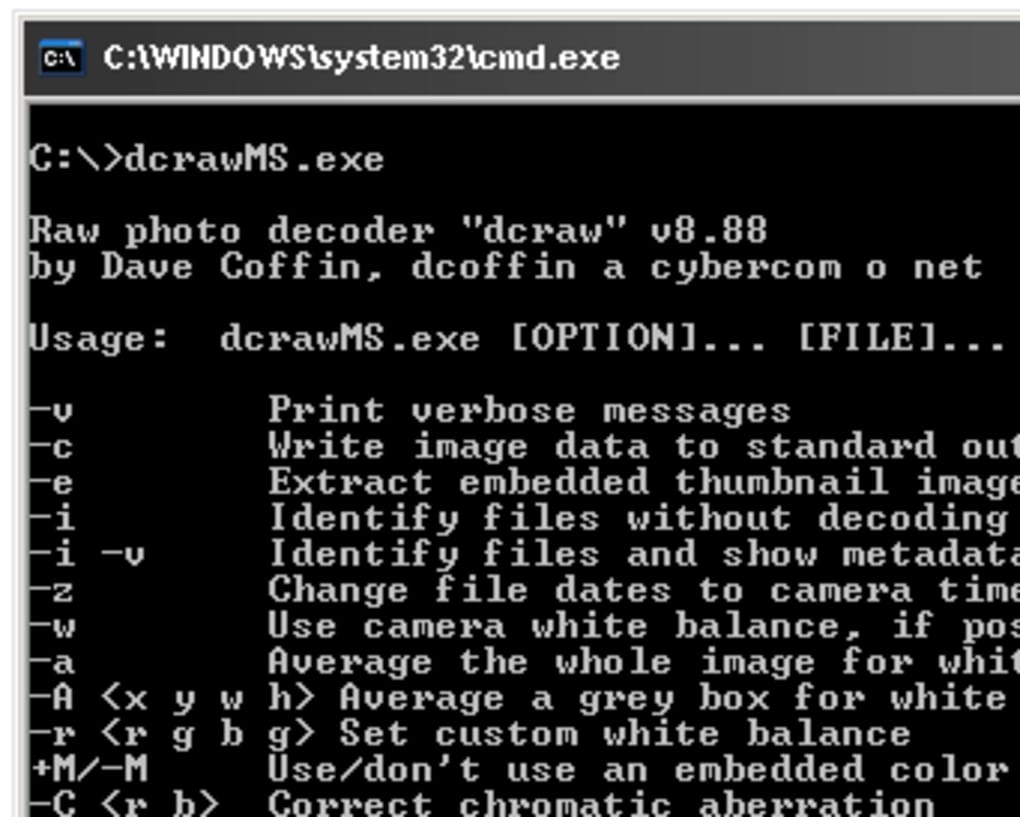
dcraw operates exclusively through a command-line interface. This means users interact with the program by typing commands in a terminal or command prompt window. While this might seem daunting to users accustomed to graphical interfaces, the command-line approach allows for precise control and automation, especially beneficial for batch processing large numbers of images. The basic syntax involves specifying the input RAW file path and desired output format and then invoking the dcraw executable. The program supports numerous optional parameters that allow for fine-tuning of various aspects of the conversion process. For instance, users can adjust parameters related to white balance, color space, sharpening, and output resolution.
Key Features and Advantages
dcraw boasts several compelling features that contribute to its popularity among experienced users:
-
Wide Camera Compatibility: dcraw supports a vast array of digital cameras, covering numerous manufacturers and models. Its ability to handle a diverse range of RAW file formats makes it a highly versatile tool.
-
High-Quality Conversions: The conversion process focuses on preserving image quality. The resulting TIFF or PPM files retain the detail and dynamic range captured by the camera’s sensor, allowing for more effective post-processing.
-
Parameter Customization: Numerous parameters provide granular control over various aspects of the conversion. This allows users to fine-tune the output image to their specific needs and preferences, optimizing results for different photographic scenarios and styles.
-
Batch Processing Capability: dcraw is well-suited for batch processing, enabling efficient conversion of large numbers of RAW images. This can be achieved by creating batch scripts that automate the conversion process, saving considerable time and effort.
-
Open Source and Free: dcraw is released under the GNU General Public License (GPL), making it freely available for use, modification, and distribution. This fosters community contributions and ensures its continued development and improvement.
-
Command-line Flexibility: The command-line interface allows for automation and integration into larger workflows. Users can easily incorporate dcraw into custom scripts or pipelines for streamlining their image processing tasks.
Limitations of dcraw
Despite its powerful features, dcraw also has some limitations:
-
Steep Learning Curve: The command-line interface and the multitude of parameters can present a steep learning curve for novice users unfamiliar with command-line tools. Understanding the various options and their effects requires time and practice.
-
Lack of GUI: The absence of a graphical user interface makes it less user-friendly than many commercial RAW converters with intuitive drag-and-drop functionality and visual previews.
-
Limited Output Formats: dcraw primarily outputs to TIFF and PPM formats. While TIFF is a widely accepted and versatile format, users may require other formats, such as JPEG, for specific applications or compatibility requirements. Conversion to other formats would necessitate using additional tools.
-
Potential for Errors: Incorrectly specifying parameters in the command line can lead to unexpected or erroneous results. Careful attention to detail is crucial when working with dcraw.
Practical Applications and Use Cases
dcraw finds its niche in scenarios where precise control and batch processing are paramount:
-
Professional Photographers: Professional photographers often rely on dcraw for its superior image quality and ability to handle large volumes of RAW images efficiently. They can customize the conversion parameters to achieve specific artistic or stylistic results.
-
Archiving and Preservation: dcraw is ideal for archiving and preserving RAW images by converting them into lossless formats like TIFF, ensuring long-term data integrity.
-
Automated Workflows: The command-line interface allows for seamless integration into automated image processing workflows, particularly beneficial for tasks such as large-scale image conversion for web applications or print production.
-
Research and Development: The open-source nature and command-line accessibility make dcraw a suitable tool for researchers and developers working on image processing algorithms and techniques.
-
Educational Purposes: Understanding dcraw can provide valuable insights into digital image processing fundamentals, offering a practical way to explore various aspects of RAW image conversion and manipulation.
Alternatives to dcraw
While dcraw offers unique capabilities, several alternative RAW converters provide user-friendly interfaces and additional features:
-
Adobe Lightroom: A popular and comprehensive photo editing and management software with a robust RAW processing engine.
-
Adobe Camera Raw (ACR): Integrated into Adobe Photoshop, ACR provides powerful RAW processing capabilities within a familiar graphical environment.
-
Capture One: A professional-grade RAW converter known for its powerful features and advanced color management tools.
-
DxO PhotoLab: Specializes in RAW processing and lens correction, offering advanced features for optimizing image quality.
These alternatives offer GUI-based solutions, simplifying the conversion process. However, they often come with a price tag, and the level of control might not match the granular precision offered by dcraw’s command-line approach.
Conclusion
dcraw remains a compelling choice for users who prioritize high-quality RAW conversions, fine-grained control, and batch processing capabilities. Its command-line interface, while requiring a learning curve, provides unmatched flexibility for experienced users who can leverage its power to optimize their workflows. However, users seeking a more user-friendly experience with intuitive visuals and broader format support may find alternative GUI-based RAW converters more suitable for their needs. The choice between dcraw and other alternatives ultimately depends on individual skill levels, project requirements, and desired workflow efficiency.
File Information
- License: “Free”
- Latest update: “April 11, 2024”
- Platform: “Windows”
- OS: “Windows 98 SE”
- Language: “English”
- Downloads: “14.4K”
- Size: “446.98 KB”


