
Debloat Windows 10 is a free and open-source utility designed to streamline and optimize the Windows 10 operating system. Created by independent developer Alex Hirsch, this powerful tool allows advanced users to fine-tune their system by modifying, disabling, or removing core components and features. While similar in concept to other system optimizers and toolkits, Debloat Windows 10 distinguishes itself through its script-based approach, offering granular control over various aspects of the Windows 10 experience. This detailed guide will explore its functionalities, usage, considerations, and potential benefits and drawbacks.
Understanding Debloat Windows 10: A Collection of Powerful Scripts
At its core, Debloat Windows 10 is a collection of nine meticulously crafted PowerShell scripts. These scripts provide users with the ability to target specific system elements for modification. Unlike graphical user interfaces which offer a simplified approach, Debloat Windows 10 operates directly within the PowerShell environment, demanding a more technical understanding from its users. This approach enables precise control and customization, but also necessitates a higher level of technical proficiency.
The scripts included within the package generally focus on three core areas:
-
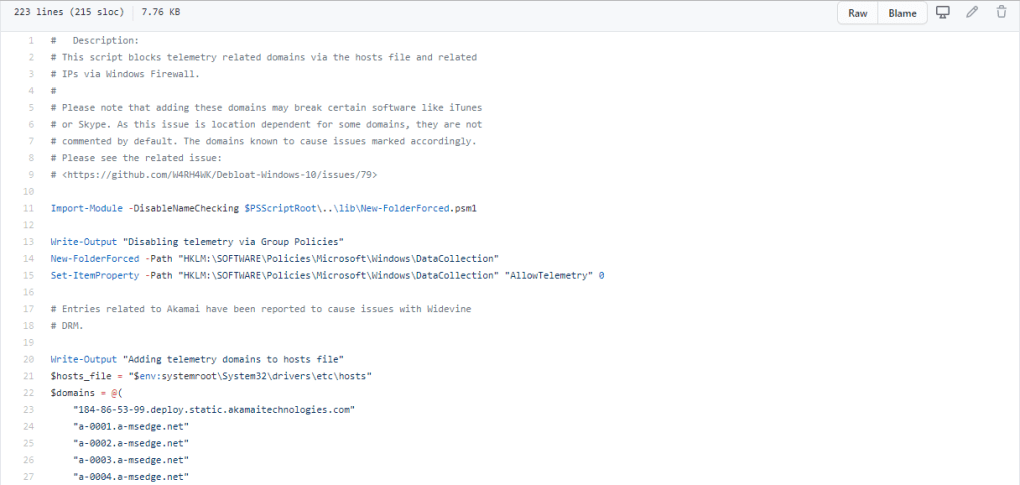
Telemetry Blocking: Windows 10, by default, collects telemetry data to improve its functionality and provide personalized experiences. These scripts allow users to disable or significantly limit this data collection, enhancing privacy. However, it’s important to understand that this could potentially affect some features or services that rely on this data.
-
Service and Feature Disabling: Windows incorporates a multitude of services and features. Some are essential for the OS’s core functionality, while others might be unnecessary or consume excessive system resources. Debloat Windows 10 allows selective disabling of these features, leading to potential performance gains and reduced resource consumption. However, disabling essential services could lead to instability or malfunctions.
-
Default Application Removal: Windows 10 ships with several pre-installed applications that some users may find unnecessary. The scripts within Debloat Windows 10 provide a means to uninstall or remove these default applications, freeing up disk space and potentially improving boot times.
How to Use Debloat Windows 10: A Step-by-Step Guide
Using Debloat Windows 10 requires familiarity with the Windows PowerShell command-line interface. The following steps outline the process:
- Access PowerShell: Locate “powershell” in the Windows Start Menu. Right-click on the PowerShell icon and select “Run as administrator.” This is crucial to ensure the scripts have the necessary permissions to make system changes.
-
Enable Script Execution: PowerShell, by default, has restrictions on script execution for security reasons. To run the Debloat Windows 10 scripts, you must first enable unrestricted script execution using the following command:
Set-ExecutionPolicy Unrestricted. Be aware that this temporarily loosens security restrictions, so it’s crucial to revert this change after completing your modifications. -
Navigate to Script Directory: Use the
cdcommand in PowerShell to navigate to the directory where you’ve saved the Debloat Windows 10 scripts. For example, if the scripts are in the “C:\DebloatWindows10” folder, you would entercd C:\DebloatWindows10. -
Run Desired Scripts: Each script within the Debloat Windows 10 package is designed for a specific task. Carefully review the descriptions of each script to understand its function before running it. Run each script individually by typing its name and pressing Enter. For example, if a script is named
DisableTelemetry.ps1, you would type.\DisableTelemetry.ps1and press Enter. -
Revert Execution Policy: Once you’ve finished running the desired scripts, it’s crucial to revert the execution policy to its default restricted setting. This helps maintain the system’s security. Use the following command:
Set-ExecutionPolicy Restricted. -
Reboot (Optional): Depending on the scripts executed, a system reboot might be necessary for the changes to take full effect.
Important Considerations Before Using Debloat Windows 10
Before undertaking any system modifications with Debloat Windows 10, it’s imperative to understand the potential risks involved. This tool is explicitly designed for advanced users who possess a strong understanding of the Windows operating system and scripting. Improper use can lead to system instability, data loss, or even render your system unusable. Therefore, it’s crucial to heed the following precautions:
-
Advanced User Requirement: Debloat Windows 10 is not intended for novice users. A lack of understanding of the Windows system’s inner workings can lead to unintended consequences.
-
Irreversibility of Changes: The changes made by Debloat Windows 10’s scripts are generally not easily reversible. While some effects might be mitigated by system restore points, others may require significant intervention or even a clean reinstall of the operating system.
-
Fresh Installation or System Restore Point: The safest approach is to run these scripts on a fresh installation of Windows 10. This minimizes the risk of conflicts or unforeseen issues. Alternatively, creating a system restore point before running any scripts is highly recommended as a safety net. This allows you to revert your system to its previous state if anything goes wrong.
-
Script Understanding: Before running any script, thoroughly review its description and understand precisely what changes it will implement. This helps prevent accidental modifications that could negatively affect system stability or functionality.
-
Backup Your Data: Always back up your important data before undertaking any significant system modifications. This precaution protects your valuable information in case something goes unexpectedly wrong.
Debloat Windows 10: Pros and Cons
Debloat Windows 10, while powerful, presents a trade-off between enhanced system control and the risk associated with its use.
Pros:
-
Free and Open-Source: The software is freely available and open-source, allowing for community scrutiny and potential contributions.
-
Granular Control: It offers a level of control over system components that most graphical user interface-based utilities lack.
-
Powerful Scripting Capabilities: The PowerShell script-based approach allows for highly targeted system modifications.
- Potential Performance Improvements: Disabling unnecessary services and features can lead to noticeable performance improvements, especially on systems with limited resources.
Cons:
-
Steep Learning Curve: Requires extensive knowledge of PowerShell and the Windows operating system.
-
Irreversible Changes: Modifications made by the scripts are not easily undone.
-
Risk of System Instability: Incorrect usage can lead to system instability or malfunctions.
-
Not User-Friendly: The command-line interface isn’t user-friendly for beginners.
In conclusion, Debloat Windows 10 is a valuable tool for experienced users seeking deep customization and optimization of their Windows 10 system. However, its advanced nature and potential for irreversible changes require caution and a thorough understanding of its functionalities. It is crucial to weigh the potential benefits against the risks before using this tool. Always proceed with caution and prioritize data backup and creating a system restore point to mitigate potential issues.
File Information
- License: “Free”
- Version: “varies-with-devices”
- Latest update: “July 15, 2022”
- Platform: “Windows”
- OS: “Windows 10”
- Language: “English”
- Downloads: “1.2K”
- Size: “28.63 KB”


