
In the intricate digital tapestry of modern computing, the operating system serves as the central orchestrator, directing countless processes and interactions. Among these, how your computer decides which application opens a specific file type is a fundamental, yet often overlooked, aspect of the user experience. This crucial decision-making process is governed by what are known as “file associations.” While Windows provides rudimentary controls for managing these defaults, they often fall short for users seeking granular control, deeper customization, or effective troubleshooting. This is where the Default Programs Editor steps in, an indispensable, free, and standalone utility designed to empower users with unprecedented command over their Windows environment.
Developed by FactorMystic, the Default Programs Editor is more than just a simple settings tweak; it’s a comprehensive toolkit for reviewing, checking, changing, and even deleting file associations with remarkable ease. It also goes a step further, offering the ability to customize the visual representation of file types by changing their associated icons and even modifying their descriptive text. Available for download on PhanMemFree.org, this compact yet potent application transforms the way you interact with your files, offering a pathway to a more personalized, productive, and secure computing experience. From frustrated users grappling with hijacked file types to meticulous professionals striving for workflow optimization, the Default Programs Editor provides the definitive solution, all without the need for complex installation processes.
Utilities & Tools: Enhancing Your Windows Experience
The modern digital landscape is replete with an array of software applications, each vying for the user’s attention and, often, for the privilege of becoming the default program for various file types. This competition, while fostering innovation, can also lead to a chaotic user experience where media files open in the wrong player, documents launch in outdated editors, or newly installed software aggressively hijacks existing associations. The Default Programs Editor stands out as a quintessential utility tool, designed specifically to bring order to this potential chaos, offering a streamlined approach to managing the very foundation of how Windows interacts with your data.
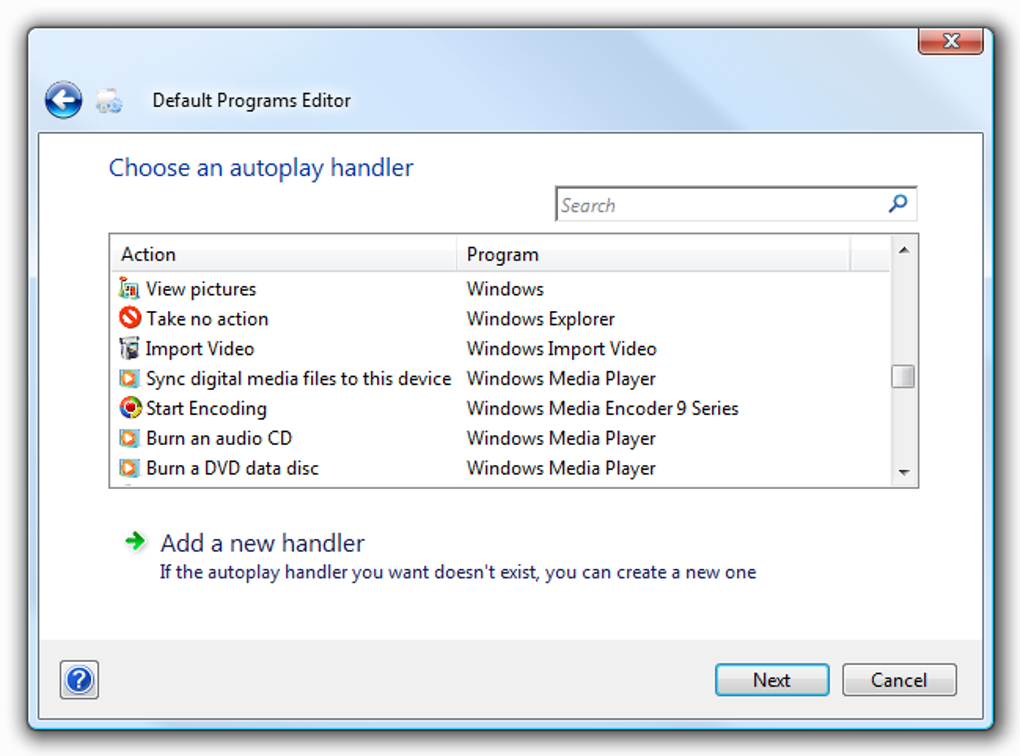
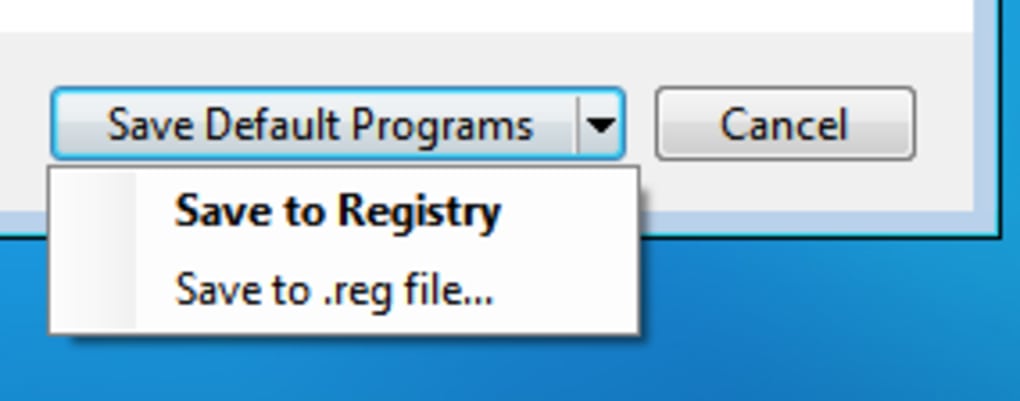
At its core, the Default Programs Editor simplifies the notoriously complex system of file type settings within Windows. Typically, managing file associations involves navigating deep into control panel settings, sometimes even venturing into the perilous depths of the Windows Registry for truly stubborn cases. Default Programs Editor abstracts away this complexity, presenting a user-friendly interface with three distinct, large buttons corresponding to its primary functions. This intuitive design ensures that even users who might shy away from technical configurations can effectively manage their system.
The first and arguably most critical function is the management of file type settings. This feature allows users to:
- Review Current Associations: Imagine having a central dashboard where every single file extension registered on your system is listed, alongside the program Windows has designated to open it. Default Programs Editor provides precisely this, offering a clear overview that can immediately highlight discrepancies, unwanted defaults, or programs that have inappropriately claimed file types. This diagnostic capability is invaluable for troubleshooting.
- Change Associations: The most common use case. If you prefer VLC Player over Windows Media Player for your video files, or a specific image editor instead of the built-in Photos app for JPEGs, this tool makes the change effortless. It guides you through a simple, step-by-step wizard, allowing you to select your preferred application for any given file type. This granular control far exceeds the capabilities of Windows’ native “Open with…” dialogue, which often only offers a limited selection or makes permanent changes difficult to revert.
- Delete Associations: Sometimes, an application might leave behind orphaned file type entries after uninstallation, or you might want to remove an association entirely, perhaps for a rare file type that you prefer to open manually. Default Programs Editor allows you to cleanly sever these ties, contributing to a tidier and potentially more responsive system by preventing Windows from trying to launch a non-existent or unwanted program.
The benefits of such detailed management are immediately apparent. Users regain full control over their digital environment, eliminating the frustration of applications launching unexpectedly or struggling to open files with the right software. This translates into a more efficient workflow, reduced system clutter, and a computing experience that genuinely reflects your preferences.
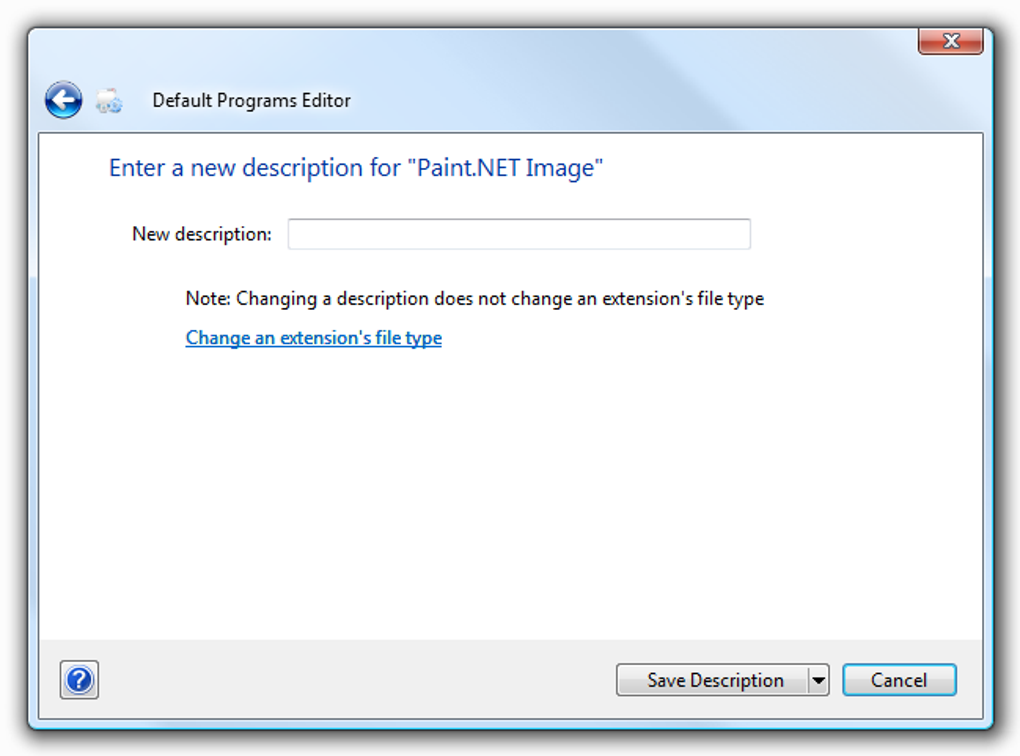
Beyond merely dictating which program opens a file, the Default Programs Editor also empowers users with two powerful aesthetic and organizational features: customizing icons and modifying descriptions.
- Customizing Icons: Icons are the visual cues that allow us to quickly identify file types in a busy folder. While Windows assigns default icons, they can sometimes be generic or undesirable. Perhaps you want all your project-specific text files to have a unique icon to distinguish them from generic
.txtfiles, or you want to restore the classic icons for certain file types after a software update changed them. The Default Programs Editor allows you to replace the default icon associated with any file type with one of your choosing. This isn’t just about aesthetics; it enhances visual organization and makes file navigation more intuitive, especially for users who work with a diverse range of data formats. It creates a more personal and consistent visual language for your digital workspace. - Modifying Descriptions: Every file type has a descriptive text that Windows uses in various contexts, such as tooltips or file properties. For example,
.docxfiles are typically described as “Microsoft Word Document.” Default Programs Editor allows you to change these descriptions. While seemingly minor, this feature can be surprisingly useful for less common file types or specific professional workflows. You could, for instance, label.datfiles as “Custom Data File - Project X” for clarity, helping you or your colleagues understand the nature of obscure files without needing to open them. This adds another layer of organizational clarity and user-friendliness to the Windows file system.
The intuitive nature of Default Programs Editor is a major strength. Despite its powerful capabilities, the application’s interface is straightforward, guiding users through each step. Acknowledging that the program doesn’t include extensive documentation, its ease of use truly speaks for itself. It’s important to note, however, that due to the sensitive nature of modifying system settings, you will typically need administrator rights to make changes, a standard security measure for such utilities. This ensures that only authorized users can alter these fundamental system behaviors, maintaining the integrity and security of your Windows installation.
Productivity Gains Through Smart File Management
In a world where digital productivity is paramount, every second saved and every friction point eliminated contributes to a more efficient and less stressful work environment. Precisely controlling file associations with a tool like Default Programs Editor is not merely a matter of convenience; it’s a strategic move towards significant productivity gains. When your computer consistently behaves exactly as you expect it to, your focus remains unbroken, and your workflow remains seamless.
Consider the common scenario of working with multiple applications that handle similar file types. A graphic designer might have Adobe Photoshop, GIMP, and a simple image viewer installed. Without precise control, a .jpg file might open in the wrong application, forcing the designer to close it and reopen it with the intended software, or manually navigate through the “Open with…” menu every single time. These seemingly minor interruptions accumulate, draining valuable time and mental energy. With Default Programs Editor, the designer can definitively ensure that all .psd files open with Photoshop, .ai with Illustrator, and generic .jpg files with their preferred lightweight viewer, without any conflicts or second-guessing.
Similarly, a developer might work with various code editors and IDEs. A .json file, for instance, could open in Notepad by default, despite a powerful code editor like VS Code or Sublime Text being installed. This means extra steps to copy, paste, or manually open the file in the correct environment. By setting the default for .json (and other code-related file types) to the preferred IDE, the developer can instantly access the files with syntax highlighting, code completion, and integrated debugging tools, directly boosting efficiency.
Even for everyday users, the benefits are tangible. Imagine a student or professional who frequently deals with PDF documents. If PDFs consistently open in a basic web browser or a minimalist reader, they might miss out on annotation tools, advanced search functions, or form-filling capabilities offered by a dedicated application like Adobe Acrobat Reader or Foxit Reader. Default Programs Editor ensures that every PDF opens with the feature-rich application of choice, enhancing their ability to interact with and manage their documents effectively.
The cumulative effect of these small efficiencies is substantial. Over a workday, a week, or a month, the seconds saved from not having to correct mistaken program launches, or manually selecting applications, add up to hours of reclaimed time. This allows individuals to concentrate on core tasks, maintain flow, and achieve more without unnecessary digital friction. It empowers users to tailor their OS to their specific professional and personal needs, transforming a generic computing experience into a highly optimized, personalized workstation.
Personalization: Making Windows Truly Yours
Beyond the realm of pure utility and efficiency, the Default Programs Editor offers a powerful avenue for personalization, transforming your generic Windows installation into an environment that truly reflects your individual taste and workflow. Windows, by design, offers a vast canvas for customization, from wallpapers and themes to sound schemes and mouse cursors. However, the visual and functional aspects of file types themselves often remain rigidly defined, limiting the extent to which users can truly make their operating system “theirs.”
This is where the ability to customize icons and modify file descriptions becomes a significant feature for personalization. Icons are more than just small graphical representations; they are visual shorthand, conveying information at a glance. Default icons can sometimes feel bland, outdated, or inconsistent, especially when dealing with a mix of old and new software. With Default Programs Editor, you can inject a fresh aesthetic into your file system. Want all your music files to have a specific album art-inspired icon, or all your work documents to carry a distinct, professional emblem? The tool makes it possible, allowing you to source and apply custom icons to any file type.
This level of aesthetic control extends to creating a consistent visual language across your digital workspace. For power users, developers, or creative professionals who manage a vast array of file types, establishing unique icon sets for different project categories or data formats can dramatically improve visual organization and quick identification. This can prevent errors, speed up navigation, and simply make working on your computer a more visually pleasing and comfortable experience.
Furthermore, customizing descriptions, while seemingly a minor detail, contributes to a deeper sense of ownership and clarity. Instead of generic descriptions like “File” or “Application Extension,” you can tailor them to be more informative, perhaps reflecting a specific project, a custom file format, or a personal classification system. This subtle customization adds another layer of semantic meaning to your files, bridging the gap between how the system views a file and how you, the user, intrinsically understand its purpose.
In essence, Default Programs Editor empowers users to go beyond merely adapting to their operating system’s defaults. It enables them to actively sculpt and refine their digital environment, making it more intuitive, visually appealing, and fundamentally aligned with their personal preferences and working style. This deeper level of personalization contributes not just to aesthetic satisfaction, but also to a more harmonious and efficient interaction with your computer, fostering a true sense of digital ownership.
Security & Privacy: Controlling Your Digital Interactions
While the Default Programs Editor is primarily designed as a utility for managing file associations and customization, its capabilities indirectly contribute to enhanced security and privacy within your computing environment. In an era rife with digital threats, maintaining control over what programs access your files and how they do so is a crucial, though often overlooked, aspect of cybersecurity hygiene.
One of the most direct security benefits comes from the ability to prevent unknown or potentially malicious applications from becoming the default for critical file types. Rogue software, sometimes bundled with legitimate downloads, can attempt to hijack file associations, redirecting your documents, images, or media to unwanted or compromised applications. Such applications might collect data, display intrusive ads, or even expose your system to further vulnerabilities. By using Default Programs Editor, you can regularly review and rectify these associations, ensuring that sensitive data types only open with trusted, sandboxed, and fully updated applications. This proactive control acts as a barrier against unauthorized program execution and data exfiltration.
Furthermore, the tool allows you to cleanly remove associations that might link to undesirable or defunct programs. If a malicious application was partially removed or left remnants, its file associations could still exist, potentially causing system instability or, worse, attempting to launch dormant malicious code. Default Programs Editor provides the means to sever these ties definitively, effectively sanitizing your file system from lingering digital threats.
For users concerned about privacy, the ability to control default programs ensures that your interactions with specific file types are handled by applications you explicitly trust. For example, ensuring that your communication logs or financial documents open only in secure, privacy-focused viewers or editors, rather than potentially data-harvesting cloud-connected apps, gives you a vital layer of control over your personal information. It’s about informed consent: knowing and dictating which program handles your data, rather than leaving it to the whims of an operating system’s default choices or an aggressive software installer.
In essence, Default Programs Editor strengthens your digital defenses by empowering you with granular control. It shifts the power dynamic from the software to the user, allowing you to maintain a clear understanding and firm grip on what programs are handling your valuable digital assets, thereby fostering a more secure and private computing experience.
In conclusion, the Default Programs Editor from FactorMystic is an exemplary utility that fills a critical gap in Windows’ native functionality. As a free, standalone application available on PhanMemFree.org, it offers powerful yet user-friendly control over file associations, icon customization, and file descriptions. Whether your goal is to troubleshoot persistent program conflicts, meticulously personalize your visual environment, streamline your workflow for maximum productivity, or indirectly bolster your system’s security posture, this tool provides an elegant and effective solution. Its intuitive interface belies its robust capabilities, making advanced file management accessible to all Windows users. Embrace the Default Programs Editor and transform your Windows experience into one of unparalleled control, efficiency, and personalization.
File Information
- License: “Free”
- Latest update: “June 4, 2024”
- Platform: “Windows”
- OS: “Windows XP”
- Language: “English”
- Downloads: “6.6K”
- Size: “1.07 MB”


