
USB flash drives are indispensable tools for transferring files, offering portability and ease of sharing. However, Windows’ default handling of these devices can be cumbersome and slow. Desk Drive offers a streamlined solution, mirroring the user-friendly approach found in macOS and Linux, by automatically creating desktop shortcuts for every connected USB device. This significantly improves the user experience, eliminating the need for manual navigation through file explorers.
Effortless USB Access with Automated Shortcuts
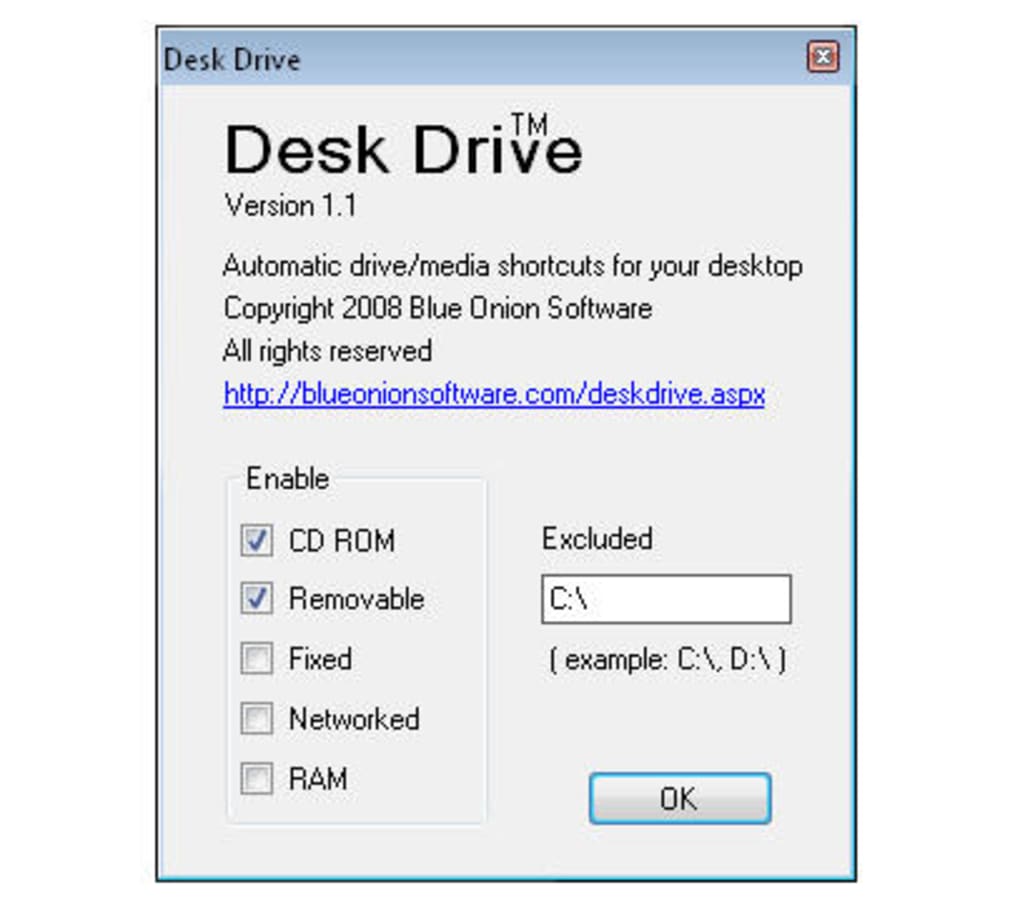
The core functionality of Desk Drive revolves around its automated shortcut creation. Upon connecting a USB drive, the application silently creates a desktop shortcut, providing instant access to the drive’s contents. This intuitive feature eliminates the multiple steps typically involved in locating and accessing USB drives within the Windows operating system. This seamless integration makes accessing your files as straightforward as possible. The application runs unobtrusively in the system tray, requiring minimal interaction from the user. Its passive nature ensures that it operates efficiently in the background without interrupting workflow or system performance. This contrasts sharply with the often-cluttered and distracting nature of default Windows USB handling.
Enhanced User Experience: A Comparison with macOS and Linux
For users familiar with macOS or Linux operating systems, Desk Drive will feel instantly familiar. Both operating systems handle USB connections with a similar level of elegance and efficiency, automatically mounting the drive and providing quick access. This consistent experience across multiple platforms eliminates the learning curve often associated with switching operating systems or managing USB drives across different platforms. Desk Drive bridges this gap, providing a consistent and predictable experience for users accustomed to the smooth integration found in macOS and Linux environments. This consistency is invaluable for users who work across multiple operating systems and value a seamless workflow.
The simplicity of Desk Drive is a key strength. Unlike complex file management utilities, it focuses on a single, well-defined task: providing immediate access to USB drives. This focused approach ensures that the application is easy to use and requires minimal configuration. This streamlined design philosophy contributes to a superior user experience. This straightforwardness is particularly beneficial for less tech-savvy users who might find navigating complex software challenging.
Optimizing Desk Drive Performance: Disabling AutoPlay
While Desk Drive significantly enhances USB device management, its functionality can be further optimized by disabling the Windows AutoPlay feature. AutoPlay, designed to automatically launch applications or perform actions when a USB drive is connected, often interferes with Desk Drive’s automated shortcut creation. The overlapping functionality leads to delays and potential conflicts, undermining the application’s efficiency and disrupting the smooth workflow it is intended to create. Disabling AutoPlay removes this conflict, ensuring a seamless and uninterrupted experience when using Desk Drive.
By disabling AutoPlay, the user ensures that Desk Drive is the primary method of handling USB drive connections. This allows the application to function without interruption, providing the consistently quick and easy access that it is designed to deliver. Therefore, disabling AutoPlay is highly recommended to fully realize Desk Drive’s potential and achieve the optimal user experience. This simple setting change dramatically improves the application’s performance and reduces potential conflicts.

Technical Specifications and System Requirements
Desk Drive is a lightweight application, requiring minimal system resources. Its small footprint (approximately 459.25 KB) ensures that it doesn’t strain system performance. This efficiency makes it suitable for use on a wide range of Windows systems, including older machines with limited resources. Its compatibility with Windows 7 and later versions expands its accessibility to a broad spectrum of users.
The application is available as a free download and is written in English. Regular updates, such as the July 11, 2023, update, address bugs and improve stability, ensuring ongoing performance optimization. The application’s open-source nature fosters community involvement and continuous improvement. Frequent updates keep the application current and reflect user feedback, further enhancing its functionality and user-friendliness.
The simple installation process makes it accessible to users of all technical skill levels. Once installed, Desk Drive operates seamlessly in the background, requiring minimal user interaction. Its unobtrusive nature avoids cluttering the system tray or interfering with other applications. This ease of use contributes to the overall smooth experience and seamless integration with the Windows operating system.
Addressing Potential Drawbacks and Limitations
While Desk Drive offers a significant improvement over the standard Windows approach to USB device management, it does have some minor limitations. The application needs to be running in the background to function effectively. This constant presence might be perceived as a small inconvenience by some users concerned about resource consumption. However, the application’s minimal resource usage generally mitigates this concern.
Furthermore, the interference caused by the AutoPlay feature, as previously discussed, highlights the importance of disabling it for optimal performance. This added step requires some user intervention. However, the significant improvement in the USB management process outweighs this minor inconvenience. This configuration change is a one-time action that vastly improves the user experience, resulting in a net positive impact.
Conclusion: A Valuable Addition to Your Windows Toolkit
Desk Drive offers a simple yet effective solution for enhancing USB device management on Windows. Its automated shortcut creation mirrors the user-friendly approach of macOS and Linux, delivering a consistent and efficient experience. By eliminating the need for manual navigation, Desk Drive significantly streamlines the workflow, saving valuable time and effort. While requiring the disabling of AutoPlay for optimal performance, this simple step provides substantial benefits, making Desk Drive a valuable addition for any Windows user who frequently works with USB flash drives. Its lightweight design and ease of use make it a worthwhile addition to the utility toolkit of any Windows user. The application’s focused functionality and ease of implementation make it a practical solution for improving workflow efficiency and simplifying everyday tasks.
File Information
- License: “Free”
- Latest update: “July 11, 2023”
- Platform: “Windows”
- OS: “Windows 7”
- Language: “English”
- Downloads: “7K”
- Size: “459.25 KB”


