
Shazam, the ubiquitous music recognition app, has long been a staple on smartphones, allowing users to instantly identify songs playing in their environment. While primarily known for its mobile applications, a desktop client for Shazam was also developed, offering a convenient way to identify music on computers. This guide delves into the details of this desktop client, its functionality, installation methods, alternatives, and overall user experience.
Understanding the Desktop Client for Shazam
The Shazam desktop client, available for Windows, macOS, and Linux, replicates the core functionality of its mobile counterpart. This means users can identify songs playing through their computer’s speakers or headphones with a simple click. This was particularly useful before widespread integration of music recognition into operating systems like Windows with Cortana, which initially rendered a dedicated Shazam desktop client somewhat redundant for some users. However, the desktop client still holds advantages for certain users and workflows, particularly for those who find the integrated OS options insufficient. Its primary function remains the fast and accurate identification of songs, accessing the vast Shazam music database encompassing over a billion songs. The desktop client delivers the same lightning-fast song identification capability, leveraging Shazam’s powerful algorithms to provide immediate results.
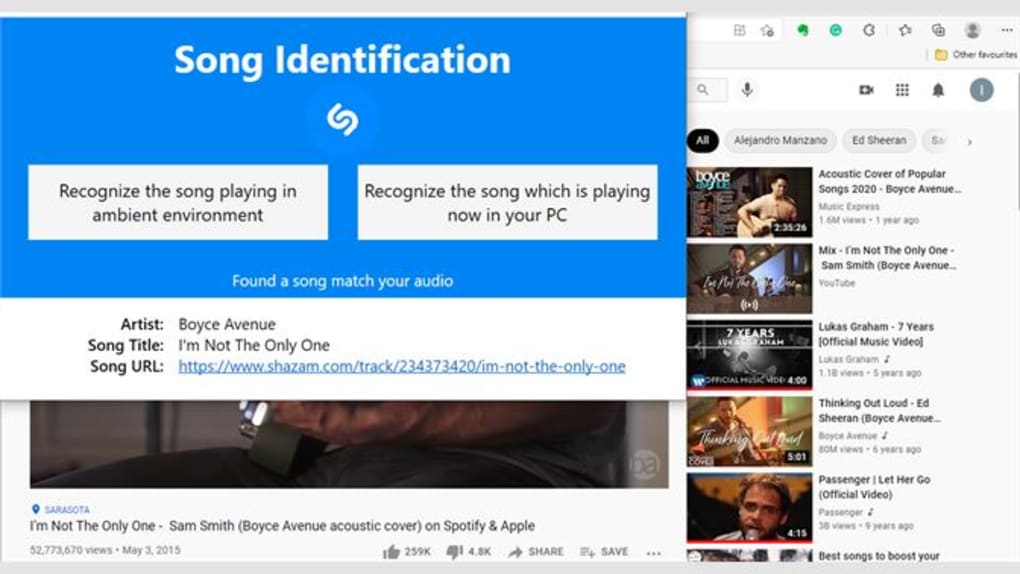
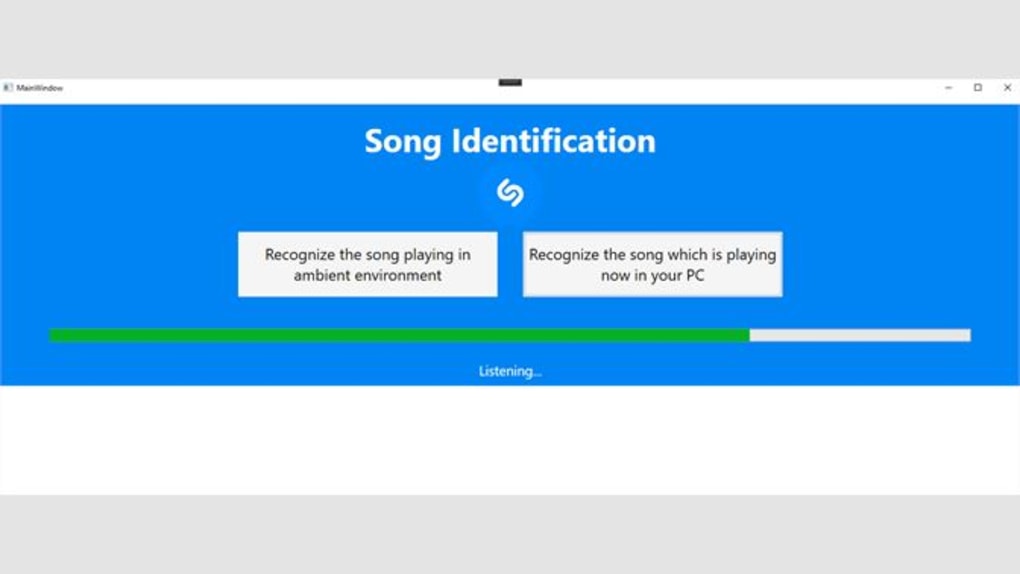
The desktop client’s simplicity is a key selling point. It’s designed to be user-friendly and intuitive, requiring minimal technical knowledge to operate. After installation, users simply launch the application and let it listen. Once a song is detected, the client displays the song title, artist, and album art, along with options to listen to the song on various music streaming services and add it to playlists. This streamlined experience mirrors the mobile app’s ease of use, making it accessible to a broad range of users.
Installation and Compatibility
While Shazam doesn’t offer a direct download for a dedicated desktop application in the traditional sense, accessing the functionality on a desktop PC involves several methods:
1. Using an Android Emulator: The most common method involves using an Android emulator. This emulates an Android environment on your computer, allowing you to install the Android version of the Shazam app. Popular emulators include Bluestacks, NoxPlayer, and MemuPlay. This approach requires downloading and installing the emulator, which can consume significant storage space and system resources. Once installed, the user can download the Shazam APK file (the Android Package Kit) from a reputable source and install it within the emulator environment. This allows the user to run the app as if it were on an Android device.
2. Cross-Platform Compatibility (Limited): While the original Shazam desktop client had limited official support, its cross-platform functionality was largely dependent on the usage of emulators like those listed above. Direct compatibility with macOS and Linux without emulation was not officially supported.
3. Browser-Based Alternatives (Indirect Access): While not a direct desktop client, many users find browser access to the Shazam website provides similar functionality. This eliminates the need for an emulator, however the experience might not be as seamless as a native desktop application. The official Shazam website offers a mobile-friendly interface which can be used on a desktop browser, but it may not provide the full functionalities as the dedicated app. This indirect approach works best for users who only require occasional music identification and prefer to avoid the overhead of installing and managing an emulator.
Alternatives to the Shazam Desktop Client
While the Shazam desktop client offered a convenient solution, several alternatives provide similar or enhanced functionality:
-
Tunatic: This is a well-regarded alternative that directly identifies songs played on your computer. Tunatic’s design focus is directly on desktop integration and avoids the complexities of Android emulators. It analyzes audio streams from a variety of sources, offering a powerful, dedicated desktop music identification solution.
-
Music Recognition Features Integrated into Operating Systems: Modern operating systems, particularly Windows and macOS, have integrated music recognition features. These built-in tools usually leverage cloud-based services for identification and may require internet connectivity. This avoids the need for installing third-party applications, but functionality may be limited compared to dedicated applications like Shazam.
-
Music Streaming Services: Many popular music streaming services (like Spotify and Apple Music) also incorporate music recognition features within their apps. This offers convenient integration within the user’s existing musical ecosystem, but is limited to users already subscribed to those services.
The Future of Shazam on Desktop
With increasing integration of music identification features into operating systems and mainstream music streaming services, the need for a dedicated Shazam desktop client has diminished for many users. The lack of official support for a standalone desktop application suggests that Shazam may be focusing its development efforts on its mobile applications and API integration with other platforms. While emulators provide a workaround, the extra steps required might deter users who are looking for a more straightforward experience. This trend reflects a broader shift towards streamlined and integrated user experiences within existing platforms rather than maintaining dedicated desktop clients for single-purpose applications.
It is highly likely that future developments for Shazam will focus on enhancing its integration with other applications and services rather than developing a standalone desktop client. The existing functionality, accessible via emulators or via the official Shazam website, might remain a viable option for a while, but it’s unlikely that an official, dedicated desktop application will emerge in the near future. Users should consider alternatives such as the integrated music recognition capabilities of their operating systems or dedicated music identification software like Tunatic to fulfill their music recognition needs on their desktop computers. As long as the mobile application remains updated and effective, the demand for a stand-alone desktop version continues to decline in relevance.
User Reviews and Conclusion
While user reviews for the Shazam desktop client are scarce due to its indirect access methods (primarily using emulators), the underlying Shazam technology is consistently praised for its accuracy and speed. The core functionality remains effective and reliable, regardless of the method used to access it. The convenience of quickly identifying songs playing on your computer is highly valued by users. However, the technical hurdles associated with using emulators can be a significant drawback for many.
In conclusion, while a dedicated Shazam desktop client isn’t officially available, accessing the functionality is achievable. The choice of method depends on user technical skills and tolerance for using emulators. For those seeking a simple, direct solution, integrated OS features or alternative applications offer viable substitutes. The future of Shazam on desktop seems to be focused on broader integrations rather than maintaining a dedicated standalone application, highlighting the changing landscape of software development and user expectations.
File Information
- License: “Free”
- Version: “1.0.23.0”
- Latest update: “July 5, 2022”
- Platform: “Windows”
- OS: “Windows 10”
- Language: “English”
- Downloads: “19.9K”


