
In the vast landscape of digital tools designed to enhance productivity and facilitate communication, diagramming software holds a unique and crucial position. Whether you’re an engineer mapping out circuit designs, a business analyst charting intricate flowcharts, an IT professional drafting network topologies, or a student visualizing complex concepts, the ability to create clear, professional-looking diagrams is invaluable. While proprietary solutions like Microsoft Visio have long dominated this space, the demand for high-quality, free, and open-source alternatives has steadily grown. Enter Dia for Windows – a powerful, versatile, and free structured drawing program that aims to democratize professional diagramming for everyone.
Developed with the vision of providing a robust alternative to commercial offerings, Dia has carved out a significant niche among users who require sophisticated diagramming capabilities without the associated cost. It’s a labor of love, as its author describes, reflecting a commitment to functionality, user-friendliness, and broad applicability. This article delves deep into Dia for Windows, exploring its features, capabilities, user experience, and how it stands as a formidable contender in the world of diagramming software.
Introduction to Dia: Your Free Alternative for Professional Diagrams
The ability to visually represent information is a cornerstone of effective communication and problem-solving. Diagrams simplify complex systems, clarify processes, and enhance understanding in a way that plain text often cannot. From conceptual brainstorming sessions to detailed project planning, diagrams serve as an essential tool across virtually every industry and academic discipline.
The Importance of Diagramming Software
Imagine trying to explain a multi-step business process, a computer network’s architecture, or the internal workings of a machine using only words. It would be cumbersome, prone to misinterpretation, and incredibly inefficient. Diagramming software addresses these challenges by providing a structured environment to create visual models. These tools empower users to:
- Clarify Complex Information: Break down intricate systems or processes into understandable visual components.
- Improve Communication: Convey ideas more effectively to diverse audiences, bridging technical and non-technical gaps.
- Aid Problem Solving: Visualize problems and potential solutions, making it easier to identify bottlenecks or design flaws.
- Enhance Documentation: Create clear, concise, and professional documentation for projects, systems, and procedures.
- Facilitate Brainstorming: Rapidly sketch out ideas and relationships during collaborative sessions.
Given these critical functions, the choice of diagramming software can significantly impact productivity and project success. While many users instinctively turn to well-known commercial products, Dia offers a compelling argument for a different path.
Dia’s Vision: A Free and Versatile Solution
Dia for Windows positions itself as a direct, free alternative to Microsoft’s Visio. This isn’t an idle claim; it reflects a deliberate design philosophy focused on delivering core diagramming functionalities with a high degree of versatility and user control, all within an open-source framework. The program’s developer clearly invested significant effort, resulting in a tool that is both accessible and powerful.
Its core promise is to simplify the creation of diverse diagrams, ranging from standard flowcharts and organizational charts to more specialized schematics for electrical engineering, cybernetics, and network design. This versatility is a key differentiator, as many free tools tend to be highly specialized or overly simplistic. Dia manages to strike a balance, offering extensive features without overwhelming the experienced user, while still providing ample resources for beginners willing to invest a little time in learning. It’s an excellent choice for individuals, small businesses, and educational institutions looking to achieve professional diagramming results without incurring licensing costs.
Unpacking Dia’s Robust Feature Set
Dia’s appeal lies in its comprehensive set of features, which together enable users to create a vast array of structured diagrams. Its design prioritizes flexibility and user control, ensuring that the resulting visual representations are both accurate and aesthetically pleasing.
A Spectrum of Diagram Types

One of Dia’s most impressive attributes is its sheer breadth of supported diagram types. The program isn’t limited to just flowcharts; it offers an extensive collection of templates and symbols catering to numerous disciplines. This broad applicability means that Dia can be a single solution for various diagramming needs across different projects and professions. Beyond the mentioned flowcharts, organizational charts, and relationship diagrams, Dia extends its capabilities to:
- Network Diagrams: Essential for IT professionals to visualize network topologies, server configurations, and data flow.
- Electrical Circuit Diagrams: Providing symbols for resistors, capacitors, transistors, and other electronic components.
- UML (Unified Modeling Language) Diagrams: Critical for software developers to design and understand software systems, including class diagrams, sequence diagrams, and activity diagrams.
- Cybernetics Diagrams: For those involved in control systems and automation.
- Database Relationship Diagrams (ER Diagrams): Used by database architects to model data structures and relationships.
- Flowcharts: For process mapping, algorithm design, and decision-making trees.
- Organizational Charts: To illustrate hierarchies and reporting structures within organizations.
- Relationship Diagrams: To show connections between various entities.
- Building Layouts and Architecture: Basic symbols for floor plans and spatial arrangements.
This extensive list ensures that whether you’re documenting a software architecture, outlining a business process, or designing a physical system, Dia likely has the necessary tools and symbols to get the job done effectively.
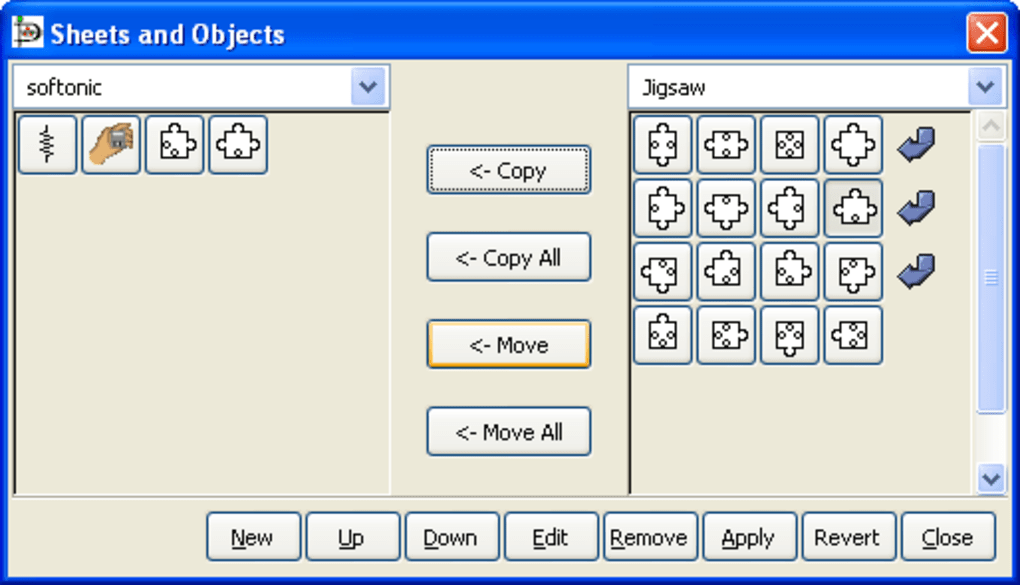
The Power of Sheets and Customizable Symbols
At the heart of Dia’s versatility lies its concept of “sheets.” These are essentially categories or libraries of symbols and icons specific to a particular type of diagram. The program offers more than thirty different sheets, each meticulously designed to provide the necessary visual elements for a specialized domain. For instance:
- The “Flowchart” sheet contains standard symbols for processes, decisions, inputs/outputs, and terminators.
- The “Electrical” sheet provides representations for common electronic components.
- The “Cybernetics” sheet offers symbols relevant to control theory and system dynamics.
- Other sheets might include “Network,” “UML,” “Database,” and so on.
Users can effortlessly switch between these sheets to access the appropriate symbols for their current project. Once selected, icons can be placed directly onto the drawing canvas with a simple click-and-drag. Dia provides robust manipulation options, allowing users to:
- Resize: Adjust the dimensions of any icon to fit the visual layout.
- Rotate: Change the orientation of symbols for precise positioning.
- Flip: Mirror symbols horizontally or vertically.
- Color: Modify fill and line colors to match branding or personal preferences.
- Text Integration: Add descriptive text directly to symbols or as separate labels, with full control over font, size, and style.
- Connection Lines: Easily draw various types of connection lines (straight, orthogonal, curved) between symbols, with options for arrowheads, line thickness, and color. These lines often feature “glue points” that automatically attach to symbols, ensuring connections remain intact even when symbols are moved.
Every option within Dia’s interface is typically accompanied by helpful rollover information or tooltips. This small but significant detail greatly enhances the user experience, providing immediate context and guidance without needing to delve into the manual for every minor function.
Navigating and Customizing the Canvas
Dia refers to its working surface as “the canvas,” and like its symbols, the canvas itself is highly modifiable. This flexibility allows users to tailor their workspace to the specific requirements of their diagram, ensuring optimal clarity and presentation. Users can change various specifications of this work surface, including:
- Page Size and Orientation: Set standard paper sizes (A4, Letter, Legal) or define custom dimensions, and choose between portrait or landscape orientation. This is crucial for printing and ensuring diagrams fit within specific document layouts.
- Grid Settings: Configure a visible grid on the canvas, with adjustable spacing. The grid can aid in aligning objects precisely and maintaining visual consistency. Objects can be snapped to the grid for perfect alignment.
- Page Breaks: For larger diagrams that span multiple pages, Dia allows users to visualize and manage page breaks, helping to organize content logically across printed outputs.
- Background Color/Pattern: While often left white, the canvas background can be customized to suit specific needs, though this is less common for professional diagrams.
The ability to modify these canvas specifications means that users are not constrained by fixed layouts, providing complete control over the final presentation of their diagrams.
Advanced Customization: Building Your Own Diagramming Toolkit
Beyond simply using the provided symbols, Dia offers powerful features for advanced customization, enabling users to truly personalize their diagramming environment. This is where Dia transcends being merely a diagram editor and becomes a diagramming toolkit. Users can:
- Modify Existing Icons: Adjust the appearance of pre-existing symbols to better fit their specific needs or aesthetic preferences. This might involve changing default colors, line styles, or even altering the vector shape if comfortable with XML-based symbol definitions (Dia uses XML for custom shapes).
- Add or Remove Icons from Categories: Streamline the symbol palette by removing seldom-used icons or adding frequently used ones to more convenient categories. This helps in decluttering the interface and speeding up workflow.
- Create New Icons and Categories: This is arguably one of Dia’s most powerful features. Users are not limited to the thirty-plus existing sheets. They can design entirely new symbols from scratch, either by drawing them directly within Dia using basic shape tools or by importing SVG (Scalable Vector Graphics) files. These new symbols can then be organized into custom sheets, creating highly specialized symbol libraries tailored to unique professional requirements. For example, a specialized engineering firm could create a sheet of proprietary symbols for their specific equipment or processes. This feature significantly extends Dia’s utility, making it adaptable to virtually any domain.
This level of customization fosters a powerful, efficient workflow for seasoned users and allows organizations to maintain consistent visual standards across all their diagrammatic documentation.
Essential Functionality: Saving, Exporting, and Printing
Once a diagram is complete, Dia provides all the necessary functions to manage and share it. The resulting document can be saved in Dia’s native .dia format, preserving all layers, objects, and editable properties. For sharing and presentation purposes, Dia supports a wide range of export formats, making it highly compatible with other software and platforms:
- Image Formats: Export to common raster image formats like PNG, JPEG, and BMP for web use, presentations, or embedding in documents where editing isn’t required.
- Vector Formats: Export to SVG (Scalable Vector Graphics) for high-quality, scalable images that can be edited in other vector graphics software or used on websites without loss of resolution. PS (PostScript) and EPS (Encapsulated PostScript) are also supported, crucial for professional printing.
- XFIG: Another vector graphics format, often used in scientific and technical contexts.
- CDF (Common Diagram Format): Dia’s own XML-based format, offering full fidelity.
For physical copies, Dia’s printing functionality is robust, allowing users to print their diagrams to local or network printers, with options for scaling, page layout, and handling multi-page diagrams. This comprehensive set of input and output options ensures that diagrams created in Dia are not only visually effective but also highly portable and versatile in their application.
User Experience, Learning Curve, and Support
While Dia is praised for its extensive features and customization options, it also presents a particular user experience, especially for those new to diagramming software or this specific application. Understanding its learning curve and the available support resources is crucial for maximizing its potential.
Addressing the Beginner’s Dilemma
If there is one common criticism leveled at Dia, it is that its sheer volume of options can be slightly overwhelming for the absolute beginner. Unlike some overly simplified web-based diagramming tools, Dia presents a rich interface with many menus, toolbars, and property panes. This density of features, while empowering for experienced users, can initially appear daunting. New users might find themselves:
- Lost in Options: Struggling to locate specific tools or understand the purpose of every button and menu item.
- Missing Key Features: Potentially overlooking powerful functionalities simply because they didn’t know they existed or where to find them. The program’s depth means that some of its most useful capabilities are not immediately apparent.
- Steep Initial Learning Curve: Requiring a more dedicated effort to become proficient compared to applications with a more minimalist design.
This initial complexity is a common trade-off for highly versatile software. It’s not a flaw in design but rather a characteristic of a tool that offers deep functionality. For those transitioning from simpler tools or starting fresh, it’s akin to learning a powerful image editor like GIMP after only using basic photo apps.
Leveraging Dia’s Extensive Help Resources
To counteract the initial learning curve, Dia provides extensive help and training resources. This commitment to user support is a significant advantage, especially for a free program. The help files are well-structured and comprehensive, guiding users through various aspects of the software. These resources are available both online and, crucially, offline, meaning users can access guidance even without an internet connection.
It is highly recommended that prospective users, particularly beginners, take a really good look at the manual provided before diving deep into complex diagram creation. The manual serves as an invaluable guide, elucidating Dia’s philosophy, explaining its features in detail, and demonstrating how to use its various tools effectively. Investing a little time upfront to read through the documentation can dramatically shorten the learning curve and ensure that users can fully leverage the program’s vast capabilities, rather than stumbling upon features by accident or missing them altogether. The manual can help users:
- Understand Core Concepts: Grasp how Dia structures diagrams, handles symbols, and manages the canvas.
- Discover Hidden Gems: Uncover advanced features that might not be immediately obvious.
- Troubleshoot Issues: Find solutions to common problems or understand error messages.
- Learn Best Practices: Adopt efficient workflows and design principles for diagramming.
Multi-Language Support for a Global User Base
Dia’s commitment to accessibility extends to its multi-language support. The manual and interface are available in various languages, including English, Basque, French, and Polish, among others. This global accessibility broadens Dia’s appeal and ensures that users from different linguistic backgrounds can comfortably engage with the software and its documentation. This is a testament to the open-source community’s collaborative nature and dedication to making powerful tools available worldwide.
Diving Deeper: Pros, Cons, and Technical Specifications
A balanced assessment of any software involves weighing its strengths against its limitations. Dia for Windows, while highly capable, is no exception. Understanding its pros and cons, alongside its technical specifications, provides a clearer picture of its suitability for different users and tasks.
Advantages of Choosing Dia

Dia boasts several compelling advantages that make it an attractive option for diagramming:
- Free and Open-Source: This is arguably its biggest draw. Being free means no licensing costs, making it ideal for students, individuals, small businesses with limited budgets, and organizations committed to open-source solutions. The open-source nature also fosters community development and ensures long-term viability.
- Vast Array of Diagram Options: As discussed, Dia’s support for over thirty different “sheets” covering electrical, cybernetics, flowcharts, UML, network, and many other diagram types is a major strength. This versatility reduces the need for multiple specialized tools.
- Extensive Customization: The ability to modify existing symbols, create new ones, and build custom symbol sheets provides unparalleled flexibility. Users can tailor Dia to their precise needs, creating a highly efficient and personalized diagramming environment.
- Good Help Files (On and Offline): Comprehensive and accessible documentation, both with and without an internet connection, significantly aids user learning and problem-solving. This is a crucial support mechanism for navigating its feature set.
- Multi-Language Support: The availability of manuals and interfaces in multiple languages ensures broader accessibility and usability for a global user base.
- Cross-Platform Availability: While this article focuses on Dia for Windows, it’s worth noting that Dia is also available on Linux and macOS, promoting consistent workflows across different operating systems.
- Stable and Mature Software: Having been around for a significant period, Dia is a mature application with a history of development and bug fixes, contributing to its stability.
Considerations for New Users
While Dia’s strengths are considerable, it’s important to acknowledge its potential drawbacks, particularly for beginners:
- A Little Complex for Beginners: The sheer volume of features and options, while powerful, can be overwhelming for users new to diagramming software or those expecting a very minimalist interface. This requires an initial investment of time to learn the ropes.
- Interface Can Feel Dated: Compared to more modern, graphically rich commercial applications, Dia’s user interface might appear somewhat utilitarian or less polished. While functional, it might lack some of the aesthetic appeal of newer software.
- Community Support vs. Dedicated Commercial Support: As an open-source project, support primarily comes from community forums and documentation rather than a dedicated commercial support team. While the community is often helpful, response times and availability may vary.
Despite these minor considerations, the overall value proposition of Dia, especially given its cost (free), remains incredibly strong for anyone seeking a powerful diagramming tool.
Technical Overview and System Requirements
To provide a complete picture, here are the technical specifications for Dia for Windows, as of the latest version available:
- License: Free
- Version: 0.97.10 (or 0.97.13.9 as sometimes listed, indicating minor variations/bugfix releases)
- Latest Update: February 1, 2023 (as per the provided snippet, indicating active maintenance)
- Platform: Windows
- OS Compatibility: Windows Vista and later (implying compatibility with Windows 7, 8, 10, and 11)
- Language: Primarily English, with multi-language support for the manual and interface.
- Downloads (e.g., on PhanMemFree.org): 44.9K total downloads, 41 last month (these numbers fluctuate but indicate consistent user interest).
- Size: Approximately 18.70 MB (a very lightweight application, making it quick to download and install, and light on system resources).
- Developer: Steffen Macke (the primary author and maintainer).
These specifications highlight Dia’s lean footprint and broad compatibility, making it accessible to a wide range of Windows users, even those with older hardware. Its relatively small size and free nature make it an easy program to try out without a significant commitment of resources.
Exploring the Diagramming Landscape: Dia vs. Alternatives
The market for diagramming software is diverse, encompassing everything from basic online tools to highly specialized, enterprise-grade applications. Understanding where Dia fits within this landscape, especially in comparison to its alternatives, helps users make informed choices.
Dia’s Place in the Free Software Ecosystem
Dia is a cornerstone of the free and open-source software (FOSS) community for diagramming. Its strength lies in providing a desktop-based, offline-capable solution that rivals many paid programs in functionality. In an era where many free tools are web-based (requiring internet access and potentially raising data privacy concerns), Dia offers a secure and self-contained environment.
It stands as a testament to the power of open collaboration, developed and maintained by individuals passionate about providing powerful tools without financial barriers. This community-driven approach often means that while the interface might not always be the most cutting-edge, the core functionality is robust, reliable, and evolves based on genuine user needs rather than commercial imperatives.
Comparing Dia with Other Diagramming Tools
When considering Dia, it’s useful to glance at some of its notable alternatives, both free and paid:
- Dia Diagram Editor (3.5/5 stars, Free): This might sound redundant, but sometimes forks or slightly different distributions of Dia exist under similar names. Generally, any “Dia Diagram Editor” likely refers to the same core software or a closely related variant, highlighting its core offering as versatile and easy to use.
- Diagram Designer (3.6/5 stars, Free): Often cited as another good free option for flowcharts and basic diagrams. It’s generally considered simpler than Dia, which can be an advantage for absolute beginners but may lack Dia’s extensive symbol sets and advanced customization.
- yEd (3.8/5 stars, Free): A powerful and professional-grade diagram editor that is also free. yEd excels at auto-layout algorithms, making it fantastic for visualizing complex graphs and networks. Its interface is arguably more modern than Dia’s, and it supports a wide range of diagram types, often favored for network and organizational charts where automatic arrangement is crucial. However, it might have a different workflow or specific niche compared to Dia’s broad symbol sheets.
- DFD (3.7/5 stars, Free): As its name suggests, this is a more specialized free app, primarily focused on direct flowchart editing. While excellent for its niche, it wouldn’t offer the same broad range of diagram types as Dia.
- Microsoft Visio (3.4/5 stars, Trial version, Paid): The commercial standard and the very program Dia aims to be an alternative to. Visio offers a highly polished interface, extensive templates, integration with the Microsoft Office ecosystem, and dedicated enterprise support. However, it comes with a significant licensing cost, which can be a barrier for many users. Visio is often the choice for large corporations heavily invested in the Microsoft ecosystem, but Dia provides a very strong open-source counter-argument for core functionality.
- SmartDraw (3.5/5 stars, Trial version, Paid): Another robust commercial alternative, often lauded for its ease of use, extensive templates, and intelligent formatting features. Like Visio, it offers more streamlined workflows and integrations but also carries a commercial price tag.
- Lucidchart (Web-based, Freemium): A popular online diagramming tool known for its collaborative features and user-friendly interface. While it has a free tier, its full capabilities are behind a subscription. Its web-based nature contrasts with Dia’s desktop focus.
When comparing Dia to these alternatives, its primary value proposition is its combination of being free, desktop-based, and offering a vast array of diagram types with deep customization capabilities. It strikes a balance between the simplicity of tools like Diagram Designer and the raw power of paid solutions like Visio, all without the cost.
When to Choose Dia
Dia for Windows is an excellent choice for:
- Budget-Conscious Users: Students, freelancers, and small businesses who need professional diagramming tools without the expense of commercial software.
- Open-Source Enthusiasts: Individuals and organizations who prefer using and contributing to open-source projects.
- Users Requiring Diverse Diagram Types: Anyone who needs to create a variety of diagrams—from flowcharts to electrical schematics—within a single application.
- Power Users Who Value Customization: Those who want the flexibility to create their own symbols, customize toolkits, and tailor the software to their specific professional needs.
- Users Who Prefer Offline Functionality: Professionals or students who need a reliable diagramming tool that works without an internet connection.
- Learning and Educational Purposes: Its free nature and comprehensive feature set make it ideal for educational institutions and self-learners exploring diagramming concepts.
Conclusion: Embracing Dia for Your Diagramming Needs
Dia for Windows stands as a testament to the power and potential of free and open-source software. It is an excellent program for anyone who needs to make any type of structured diagram, offering a level of versatility and customization typically found only in expensive commercial applications. While its initial learning curve might require a bit of dedication from absolute beginners, the extensive help documentation and the sheer depth of its features quickly prove its worth.
From intricate network topologies and detailed electrical schematics to straightforward flowcharts and organizational structures, Dia provides the tools, symbols, and flexibility to visualize complex information clearly and professionally. Its lightweight nature, broad compatibility with Windows operating systems, and commitment to multi-language support further solidify its position as a go-to solution for a global user base.
In a world increasingly reliant on visual communication, Dia for Windows empowers users to create compelling and accurate diagrams without financial burden. It’s a powerful, community-driven alternative that successfully fulfills its mission to be a free and robust competitor to proprietary software, making professional diagramming accessible to all. For those seeking a capable, cost-free, and adaptable diagramming solution, Dia for Windows from PhanMemFree.org is an unequivocally strong recommendation.
File Information
- License: “Free”
- Latest update: “February 1, 2023”
- Platform: “Windows”
- OS: “Windows Vista”
- Language: “English”
- Downloads: “44.9K”
- Size: “18.70 MB”


