
In an increasingly digital world, the ability to interact dynamically with on-screen content has become more than a mere convenience – it’s a necessity. “Draw On Screen” applications, at their core, empower users to annotate, highlight, and sketch directly over any open window or desktop background. This technology transforms passive viewing into active engagement, making complex information easier to understand, presentations more engaging, and collaborative efforts more efficient. From educators illustrating intricate concepts to professionals providing real-time feedback, and even everyday users making quick notes, the utility of drawing on a digital canvas is vast and ever-expanding. This article delves into the functionality, benefits, and diverse applications of these intuitive tools, with a particular focus on the “Draw On Screen” application developed by ZeiTools for Windows, while also exploring the broader landscape of digital annotation.
The Power of Digital Annotation: More Than Just Drawing
Digital annotation tools, often epitomized by applications like “Draw On Screen,” transcend the simple act of putting pen to paper in a virtual space. They represent a fundamental shift in how we interact with information and communicate ideas in a screen-centric environment. The ability to mark up, highlight, and draw directly onto an active screen, whether it’s a document, a webpage, an image, or a live presentation, unlocks a powerful new dimension of digital interaction.
One of the most immediate benefits is enhanced clarity. Imagine a teacher explaining a complex diagram or a developer debugging code. Instead of verbally pointing or using a generic cursor, a “Draw On Screen” tool allows them to circle key elements, draw arrows to illustrate flow, or underline important text in real-time. This visual emphasis cuts through ambiguity, guiding the audience’s attention precisely where it needs to be. For students, this means a clearer understanding of what to focus on, seeing exactly which buttons to press in a software demonstration or which parts to zoom into for more detail. For professionals, it translates to more effective communication during virtual meetings, allowing for immediate visual feedback on designs, data, or strategies.
Engagement is another significant outcome. Static presentations can often lead to disinterest, but when a presenter actively draws and highlights on the screen, it creates a dynamic and interactive experience. This live annotation keeps the audience engaged, making the demonstration more compelling and memorable. It feels less like a monologue and more like a shared exploration of content. The “Draw On Screen” application, available as a free download and installable on most Macs and Linux computers, as well as being a trial version for Windows developed by ZeiTools, perfectly embodies this principle, providing an accessible gateway to more interactive digital experiences.
Furthermore, digital annotation fosters better retention. When information is presented visually and interactively, it is often processed and retained more effectively than purely auditory or textual data. The act of drawing or seeing someone draw on a screen triggers different cognitive pathways, aiding in memory consolidation. This is particularly valuable in educational settings, where students can actively participate in problem-solving or review sessions by seeing key steps highlighted as they are discussed.
The versatility of these tools also extends to creative endeavors and personal productivity. While not intended as full-fledged digital art studios, “Draw On Screen” applications can serve as quick brainstorming canvases, allowing users to sketch out ideas, create flowcharts, or even practice basic digital drawing skills without needing specialized software. For quick notes or highlighting important sections of a document during review, they offer a nimble alternative to traditional methods.
In essence, “Draw On Screen” tools transform the passive digital display into an active workspace. They bridge the gap between abstract digital content and tangible, immediate interaction, making them indispensable for anyone looking to communicate more effectively, teach more engagingly, or simply understand information with greater clarity in the modern digital landscape.
Key Features and Functionality of Draw On Screen Tools
At the heart of any effective “Draw On Screen” application lies a suite of features designed for intuitive and versatile annotation. The “Draw On Screen” application by ZeiTools, for instance, focuses on providing essential functionalities that cater to a wide range of users, from educators to business professionals and individual learners. Understanding these core features helps users maximize the potential of such tools.
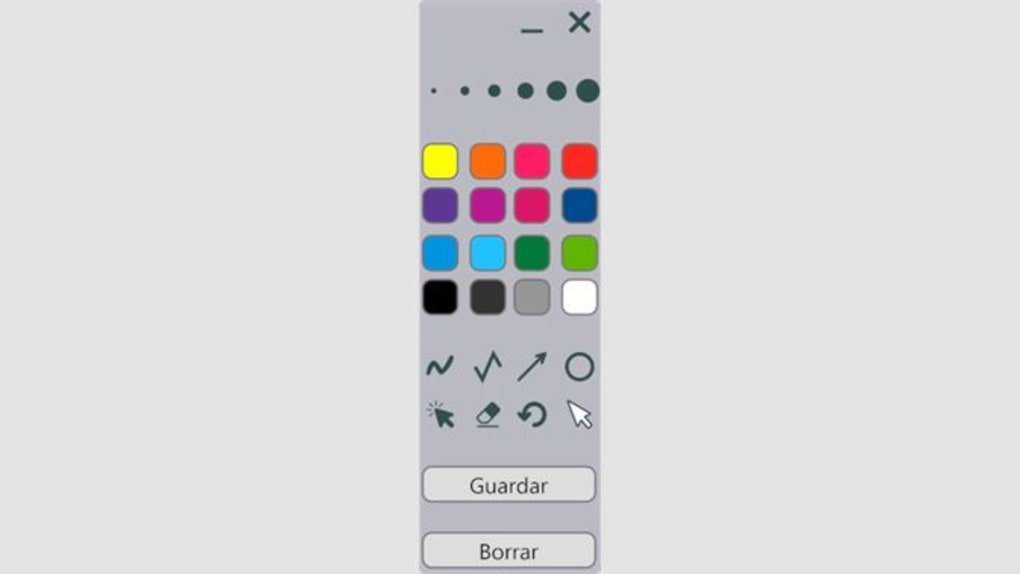
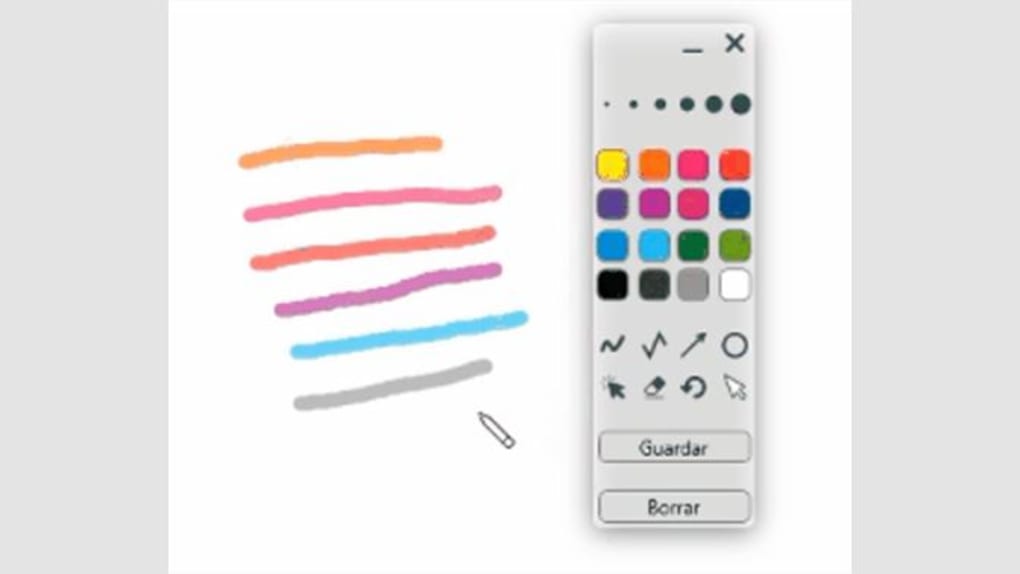
One of the most fundamental aspects is the range of drawing tools. Typically, these applications offer various “pens” and “highlighters.” The “Draw On Screen” tool for Windows allows users to create their own images with a selection of tools, including basic shapes and text. Each pen can come with its own set of distinct features. For example, users can select a pen that offers specific width and opacity settings. This level of customization is crucial; a teacher might need a broad, opaque pen to circle a key concept, while a designer might prefer a fine, semi-transparent line to mark up a particular detail on an image. The ability to customize the size of your pen and highlighter is a common and highly valued feature, allowing for precise or bold strokes as needed.
Color selection is another vital feature. Most “Draw On Screen” applications provide a palette of colors, enabling users to differentiate between various annotations or to match the context of the content being marked. For instance, red might be used for critical corrections, green for approvals, and blue for general notes. The “Draw On Screen” application lets you start drawing by selecting a canvas, a color, or a size, indicating its user-friendly approach to immediate annotation.
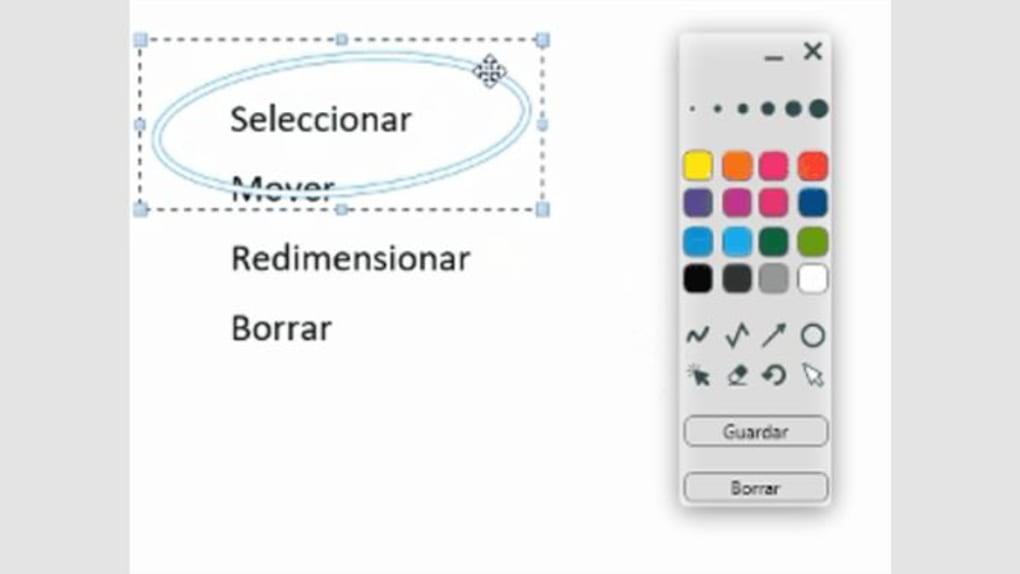
Beyond freehand drawing, the inclusion of geometric shapes and text tools significantly enhances the utility. The ZeiTools application allows for the addition of shapes and text, which can be invaluable for creating structured annotations. Drawing perfect circles, squares, or straight lines can visually clarify relationships or emphasize boundaries more effectively than freehand sketches. Adding text boxes means users can provide detailed explanations or labels directly onto the screen, supplementing visual cues with explicit instructions or comments. This feature is particularly useful in presentations or tutorials where specific points need verbal and visual reinforcement.
While the “Draw On Screen” application and many similar tools excel in real-time annotation, it’s worth noting a common variation in their feature sets: the presence or absence of undo and eraser tools. Some basic “Draw On Screen” programs, as the reference content suggests, may not come equipped with undo and eraser tools, which can be a limitation if mistakes are frequent or precise adjustments are required. However, more comprehensive versions or alternative applications like Epic Pen and ZoomIt often integrate these functionalities, allowing users to correct errors instantly or remove annotations selectively. For the “Draw On Screen” application, if you have an older version, updating it might be necessary to access the latest features, implying that functionality can evolve.
Furthermore, some applications offer annotation tools with purchasable upgrades. For instance, certain advanced annotation tools for changing the size of brushes and colors might be available via in-app purchases, such as for $1.69. This tiered approach allows developers to offer a free or trial version with core functionalities, while providing optional enhancements for users who require more advanced control or customization.
Platform compatibility is another key aspect. While the “Draw On Screen” application is noted for its Windows 10 compatibility and offers a trial version, it is also available for Android and can be installed on most Macs and Linux computers. Some variants are portable and require Java to run, offering flexibility across different operating systems and environments. This broad availability ensures that a wider audience can leverage the benefits of digital annotation regardless of their preferred device.
In summary, the functionality of “Draw On Screen” tools revolves around providing flexible and intuitive ways to interact with digital content. From customizable pens and highlighters to geometric shapes and text, these features empower users to communicate, teach, and learn with unparalleled clarity and engagement. While some variations exist in the inclusion of advanced features like undo/eraser, the core offering remains a powerful asset in the digital toolkit.
Who Benefits Most? Applications Across Various Sectors
The utility of “Draw On Screen” applications extends far beyond a niche use case, permeating various sectors and enriching different aspects of daily digital interaction. Their versatility makes them indispensable for a diverse group of users, from those in education to business professionals and even individuals seeking to enhance their personal productivity or creativity.
For Educators and Students
One of the most profound impacts of “Draw On Screen” tools is felt within the educational sector. For teachers, these applications are transformative. When delivering presentations, explaining complex subjects, or demonstrating software, the ability to draw directly on the screen makes the material immediately more accessible and engaging. A teacher can highlight key vocabulary, circle crucial parts of an image, or draw arrows to illustrate a process flow in real-time. This interactive approach helps an audience understand a presentation and makes a demonstration far more engaging than simply speaking over static slides. Imagine a math teacher solving an equation step-by-step, annotating each line, or a science teacher labeling parts of a diagram as they discuss them – the visual reinforcement significantly boosts comprehension.
For students, “Draw On Screen” applications serve as invaluable learning aids. When learning new software, for example, students can visually track which buttons to press or which parts of an interface to zoom into for more details. This direct visual guidance eliminates guesswork and accelerates the learning curve. They can also be used in collaborative study sessions, allowing peers to mark up shared documents or highlight areas of confusion. The “Draw On Screen” application is particularly beneficial in this context, being free to download and easily accessible across different platforms, making it an equitable tool for interactive learning.
For Professionals and Presenters
In the business world, “Draw On Screen” applications are powerful tools for communication and collaboration. During virtual meetings, webinars, or client presentations, professionals can use these tools to provide immediate, visual feedback. A project manager might mark up a Gantt chart to highlight deadlines, an architect could annotate a blueprint to show design changes, or a sales professional might emphasize key features of a product on a webpage. This live annotation facilitates clearer discussions, ensures everyone is on the same page, and can significantly reduce the need for follow-up clarifications.
Technical demonstrations, whether for software or hardware, also benefit immensely. Presenters can guide viewers through complex interfaces or processes by drawing focus to specific elements, making the demonstration more intuitive and easier to follow. Instead of just saying “click here,” they can draw a circle around the exact button, leaving no room for misinterpretation. This level of precision is invaluable in training sessions and technical support.
For Personal Use and Creativity
Beyond professional and educational contexts, “Draw On Screen” tools offer considerable value for personal use and creative endeavors. For individuals, they can serve as quick digital whiteboards for brainstorming ideas, sketching out mind maps, or creating impromptu diagrams. When browsing the web or reviewing documents, one might quickly highlight interesting passages or make mental notes directly on the screen without needing to save or edit the original file.
For those with a penchant for digital art or casual creativity, these tools provide a low-barrier entry point. While not as robust as dedicated graphic design software, they allow for quick sketches, doodling, or even practicing basic digital penmanship. Parents can use them to playfully interact with educational content with their children, turning screen time into an interactive learning experience. Even for simple tasks like pointing out something specific on a screenshot before sharing it, the utility is undeniable.
In essence, “Draw On Screen” applications democratize digital interaction. By providing an intuitive and immediate way to engage with on-screen content, they enhance clarity, foster engagement, and improve learning and communication across virtually every digital domain.
Choosing the Right “Draw On Screen” Tool: What to Look For
With a growing number of “Draw On Screen” applications available, selecting the one that best suits individual needs can be a nuanced process. While the “Draw On Screen” application from ZeiTools provides a solid foundation, exploring the broader market allows users to find the perfect fit. Here’s a guide to what to consider when choosing the right digital annotation tool:
Platform Compatibility
The first and most critical consideration is platform compatibility. Not all tools are available for every operating system. The “Draw On Screen” application is a trial version specifically for Windows 10, but it also mentions availability for Mac and Linux, and even Android for mobile devices. Some programs are portable and require Java to run, offering cross-platform flexibility. Before committing, ensure the application runs seamlessly on your primary device, whether it’s a Windows PC, macOS laptop, Linux workstation, or an Android tablet. Tools like Epic Pen and ZoomIt often boast broad Windows compatibility, while others might be platform-specific.
Feature Set
The range of features offered can vary significantly between applications. Basic tools like “Draw On Screen” (ZeiTools) provide essential pens, highlighters, shapes, and text. However, users with more demanding needs might look for:
- Undo/Redo Functionality: Essential for correcting mistakes quickly and iterating on ideas without having to clear the entire screen. The reference content notes that some basic programs lack these.
- Eraser Tools: For selective removal of annotations rather than clearing the whole screen.
- Multiple Pen/Brush Types: Beyond basic pens, some offer various brush textures, calligraphy options, or specialized markers.
- Layer Support: For complex annotations where different elements can be managed independently.
- Screenshot Integration: The ability to easily capture the annotated screen is a huge plus for sharing feedback or saving marked-up documents.
- Saving and Loading Annotations: For persistent annotations across sessions, especially useful for long-term projects or recurring presentations.
- Hotkeys/Keyboard Shortcuts: For quick access to tools and functions, enhancing workflow efficiency.
- Magnification/Zoom Functionality: Tools like ZoomIt are specifically known for this, allowing for detailed annotation on specific areas.
Ease of Use and User Interface
An intuitive user interface (UI) is paramount. The best “Draw On Screen” tools are those that are easy to pick up and use, even for first-time users. Look for clean, uncluttered interfaces where tools are readily accessible without diving into multiple menus. The learning curve should be minimal, allowing users to focus on annotating rather than struggling with the software itself. The “Draw On Screen” application emphasizes ease, allowing users to start drawing by selecting a canvas, color, or size directly. Trial versions, like the one for “Draw On Screen,” are excellent opportunities to test the UI before making a commitment.
Cost and Licensing
“Draw On Screen” applications come in various pricing models:
- Free: Many basic tools are entirely free to use, offering core functionalities.
- Trial Versions: Like “Draw On Screen” from ZeiTools, these allow users to test the software for a limited period or with restricted features before purchasing.
- Paid Versions: Some premium tools offer more advanced features for a one-time purchase or a subscription fee.
- In-App Purchases: As noted, some applications might offer core features for free but charge for advanced tools or customization options (e.g., $1.69 for specific annotation tools). Consider your budget and the value proposition of the features offered. For occasional use, a free or trial version might suffice, but for intensive use, investing in a paid version might be worthwhile.
Performance and Stability
A good “Draw On Screen” tool should be lightweight and performant, running smoothly without causing noticeable lag or system slowdowns. It should also be stable, avoiding crashes, especially during important presentations or work sessions. Read user reviews on platforms like PhanMemFree.org to gauge the stability and performance of an application. The “Draw On Screen” application by ZeiTools, with its V1.03.7 and latest update on January 31, 2023, for Windows, shows ongoing development and maintenance, which usually correlates with better performance and security status.
Developer Support and Updates
Finally, consider the developer and their commitment to the software. Regular updates, like those for the “Draw On Screen” application, indicate that the developer (ZeiTools) is actively maintaining and improving the product. Good customer support can also be crucial if you encounter issues or have questions.
By carefully evaluating these factors, users can choose a “Draw On Screen” tool that not only meets their immediate needs but also integrates seamlessly into their workflow, enhancing their digital interactions for years to come. Alternatives like Screen Pen, SlideMate, Screen Marker, ZoomIt, and Epic Pen are also worth exploring to find the perfect fit for specific requirements.
Conclusion
The evolution of digital interaction has undeniably elevated the importance of tools that allow for dynamic engagement with on-screen content. “Draw On Screen” applications stand at the forefront of this evolution, transforming passive viewing into an active, communicative experience. Whether in the classroom, the boardroom, or the comfort of one’s home, these annotation tools empower users to convey ideas with unprecedented clarity, foster greater engagement, and enhance the overall learning and communication process.
The “Draw On Screen” application, notably the trial version developed by ZeiTools for Windows, exemplifies the core functionalities that make these tools so valuable. Its ability to provide customizable pens, highlighters, shapes, and text offers a flexible canvas for real-time annotation. Its accessibility, with versions available for Windows, Mac, Linux, and Android, underscores the universal demand for such intuitive digital aids. While some basic iterations might lack advanced features like undo/eraser, the continuous development and the availability of premium options via in-app purchases demonstrate the adaptability and growth within this category of software.
From teachers illustrating complex concepts and making their presentations more engaging, to students gaining visual clarity on software demonstrations, and professionals providing immediate feedback during virtual collaborations, the benefits are far-reaching. “Draw On Screen” tools facilitate better comprehension, improved retention, and more efficient information exchange across all digital environments.
As our lives become increasingly intertwined with screens, the demand for more intuitive and powerful ways to interact with digital content will only grow. The future of digital annotation promises even more sophisticated features, seamless integration with other applications, and potentially AI-driven assistance to further enhance our ability to communicate and create. For now, embracing the capabilities of current “Draw On Screen” applications is a vital step towards a more interactive, understandable, and engaging digital future. These tools are not just about drawing lines on a screen; they are about connecting ideas, bridging communication gaps, and enriching the human experience in the digital age.
File Information
- License: “Trial version”
- Version: “1.0”
- Latest update: “January 31, 2023”
- Platform: “Windows”
- OS: “Windows 10”
- Language: “English”
- Downloads: “8.6K”


