
DriveClone is a powerful hard disk utility designed for backing up and cloning hard drives or partitions. Its primary function is to create a compressed archive file containing all files, partition information, and security settings from a selected hard drive or partition. This comprehensive guide explores DriveClone’s capabilities, benefits, and applications across various user groups, from individual PC users to system administrators. We will also delve into alternative solutions and explore related concepts like bootable USB drives and data backup strategies.
DriveClone: Applications and Benefits
DriveClone’s versatility extends across a broad spectrum of user needs. Its core functionality – creating a complete, compressed image of a hard drive – translates into significant advantages for both individual users and IT professionals.
For Individual PC Users:
DriveClone offers a straightforward solution for data backup and system recovery. In the event of a system crash, hardware failure, or accidental data loss, DriveClone’s image allows for a quick and efficient restoration of the entire system to its previous state. This eliminates the time-consuming process of reinstalling the operating system and individually restoring applications and data files. The compressed archive format also helps conserve storage space, a valuable consideration for users with limited disk capacity. The ease of use makes it an ideal solution for those without extensive technical expertise. A simple interface guides users through the backup and restoration process, minimizing the learning curve.
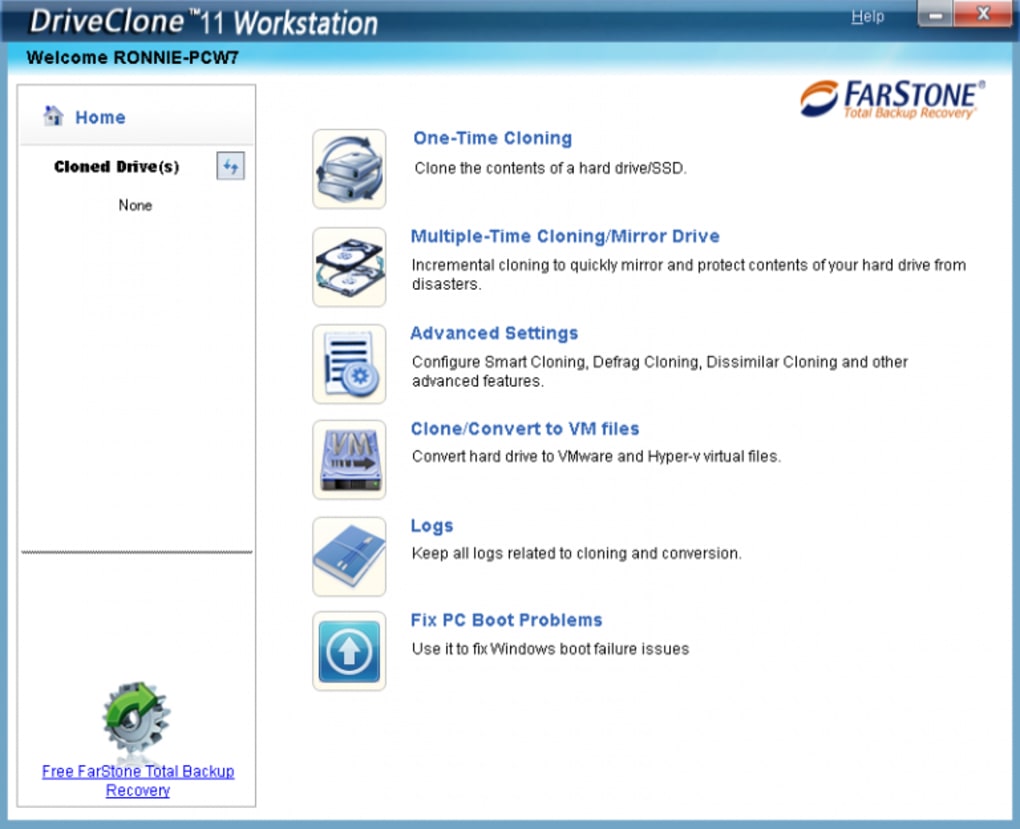
Beyond simply recovering from a catastrophic event, DriveClone facilitates system migration. Upgrading to new hardware becomes significantly simpler. Users can clone their existing drive onto a new, larger drive, retaining all their settings and applications without needing to reinstall everything from scratch. This is particularly beneficial when transitioning to a new computer or replacing a failing hard drive.
For System Administrators:
In enterprise environments, DriveClone offers significant time and resource savings. System administrators can leverage DriveClone to streamline the deployment of new computers or the reimaging of existing ones. Creating a master image of a perfectly configured system allows for quick and consistent deployment to multiple machines. This eliminates the need for manual configuration of each individual computer, significantly reducing administrative overhead and ensuring uniformity across the network. This consistency is crucial for maintaining security and stability within a larger organization. It also ensures that all machines have the same software and security updates, minimizing vulnerability to cyber threats.
The speed and efficiency offered by DriveClone are invaluable in disaster recovery scenarios. Instead of spending hours or days manually restoring data to multiple machines, administrators can quickly deploy pre-made images, minimizing downtime and ensuring business continuity. The ability to create compressed backups also reduces the storage space required for multiple system images, leading to cost savings in data storage.
Furthermore, DriveClone aids in testing and development. Creating clones of systems allows for safe experimentation with new software or configurations without risking the stability of the primary system. This is especially valuable when testing security updates or deploying new applications to a production environment. The ability to easily revert to a known good state is invaluable in such scenarios.
DriveClone Features and Technical Specifications
DriveClone’s core functionality revolves around creating bit-for-bit copies of hard drives or partitions. This means that every sector of the drive is replicated, resulting in an exact replica of the original. This level of fidelity is crucial for ensuring a successful restoration.
Key features often include:
- Full Disk Cloning: The ability to create a complete image of an entire hard drive, including all partitions and data.
- Partition Cloning: The option to clone individual partitions, allowing for more granular control over the backup process.
- Compressed Archives: The creation of compressed image files, optimizing storage space and reducing the time required for backups and restorations.
- Bootable Images: The option to create bootable images, allowing for system recovery even if the operating system is not functioning.
- Scheduling: The capability to schedule automated backups, ensuring regular data protection.
- Verification: Features to verify the integrity of the created images, ensuring that the backup is valid and restorable.
- Support for various file systems: Compatibility with different file systems, accommodating diverse operating systems and data structures.
Technical Specifications (as of the provided information):
- Version: 11
- License: Trial version (full version likely available for purchase)
- Platform: Windows (XP, Vista, 7, 8, 8.1, 10, and potentially 11, based on later versions)
- Language: English (other languages may be available)
- Size: 21.35 MB (This is likely the size of the installer or trial version.)
DriveClone: Alternatives and Competitors
While DriveClone offers robust functionality, several alternative disk cloning and backup solutions exist in the market. These alternatives often provide similar features but might differ in pricing, interface, or specific functionalities. Choosing the right solution depends on individual needs and preferences. Some popular alternatives include:
- Macrium Reflect: A free and paid version are available, offering comprehensive disk imaging, backup, and recovery features. It is known for its user-friendly interface and advanced features.
- EaseUS Todo Backup: A commercial product providing comprehensive backup and recovery solutions, including disk cloning, system backup, and file backup. It offers various levels of functionality depending on the chosen license.
- Acronis True Image: A commercial product offering a wide range of backup and recovery features, including disk cloning, file synchronization, and cloud backup options. Known for its comprehensive feature set and reliable performance.
- Paragon Drive Copy: A commercial disk cloning and backup tool with a focus on ease of use and powerful cloning features.
- Windows built-in backup and recovery tools: Windows operating systems include built-in backup and restore functionalities that provide basic disk imaging capabilities. While not as comprehensive as dedicated tools, these can be sufficient for basic user needs.
Evaluating these alternatives often involves comparing factors such as:
- Pricing: The cost of the software, considering one-time purchases versus subscription models.
- Features: The range of functionalities offered, including specific backup types, scheduling options, and recovery methods.
- Ease of use: The user-friendliness of the interface and the intuitiveness of the processes.
- Performance: The speed and efficiency of the backup and recovery operations.
- Support: The availability of technical support and documentation.
Choosing the right alternative depends on the specific needs and technical expertise of the user.
Related Concepts: Bootable USB Drives and Data Backup Strategies
DriveClone’s application extends beyond simple hard drive cloning. Creating bootable USB drives is a valuable technique for system recovery and troubleshooting. A bootable USB drive containing a DriveClone image can be used to boot a malfunctioning computer and restore the system from the backup. This bypasses the need for a functioning operating system on the primary hard drive.
Effective data backup strategies are crucial for protecting valuable data. Using DriveClone in conjunction with a well-defined backup strategy offers a holistic approach to data protection. Key components of a robust data backup strategy include:
- Regular Backups: Scheduling frequent backups ensures that minimal data is lost in case of an incident.
- Multiple Backup Locations: Storing backups in multiple locations, such as an external hard drive and cloud storage, protects against loss due to theft, damage, or natural disasters.
- Versioning: Maintaining multiple versions of backups allows for recovery to previous points in time if necessary.
- Testing Backups: Regularly testing the restoration process ensures that backups are valid and recoverable.
- Data Encryption: Encrypting backups adds an additional layer of security, protecting sensitive data from unauthorized access.
DriveClone, alongside a well-defined backup strategy, provides a robust solution for data protection and system recovery. Choosing the right tools and implementing a comprehensive approach is essential for minimizing data loss and ensuring business continuity.
File Information
- License: “Trial version”
- Latest update: “May 23, 2023”
- Platform: “Windows”
- OS: “Windows 2003”
- Language: “English”
- Downloads: “10.7K”
- Size: “21.35 MB”


