
In today’s digital age, data is arguably an individual’s or an organization’s most valuable asset. From critical business documents and cherished family photos to complex operating systems and essential applications, the integrity and availability of our digital information are paramount. The specter of data loss—whether due to hardware failure, accidental deletion, malware attack, or system corruption—is a constant threat. This is where robust backup and recovery solutions become indispensable. Among the myriad options available, DriveImage XML stands out as a powerful, yet refreshingly simple and entirely free utility designed specifically for imaging and backing up partitions and logical drives on Windows systems.
Developed by Runtime, DriveImage XML has carved a niche for itself as a go-to tool for users seeking an efficient and straightforward way to protect their data and system configurations. Unlike some complex enterprise-grade solutions, DriveImage XML focuses on delivering core disk imaging capabilities with a user-friendly interface, making it accessible to both technical novices and experienced IT professionals. Its commitment to reliability, combined with its no-cost availability, has cemented its reputation as an essential utility in any digital toolkit.
The primary function of DriveImage XML is to create exact copies, or “images,” of your hard drives and their partitions. These images are snapshots of your drive’s entire content, including the operating system, installed programs, user data, and all system settings, captured at a specific point in time. Should your original drive fail or your system become unbootable, these images serve as a lifeline, allowing you to restore your entire system to its previous working state, often in a fraction of the time it would take to reinstall everything from scratch. This comprehensive approach to backup ensures not just the safety of your files, but the continuity of your entire digital environment.
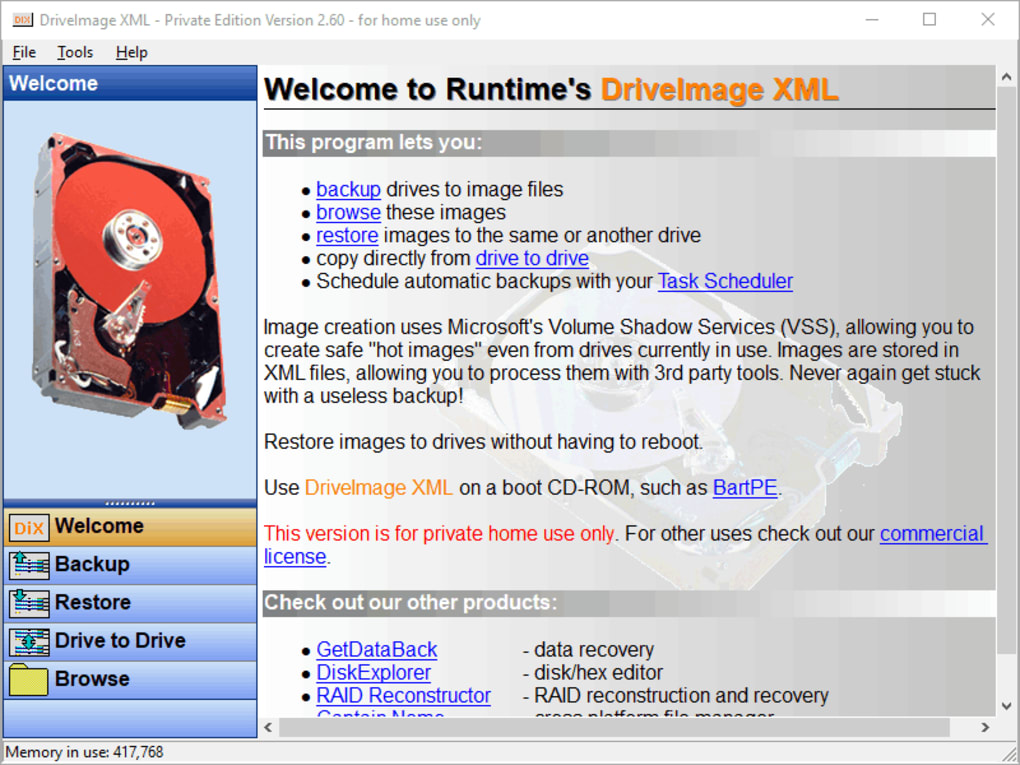
What sets DriveImage XML apart is its elegant blend of powerful features with an emphasis on practicality and ease of use. It leverages sophisticated Windows technologies like Volume Shadow Services (VSS) to ensure that backups are consistent and reliable, even when the system is actively in use. Furthermore, its choice to store image files in the open XML format offers unparalleled flexibility, allowing users to interact with their backups using third-party tools—a significant advantage that prevents users from being locked into a proprietary ecosystem.
The Core Functionality: Protecting Your Digital Assets
At its heart, DriveImage XML is engineered to provide robust protection for your digital assets through its advanced disk imaging capabilities. The program’s core functionality revolves around its ability to create precise, bit-for-bit copies of logical drives and partitions, encapsulating them into image files that can then be stored securely. This process is far more comprehensive than simply copying files, as it captures the entire structure of the drive, including hidden system files, boot sectors, and partition tables—elements crucial for a complete system restoration.
Comprehensive Backup of Drives and Partitions: DriveImage XML allows users to select any logical drive or partition on their system and generate a complete image of its contents. Whether it’s your main operating system partition (C: drive), a data storage partition, or even an external hard drive, the software handles the imaging process with precision. The resulting image file is a compressed archive that represents the exact state of the chosen drive at the moment of backup. This ensures that every piece of data, every program, and every configuration setting is preserved.
Leveraging Volume Shadow Services (VSS) for “Hot Images”: One of DriveImage XML’s most critical features is its integration with Microsoft’s Volume Shadow Services (VSS). VSS is a technology built into Windows that enables snapshots of computer files or volumes to be taken, even when they are in use. This capability is often referred to as “hot imaging” or “live imaging.” Without VSS, attempting to back up an active operating system would lead to inconsistencies and potentially corrupt backups, as files are constantly being written to and modified. VSS ensures data consistency by momentarily pausing write operations to the target volume, creating a stable snapshot, and then resuming operations, all without interrupting the user’s workflow. This means you can create a reliable image of your active Windows installation without needing to reboot into a specialized recovery environment, significantly enhancing convenience and minimizing downtime. The integrity of the backup is paramount, and VSS plays a vital role in guaranteeing that the generated image accurately reflects a consistent state of your drive.
The Advantage of XML Image Files: A distinctive characteristic of DriveImage XML is its choice to store generated images in the XML file format. This decision carries substantial benefits for the user. Unlike proprietary image formats that often restrict interaction to the creating software, XML is an open, human-readable standard. This openness means that images created by DriveImage XML are not proprietary “useless backups” that can only be restored by the same application. Instead, their XML structure allows for potential processing, analysis, and even manipulation using various third-party tools. For instance, advanced users might be able to script operations on these image files or extract specific metadata without necessarily restoring the entire image. This flexibility ensures that your backups remain accessible and usable, even if DriveImage XML were no longer available or supported, providing a crucial layer of future-proofing for your data recovery strategy.
Browsing, Viewing, and Extracting Files from Images: The utility of a disk image extends beyond mere full system restoration. DriveImage XML offers the capability to browse the contents of an image file as if it were a regular drive. This feature is incredibly useful for granular data recovery. Imagine you’ve accidentally deleted a crucial document or need to retrieve a specific file from a backup taken weeks ago. Instead of restoring the entire image, which can be time-consuming, DriveImage XML allows you to mount the image and navigate through its directory structure. You can then view the files and selectively extract individual files or folders directly from the image to a live drive. This selective extraction capability saves significant time and storage space, making targeted data recovery a simple and efficient process.
Advanced Features for Comprehensive Data Management
While DriveImage XML excels in its core imaging capabilities, it also incorporates several advanced features that elevate it beyond a simple backup tool, transforming it into a comprehensive solution for data management and system recovery. These functionalities cater to a variety of user needs, from complete system migration to routine data protection, all while maintaining the software’s signature ease of use.
Flexible Restoration Capabilities: The true test of any backup solution lies in its ability to restore data effectively. DriveImage XML shines in this regard with its flexible restoration options. Users can restore an image to the same drive from which it was created, which is ideal for recovering from system corruption or malware attacks. More importantly, it allows for restoration to a different drive. This feature is invaluable for scenarios such as upgrading to a larger or faster hard drive (e.g., migrating from an HDD to an SSD). You can image your old drive, install the new one, and then restore the image onto the new hardware, effectively cloning your entire system without the need for a tedious manual reinstallation of the operating system and all applications. The seamless process ensures that your new drive is an exact replica of your old one, minimizing setup time and ensuring continuity.
Furthermore, DriveImage XML boasts the remarkable ability to restore images to drives without requiring a system reboot. This is a significant convenience, as many other imaging solutions necessitate booting into a specialized recovery environment or a bootable CD/USB to perform a restoration. By eliminating the reboot requirement, DriveImage XML streamlines the recovery process, making it faster and more user-friendly, especially in situations where immediate system recovery is critical.
Direct Drive-to-Drive Copying (Cloning): Beyond creating image files, DriveImage XML also facilitates direct drive-to-drive copying, often referred to as “disk cloning.” This feature is distinct from image creation in that it bypasses the intermediate step of generating an image file. Instead, it directly copies the contents of one physical drive to another. This is particularly useful for tasks like:
- Hard Drive Upgrades: Seamlessly migrating an entire operating system, applications, and data from an old, smaller drive to a new, larger one.
- System Duplication: Creating identical copies of a system for deployment across multiple machines in a business or educational setting.
- Rapid Recovery: Having a pre-cloned backup drive ready to swap in case of primary drive failure, reducing downtime to a minimum.
The direct copy function ensures that the target drive becomes an exact, bootable replica of the source drive, making it an incredibly powerful tool for system administrators and users looking for quick and efficient system replication.
Scheduling Automatic Backups with Task Scheduler: Consistent backups are the cornerstone of any effective data protection strategy. DriveImage XML supports this principle by allowing users to schedule automatic backups. While the application itself doesn’t have an integrated scheduler, it seamlessly integrates with Windows’ built-in Task Scheduler. This means users can configure specific backup jobs to run at predetermined intervals—daily, weekly, monthly, or at specific times. This automation eliminates the need for manual intervention, ensuring that your system and data are consistently backed up without you having to remember to initiate the process. By setting up a “set it and forget it” backup schedule, users can significantly reduce the risk of data loss, knowing that fresh images are regularly being created in the background. This proactive approach to data management is crucial for maintaining data integrity and peace of mind.
Why Choose DriveImage XML? Key Benefits and Advantages
When selecting a disk imaging and backup solution, users often weigh several factors: reliability, flexibility, cost, and ease of use. DriveImage XML consistently delivers on all these fronts, offering a compelling package of benefits that make it a preferred choice for many Windows users.
Unwavering Reliability and Security: The foundation of any backup solution is its reliability. DriveImage XML builds this foundation on solid ground by utilizing Microsoft’s Volume Shadow Services (VSS). As discussed, VSS ensures that even hot images of active systems are consistent and free from corruption, guaranteeing that your backup will work when you need it most. This commitment to data integrity provides a crucial layer of security, safeguarding your system against unexpected failures, malware, or human error. The peace of mind that comes from knowing you have a reliable, bootable image of your system is invaluable.
Exceptional Flexibility and Interoperability: DriveImage XML’s decision to store image files in the open XML format is a significant differentiator. This approach offers unparalleled flexibility, as it means your backup images are not locked into a proprietary system. Should you ever need to access or manipulate data within these images using tools other than DriveImage XML, the XML standard facilitates such operations. This interoperability ensures that your backups are truly future-proof and accessible, providing a level of control and freedom that proprietary formats often deny. The ability to restore to different drives further enhances this flexibility, making it an ideal tool for hardware upgrades or system migrations.
Cost-Effectiveness: A Powerful Free Solution: Perhaps one of the most attractive aspects of DriveImage XML is that it is entirely free for personal use. In a market saturated with expensive commercial backup solutions, DriveImage XML provides enterprise-grade imaging capabilities without the price tag. This makes it an incredibly cost-effective option for individuals and small businesses who need robust data protection but have limited budgets. The absence of recurring subscription fees or licensing costs means that high-quality data backup is accessible to everyone, democratizing system recovery and data safety.
Simplicity and Efficiency: Despite its powerful underlying technologies, DriveImage XML remains remarkably simple and efficient to use. The user interface is straightforward, guiding users through the imaging, browsing, and restoration processes with clear options and minimal complexity. This ease of use means that even users with limited technical expertise can effectively manage their system backups. The software is lightweight, consumes minimal system resources, and performs its tasks efficiently, ensuring that backup operations don’t significantly impede system performance. Its ability to restore images without a reboot further underscores its commitment to efficiency, minimizing downtime during critical recovery operations.
Broad Compatibility with Windows Operating Systems: DriveImage XML is designed specifically for the Windows environment, offering broad compatibility across various versions of the operating system, starting from Windows 2003 and extending to newer iterations. This wide compatibility ensures that a vast majority of Windows users can benefit from its capabilities, regardless of their specific OS version. The consistent performance across different Windows platforms speaks to its robust development and reliability within the Microsoft ecosystem.
In essence, DriveImage XML successfully addresses the common pitfalls associated with backup solutions: complexity, cost, and proprietary lock-in. By providing a free, flexible, reliable, and easy-to-use tool that creates open-standard backups, it empowers users to take control of their data integrity, ensuring that they are never “stuck with a useless backup” and can recover their systems efficiently and without unnecessary hurdles.
Getting Started with DriveImage XML: Installation and Basic Use
One of DriveImage XML’s strengths lies in its straightforward nature, making it accessible even for users who might be new to disk imaging. Getting the software up and running, and performing basic backup and recovery operations, is a relatively simple process.
Downloading and Installation: To begin, you would typically download the DriveImage XML installer from a reputable software repository like PhanMemFree. The download is generally small, reflecting the application’s lightweight design. Once downloaded, the installation process is standard for Windows applications:
- Run the installer: Double-click the downloaded
.exefile. - Follow the on-screen prompts: Accept the license agreement (usually free for personal use), choose an installation directory, and proceed through the steps.
- Complete Installation: Once the installation is finished, you’ll find DriveImage XML in your Start Menu, ready to launch.
The system requirements are modest, primarily needing a Windows operating system (Windows 2003 or later versions are supported) and sufficient disk space to store the image files you create.
Creating an Image (Backup): Creating a disk image is the first and most fundamental step in securing your data with DriveImage XML.
- Launch DriveImage XML: Open the application from your Start Menu.
- Select “Backup”: On the main interface, you’ll see several options. Click on “Backup.”
- Choose the Drive/Partition: A list of your system’s logical drives and partitions will appear. Select the drive or partition you wish to image (e.g., your C: drive for a system backup).
- Specify Destination: You will then be prompted to choose a location to save the image file. It’s crucial to save the image to a different physical drive than the one being imaged (e.g., an external hard drive, a network drive, or a different internal drive). Saving an image to the same drive you’re backing up defeats the purpose of disaster recovery.
- Configure Options (Optional): You might have options for compression level or splitting the image into smaller files. For most users, default settings are sufficient.
- Start Backup: Click “Next” or “OK” to begin the imaging process. DriveImage XML will leverage VSS to create a consistent snapshot and then write the image data to your specified destination. A progress bar will indicate the status, and once complete, you will have an
.xmlimage file and accompanying.datfiles.
Browsing or Restoring an Image: Once an image is created, you might need to browse its contents or restore it.
- Launch DriveImage XML: Open the application.
- Select “Browse” or “Restore”:
- For “Browse”: Click “Browse,” then navigate to and select your
.xmlimage file. The software will then display the contents of the image, allowing you to select and extract individual files or folders to a new location. - For “Restore”: Click “Restore,” then navigate to and select your
.xmlimage file. You will then be asked to choose the target drive or partition where you want to restore the image. Be extremely cautious here, as restoring will overwrite all data on the target drive. Confirm your selection carefully. DriveImage XML will then proceed to restore the image.
- For “Browse”: Click “Browse,” then navigate to and select your
Scheduling Backups: While DriveImage XML doesn’t have an internal scheduler, its command-line interface allows for easy integration with Windows Task Scheduler:
- Identify Command-Line Parameters: Consult DriveImage XML’s documentation for the specific command-line arguments needed for automated backups (e.g., specifying source, destination, and other options).
- Open Task Scheduler: Search for “Task Scheduler” in Windows.
- Create a New Task: Set up a new basic or custom task, defining the trigger (e.g., daily at 2 AM) and the action (running the DriveImage XML executable with the appropriate command-line parameters).
- Test the Task: Run the task manually to ensure it executes correctly and creates the backup image as intended.
By following these steps, users can quickly implement a robust backup strategy for their Windows systems using DriveImage XML, ensuring their digital assets are protected and easily recoverable.
DriveImage XML in the Broader Backup Landscape: Alternatives and Complementary Tools
The world of data backup and recovery is vast, encompassing a multitude of strategies and tools. DriveImage XML operates within this ecosystem, offering a specific approach to data protection that complements and, in some cases, competes with other solutions. Understanding its position relative to other tools helps users make informed decisions about their overall backup strategy.
Backup Strategies: Disk Imaging vs. File-Level Backup: Fundamentally, backups can be categorized into two main types:
- File-Level Backups: These focus on copying specific files and folders. Tools like Windows’ built-in Backup and Restore, or cloud services like Google Drive and Microsoft OneDrive, fall into this category. They are excellent for individual document recovery but typically don’t capture the operating system or application installations in a bootable format.
- Disk Imaging (or System Imaging): This is where DriveImage XML excels. Disk imaging creates an exact, sector-by-sector copy of an entire hard drive or partition, including the operating system, applications, settings, and user data. The primary advantage is complete system recovery; if your OS becomes corrupted or your hard drive fails, you can restore the entire image and have your system back exactly as it was at the time of the backup, often in minutes rather than hours or days.
DriveImage XML, therefore, is a powerful tool for disaster recovery and system migration, ensuring that your entire computing environment can be quickly and comprehensively restored. It’s often recommended to use disk imaging in conjunction with file-level backups for a comprehensive strategy. File-level backups can handle granular recovery of recent documents, while disk images provide the safety net for catastrophic system failures.
Comparison with Alternative Disk Imaging Tools: The market features several other reputable disk imaging tools, both free and commercial. Some notable alternatives mentioned on PhanMemFree include:
- Macrium Reflect (Free & Paid): Often considered a gold standard, Macrium Reflect offers robust features for disk imaging, cloning, and rescue media creation. Its free version is highly capable, making it a strong competitor. Macrium Reflect might offer a slightly more polished interface and advanced features (like differential backups in its free tier) compared to DriveImage XML.
- Clonezilla (Free): A popular open-source solution, Clonezilla is highly efficient and supports a wide range of file systems. However, it typically operates from a bootable CD/USB, requiring a system reboot to perform backups or restores, which can be less convenient than DriveImage XML’s “hot imaging” capabilities. Its interface is also text-based, which can be daunting for beginners.
- EASEUS Todo Backup (Free & Paid): Another feature-rich option, EASEUS Todo Backup provides a user-friendly interface for disk imaging, file backup, and cloning. Its free version is quite generous, offering similar functionalities to DriveImage XML but often with a more modern aesthetic and additional features like email notifications.
- MiniTool ShadowMaker Free (Free & Paid): Similar to EASEUS, MiniTool ShadowMaker offers comprehensive backup, restore, and clone features, often packaged in a sleek interface.
- Image for Windows (Trial): A commercial product that offers advanced imaging capabilities, often favored by power users for its granular control and reliability, but comes with a cost.
Where DriveImage XML Fits: DriveImage XML distinguishes itself by being a highly reliable, completely free (for personal use), and lightweight solution that prioritizes simplicity without sacrificing core functionality. Its use of open XML files for images is a unique selling point, offering flexibility that some proprietary solutions lack. While other tools might offer more bells and whistles (like incremental/differential backups within the free tier, or more advanced bootable media options), DriveImage XML remains an excellent choice for:
- Users seeking a straightforward, no-cost disk imaging solution.
- Those who value the flexibility of open-standard XML image files.
- Individuals or small businesses needing to perform “hot images” without rebooting.
- Users looking for a simple tool for system migration (drive cloning).
In summary, DriveImage XML serves as an essential component of a well-rounded data protection strategy. It may not replace dedicated file-level backup solutions, but for comprehensive system imaging and disaster recovery, its reliability, efficiency, and zero-cost accessibility make it an invaluable tool in the backup landscape.
Conclusion
In an increasingly data-dependent world, the importance of robust backup and recovery solutions cannot be overstated. From the devastating impact of ransomware to the mundane frustration of a failed hard drive, the threats to our digital lives are ever-present. DriveImage XML emerges as a powerful, yet elegantly simple answer to these challenges, providing a free and reliable utility that empowers users to safeguard their precious data and system configurations.
Throughout this exploration, we’ve highlighted DriveImage XML’s key strengths: its capacity for creating precise images of logical drives and partitions, its intelligent use of Microsoft’s Volume Shadow Services (VSS) for safe “hot images” without system interruption, and its innovative choice to store these images in the open XML format. This commitment to an open standard ensures that your backups are never obsolete or inaccessible, a critical advantage that differentiates it from many proprietary alternatives. Furthermore, its flexible restoration capabilities, direct drive-to-drive cloning, and seamless integration with Windows Task Scheduler for automated backups cement its position as a comprehensive data management tool.
DriveImage XML is more than just a piece of software; it’s a testament to the idea that powerful data protection doesn’t have to be prohibitively expensive or overly complicated. Its straightforward interface and efficient operation make it accessible to a wide audience, from casual home users to IT professionals seeking a reliable utility for their toolkit. The peace of mind that comes from knowing you have a complete, bootable image of your system, ready to restore at a moment’s notice, is invaluable.
As you navigate the complexities of digital data, remembering to regularly back up your system is perhaps the single most important habit you can cultivate. DriveImage XML offers an effective, no-cost solution to integrate this crucial practice into your routine. By choosing DriveImage XML, you’re not just backing up files; you’re securing your entire digital environment, ensuring continuity, and protecting yourself against the unforeseen. For reliable, flexible, and free disk imaging on Windows, DriveImage XML, available through resources like PhanMemFree, remains an outstanding choice that continues to serve the needs of users worldwide, ensuring that data loss doesn’t have to mean the end of your digital world.
File Information
- License: “Free”
- Latest update: “May 23, 2023”
- Platform: “Windows”
- OS: “Windows 2003”
- Language: “English”
- Downloads: “10K”
- Size: “2.02 MB”


