
In the intricate tapestry of modern computing, where every click, every input, and every display relies on a complex interplay of hardware and software, drivers stand as the unsung heroes. These crucial pieces of software act as interpreters, enabling your operating system to communicate effectively with the various components of your computer – from the graphics card rendering your visuals to the network adapter connecting you to the internet, and even the simple mouse navigating your screen. Without properly functioning drivers, your hardware is essentially mute, incapable of performing its intended tasks. This fundamental reliance on drivers underscores the paramount importance of having a robust strategy for their management, and for many users, particularly those with a keen eye for system stability and recovery, a utility like DriverBackup! emerges as an invaluable tool.
DriverBackup!, a free utility for Windows developed by Giuseppe Greco, addresses a critical, yet often overlooked, aspect of PC maintenance: the safeguarding of your system’s device drivers. While it’s common practice for users to meticulously back up personal documents, cherished photos, and important emails, the thought of creating a comprehensive backup of system drivers often takes a backseat until a crisis strikes. Imagine a scenario where a fresh operating system installation is needed, or a critical driver becomes corrupted, leading to system instability or hardware malfunction. In such instances, having a readily available, pre-packaged set of your original, functional drivers can be the difference between a swift recovery and hours of frustrating troubleshooting, driver hunting, and potential performance degradation. DriverBackup! steps in to fill this gap, offering a straightforward, efficient, and user-friendly solution to this often-complex problem, helping users avoid the common pitfalls associated with driver-related issues.
The Unsung Heroes of Your PC: Why Drivers Matter
To fully appreciate the utility of a tool like DriverBackup!, it’s essential to understand precisely why drivers are so critical. A device driver is a specific type of software program that operates or controls a particular type of device that is attached to a computer. Essentially, it provides a software interface to hardware devices, enabling operating systems and other computer programs to access hardware functions without needing to know precise details about the hardware being used. When you install a new graphics card, a printer, or even connect a simple USB device, the operating system needs a driver to understand how to interact with that specific piece of hardware.
Consider the complexity of a modern PC. It comprises dozens, if not hundreds, of different hardware components, each manufactured by various companies, often with unique specifications and communication protocols. The operating system, such as Windows, cannot inherently “speak” the native language of every single one of these components. This is where drivers come into play. They act as translators, converting the generic instructions from the operating system into specific commands that the hardware component can understand and execute. For example, when you tell your computer to print a document, the operating system sends a standard print command. The printer’s driver then takes this command and translates it into the precise series of electrical signals and mechanical movements that your specific printer model needs to produce the output.
The absence of a correct driver can manifest in various ways, from a device simply not working (e.g., your sound card remaining silent, your Wi-Fi adapter refusing to connect) to complete system instability, frequent crashes (often indicated by the dreaded “Blue Screen of Death”), or even a refusal for the operating system to boot. Furthermore, even if a generic driver allows a device to function, a specific, optimized driver from the manufacturer can unlock additional features, improve performance, and enhance stability. Gaming enthusiasts, for instance, understand the critical role of up-to-date graphics drivers in achieving optimal frame rates and visual fidelity.
The necessity for driver backups becomes particularly apparent in several common scenarios:
- Operating System Reinstallation: When you perform a clean installation of Windows, all existing drivers are wiped clean. While Windows often includes a vast library of generic drivers, it rarely covers all proprietary or specialized hardware. Post-installation, you’re left scrambling to find drivers for your motherboard chipset, graphics card, audio device, network adapter, and peripherals. A pre-made driver backup streamlines this process significantly.
- Hardware Upgrades: Swapping out a graphics card or a network adapter might require uninstalling old drivers and installing new ones. Having a backup of your stable, previous drivers can be a lifesaver if the new drivers cause unforeseen issues, allowing for a quick rollback.
- Driver Corruption: Drivers, like any other software, can become corrupted due to system crashes, malware infections, or faulty updates. This can lead to erratic device behavior or outright failure. A backup enables you to restore a known working state.
- System Migration: If you’re moving a hard drive to a new motherboard or a different system, you’ll almost certainly encounter driver conflicts. While this is a more complex scenario, having original drivers for the old setup can assist in troubleshooting or preparing for the new environment.
- Offline Driver Installation: In situations where you don’t have internet access after an OS reinstall, having an offline driver backup is absolutely crucial for getting your network adapter working, which then allows you to download any further updates.
Given these critical functions and potential pitfalls, the concept of a dedicated driver backup solution is not just a convenience but a vital component of proactive system maintenance. DriverBackup! provides this essential safety net, ensuring that even if the foundation of your hardware-software communication falters, you have the means to rebuild it swiftly and efficiently.
Getting Started with DriverBackup!: Simplicity at Its Core
One of the most appealing aspects of DriverBackup! is its commitment to simplicity and ease of use, making it accessible even to users who might not consider themselves tech-savvy. Unlike many software utilities that demand a cumbersome installation process, often involving multiple clicks, agreement to terms, and choosing installation directories, DriverBackup! opts for a remarkably straightforward approach: it’s a portable application. This means there’s no complex installer to run; you simply unzip the program’s archive to a folder of your choosing, and it’s ready to execute. This portability offers distinct advantages, not least of which is the ability to run the utility directly from a USB drive or external hard disk, making it an excellent tool for technicians or users who manage multiple systems.
Navigating the Interface: Backup Options and Filters
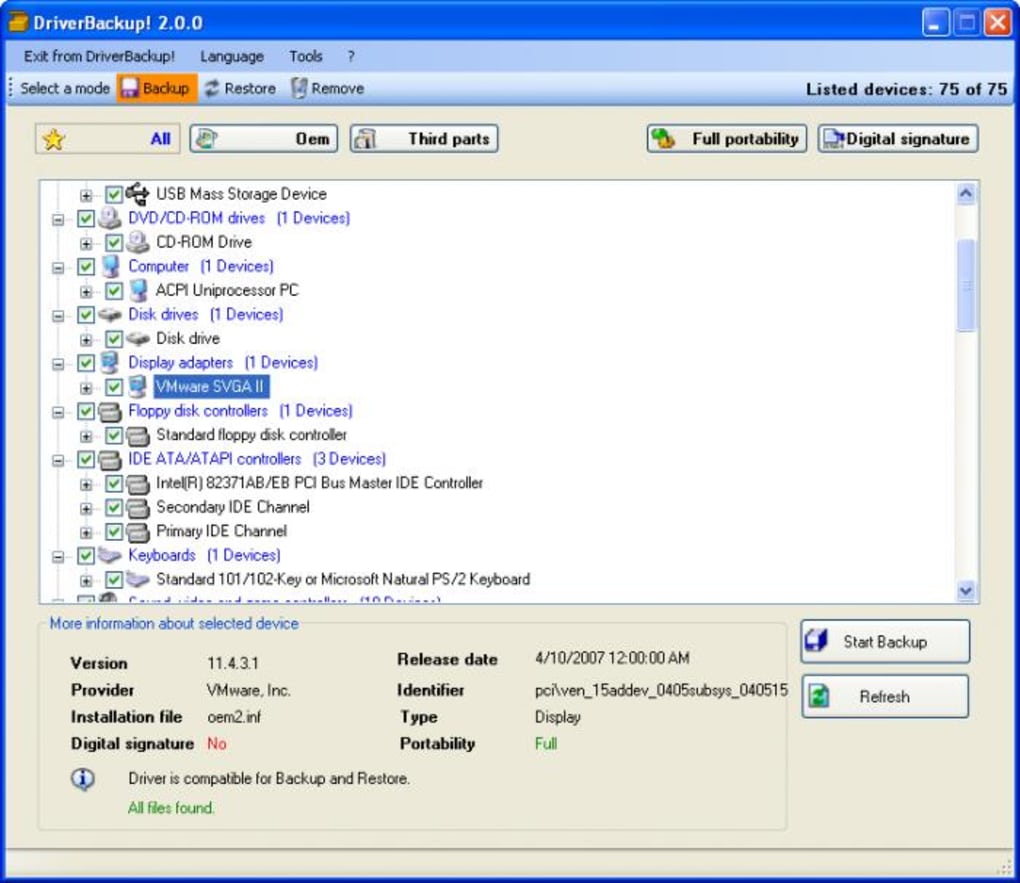
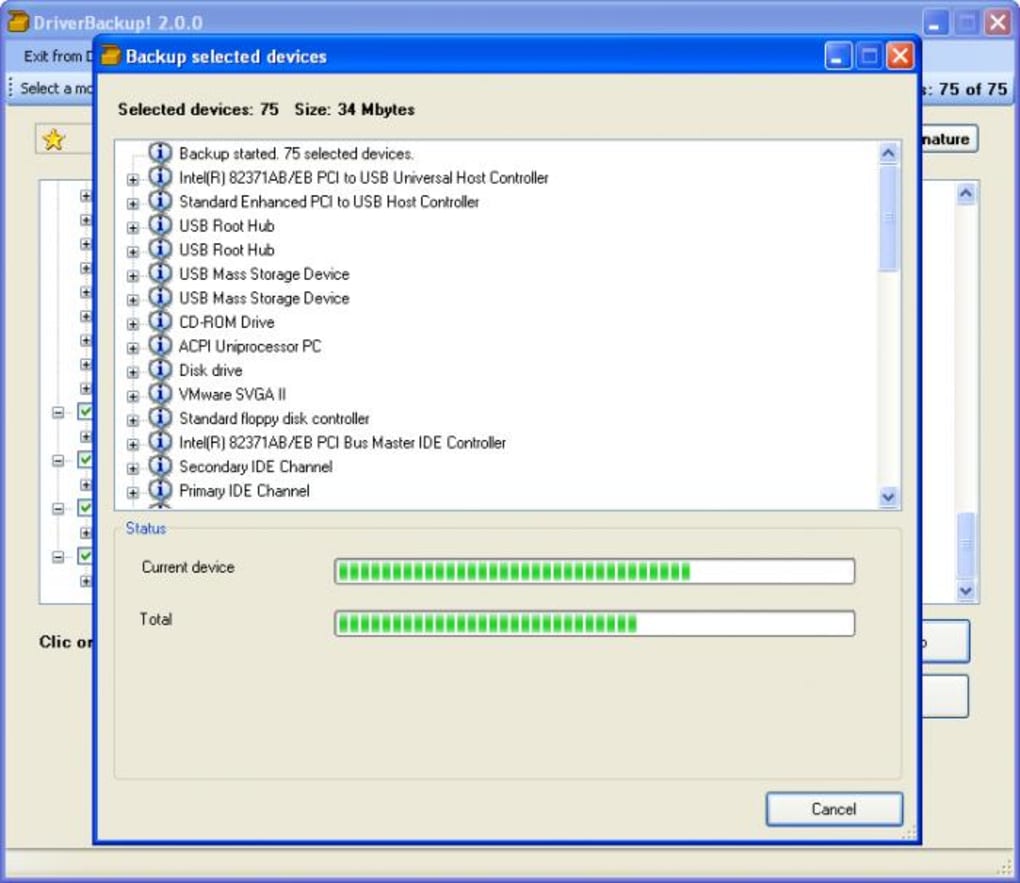
Upon launching DriverBackup!, users are greeted with a clean and intuitive interface, designed to streamline the backup process. The central function is immediately apparent: the “Start Backup” button. With a single click, users can initiate a comprehensive scan of their system to identify all currently installed drivers. This process is typically swift, and once completed, DriverBackup! presents a detailed list of every driver it has detected.
The power of DriverBackup! lies not just in its ability to list all drivers, but in offering control over what gets backed up. While the option to back up “all” drivers is readily available and often the safest bet for a full system recovery, the utility also caters to more granular needs. Users can manually select specific drivers from the generated list, allowing for targeted backups. This feature can be particularly useful if you only need to back up drivers for newly installed hardware or if you’re experiencing issues with a particular component and want to preserve its current driver state before attempting an update.
However, it’s worth noting a minor limitation mentioned in user feedback: the program, as of its last significant update, lacks robust tools for mass selection or deselection of drivers. While you can individually pick drivers, there isn’t a “select all” or “deselect all” button, nor intuitive ways to select a range of drivers efficiently. This means that if you wish to back up a subset of drivers that aren’t easily grouped by a filter, you might find yourself clicking through the list one by one. While not a deal-breaker for most, it’s an area where the user experience could be refined for larger, more complex driver lists.
To compensate for this, DriverBackup! incorporates intelligent filtering options, which significantly enhance its utility. These filters allow users to create specific lists based on driver origin:
- OEM Drivers: These are drivers provided by the Original Equipment Manufacturer (OEM) of your computer or specific components. They are often optimized for your particular hardware configuration and include crucial drivers for motherboards, chipsets, and integrated peripherals.
- Third-Party Drivers: This category encompasses drivers from other manufacturers, typically for add-on cards, external peripherals, or specialized devices not directly supplied by your system’s main vendor. Examples include dedicated graphics card drivers (NVIDIA, AMD), printer drivers, or drivers for niche professional equipment.
These filters are incredibly valuable for organizing backups and understanding the source of your drivers. For instance, if you’re only concerned with backing up drivers for peripherals you’ve added yourself, you can quickly filter for third-party drivers. Conversely, if you’re preparing for a clean OS install and want to ensure you have all essential system drivers, focusing on OEM drivers might be a priority.
Beyond the core backup functionality, DriverBackup! also features a “command-line builder.” This advanced tool is designed for users who prefer to automate tasks or integrate driver backup into scripts. Unfortunately, as noted, this particular feature has not been translated from Italian to English, which presents a barrier for non-Italian speaking users wanting to leverage its full potential. While the core graphical interface remains perfectly functional in English, the command-line builder’s untranslated state limits its broader adoption and utility. Despite this minor linguistic hiccup, the overall process of initiating a backup, selecting drivers, and applying filters remains commendably straightforward and efficient, living up to the program’s reputation for ease of use.
The Restoration Process: A Critical Look
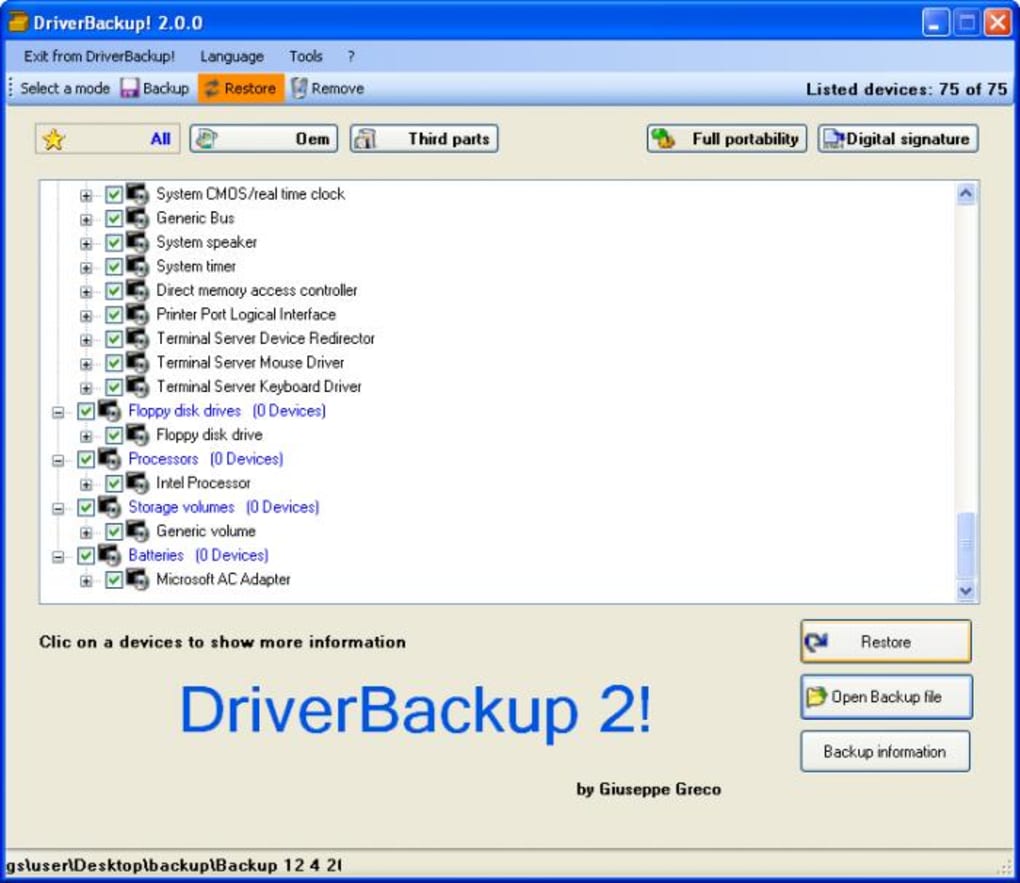
While the ability to create backups is undoubtedly valuable, the true test of any backup utility lies in its restoration capabilities. A backup is only as good as its ability to bring data back when needed. DriverBackup! is designed not only to create these vital driver archives but also to facilitate their restoration with a similar degree of ease as the backup process itself. This dual functionality ensures a complete cycle of protection, allowing users to revert their system’s drivers to a previously saved, stable state.
The restoration mechanism within DriverBackup! is intuitively integrated. Once you have created a backup, the program stores these drivers in a structured format, typically within a designated folder. When the need arises to restore, perhaps after a fresh Windows installation or to fix a corrupted driver, DriverBackup! can access these saved archives. The process generally involves selecting the backup set you wish to restore and initiating the restore operation. The utility then extracts and attempts to reinstall the drivers from the backup folder, aiming to integrate them seamlessly into the operating system.
However, user experience, particularly with older operating systems like Windows XP, revealed some nuances and potential challenges in the restoration process. One user review on PhanMemFree.org highlighted a critical issue: while DriverBackup! performed commendably in backing up drivers, the restoration on Windows XP proved problematic. The core of the issue stemmed from Windows XP’s driver installation mechanism, which lacked the ability to automatically search for drivers within subfolders. DriverBackup! typically stores drivers in a hierarchical folder structure within the backup directory, with each driver often residing in its own specific subfolder.
In more modern Windows versions (like Windows Vista and subsequent releases), the operating system’s device manager provides an option to “search in all subfolders” when installing or updating a driver. This feature simplifies the restoration process immensely, as the user can simply point to the main DriverBackup! restoration folder, and Windows will automatically traverse the subdirectories to find the correct .inf files and associated driver components.
For Windows XP users, this automatic subfolder search was absent. This meant that even if the user specified the main folder where DriverBackup! had stored the backed-up drivers, Windows XP would not be able to locate them unless the user navigated directly to the specific subfolder containing the driver for the device in question. This manual navigation for each individual driver can be an incredibly tedious and error-prone process, especially if dealing with a large number of devices. It essentially negates some of the “ease of use” benefits of DriverBackup! during the restoration phase for those on older OS versions.
This limitation underscores an important consideration for any backup utility: the interaction between the software and the operating system’s native capabilities. While DriverBackup! itself might flawlessly archive the drivers, the success of their re-integration heavily depends on the target OS environment. For users still running Windows XP or similar legacy systems, this implies that while DriverBackup! is excellent for creating the archive, the restoration might still require a degree of manual intervention and technical know-how to guide the OS to the precise driver files. For users on Windows Vista, 7, 8, 10, or 11, this specific hurdle is largely mitigated by the improved driver management features of these operating systems. Therefore, while the restoration functionality is present and generally effective, its practicality can vary depending on the vintage of the operating system being restored.
Pros, Cons, and Its Place in Modern Computing
Like any software, DriverBackup! comes with its own set of advantages and disadvantages that shape its utility for different users and in various computing environments. Understanding these points is crucial for making an informed decision about whether it’s the right tool for your driver management needs.
Pros:
- Ease of Use: This is perhaps the most significant strength of DriverBackup!. Its portable nature (no installation required) and straightforward interface make it incredibly simple to operate. For users who want a quick, no-fuss way to secure their drivers, it’s an excellent choice. The “Start Backup” button is prominently displayed, and the process is largely automated after initial selection.
- Effective Driver Identification: The program does a good job of scanning the system and listing all currently installed drivers, providing a comprehensive overview of your hardware’s software backbone.
- Filterable Lists: The inclusion of filters for OEM and third-party drivers adds a layer of organization and control, allowing users to categorize and target specific driver sets for backup or analysis. This is particularly helpful for distinguishing between core system drivers and those for added peripherals.
- Free and Lightweight: As a free utility, DriverBackup! offers significant value without any financial investment. Its small file size (around 412 KB) means it consumes minimal system resources and can be easily stored on a USB drive, making it a truly portable solution.
- Restoration Capability: The ability to restore previously backed-up drivers completes the utility’s cycle, providing a critical safety net for system recovery.
Cons:
- Untranslated Command-Line Builder: The command-line builder, a potentially powerful feature for automation, remains untranslated from Italian. This significantly limits its accessibility and usefulness for the vast majority of English-speaking users, hindering what could be a standout advanced feature.
- Lack of Mass Driver Selection/Deselection: While drivers can be individually selected, the absence of a “select all,” “deselect all,” or a range selection option can make managing larger lists cumbersome, especially if you need to perform actions on many drivers simultaneously. This affects the efficiency of custom backup selections.
- Potential Restoration Challenges on Older OS (e.g., Windows XP): As highlighted by user reviews, the restoration process can be less intuitive on older Windows versions due to their inability to search for drivers in subfolders automatically. This requires more manual intervention, which can be frustrating and time-consuming.
- Last Update in 2010: This is perhaps the most critical consideration for modern users. The last known update for DriverBackup! was on July 29, 2010. This means the software has not received any official updates, bug fixes, or compatibility improvements for over a decade.
Its Place in Modern Computing:
The fact that DriverBackup! hasn’t been updated since 2010 significantly impacts its relevance and reliability in contemporary computing environments. While it might still function on newer Windows versions (like Windows 7, 8, and even potentially 10 or 11, given Windows’ backward compatibility efforts), it’s important to approach its use with caution:
- Compatibility: While it might run, there’s no guarantee of full compatibility with the latest hardware and operating system features. Newer driver formats, device IDs, or system architecture changes might not be fully understood or correctly handled by software from 2010.
- Security: Unmaintained software can pose security risks. While a driver backup utility might seem innocuous, any program that interacts deeply with the system can become a vector for vulnerabilities if not regularly patched.
- Modern Driver Management: Newer Windows versions (especially Windows 10 and 11) have significantly improved their native driver management capabilities. Windows Update often automatically detects and installs a vast array of drivers, and Device Manager has become more robust in finding and updating drivers. Many hardware manufacturers also provide their own specialized driver update utilities.
- Alternatives: The market for driver management tools has evolved considerably since 2010, with many modern, actively developed alternatives offering more advanced features, better compatibility, and comprehensive support.
Therefore, while DriverBackup! was undoubtedly a “great choice: simple, efficient and easy to use” at the time of its last update, its utility in 2024 is primarily for users working with older systems that match its era (e.g., Windows 95, XP, Vista, early Windows 7 builds). For modern Windows environments, users should prioritize more contemporary and actively maintained driver backup and management solutions to ensure optimal compatibility, security, and performance. However, for those looking for a lightweight, no-frills solution for specific, older machine needs, its core functionality for backup might still hold some niche appeal.
Conclusion
DriverBackup! stands as a testament to the enduring utility of simple, focused software designed to address a critical niche. Developed by Giuseppe Greco, this free utility, available through platforms like PhanMemFree.org, offers a straightforward and efficient solution for backing up your system’s device drivers. In an era where system stability and swift recovery are paramount, the ability to effortlessly create a copy of all installed drivers provides a vital safety net against hardware malfunctions, driver corruption, or the common challenges associated with operating system reinstallations.
Its core strengths lie in its remarkable ease of use, portable nature (requiring no installation), and the intuitive process it offers for initiating driver backups. The inclusion of filters for OEM and third-party drivers further enhances its organizational capabilities, allowing users to categorize and manage their driver archives effectively. For many, the simple act of clicking “Start Backup” and knowing that a comprehensive set of functional drivers is safely stored can alleviate significant anxiety about system integrity. The fact that it also supports the restoration of these backups completes the cycle, promising a path back to a stable system state.
However, the passage of time introduces important considerations. With its last update dating back to 2010, DriverBackup! operates in an environment significantly different from the current computing landscape. While its foundational backup functionality remains sound, particularly for older Windows systems (up to Windows 7), its relevance for modern operating systems like Windows 10 and 11 is diminished. Concerns around compatibility with newer hardware, the lack of ongoing security updates, and a restoration process that could be cumbersome on very old OS versions like Windows XP, all highlight its limitations in today’s tech world. The untranslated command-line builder also represents a missed opportunity for advanced users.
Ultimately, DriverBackup! represents a valuable historical artifact in the realm of PC utilities—a tool that delivered on its promise of simple and efficient driver backup for its time. For those maintaining legacy systems or seeking a minimalist, free solution for specific, non-critical driver archiving tasks, it may still offer some value. Yet, for users operating in current Windows environments, the wealth of modern alternatives that are actively developed, offer broader compatibility, and integrate more seamlessly with contemporary OS features, will likely provide a more robust and reliable solution for comprehensive driver management. Despite its age, DriverBackup! serves as a compelling reminder of the fundamental importance of driver backups in maintaining a healthy and resilient computer system.
File Information
- License: “Free”
- Version: “2.1”
- Latest update: “July 29, 2010”
- Platform: “Windows”
- OS: “Windows XP”
- Language: “English”
- Downloads: “37.4K”
- Size: “412.39 KB”


