
Dual Monitor Tools is a free, portable suite of applications designed to enhance productivity and streamline workflows for users with multiple monitors. This comprehensive package offers a collection of tools addressing various aspects of multi-monitor usage, from window management and screen capture to wallpaper customization and monitor control. Unlike many similar applications, Dual Monitor Tools requires no installation, making it highly portable and accessible. This review will delve into the individual applications included within the suite, exploring their functionality, usability, and overall effectiveness in optimizing the dual-monitor experience.
The Applications Within Dual Monitor Tools
Dual Monitor Tools comprises five distinct applications, each designed to tackle a specific aspect of multi-monitor management:
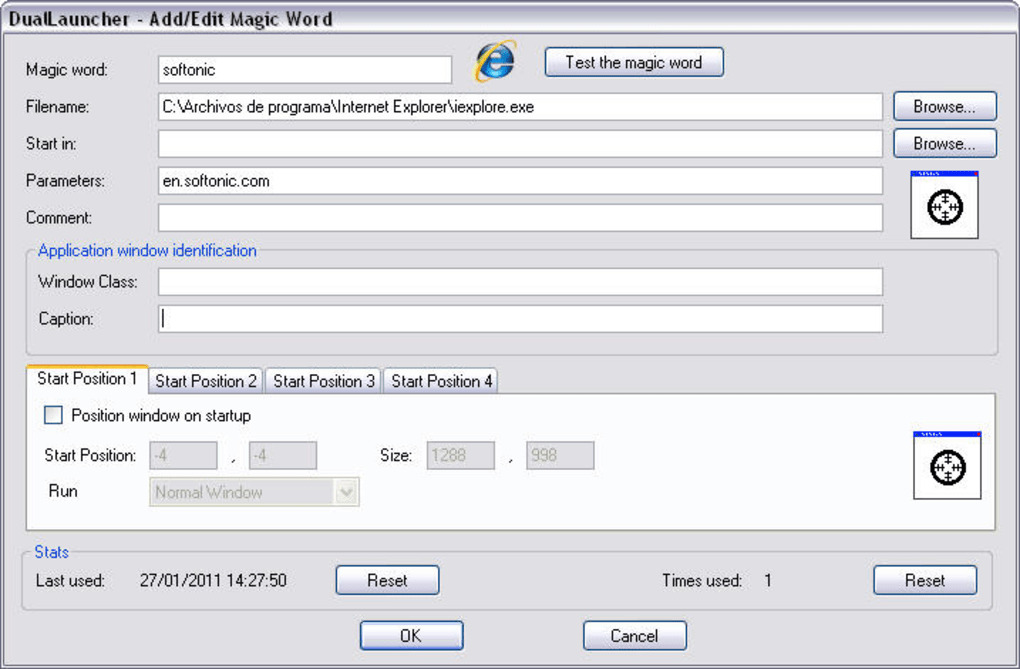
1. DualLauncher: This application functions as a customizable application launcher, utilizing a unique approach that blends “magic words” with keyboard shortcuts. Instead of relying solely on pre-defined icons or menus, DualLauncher allows users to assign specific keywords or phrases to launch their desired applications. This innovative system offers a significant advantage for users who frequently access specific programs. The keyboard shortcuts further enhance the speed and efficiency of launching applications, minimizing the need to navigate through menus or search for icons. The level of customization offered is a key strength, allowing users to tailor the system perfectly to their individual workflow and preferences.
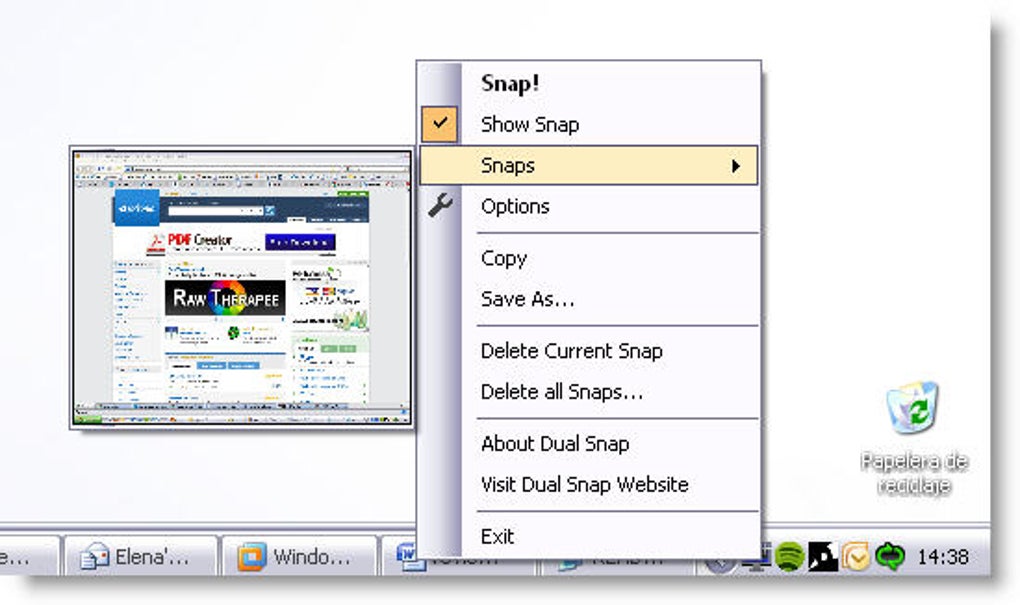
2. DualSnap: Screen capture is often a crucial component of any multi-monitor setup, and DualSnap delivers a straightforward yet effective solution. This utility provides the capability to capture snapshots of individual monitors or the entire desktop spanning multiple screens. Unlike many complex screen capture applications, DualSnap offers a streamlined interface, focusing on essential functionalities without unnecessary complexities. The ease of use makes it ideal for users who require quick and efficient screen capture without investing time in mastering an overly intricate application. The resulting image quality is generally sharp and clear, suitable for various purposes, from documentation to presentations.
3. DualWallpaper: Managing wallpapers across multiple monitors can be tedious, especially when striving for a cohesive aesthetic. DualWallpaper neatly solves this problem by providing a simple and intuitive interface for setting different wallpapers on each monitor or applying a single wallpaper across all screens. This functionality caters to diverse preferences, allowing users to personalize their workspace to their liking, whether they prefer a unified visual experience or individual customization for each display. The simplicity of the application is commendable, making the process of setting and managing wallpapers across multiple monitors seamless and efficient.
4. DisMon: DisMon stands out for its practical approach to monitor management. Often overlooked in other multi-monitor toolkits, this application enables users to easily enable or disable individual monitors and to designate the primary display. This level of control is crucial for users who may experience problems with monitor detection, require temporary disabling of a monitor, or wish to swiftly change their primary display for various tasks. The functionality of DisMon is particularly beneficial for users who work with multiple monitors of varying resolutions or have a dynamic setup requiring frequent adjustments. The clear and concise interface ensures that the application is user-friendly, even for users without extensive technical experience.
5. SwapScreen: This application addresses the frequent need for efficient window management in a multi-monitor environment. SwapScreen leverages customizable keyboard shortcuts to execute various window management actions, providing a significant boost to productivity. This includes features such as quickly moving windows between monitors, maximizing windows across the entire desktop, and easily snapping windows to specific screen edges. These shortcuts significantly streamline the process of organizing and working with multiple windows across multiple displays. The ability to tailor these shortcuts to personal preferences adds a significant advantage, allowing users to seamlessly integrate the application into their established workflow.
Strengths and Weaknesses of Dual Monitor Tools
Dual Monitor Tools offers several significant strengths, particularly its portability and comprehensive functionality. The lack of installation requirements contributes to its ease of use and flexibility, allowing users to carry it on a USB drive for use on multiple machines. The inclusion of five distinct yet interconnected applications addresses diverse multi-monitor management needs, offering a comprehensive solution for many users. The heavy reliance on customizable keyboard shortcuts significantly enhances workflow efficiency, reducing the need for mouse-driven actions and boosting productivity. The generally clean and intuitive user interfaces of each application are a considerable asset, making them accessible even to users unfamiliar with similar software.
However, Dual Monitor Tools isn’t without its limitations. The utility of some applications might vary depending on individual needs. Some users may find that certain applications, such as DualLauncher, are highly beneficial to their workflow, while others might find less use for them. The effectiveness of the application suite truly hinges upon the user’s individual workflow and requirements. For instance, users who rarely need to change wallpapers or disable monitors might find those functionalities less valuable.
Furthermore, while the customization options provided are extensive, they might also present a learning curve for users accustomed to simpler applications. Mastering the diverse keyboard shortcuts and configuration options across all five applications requires some initial effort. However, the long-term benefits in terms of productivity improvements far outweigh this initial learning curve. The level of customization, though extensive, also introduces the possibility of misconfigurations, potentially leading to unexpected behavior. Careful attention to configuration is therefore advisable.

Alternatives to Dual Monitor Tools
Several alternative applications offer similar functionalities to Dual Monitor Tools, though with different strengths and weaknesses. Some applications might excel in specific areas such as window management or screen capture, while others might focus on more advanced features like virtual desktop management. Choosing the right application depends heavily on the specific needs and priorities of the user. Some popular alternatives include:
-
UltraMon: A commercial application offering advanced features such as custom taskbar configurations, extended desktop functionalities, and enhanced window management. UltraMon provides a more comprehensive solution than Dual Monitor Tools, but comes at a cost and has a steeper learning curve.
-
DisplayFusion: Another commercial application with a broad range of functionalities, including taskbar management, window management, hotkeys, and advanced wallpaper management. Similar to UltraMon, it offers extensive capabilities but requires a purchase and comes with a more complex learning curve.
-
Dual Monitor Taskbar: A simpler freeware application that focuses specifically on extending the Windows taskbar across multiple monitors. It offers a more limited range of features compared to Dual Monitor Tools, but its simplicity and ease of use make it suitable for users who primarily need taskbar management across multiple screens.
- GridMove: This free tool focuses primarily on organizing windows into grids across your monitors, allowing for efficient layout management. While it does not offer the diverse range of features of Dual Monitor Tools, it excels at its specific function.
These alternatives, while often offering more advanced features, may also introduce additional complexities. The choice between Dual Monitor Tools and these alternatives hinges largely on individual requirements and comfort levels with more intricate interfaces and learning curves. Dual Monitor Tools’ simplicity and portability make it an attractive option for many users who prioritize ease of use and accessibility.
Conclusion
Dual Monitor Tools presents a compelling and straightforward suite of applications for users seeking to optimize their multi-monitor experience. Its portability, ease of use, and comprehensive functionality make it an appealing choice for a broad range of users. While the utility of specific applications within the suite may vary according to individual needs, the overall package provides a solid and efficient solution for managing and enhancing productivity in a multi-monitor environment. Although alternative applications exist offering potentially more advanced features, Dual Monitor Tools’ simplicity and lack of installation requirements make it a highly accessible and practical choice for many users seeking to enhance their dual-monitor workflow. The strong focus on customizable keyboard shortcuts further solidifies its appeal for users prioritizing efficiency and minimizing mouse-driven actions. While some users might find the learning curve associated with mastering the various keyboard shortcuts challenging, the long-term productivity gains are likely to outweigh this initial effort for many.
File Information
- License: “Free”
- Latest update: “May 23, 2023”
- Platform: “Windows”
- OS: “Windows Vista”
- Language: “English”
- Downloads: “18.2K”
- Size: “688.13 KB”


