
DVD Shrink is a freeware application designed for backing up and compressing DVD content. While not officially supported on newer operating systems, it remains a popular choice for users seeking to create backups of their DVD collections, reduce storage space, or create custom DVD compilations. This guide delves into the functionalities, uses, alternatives, and limitations of DVD Shrink.
DVD Shrink’s Core Functionality: Backup, Compression, and Reauthoring
At its core, DVD Shrink offers three primary functions: backing up DVD content, compressing video data, and reauthoring DVD structures. This powerful combination allows users to create customized copies of their DVDs, tailoring them to their specific needs and storage capacities.
DVD Backup: The software allows you to create a complete backup of a DVD’s contents to your hard drive. This process involves copying all files from the source DVD, including video streams, audio tracks, subtitles, and menus. The resulting files are saved in the common .VOB (Video Object) format, which is readily compatible with DVD burning software and various video players. This functionality extends to Blu-ray discs as well, added in 2020, providing a similar backup process for high-definition media. The copying process is relatively straightforward, typically involving inserting the DVD, selecting the backup option, and choosing a destination folder on your hard drive. The software efficiently handles encryption commonly found on commercial DVDs, circumventing restrictions to allow for the creation of backups.
DVD Compression: DVD Shrink offers various compression levels to reduce the overall file size of the copied data. This feature is particularly beneficial for users with limited hard drive space or those looking to fit the entire contents of a DVD onto a smaller disc (e.g., a single-layer DVD-5 instead of a dual-layer DVD-9). The automatic compression setting analyzes the source material and automatically applies a compression ratio that fits the target disc size. Users also have the flexibility to select a custom compression ratio or choose no compression at all, depending on their priorities (smaller file size versus higher video quality). This compression process maintains acceptable visual quality in most cases, though it’s important to be aware that higher compression levels inevitably result in some degree of quality loss.
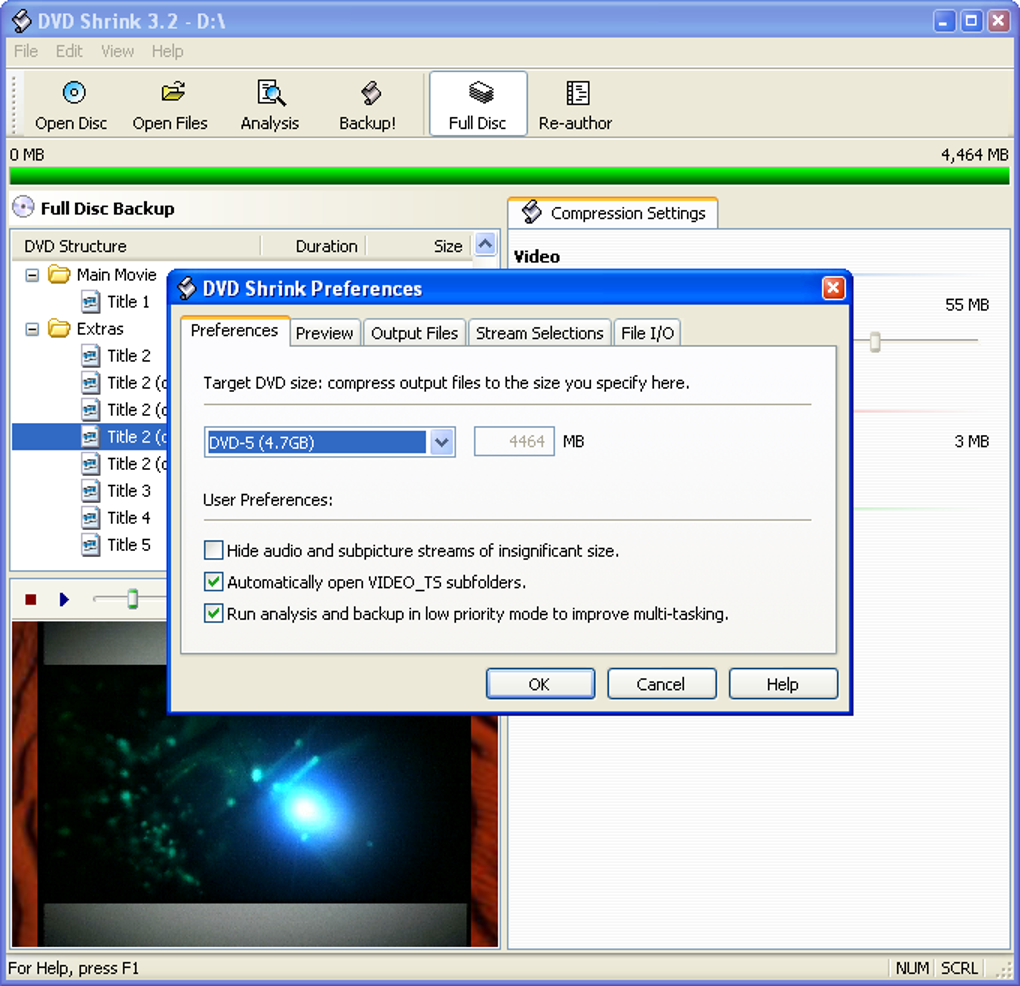
DVD Reauthoring: This advanced function allows users to create custom DVD compilations or selectively include only specific content from a DVD. Instead of simply copying the entire disc, users can choose which titles, chapters, audio tracks, and subtitles to include in their backup. This is useful for creating shorter versions of movies, omitting unwanted features (such as trailers or special features), or combining segments from multiple DVDs into a single disc. This level of control allows for significant storage savings when only specific parts of the DVD are needed.
Digitizing Your DVD Collection with DVD Shrink
DVD Shrink streamlines the process of digitizing your DVD collection. The steps are generally consistent across different versions of the software:
-
Installation and Launch: Download and install DVD Shrink. Launch the application.
-
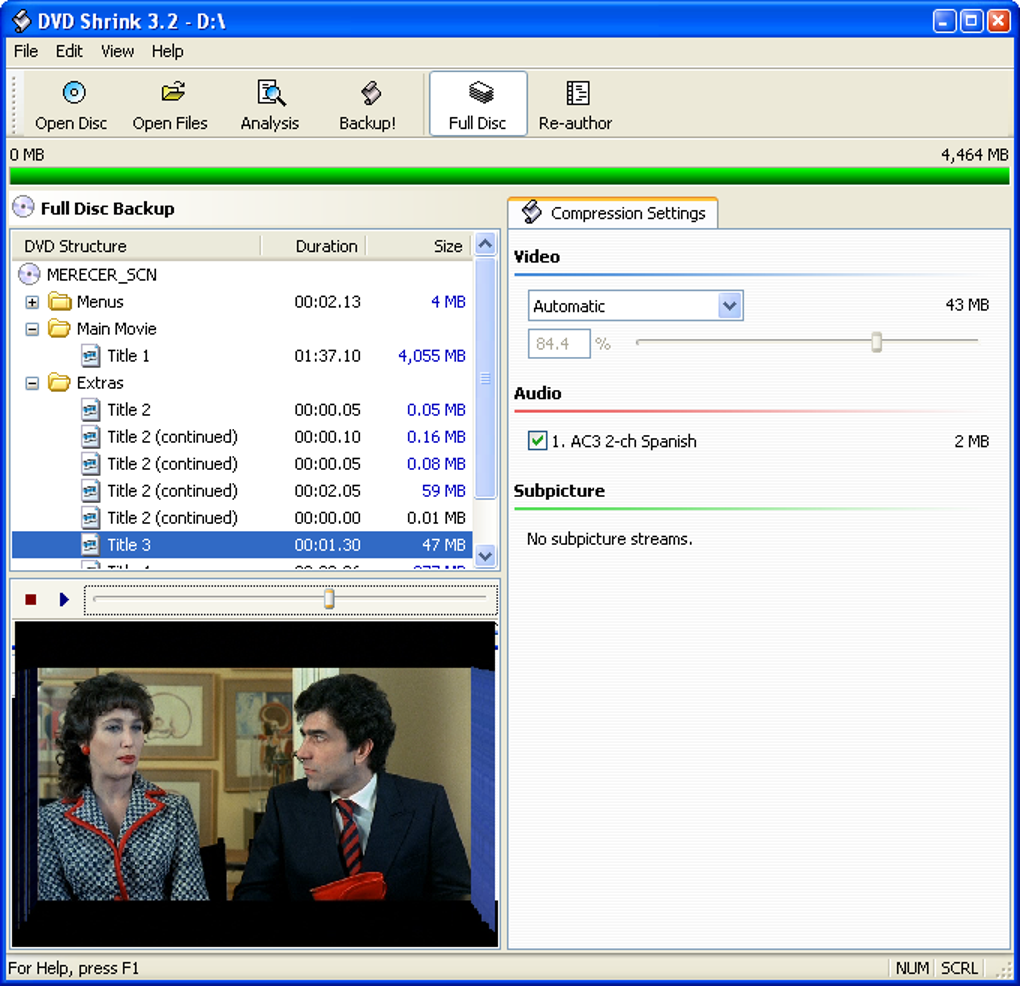
Disc Selection and Analysis: Insert the DVD into your computer’s optical drive. Click the “Open Disc” icon (typically located in the top-left corner). DVD Shrink will analyze the DVD’s contents, which may take several minutes depending on the size and complexity of the disc.
-
Content Selection and Compression Settings: After the analysis is complete, the software presents a list of available files and titles. You can select the desired content and adjust compression settings. This step allows you to select only the specific content you want to keep, omitting unnecessary extras such as language tracks or bonus features. Compression settings provide a balance between file size and video quality.
-
Backup Destination Selection: Choose your backup destination. This can be your hard drive (creating .VOB files), or you can choose to create an ISO image file, which can then be burned to a blank DVD using separate burning software.
-
Backup Process: Initiate the backup process. The software will copy the selected content to the chosen destination, applying any selected compression settings. The time required for this process depends largely on the amount of data being copied, the speed of your computer, and the selected compression level.
DVD Shrink’s Compatibility and File Support
DVD Shrink primarily targets Windows operating systems. While it might run on older versions of Windows (Vista and Windows 7), it’s crucial to acknowledge that these are unsupported environments. The software’s compatibility with newer operating systems, such as Windows 10 and 11, is largely dependent on factors such as system configuration and potential driver conflicts. The program is definitively not compatible with macOS or other operating systems.
Regarding file format support, DVD Shrink is primarily designed to work with DVD and Blu-ray media. It handles the common .VOB format naturally, as that is the format used on DVDs. However, its reauthoring capabilities allow it to work with various video file formats when creating custom compilations. This flexibility enhances the software’s versatility, enabling users to incorporate video from various sources into their custom DVD projects. While the original program may not explicitly state support for a long list of formats, some versions have demonstrated the ability to handle formats such as AVI, MPEG, MPG, M2TS, MTS, RM, RMVB, WMV, ASF, FLV, MOV, QT, MP4, MPEG4, OGM, 3GP, ASX, WMA, M1V, and M2V.
Alternatives to DVD Shrink
While DVD Shrink remains a viable option, several alternative applications offer similar or enhanced functionalities:
-
DVD Decrypter: This freeware application focuses primarily on decrypting and ripping DVD content, offering a simpler interface than DVD Shrink. It’s a strong contender for users who primarily need decryption capabilities.
-
UltraISO: A more comprehensive tool with broader functionality beyond DVD ripping. It excels in ISO image creation, editing, and manipulation but possesses a more complex interface.
-
ImgBurn: This application specializes in burning image files to discs, making it a good choice for those who already have their video files prepared and need to burn them to DVDs. However, it might present challenges when burning large video files.
-
HandBrake: A free and open-source video transcoder. It doesn’t directly rip DVDs but can process the .VOB files created by DVD Shrink or other ripping software, converting them into various other formats like MP4 for improved compatibility and portability.
Conclusion: DVD Shrink’s Strengths and Weaknesses
DVD Shrink remains a useful tool for backing up and compressing DVD content due to its ease of use and intuitive interface. Its strength lies in its ability to provide a simple and relatively efficient method for creating backups of protected DVDs, reducing storage space, and creating custom DVD compilations. The reauthoring feature is particularly powerful, giving users granular control over their DVD content.
However, it’s essential to acknowledge its limitations. Its lack of official support for modern operating systems and its dependence on external software for burning discs are significant drawbacks. The absence of direct conversion to modern formats like MP4 necessitates the use of additional software for broader compatibility. Considering the legal implications of copying copyrighted material, users should always adhere to their respective regional copyright laws. Overall, DVD Shrink is a solid tool for those seeking basic DVD backup, compression, and reauthoring functionalities, but users should weigh its limitations against the advantages offered by more modern and comprehensive alternatives before deciding which tool best suits their needs.
File Information
- License: “Free”
- Latest update: “June 30, 2023”
- Platform: “Windows”
- OS: “Windows 98 SE”
- Language: “English”
- Downloads: “989K”
- Size: “1.09 MB”


